
Highlight
Apple has opened U1 spatial awareness and Nearby Interaction capabilities to third-party hardware in iOS 15. Developers can design near-field interactions across devices with distance and direction feedback.
Core Content
In the past, many cross-device operations were done using lists.
If you want to switch the music on your iPhone to the HomePod in the living room, you need to open the AirPlay list. Each speaker is lined up next to each other in the list, and the device that’s nearby looks the same as the device that’s far away. What the user really wants to say is “put this song on this speaker,” but the interface requires him to read the list first and then select a name.
Finding something is similar. Maps can only take you to a general location. Once you’re in the room, you still have to rely on your eyes, ears, and guesswork to continue searching. For items hidden in the seams of sofas, in bags, or under tables, abstract locations on the screen are of limited help.
Apple summarized the design experience of AirTag, HomePod mini and iPhone in this session. The core changes come from spatial awareness brought by the U1 chip, as well as new APIs for third-party hardware in iOS 15. Devices can understand the distance, direction, and relative relationships of nearby objects, and apps can translate this information into visual, audio, and tactile feedback.
This changes the entry point for interaction. Users don’t have to understand lists, buttons, and device names first. The app lets the user move his body, get closer to a target, turn toward it, and then uses continuous feedback to tell him what to do next.
Distance decision interface
The AirTag discovery experience demonstrates the first principle: the same task requires different interfaces at different distances.
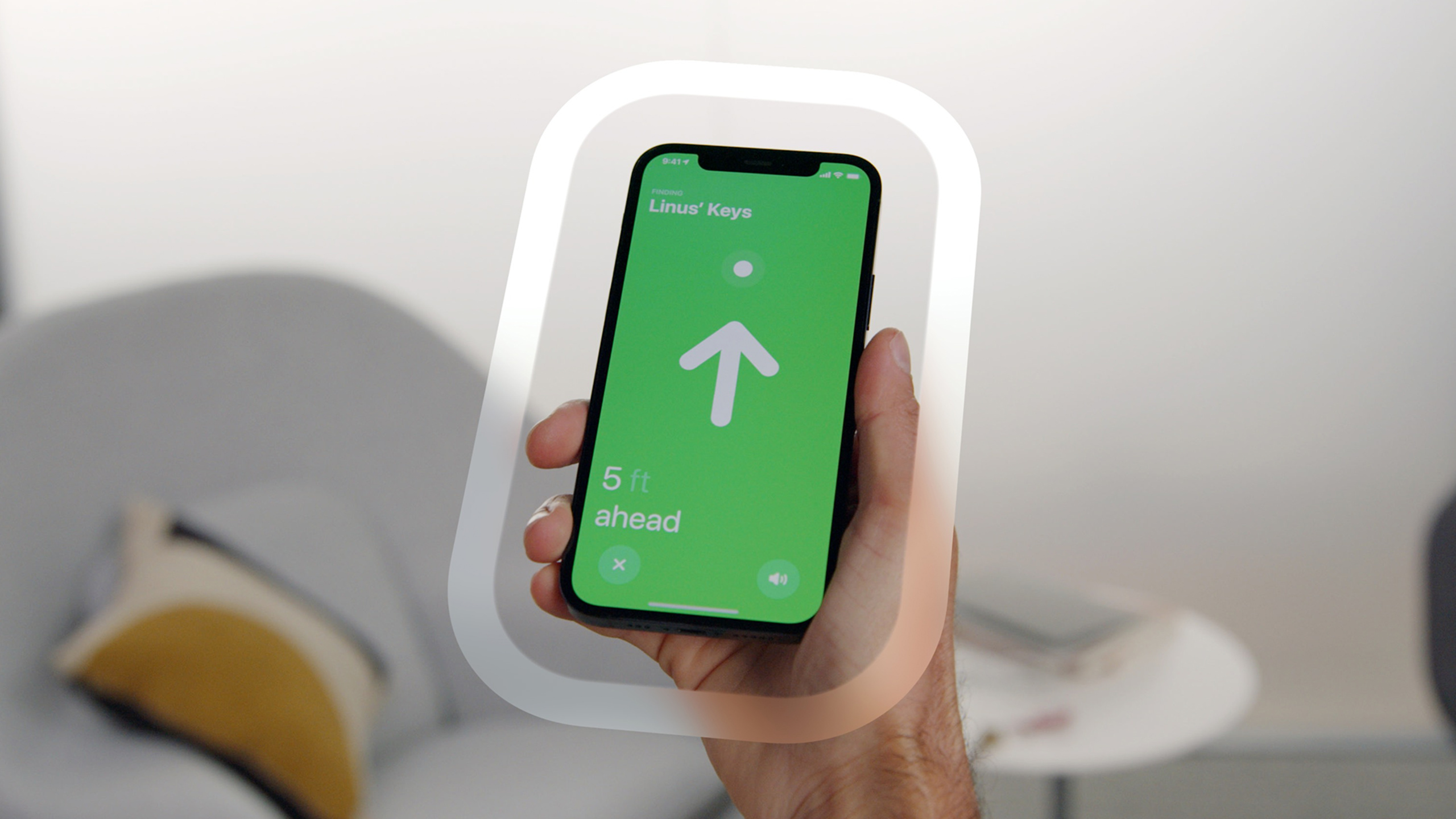
Maps and directions are useful when distances are long. Once within range, the button changes from “Get Directions” to “Find.” After the connection is successful, the arrow starts pointing towards the target. Once within arm’s reach, the arrows give way to tactile feedback, as millimeter-level movements are better judged by hand feel.
When designing near-field interactions, don’t use an interface from beginning to end. Distance requires direction. Precision is required at close range. By the last few centimeters, the screen’s priority drops.
Feedback must be continuous
HomePod mini’s music transmission demonstrates the second principle: feedback should continuously change with body movements.
When iPhone is brought closer to HomePod mini, the on-screen banner position, size, and background blur change with distance. The HomePod top light also responds to proximity. If the user continues to move closer, the transmission will be confirmed, and if the user moves further away, the operation will be canceled.
There is no extra “confirm” button here. The physical movement itself bears confirmation and cancellation. Continuous feedback lets the user know that the system is understanding his actions.
The interface must serve real actions
AirTag searches when the user’s attention is in the room. The screen is just an auxiliary.
So Apple uses big arrows, widely spaced numbers, noticeable color changes, sounds, and touch. Users can use their peripheral vision to read the direction, and they can also judge the position of the AirTag in space through the sound. Once within arm’s reach, tactile feedback is better suited than sound to guide final positioning.
The goal of this type of design is to reduce screen time. Interfaces need to return attention to the physical world.
Detailed Content
This session is design-oriented and does not have a Code tab. The code below puts the design principles in transcript into an achievable application state. At the API level, Resources point to the Nearby Interaction framework; at the design level, the speech emphasizes distance, direction, vision, sound, touch, and interruption.
1. Downgrade according to device capabilities
(02:48) Apple first uses the sharing panel to illustrate the spatial awareness degradation strategy. All devices can use Bluetooth and Wi-Fi to find people nearby. iPhones with U1 can further prioritize showing people who the user is facing or who are very close to them.
import Foundation

struct ShareCandidate {
    let name: String
    let communicationScore: Double
    let isNearby: Bool
    let isFacing: Bool
}

enum SpatialAwarenessLevel {
    case bluetoothAndWiFi
    case u1DirectionAware
}

func rankCandidates(
    _ candidates: [ShareCandidate],
    level: SpatialAwarenessLevel
) -> [ShareCandidate] {
    candidates.sorted { first, second in
        score(first, level: level) > score(second, level: level)
    }
}

func score(_ candidate: ShareCandidate, level: SpatialAwarenessLevel) -> Double {
    var result = candidate.communicationScore

    if candidate.isNearby {
        result += 10
    }

    if level == .u1DirectionAware && candidate.isFacing {
        result += 20
    }

    return result
}

let people = [
    ShareCandidate(name: "Arian", communicationScore: 42, isNearby: true, isFacing: false),
    ShareCandidate(name: "Taylor", communicationScore: 30, isNearby: true, isFacing: true),
    ShareCandidate(name: "Linus", communicationScore: 50, isNearby: false, isFacing: false)
]

let ranked = rankCandidates(people, level: .u1DirectionAware)
print(ranked.map(\.name))
Key points:
ShareCandidateSave the candidate’s communication frequency, whether it is nearby, and whether it is facing these inputs. -SpatialAwarenessLevelDivide device capabilities into basic near field capabilities and U1 direction awareness capabilities. -rankCandidatesIt is only responsible for sorting, and the interface can reuse the same set of candidates. -scoreOn base devices only increase nearby weights. -level == .u1DirectionAwareUse only whenisFacing.- This structure corresponds to the requirement in the transcript that “not all devices have capabilities, and the design must adapt to different capabilities”.
2. Switch main feedback based on distance
(04:00) The AirTag lookup process changes with distance. Use maps and directions from afar. Use arrows after connecting. When approaching, orientation judgment is stricter. Once within arm’s reach, tactile sensation becomes the primary feedback.
import Foundation

enum PrimaryFeedback: String {
    case map
    case arrow
    case haptics
}

struct FindingFeedback {
    let primaryFeedback: PrimaryFeedback
    let facingToleranceInDegrees: Double
    let showsDistance: Bool
}

func feedbackForFindingItem(distanceInMeters: Double) -> FindingFeedback {
    if distanceInMeters > 10 {
        return FindingFeedback(
            primaryFeedback: .map,
            facingToleranceInDegrees: 90,
            showsDistance: true
        )
    }

    if distanceInMeters > 1 {
        return FindingFeedback(
            primaryFeedback: .arrow,
            facingToleranceInDegrees: 35,
            showsDistance: true
        )
    }

    return FindingFeedback(
        primaryFeedback: .haptics,
        facingToleranceInDegrees: 15,
        showsDistance: false
    )
}

let far = feedbackForFindingItem(distanceInMeters: 12)
let near = feedbackForFindingItem(distanceInMeters: 0.6)

print(far.primaryFeedback.rawValue)
print(near.primaryFeedback.rawValue)
Key points:
PrimaryFeedbackIndicates the most important form of feedback at the current stage. -distanceInMeters > 10return when.map, corresponding to the stage of “rough location”. -distanceInMeters > 1return when.arrow, corresponding to the arrow guidance stage.- Finally return
.haptics, corresponding to fine search within the arm range. -facingToleranceInDegreesIt shrinks with the distance, expressing the design of “more tolerant angles at a distance and more precise at near” in the speech. -showsDistanceTurn off at the final stage to avoid on-screen numbers stealing attention from the haptics.
3. Use continuous feedback to express confirmation and cancellation
(07:23) HomePod mini’s transmission experience uses two distance boundaries. Feedback begins when the first boundary is reached. If you continue to approach, you will enter the confirmation area. Zooming out can be canceled naturally.
import Foundation

enum TransferPhase: String {
    case idle
    case ready
    case confirming
    case completed
}

struct TransferFeedback {
    let phase: TransferPhase
    let bannerScale: Double
    let backgroundBlur: Double
    let hapticIntensity: Double
}

func transferFeedback(distanceToSpeaker: Double) -> TransferFeedback {
    let firstThreshold = 0.6
    let secondThreshold = 0.12

    if distanceToSpeaker > firstThreshold {
        return TransferFeedback(
            phase: .idle,
            bannerScale: 0,
            backgroundBlur: 0,
            hapticIntensity: 0
        )
    }

    if distanceToSpeaker > secondThreshold {
        let progress = (firstThreshold - distanceToSpeaker) / (firstThreshold - secondThreshold)

        return TransferFeedback(
            phase: .ready,
            bannerScale: 0.8 + progress * 0.2,
            backgroundBlur: progress,
            hapticIntensity: progress
        )
    }

    return TransferFeedback(
        phase: .completed,
        bannerScale: 1,
        backgroundBlur: 1,
        hapticIntensity: 1
    )
}

let movingCloser = transferFeedback(distanceToSpeaker: 0.3)
let reachedSpeaker = transferFeedback(distanceToSpeaker: 0.08)

print(movingCloser.phase.rawValue)
print(reachedSpeaker.phase.rawValue)
Key points:
firstThresholdis the boundary where feedback begins. -secondThresholdIs the boundary of confirmed transmission.- When the distance is greater than the first boundary, the status is
.idle, the interface does not grab attention. - Calculation between two boundaries
progress, allowing the banner, blur, and haptics to change continuously. - When the distance is less than the second boundary, the state enters
.completed. - After the user pulls the iPhone away, the function will return to
.idleor.ready, this is natural cancellation.
4. Design interface text for peripheral vision reading
(15:23) When searching for AirTag, the user’s attention should be on the surrounding environment. Apple uses more spaced text, center arrows, distinct color changes, sounds, and haptics so users don’t have to stare at the screen for long periods of time.
import Foundation

enum FindingState {
    case connecting
    case pointing(distanceInMeters: Double, isFacingTarget: Bool)
    case withinReach
    case signalLost
}

struct PeripheralMessage {
    let title: String
    let detail: String
    let usesLargeType: Bool
    let shouldPlaySound: Bool
    let shouldUseHaptics: Bool
}

func message(for state: FindingState) -> PeripheralMessage {
    switch state {
    case .connecting:
        return PeripheralMessage(
            title: "Connecting",
            detail: "Move iPhone to search for nearby items",
            usesLargeType: true,
            shouldPlaySound: false,
            shouldUseHaptics: false
        )
    case .pointing(let distance, let isFacingTarget):
        return PeripheralMessage(
            title: String(format: "%.1f meters", distance),
            detail: isFacingTarget ? "Keep moving forward" : "Turn iPhone to find the direction",
            usesLargeType: true,
            shouldPlaySound: isFacingTarget,
            shouldUseHaptics: isFacingTarget
        )
    case .withinReach:
        return PeripheralMessage(
            title: "Nearby",
            detail: "Move iPhone slowly and follow the haptic feedback",
            usesLargeType: true,
            shouldPlaySound: false,
            shouldUseHaptics: true
        )
    case .signalLost:
        return PeripheralMessage(
            title: "Signal lost",
            detail: "Return to the previous position to reconnect",
            usesLargeType: true,
            shouldPlaySound: false,
            shouldUseHaptics: false
        )
    }
}

let state = FindingState.pointing(distanceInMeters: 2.4, isFacingTarget: true)
let currentMessage = message(for: state)
print(currentMessage.title)
print(currentMessage.detail)
Key points:
FindingStateCovers four states: connected, pointing, within arm range, and signal loss. -PeripheralMessageBringing together copywriting, font size strategy, voice, and touch. -.pointingThe status shows the distance in large size, allowing the user to read it with peripheral vision. -isFacingTargetSound and touch are played only when it is true, forming a stable cause-and-effect relationship. -.withinReachTurn off the sound, use tactile feedback, and find instructions without sound at close range in the transcript. -.signalLostProvide recovery actions to prevent users from not knowing the next step after an interruption.
5. Make feedback work across the senses
(12:45) Apple recommends using visual feedback as a continuous layer, with sound and touch to emphasize key moments. There should be a clear, repeatable cause-and-effect relationship between sound and touch.
import Foundation

struct FeedbackCue {
    let visualProgress: Double
    let soundName: String?
    let hapticPattern: String?
}

func cueForArrowAlignment(wasAligned: Bool, isAligned: Bool, distanceInMeters: Double) -> FeedbackCue {
    let visualProgress = max(0, min(1, 1 - distanceInMeters / 5))

    if !wasAligned && isAligned {
        return FeedbackCue(
            visualProgress: visualProgress,
            soundName: "direction-lock",
            hapticPattern: "snap"
        )
    }

    if isAligned {
        return FeedbackCue(
            visualProgress: visualProgress,
            soundName: nil,
            hapticPattern: "pulse"
        )
    }

    return FeedbackCue(
        visualProgress: visualProgress,
        soundName: nil,
        hapticPattern: nil
    )
}

let cue = cueForArrowAlignment(
    wasAligned: false,
    isAligned: true,
    distanceInMeters: 3
)

print(cue.visualProgress)
print(cue.soundName ?? "no sound")
print(cue.hapticPattern ?? "no haptics")
Key points:
visualProgressIt is a continuously changing visual layer. The closer the distance, the greater the value. -!wasAligned && isAlignedIndicates that the target has just been aligned.- Return sound when first aligned
direction-lockand touchsnap, corresponding to the “arrow return” moment in the speech. - Only retained during continuous alignment
pulse, to avoid repeated sounds. - Turn off the sound and touch when deviating from the direction, allowing feedback and actions to maintain one-to-one correspondence.
Core Takeaways
1. Create a “switch when approaching” audio control
- What to do: When the user holds the iPhone close to a speaker, the interface automatically displays a transmission prompt. Continue to move closer to complete the playback switch, and move away to cancel.
- Why it’s worth it: The HomePod mini example proves that distance boundaries and continuous feedback can replace device lists.
- How to start: First abstract nearby devices into
TransferPhase, updates banner, blur and haptic strength with distance. The hardware layer plugs into Nearby Interaction or your existing near-field discovery capabilities.
2. Make a warehouse item search tool
- What to do: Add accessories that support near-field positioning to tool boxes, sample boxes, or warehouse labels, and use iPhone to guide employees to their targets.
- Why it’s worth doing: AirTag’s search process is suitable for the task of “first go to the general area, and then pinpoint it”.
- How to start: Split the process into three stages: map, arrow, and tactile. The long-distance display area, the short-distance display direction, and tactile scanning is used within the arm range.
3. Create a team collaboration portal that “shares with everyone you meet”
- What to do: When opening the sharing panel in a meeting, prioritize colleagues in front of or nearby you.
- Why it’s worth doing: The talk mentioned that the sharing panel predicts recipients based on facing direction, physical distance, communication frequency and recent communication history.
- How to start: First sort by communication frequency and nearby status; then add orientation weight on devices that support U1. Keep the original list when capacity is insufficient.
4. Make a navigation aid that does not require staring at the screen
- What to do: Use large directional cues, sounds and touch to guide users to find their room in an exhibition hall, hospital or campus.
- Why it’s worth doing: Session emphasizes spatial interaction and allows users to return their attention to the surrounding environment.
- How to start: generated for each navigation state
PeripheralMessage. The interface uses large fonts and high-contrast colors, and key status is confirmed by sound and touch.
5. Make an interruptible device pairing process
- What to do: The user moves closer to the accessory to start pairing, continues to move closer to confirm, and moves away to cancel.
- Why it’s worth it: HomePod mini’s dual-border design allows confirmation and cancellation to come from natural body movements.
- How to start: Define two distance thresholds. The first threshold initiates feedback and the second threshold performs an action. Cancel the preparation state when the distance returns and give clear feedback.
Related Sessions
- Explore Nearby Interaction with third-party accessories — Explain how the Nearby Interaction framework connects U1 devices and third-party UWB accessories.
- Practice audio haptic design — A deep dive into how sound, haptic, and animation work together at key moments of interaction.
- The practice of inclusive design — Helps you check whether the copywriting, visuals and experience in spatial interaction serve more users.
- The process of inclusive design — An inclusive design approach that complements spatial interaction from a team and process perspective.
Comments
GitHub Issues · utterances