
Highlight
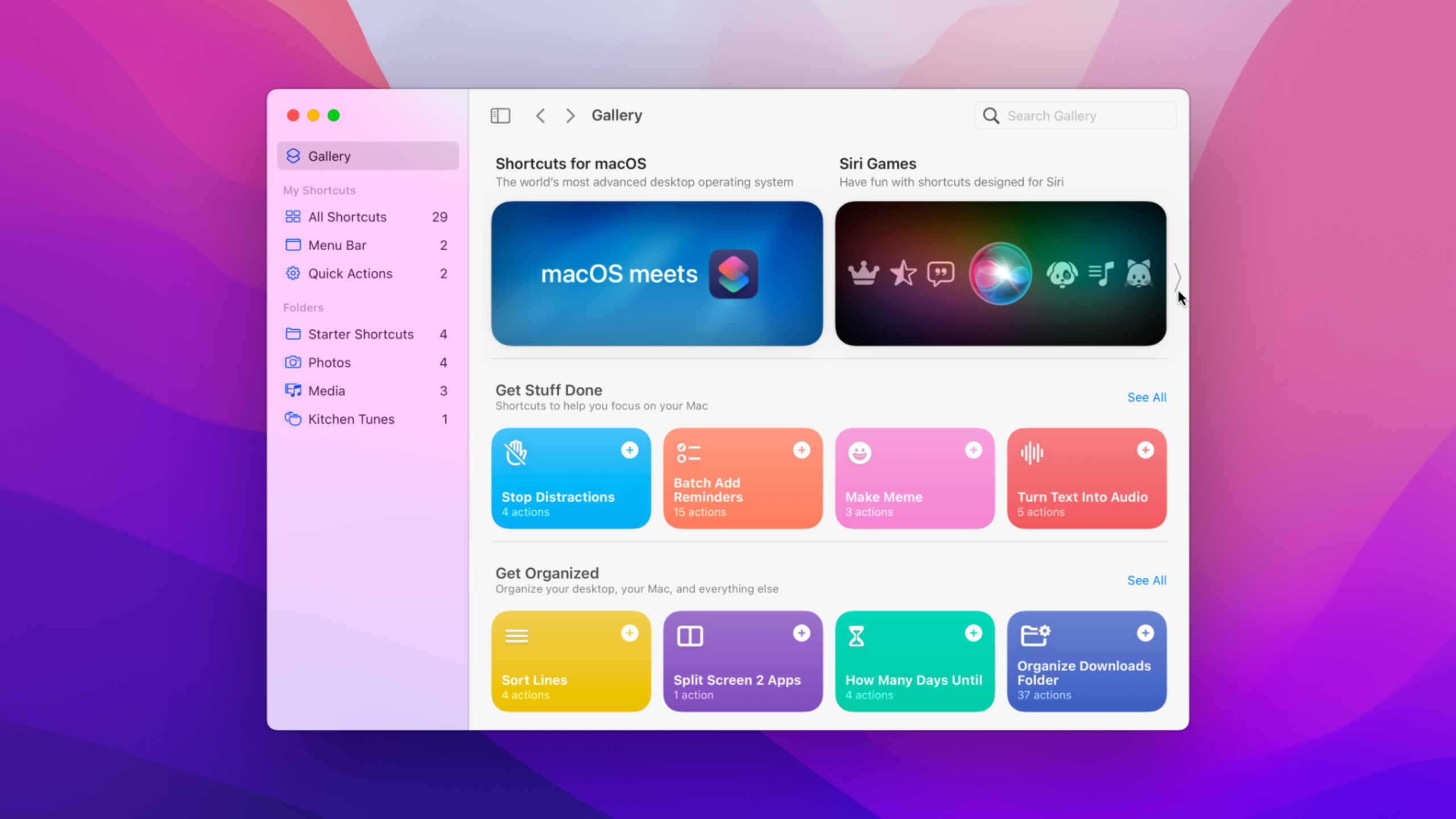
Apple brings Shortcuts to macOS and lets AppKit and Mac Catalyst apps provide custom actions through the Intents framework. Users can run these automation capabilities in Shortcuts, menu bars, keyboard shortcuts, Spotlight, AppleScript, and the command line.
Core Content
Mac users have always had automation tools. AppleScript can control applications, Shell Script can process files, and Automator can string actions into workflows.
The problem is that the entrances are scattered. An ordinary user who wants to connect to-do apps, picture editing apps, and information apps often needs to know scripts, file formats, and application events. Developers also need to write different adaptations for different automation portals.
The change at WWDC 2021 is that Shortcuts is coming to macOS. When users open the Mac version of Shortcuts, they will see shortcuts synced from iPhone. The Shortcuts editor has also been redone for Mac, supporting Mac-specific actions.
The key change for developers is that Mac apps can provide actions just like iOS apps. After a to-do app exposes operations such as “create task”, “find task” and “delete task”, users can connect it to Notes, Messages, Files or other apps to form a multi-step workflow.
Apple isn’t asking developers to abandon older Mac automation systems. Shortcuts supports running AppleScript and Shell Script, and can also be imported into most Automator workflows. Existing scripts can continue to be used, and new actions can be connected to the same workflow.
From App functions to composable actions
An action is preferably a small, clear operation. The example in the talk is a collaborative task management app. Its core object is task, and its fields include title, deadline, and sharing link. Around tasks, you can provide verbs such as create, edit, delete, find, display, etc.
After splitting in this way, users can select text from Notes, automatically adjust the format, enter the deadline, and then call the Create Task action. After the task is created, the action returns the sharing link, and you can send the link to others in subsequent steps.
The same set of intents from iOS to Mac
macOS Monterey enables Mac Catalyst Apps to use the same Intents API. If you have existing iOS Apps that have compiled Intents integration in the Mac version, you need to recheck the code and enable this capability on macOS Monterey.
If the app is released for iOS and Mac at the same time, Apple recommends that both ends compile the same intent definition file and keep the intent name and parameters consistent. Shortcuts created by users on one platform can continue to run on another platform.
Detailed Content
Define intent: treat action as a function design
(09:56) The first step in implementing the Shortcuts action is to create an intent definition file in Xcode. This file will be compiled with the App target, and Xcode will generate Swift types and protocols based on it.
The Create Task intent in the lecture has two input parameters:titleanddueDate. It also defines aTaskType, including automatically provided by the systemidentifier、displayString, and those added by the App itselfdueDateandURL。
// Types generated from the intent definition appear in code after the build
let intent = CreateTaskIntent()
intent.title = "Review pull request"
intent.dueDate = DateComponents(calendar: .current, year: 2021, month: 6, day: 8, hour: 15)
Key points:
CreateTaskIntentfrom.intentdefinitionfiles, no handwritten type declarations are required. -titleare the text parameters required to create the task. -dueDateUse the Date Components type, corresponding to the parameter type chosen for the deadline in the lecture.- After building the project, Xcode will generate
Tasktype andCreateTaskIntenttype.
(13:17) The Shortcuts app area also needs to configure input parameter and summary. during the speechtitleSet to input parameter. In this way, when the user connects the previous paragraph of text to the Create Task action, the title will be automatically filled in.
Summary: Create task with due date
Input parameter: title
Required parameters: title, dueDate
Key points:
SummaryIs the summary of actions that users see in the Shortcuts editor. -Input parameterDetermine which parameter is filled in by default for the output of the previous step.- After the required parameters are placed in the summary, users can see key inputs without expanding the action.
Distribute intent: Let macOS hand over the action to the App
(15:15) There are two ways for Mac App to handle intent. The first is to handle it within the App, and the intent will be sent to the App delegate. The second is to create an Intents extension and use a lightweight independent process to handle it.
Apple recommends that most apps start with in-app intent handling. In this way, the action can directly modify the App state. Only consider extensions if launching the full app is too expensive.
import SwiftUI
import Intents

@main
struct SouperTaskApp: App {
    @NSApplicationDelegateAdaptor(AppDelegate.self) var appDelegate

    var body: some Scene {
        WindowGroup {
            ContentView()
        }
    }
}

class AppDelegate: NSObject, NSApplicationDelegate {
    func application(_ application: NSApplication, handlerFor intent: INIntent) -> Any? {
        if intent is CreateTaskIntent {
            return IntentHandler()
        }
        return nil
    }
}
Key points:
import IntentsIntroducing the Intents framework where SiriKit is located. -@NSApplicationDelegateAdaptorBundleAppDelegateAccess the SwiftUI App life cycle. -application(_:handlerFor:)Yes in macOS MontereyNSApplicationDelegateAvailable intent distribution portals. -intent is CreateTaskIntentDetermine whether the current intent is triggered by the Create Task action. -IntentHandler()Is the object responsible for handling the intent. -return nilIndicates that the app does not handle other intents.
Parse parameters: require the user to complete input before execution
(18:32) Intent handlers must comply with the protocol generated by Xcode. Create Task intent correspondsCreateTaskIntentHandling. The protocol will include four methods: resolve, provide options, confirm, and handle.
resolveUsed to check a single parameter. Create Task has two required parameters, title and deadline, so two resolve methods are generated.
class IntentHandler: NSObject, CreateTaskIntentHandling {
    func resolveTitle(for intent: CreateTaskIntent, with completion: @escaping (INStringResolutionResult) -> Void) {
        guard let title = intent.title, !title.isEmpty else {
            return completion(.needsValue())
        }
        return completion(.success(with: title))
    }

    func resolveDueDate(for intent: CreateTaskIntent, with completion: @escaping (CreateTaskDueDateResolutionResult) -> Void) {
        guard let dateComponents = intent.dueDate else {
            return completion(.needsValue())
        }
        return completion(.success(with: dateComponents))
    }
}
Key points:
IntentHandlerobeyCreateTaskIntentHandling, which is the protocol generated by the intent definition. -resolveTitleexamineintent.titleWhether it exists and is not empty. -.needsValue()Tells the system that the user needs to be asked for this value. -.success(with: title)Indicates that the title parameter passed the check. -resolveDueDateCheck if the deadline exists. -CreateTaskDueDateResolutionResultIs the parsing result type corresponding to the deadline parameter.
Custom validation: reject past dates
(19:37) The app in the talk requires that the task deadline must be in the future. Developers first add custom errors in the intent definition fileinvalidDate, and then return unsupported in the resolve method.
func resolveDueDate(for intent: CreateTaskIntent, with completion: @escaping (CreateTaskDueDateResolutionResult) -> Void) {
        guard
            let dateComponents = intent.dueDate,
            let dueDate = Calendar.current.date(from: dateComponents)
        else {
            return completion(.needsValue())
        }
        if dueDate < Date() {
            return completion(.unsupported(forReason: .invalidDate))
        }
        return completion(.success(with: dateComponents))
    }
Key points:
intent.dueDateGet the Date Components entered by the user. -Calendar.current.date(from:)Convert Date Components to ComparableDate。guardReturn on failure.needsValue(), allowing the user to add the date. -dueDate < Date()Determine whether the date is earlier than the current time. -.unsupported(forReason: .invalidDate)Returns the error reason defined in the intent definition. -.success(with: dateComponents)Indicates that the date can be used to perform the action.
Execute action: create task and return output
(20:34)handleMethods perform real business logic. In the speech, it reads the title and due date, creates the task, constructs the response object, and puts the created task into the response.
class IntentHandler: NSObject, CreateTaskIntentHandling {
    func handle(intent: CreateTaskIntent, completion: @escaping (CreateTaskIntentResponse) -> Void) {
        let title = intent.title!
        let dueDate = intent.dueDate!

        let task = createTask(name: title, due: dueDate)

        let response = CreateTaskIntentResponse(code: .success, userActivity: nil)
        response.task = task
        completion(response)
    }
}
Key points:
handleWill be called after parameter parsing is completed. -intent.title!andintent.dueDate!Read parameters that have passed resolve. -createTask(name:due:)Represents the business logic of creating tasks within the App. -CreateTaskIntentResponse(code: .success, userActivity: nil)Constructs a successful response. -response.task = taskOutput the newly created task as action. -completion(response)Return the results to Shortcuts, and subsequent actions can read the properties of the task, such as sharing links.
File App: Use file parameter to process documents
(23:24) iOS 15 and macOS Monterey’s intent file parameter allows the user to select a file and pass the file to the App’s action. Document-based apps can design actions around files.
The example given in the talk is a spreadsheet app. It can provide actions to open a document, or it can provide actions to add data to a line of a file. The Sound Analysis session also shows how third-party Shortcuts work with files.
func resolveDocument(for intent: AddRowIntent, with completion: @escaping (INFileResolutionResult) -> Void) {
    guard let file = intent.document else {
        return completion(.needsValue())
    }
    return completion(.success(with: file))
}
Key points:
intent.documentRepresents the file parameters passed in by Shortcuts. -INFileResolutionResultUsed to return the parsing results of file parameters. -.needsValue()Ask the user to select a file. -.success(with: file)Indicates that the file can be passed to subsequent processing logic.- This type of action is suitable for document-based apps whose files are stored on disk.
Running Shortcuts from AppleScript
(25:39) Shortcuts expose the scripting interface. AppleScript can passShortcuts EventsThe process runs a shortcut command by name.
tell application "Shortcuts Events"
	run the shortcut whose name is "Make GIF"
end tell
Key points:
Shortcuts EventsIs the scripting interface process of Shortcuts. -run the shortcutTrigger an existing shortcut command. -whose name is "Make GIF"Find targets by user-created shortcut names.- Old AppleScript workflows can call new Shortcuts this way.
Run Shortcuts from Swift or Objective-C
(25:49) Mac App can use Scripting Bridge to call the sameShortcuts Eventsprocess. Sandbox App also needs to be addedcom.apple.security.scripting-targetsentitlement, and joincom.apple.shortcuts.run target。
import ScriptingBridge

@objc protocol ShortcutsEvents {
    @objc optional var shortcuts: SBElementArray { get }
}
@objc protocol Shortcut {
    @objc optional var name: String { get }
    @objc optional func run(withInput: Any?) -> Any?
}

extension SBApplication: ShortcutsEvents {}
extension SBObject: Shortcut {}

guard
    let app: ShortcutsEvents = SBApplication(bundleIdentifier: "com.apple.shortcuts.events"),
    let shortcuts = app.shortcuts else {
    print("Couldn't access shortcuts")
    return
}

guard let shortcut = shortcuts.object(withName: "Make GIF") as? Shortcut else {
    print("Shortcut doesn't exist")
    return
}

_ = shortcut.run?(withInput: nil)
Key points:
import ScriptingBridgeIntroducing the Scripting Bridge framework. -ShortcutsEventsAgreement statementshortcutsgather. -ShortcutAgreement statementnameandrun(withInput:)。SBApplication(bundleIdentifier: "com.apple.shortcuts.events")Connect to Shortcuts Events. -app.shortcutsGet the user’s existing shortcut list. -shortcuts.object(withName: "Make GIF")Finds the shortcut command with the specified name. -shortcut.run?(withInput: nil)Run the shortcut, passing in empty input.
Core Takeaways
-
What to do: Add the “Create task from selected text” action to the task management app. Why it’s worth doing: The Create Task action in the speech proved that Shortcuts can automatically fill in the previous text into the intent input parameter. How to start: Create intent definition, define
titleanddueDateparameters, puttitleSet as input parameter to implementCreateTaskIntentHandlingresolve and handle. -
What to do: Add the “Process the specified file” action to the Document App. Why it’s worth doing: iOS 15 and macOS Monterey support the intent file parameter, and users can pass files to the App from the Files or Finder process. How to start: Add file parameters to action and use them in handler
INFileResolutionResultVerify the file and thenhandleRead the file in and return the new file. -
What to do: Provide a set of composable batch processing actions for image or audio apps. Why it’s worth doing: Shortcuts can connect third-party actions to system actions, such as selecting files, processing content, and sharing results. How to start: First select 3 atomic operations, such as “Apply filter”, “Export file” and “Generate sharing link”, build intents respectively, and define output for each response that can be used in subsequent steps.
-
What: Provides access to “run user-specified shortcuts” in the Mac App. Why it’s worth doing: Courtesy of Shortcuts
Shortcuts Eventsscripting interface, App can list and run shortcuts that the user already has. How to start: IntroductionScriptingBridge,useSBApplication(bundleIdentifier: "com.apple.shortcuts.events")Connect to Shortcuts Events and call after finding the shortcut by namerun(withInput:)。 -
What to do: Make the iOS App’s Shortcuts action synchronously support Mac. Why it’s worth doing: The Mac Catalyst App of macOS Monterey can use the same set of Intents API, and shortcuts created by users on iPhone can continue to be used on Mac. How to start: Check whether the Mac target compiles the same intent definition, and confirm that the intent name and parameters are consistent in the iOS and Mac versions.
Related Sessions
- Donate intents and expand your app’s presence — Talk about how intent donation allows the system to display App actions in appropriate scenarios.
- Design great actions for Shortcuts, Siri, and Suggestions — Talk about how to design actions with appropriate granularity that can be combined by multi-step shortcuts.
- Discover built-in sound classification in SoundAnalysis — This session was mentioned in the speech to show how third-party Shortcuts handle file-type input.
- What’s new in AppKit — Understand the basic capabilities of native Mac App development in macOS Monterey.
Comments
GitHub Issues · utterances