
Highlight
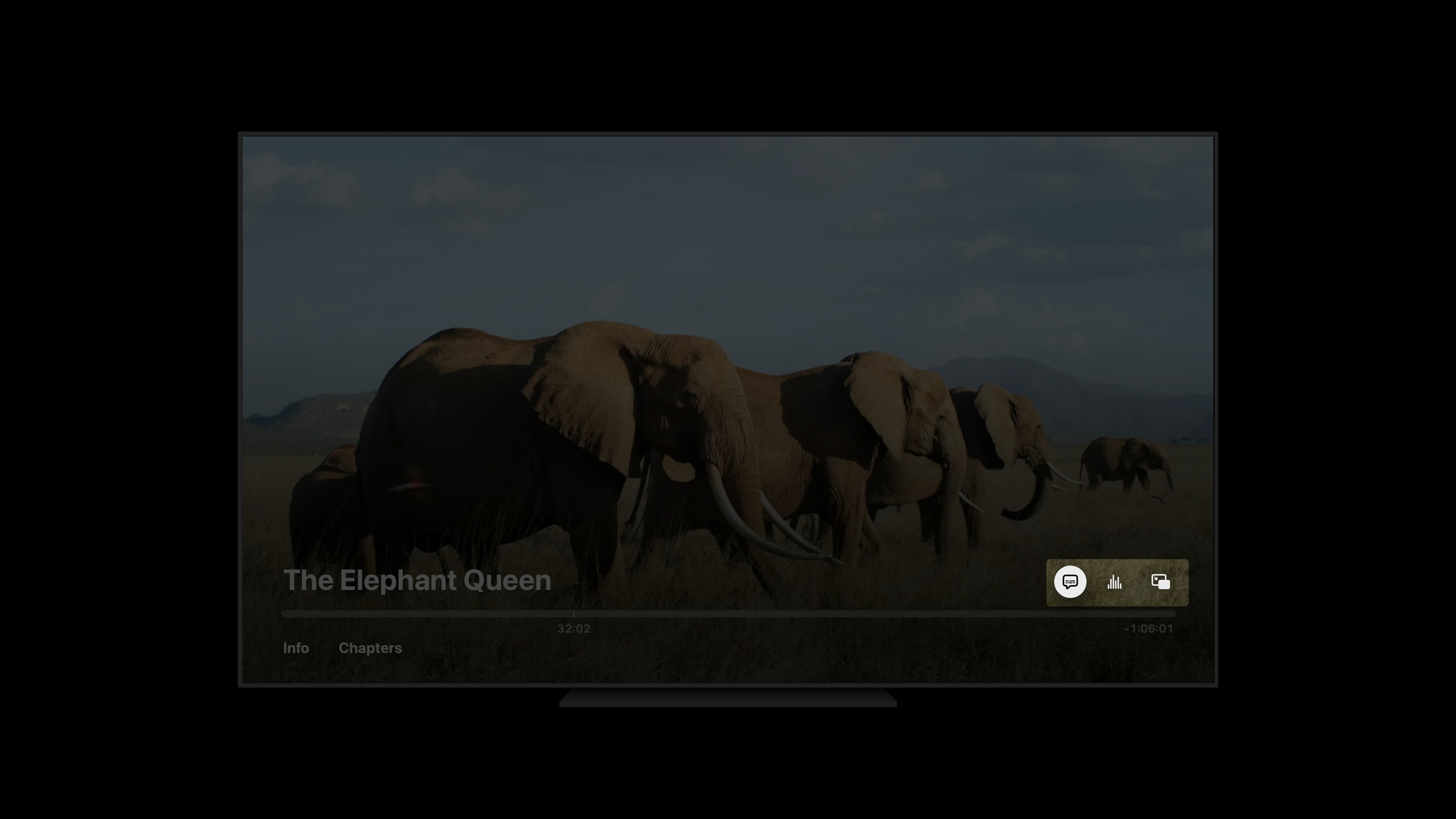
Apple redesigned the AVPlayerViewController standard playback interface in tvOS 15. Developers can integrate titles, playback controls, content tags, and contextual operations into the system player, reducing the maintenance cost of custom playback UI.
Core Content
The most difficult part of building a tvOS media app is often not playing the video itself.
The user holds the remote control and wants to open subtitles, switch audio tracks, bookmark the current program, skip the title, and view chapters. In the past, if you only used the basic player, these entries would be scattered in the custom menu. You also have to deal with remote control gestures, focus movement, picture-in-picture, Siri commands, and future system behavior.
This type of custom player can easily compete with the system playback interface. It was clearly recommended in the speech not to add additional gestures to the player, as it would interfere with the standard playback UI and may fail in the future.
Apple redesigned the standard playback interface in tvOS 15.AVPlayerViewControllerContinued responsibility for playback, jump, scan, drag, Siri commands, interstitials, and remote control support. Developers add their own information and operations to it.
The new entrances are concentrated in four places.
Title ViewDisplays the title and subtitle of the current content.Transport Bar ControlsPlace operations such as collections and settings above the progress bar.Content TabsDisplay information, chapters and recommended content in the playback interface.Contextual ActionsDisplay actions such as “Skip the beginning” or “Look back” during a specific period of time.
The user does not have to leave the player. Developers don’t have to re-implement a player shell.
To use these new interfaces, apps must link to the tvOS 15 SDK. Older apps will continue to get tvOS 14’s default playback interface, which is the boundary Apple uses to maintain compatibility.
Detailed Content
Title View: Let the player know what is currently playing
(03:08)
Title View is located above the transport bar (playback control bar). it starts from the currentAVPlayerItemThe metadata reads the title and subtitle.
The speech mentioned two fields:commonIdentifierTitleandiTunesMetadataTrackSubtitle. If the media file does not have embedded metadata, or you need to supplement the information, you can setAVPlayerItem.externalMetadata。
import AVFoundation
import AVKit

func configureTitleView(
    playerItem: AVPlayerItem,
    playerViewController: AVPlayerViewController,
    title: String,
    subtitle: String
) {
    let titleItem = AVMutableMetadataItem()
    titleItem.identifier = .commonIdentifierTitle
    titleItem.value = title as NSString

    let subtitleItem = AVMutableMetadataItem()
    subtitleItem.identifier = .iTunesMetadataTrackSubtitle
    subtitleItem.value = subtitle as NSString

    playerItem.externalMetadata = [titleItem, subtitleItem]
    playerViewController.transportBarIncludesTitleView = true
}
Key points:
import AVFoundationintroduceAVPlayerItemand metadata types. -import AVKitintroduceAVPlayerViewController。configureTitleViewReceives the current play item and player controller. -AVMutableMetadataItem()Create writable metadata items. -titleItem.identifier = .commonIdentifierTitleCorresponds to the title field used for the Title View in the lecture. -titleItem.value = title as NSStringWrite title text. -subtitleItem.identifier = .iTunesMetadataTrackSubtitleCorresponds to the subtitle field in the speech. -subtitleItem.value = subtitle as NSStringWrite subtitle text. -playerItem.externalMetadataComplete media information with external metadata. -transportBarIncludesTitleView = trueKeep Title View displayed; if you don’t want to display it, you can set it tofalse。
Transport Bar Controls: Put common operations into the system playback control bar
(04:01)
Transport Bar Controls are a set of controls above the progress bar. The system will provide standard controls such as subtitles, audio language, and picture-in-picture.
Apply your own operations viaAVPlayerViewController.transportBarCustomMenuItemsAdd to. it supportsUIActionandUIMenu. The speech also stated thatAVPlayerViewControllerdisplayedUIMenuSupports one level of nesting and can be useddisplayInlineoptions.
import AVKit
import UIKit

func configureTransportBarControls(playerViewController: AVPlayerViewController) {
    let favoriteAction = UIAction(
        title: "Favorites",
        image: UIImage(systemName: "heart")
    ) { _ in
        // Add to favorites
    }

    let normalSpeedAction = UIAction(title: "Normal", state: .on) { _ in }
    let fastSpeedAction = UIAction(title: "Fast") { _ in }

    let speedMenu = UIMenu(
        title: "Speed",
        options: [.displayInline, .singleSelection],
        children: [normalSpeedAction, fastSpeedAction]
    )

    let settingsMenu = UIMenu(
        image: UIImage(systemName: "gearshape"),
        children: [speedMenu]
    )

    playerViewController.transportBarCustomMenuItems = [
        favoriteAction,
        settingsMenu
    ]
}
Key points:
import AVKitsupplyAVPlayerViewController。import UIKitsupplyUIAction、UIMenuandUIImage。favoriteActionCreate a favorite operation corresponding to the Favorites example in the lecture. -UIImage(systemName: "heart")Add a system icon to the collection operation.- The comment position in the handler executes the business logic of “add to favorites”.
-
normalSpeedActionandfastSpeedActionIs a menu item. -state: .onMark the currently selected menu item. -speedMenuCreate a Speed menu that corresponds to the Speed submenu in the lecture. -.displayInlineMake submenus appear inline. -.singleSelectionIndicates that only one operation in the same group can be selected. -settingsMenuUse the gear icon to host submenus. -transportBarCustomMenuItemsLeave the custom operations to the system playback interface for display.
Content Tabs: Display information, chapters and recommended content during playback
(05:19)
Content Tabs allow the playback interface to carry supplementary information. When the media has metadata,AVPlayerViewControllerThe Info tab is displayed.AVPlayerItemsupplynavigationMarkerGroups, the system displays the Chapters label.
Applications can be passedcustomInfoViewControllersAdd more tags. tvOS 15 replaces the old one with this new propertycustomInfoViewController, because the new interface supports multiple view controllers.
import AVKit
import UIKit

func configureContentTabs(
    playerViewController: AVPlayerViewController,
    customViewController: UIViewController
) {
    customViewController.preferredContentSize = CGSize(width: 0, height: 140)
    customViewController.title = "Recommended"

    playerViewController.customInfoViewControllers = [customViewController]
}
Key points:
configureContentTabsReceives player controller and custom content controller. -preferredContentSizeSpecifies the desired height of the content label. -width: 0It means that the focus here is to set the height, and the width is handled by the system layout. -height: 140Corresponds to the height of the example in the lecture snippet. -title = "Recommended"Set the tab title, which will be used to display the tab name. -customInfoViewControllersAdd an array of custom content tags.- When multiple labels exist at the same time, the system will calculate the overall height based on the tallest content label.
TVMediaItemContentConfiguration: Use system style to display recommended content
(07:08)
If you want to display a group of related videos in Content Tabs, you can use the new content configuration provided by TVUIKit (tvOS UI tool framework).
TVMediaItemContentConfiguration.wideCell()For use with 16:9 media cards. It can set pictures, titles, subtitles, badges and playback progress.
import TVUIKit
import UIKit

func configureMediaCell(cell: UICollectionViewCell) {
    var contentConfiguration = TVMediaItemContentConfiguration.wideCell()
    contentConfiguration.image = UIImage(imageLiteralResourceName: "tanu")
    contentConfiguration.text = "Title"
    contentConfiguration.secondaryText = "Secondary text"
    contentConfiguration.badgeText = "NEW"
    contentConfiguration.badgeProperties.backgroundColor = .systemRed
    contentConfiguration.playbackProgress = 0.75

    cell.contentConfiguration = contentConfiguration
}
Key points:
import TVUIKitIntroducing content configuration types for tvOS. -import UIKitintroduceUICollectionViewCellandUIImage。configureMediaCellConfigure a collection view cell. -TVMediaItemContentConfiguration.wideCell()Create a 16:9 media card configuration. -imageSet card picture. -textSet the main title. -secondaryTextSet subtitle. -badgeText = "NEW"Display badge text for the card. -badgeProperties.backgroundColor = .systemRedSet the badge background color. -playbackProgress = 0.75Showing 75% viewing progress. -cell.contentConfigurationApply the configuration to the cell.
TVMonogramContentConfiguration: Display characters in the playback interface
(07:36)
If the content tag shows a person or role, speech is recommended to useTVMonogramContentConfiguration。
It is suitable for displaying actor, guest, speaker or character information in an area relevant to the current media.
import TVUIKit
import UIKit

func configureMonogramCell(cell: UICollectionViewCell) {
    var contentConfiguration = TVMonogramContentConfiguration.cell()
    contentConfiguration.image = UIImage(imageLiteralResourceName: "jad")
    contentConfiguration.text = "Jad"

    cell.contentConfiguration = contentConfiguration
}
Key points:
TVMonogramContentConfiguration.cell()Create a cell configuration with character avatar style. -imageSet the character picture. -textSet the character name. -cell.contentConfigurationLet the collection view cell use this system style.- Both this configuration and the media card configuration serve the list content in Content Tabs.
Contextual Actions: Show actions only at the right time
(07:52)
Contextual Actions are used for immediate operations during playback. The examples given in the talk are Skip Intro and Recap.
The approach is to setAVPlayerViewController.contextualActions, providing one or moreUIAction. Applications often need to listen to the player time, display operations when the relevant fragment appears, and reset the properties to an empty array when finished.
import AVFoundation
import AVKit
import UIKit

func showSkipIntroAction(
    playerViewController: AVPlayerViewController,
    player: AVPlayer
) {
    let skipIntroAction = UIAction(title: "Skip Intro") { _ in
        let targetTime = CMTime(seconds: 90, preferredTimescale: 600)
        player.seek(to: targetTime)
    }

    playerViewController.contextualActions = [skipIntroAction]
}

func hideContextualActions(playerViewController: AVPlayerViewController) {
    playerViewController.contextualActions = []
}
Key points:
import AVFoundationsupplyAVPlayerandCMTime。showSkipIntroActionCalled when a suitable fragment appears. -UIAction(title: "Skip Intro")Create a skip intro operation, corresponding to the Skip Intro example in the lecture. -CMTime(seconds: 90, preferredTimescale: 600)Indicates the playback time to jump to. -player.seek(to:)Execute jump. -contextualActions = [skipIntroAction]Show the action in the player. -hideContextualActionsCalled when not needed. -contextualActions = []Hide current context operations.
Minimum tvOS playback practices to follow
(08:48)
The speech ended with three practical suggestions.
First, don’t add extra gestures to the player. It interferes with the standard playback UI and may not work in future system versions.
Second, fill in the missing metadata. Information such as titles, pictures, and descriptions can beAVPlayerItem.externalMetadatasupply. The Title View and Info tags are populated with this information.
Third, consider enabling Picture in Picture. It lets users switch between full-screen content and picture-in-picture, as well as play videos and use other content simultaneously.
import AVKit

func configurePlaybackExperience(playerViewController: AVPlayerViewController) {
    playerViewController.allowsPictureInPicturePlayback = true
    playerViewController.transportBarIncludesTitleView = true
}
Key points:
allowsPictureInPicturePlayback = trueAllows the player to use picture-in-picture capabilities. -transportBarIncludesTitleView = trueKeep the title area displayed.- These settings are based on
AVPlayerViewControlleron top of the standard playback experience. - Gesture, focus and playback controls continue to be handled by the system interface.
Core Takeaways
1. Add the “continue watching” recommendation tag to the video app
- What to do: Add the Recommended tag to the player to display episodes or related content that the user has not finished watching.
- Why it’s worth it: Content Tabs allow users to browse recommended content while staying in the playback interface.
- How to get started: Create a custom
UIViewController,set uppreferredContentSizeandtitle, then put inAVPlayerViewController.customInfoViewControllers。
2. Add chapter navigation to course videos
- What to do: Display course chapters in the playback interface, and users can jump directly to a certain section.
- Why it’s worth doing: Mentioned in the speech
AVPlayerItem.navigationMarkerGroupsWill cause the system to display the Chapters label. - How to start: for
AVPlayerItemProvide a chapter marker group and useAVPlayerViewControllerPlay the item.
3. Add a “skip title” button to the episode
- What to do: Show Skip Intro when the intro appears and hide after the intro ends.
- Why it’s worth doing: Contextual Actions are specifically used for related operations during playback, and the interaction behavior is consistent with the system focus.
- How to start: Use the player’s periodic or boundary time observer to monitor the time, and set it when entering the title interval
contextualActions, set to an empty array after leaving.
4. Add a collection entry to the playback control bar
- What to do: When users are watching a program, they can directly add the current content to their favorites in the playback control bar.
- Why it’s worth doing:
transportBarCustomMenuItemssupportUIAction, suitable for placing lightweight operations that are strongly related to the current media. - How to get started: Create
UIAction(title:image:handler:), add it toplayerViewController.transportBarCustomMenuItems。
5. Add guest tab to character interview
- What to do: Display the list of guests, hosts or characters in this issue in the player.
- Why it’s worth doing:
TVMonogramContentConfigurationProvides character avatar styles, suitable for placement in the collection view of Content Tabs. - How to start: Use the collection view to host the character list and set it in the cell
TVMonogramContentConfiguration.cell()。
Related Sessions
- What’s new in AVKit — Continue to learn about AVKit updates on picture-in-picture and full-screen experiences.
- Explore dynamic pre-rolls and mid-rolls in HLS — Learn how to use HLS and AVFoundation to process pre-roll and mid-roll content.
- Coordinate media experiences with Group Activities — Connect media playback to SharePlay to synchronize multi-person viewing experience.
- Meet Group Activities — Understand the session model of Group Activities and the basic concepts of SharePlay.
Comments
GitHub Issues · utterances