
Highlight
Apple provides custom activities and
GroupSessionMessenger, developers can synchronize Codable messages in FaceTime and turn non-media apps such as sketchpads and collaborative editing into real-time SharePlay experiences.
Core Content
Start with a Sketchpad App
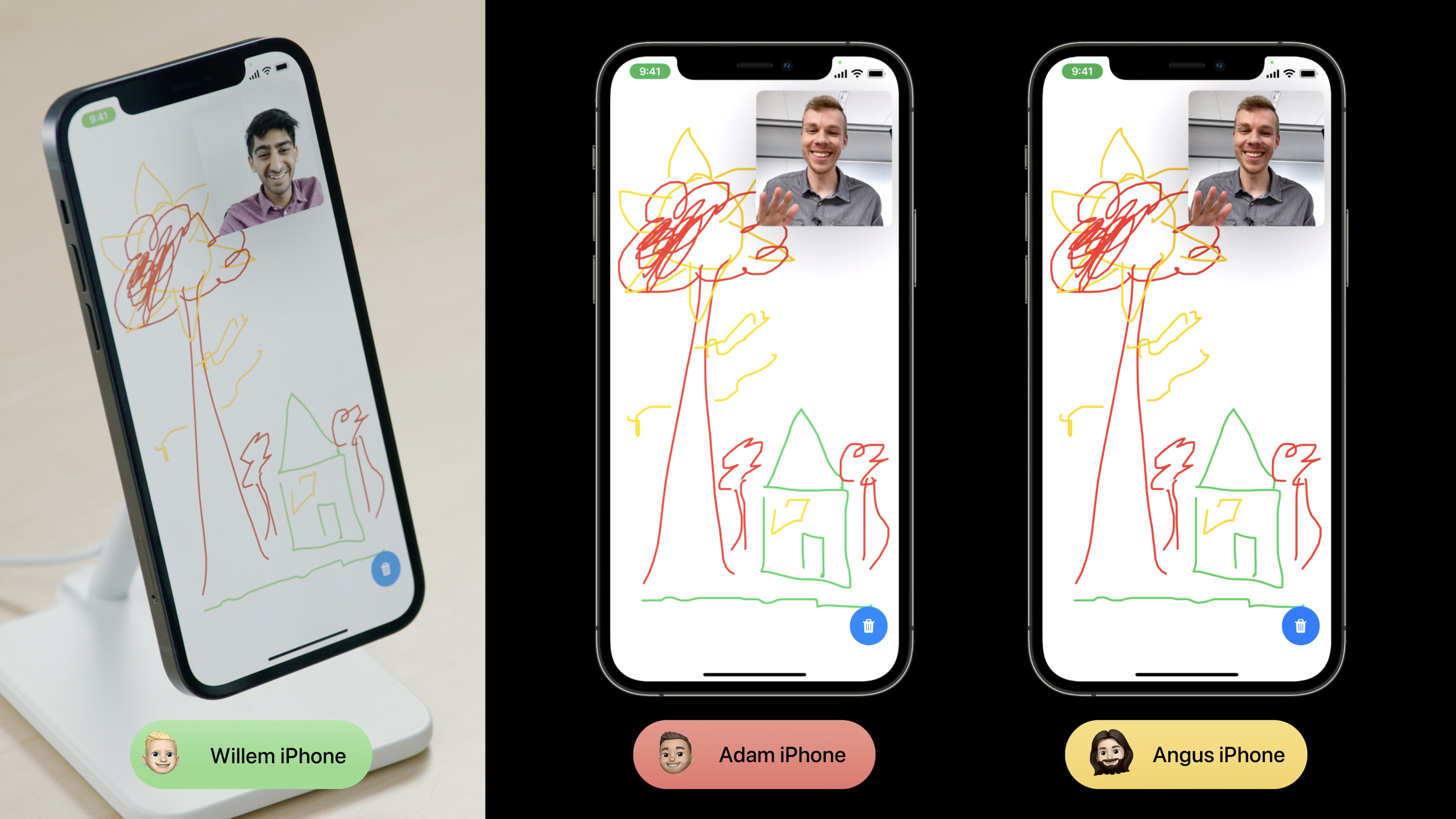
A sketchpad app could have been simple. In the middle of the screen is a canvas, each person has a color, and when the finger moves, the points are appended to the current stroke.
The trouble comes during FaceTime calls. When three people want to draw on the same canvas, each device receives the other’s strokes. New people who join also need to get the already drawn content. When someone clears the canvas, other devices must also switch to the same new state.
Media apps can rely on playback synchronization. Artboards have no player and no timeline. Developers need to define “what data to share” themselves, and then send this data to other participants in the session.
Apple used DrawTogether to demonstrate the complete process in this session: first define aGroupActivity, mark it as a custom activity; then useGroupSessionMessengerSend structured messages between participants; and finally handle edge cases such as late joiners, toggle activities, and entry buttons.
Custom activities only save stable information
GroupActivityWhat is described is a shared experience itself. The speech emphasized that activities should contain information that remains unchanged throughout the experience.
For DrawTogether, the stable message is “everyone is drawing together.” Which lines are currently drawn and what points are on each line will change with user operations and should be synchronized through messages.
Therefore, when configuring a custom activity, you only need to set the title for metadata and putmetadata.typeset to.generic. This step turns it from a media campaign to a custom campaign.
Message is the core of shared canvas
Canvas synchronization does not require transferring the entire image. Each time the user draws a new dot, the app sends a message. The message contains stroke id, color and coordinate point.
GroupSessionMessengerResponsible for sending Codable messages to participants in the session, and also provides an asynchronous sequence to receive messages of specified types. The speech clearly reminded that it is suitable for smaller payloads and is not suitable for transferring files, images or videos. Sending large amounts of messages in a rapid loop may also causesendWrong throw.
Experience also needs to deal with edge cases
The shared experience will encounter late joiners. When a new device is added, it does not have the previous canvas state. If you start drawing directly, the picture will be inconsistent with other devices.
The plan given in the speech is to monitorGroupSession.activeParticipants. When the set of participants changes, the existing device counts the new joiners and sends them the current canvas as a catch-up message.
When switching to a new canvas, Lecture recommends creating a new Group Session. This approach adds a clear boundary between the old state and the new state, and also lets the system know that the user has initiated a major change.
Detailed Content
Configure custom Group Activity (03:50)
The entrance provided by Apple isGroupActivityprotocol. DrawTogether defines a structure with the same name and implementsmetadata, and set the type to.generic。
import GroupActivities

struct DrawTogether: GroupActivity {

    var metadata: GroupActivityMetadata {
        var metadata = GroupActivityMetadata()
        metadata.title = NSLocalizedString("Draw Together",
                                           comment: "Title of group activity")
        metadata.type = .generic
        return metadata
    }

}
Key points:
import GroupActivitiesIntroducing SharePlay related frameworks. -struct DrawTogether: GroupActivityDefines an activity type that can be shared by the system. -var metadata: GroupActivityMetadataReturn the activity to display the required information in the system UI. -GroupActivityMetadata()Create metadata object. -metadata.titleSet the event title, which will be used by the FaceTime sharing interface. -metadata.type = .genericMark the activity as a custom experience. -return metadataLeave the configuration to the system.
The presentation also demonstrated the activation process. When the user clicks the control bar button, the App createsDrawTogetherinstance and callactivate(). The project also needs to add Group Activities entitlement before joining the session.
import GroupActivities
import SwiftUI

struct ShareCanvasButton: View {
    var body: some View {
        Button {
            Task {
                _ = try? await DrawTogether().activate()
            }
        } label: {
            Image(systemName: "shareplay")
        }
    }
}
Key points:
ButtonIt is the entry placed in the ControlBar in the DrawTogether demo. -TaskEnable button actions to call asynchronous APIs. -DrawTogether()Create the custom activity you just defined. -activate()Request the system to start this Group Activity. -try? awaitIndicates that activation will complete asynchronously and may fail.
Receive and join Group Session (08:03)
After the activity is activated, the App needs to receiveGroupSession. The speech puts this step inContentViewin the asynchronous task, then hand the session to the Canvas object configuration, and finally calljoin()。
import GroupActivities
import SwiftUI

struct ContentView: View {
    @StateObject private var canvas = Canvas()

    var body: some View {
        CanvasView(canvas: canvas)
            .task {
                for await groupSession in DrawTogether.sessions() {
                    canvas.configureGroupSession(groupSession)
                    groupSession.join()
                }
            }
    }
}
Key points:
.taskStart an asynchronous listener when a SwiftUI view appears. -DrawTogether.sessions()yesGroupActivityThe provided session asynchronous sequence. -for awaitContinuously receive newGroupSession。canvas.configureGroupSession(groupSession)Save the session to the app’s own model layer. -groupSession.join()Let the current device join the shared experience.
Canvas in the lecture will first reset the local canvas when configuring the session, and then save it.groupSession. This way the new session won’t be mixed in with the local state of the old canvas.
Synchronize strokes with GroupSessionMessenger (10:06)
GroupSessionMessengerIt is the core API of this speech. It can send raw data or structured messages. DrawTogether chooses structured messages because stroke points can naturally be represented as Codable types.
import GroupActivities
import SwiftUI

let messenger = GroupSessionMessenger(session: groupSession)

// 1. Define
struct UpsertStrokeMessage: Codable {
    let id: UUID
    let color: Color
    let point: CGPoint
}

// 2. Receive
for await (message, context) in messenger.messages(of: UpsertStrokeMessage.self) {
    // Handle message
}

// 3. Send
do {
    try await messenger.send(UpsertStrokeMessage(id: stroke.id, color: .red, point: point))
} catch {
    // Handle error
}
Key points:
GroupSessionMessenger(session: groupSession)Bind the current Group Session. -UpsertStrokeMessageIs a message in the canvas synchronization protocol. -idIdentifies the same stroke, and the receiving end can add points accordingly. -colorSave the color of this stroke. -pointSave the newly added coordinate points this time. -CodableLet messenger handle serialization and deserialization automatically. -messenger.messages(of:)Returns an asynchronous sequence whose elements contain message and context. -contextContains message context such as sender. -messenger.sendIs an asynchronous throwing method, the App must handle the failure.
The processing logic of the receiving end is also very straightforward: if there is already a stroke with the same ID locally, add the point to it; if not, create a new stroke and append it to the canvas array.
import SwiftUI

struct Stroke: Identifiable {
    let id: UUID
    let color: Color
    var points: [CGPoint]
}

func handle(_ message: UpsertStrokeMessage, strokes: inout [Stroke]) {
    if let index = strokes.firstIndex(where: { $0.id == message.id }) {
        strokes[index].points.append(message.point)
    } else {
        let stroke = Stroke(id: message.id,
                            color: message.color,
                            points: [message.point])
        strokes.append(stroke)
    }
}
Key points:
StrokeIt is the stroke model actually saved in the canvas. -idcorrespondUpsertStrokeMessage.id, used to locate the same stroke. -pointsSaves all points this stroke has received. -firstIndex(where:)Check whether this stroke already exists locally.- only append when found
message.point. - Create new if not found
Stroke, then joinstrokes。
The presentation adds three limitations. Messenger provides reliable, FIFO-ordered message delivery. When the news is too big,sendWill throw an error. When sending a large number of messages in a short burst,sendIt may also be thrown incorrectly. The application protocol should also consider the version field so that old and new apps can interoperate.
Let late joiners get the current canvas (16:07)
After a late joiner joins the Group Session, the canvas is initially empty. The treatment of speech is definitionCanvasMessage, combine all current strokes with apointCountHeuristic counts are sent to new devices together.
import SwiftUI

struct CanvasMessage: Codable {
    let strokes: [Stroke]
    let pointCount: Int
}

func handle(_ message: CanvasMessage,
            strokes: inout [Stroke],
            currentPointCount: Int) {
    guard message.pointCount > currentPointCount else {
        return
    }

    strokes = message.strokes
}
Key points:
CanvasMessageRepresents a catch-up data. -strokesCarrying the complete stroke of the current canvas. -pointCountUsed as a heuristic indicator to determine whether a message is old or new. -guard message.pointCount > currentPointCountAvoid old messages covering the new canvas. -strokes = message.strokesReplace the local canvas with newer catch-up data.
The trigger point for sending catch-up data isactiveParticipants. Existing devices observe changes in the participant set, calculate new participants, and only send the current canvas to these new participants.
import GroupActivities

func sendCatchUpMessage(
    to newParticipants: Set<GroupSession<DrawTogether>.Participant>,
    messenger: GroupSessionMessenger,
    strokes: [Stroke],
    pointCount: Int
) async {
    let message = CanvasMessage(strokes: strokes, pointCount: pointCount)

    do {
        try await messenger.send(message, to: .only(newParticipants))
    } catch {
        // Handle error
    }
}
Key points:
newParticipantsis fromactiveParticipantsNew participants calculated in the change. -CanvasMessage(strokes:pointCount:)Creates a snapshot of the current canvas. -messenger.sendResponsible for sending structured messages. -.only(newParticipants)Limit messages to late joiners. -catchHandle send failures such as message size or send throttling.
Only show the SharePlay button when appropriate (22:58)
The share button should not be displayed all the time. Buttons can be misleading when the user is not in an environment to open a Group Session.
GroupStateObserverProvide eligibility information. Speech uses it to monitor whether the device is eligible to start a Group Session, and then dynamically shows or hides the button.
import GroupActivities
import SwiftUI

struct ControlBar: View {
    @StateObject private var groupStateObserver = GroupStateObserver()
    let isInGroupSession: Bool

    var body: some View {
        HStack {
            if groupStateObserver.isEligibleForGroupSession && !isInGroupSession {
                ShareCanvasButton()
            }

            Button("Reset") {
                // Reset canvas
            }
        }
    }
}
Key points:
GroupStateObserverObserve whether the current device is suitable for opening Group Session. -isEligibleForGroupSessionWhen true, users can start sharing experiences. -!isInGroupSessionAvoid showing the launch button repeatedly when the user is already in a session. -ShareCanvasButton()Reuse previous callsactivate()entrance. -ResetCorresponds to the controls in the lecture that clear the canvas and switch to a new session.
Core Takeaways
1. Collaboration whiteboard
- What to do: Make a co-drawn whiteboard in FaceTime that supports pen, eraser and clear canvas.
- Why it’s worth doing:
GroupSessionMessengerEach stroke point can be synchronized, and late joiners can passCanvasMessageGet the current canvas. - How to start: Define first
WhiteboardActivity: GroupActivity,set upmetadata.type = .generic;RedefineUpsertStrokeMessage: Codable,usemessenger.messages(of:)To receive strokes, usemessenger.sendSend local input.
2. Remote paired code annotation
- What: Two people view the same code in FaceTime and synchronize cursors, selections, and comments.
- Why is it worth doing: The message payload is small and suitable for transmission
fileID、range、commentIDSuch structured data. - How to start: Put the current file identifier in
GroupActivityIn the stable information; define cursor movement and annotation creation as Codable messages; usecontextDistinguish who sent the operation.
3. Common shopping list
- What to do: Organize shopping lists with multiple people during a call, and add, check, and delete items in real time.
- Why it’s worth doing: Each change can be expressed as a small message, which is in line with Messenger’s positioning of small payloads.
- How to start: Definition
UpsertItemMessageandDeleteItemMessage;Each message carries item id and version number; Late joiners catch up on the current status through full inventory messages.
4. Board game scorer
- What to do: Make an in-call board game scorer that displays the same round and score on all player devices.
- Why is it worth doing: Score changes are low-frequency structured data and are suitable for use
GroupSessionMessengerBe consistent. - How to start: Use
GroupActivityrepresents a game; useScoreUpdateMessageSend player id, score and turn number; listenactiveParticipantsSend the current scoreboard to new players.
5. Share review board
- What to do: Organize to-dos, questions and conclusions together when multiple people are talking, and card movement is synchronized in real time.
- Why it’s worth doing: Card creation, movement, and title changes can be split into Codable messages, and the system is responsible for message delivery between participants.
- How to start: Definition
CardMessage、MoveCardMessageandBoardSnapshotMessage;usepointCountSimilar version counting prevents old snapshots from overwriting new boards.
Related Sessions
- Coordinate media experiences with Group Activities — Let’s first talk about the session reception, playback preparation and joining process of the media class SharePlay, which is the prerequisite basis for this session.
- Meet Group Activities — Describes the overall capabilities of Group Activities and SharePlay experience types.
- Design for Group Activities — Supplements the design of portals, states, and collaboration for SharePlay experiences.
- Coordinate media playback in Safari with Group Activities — Explains the use of Group Activities to coordinate media playback in web pages and companion apps.
Comments
GitHub Issues · utterances