
Highlight
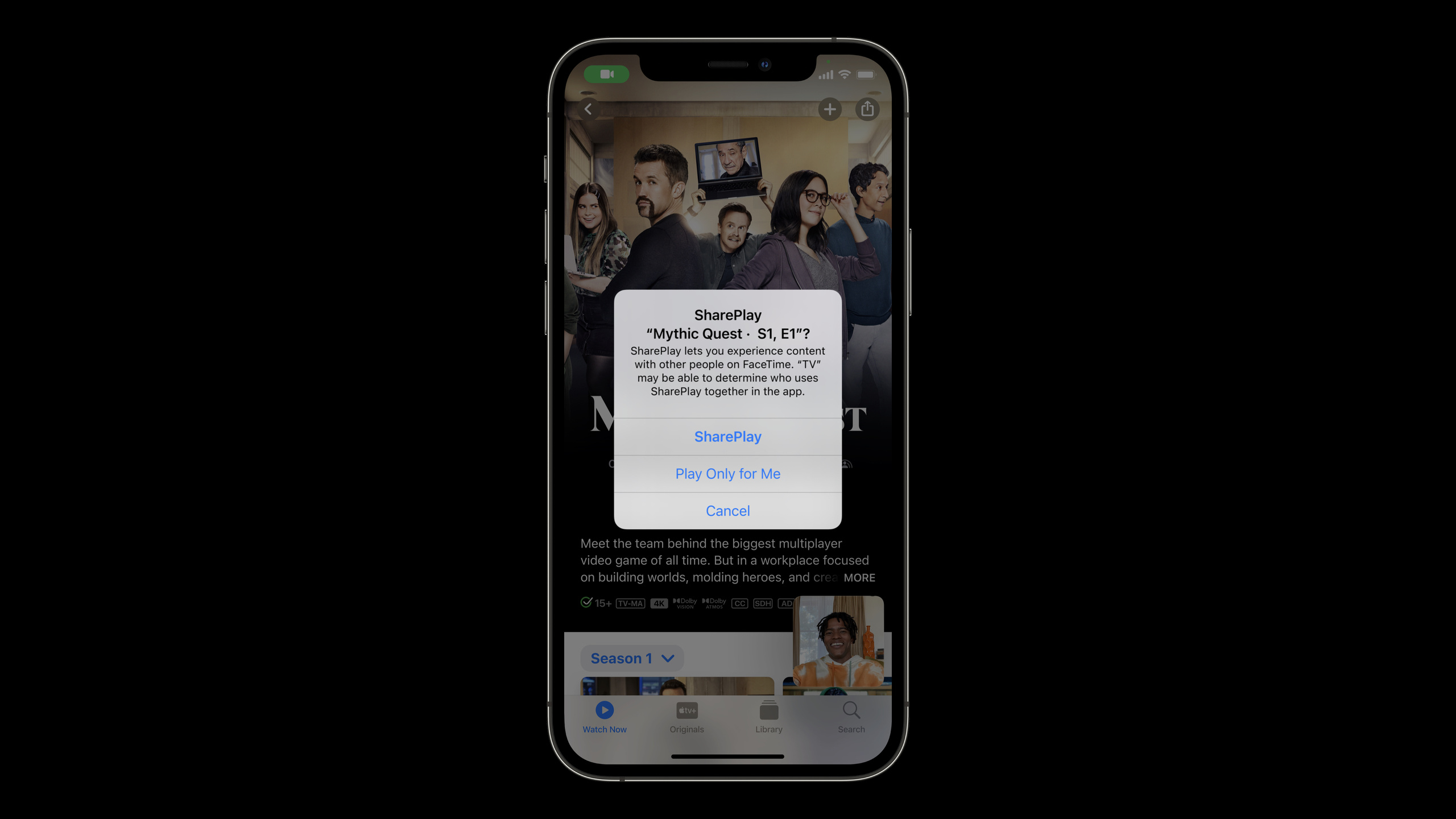
Apple uses Group Activities in iOS 15 to open FaceTime’s low-latency communication capabilities to apps. Developers can transform the original single-person functions into a SharePlay shared experience through screen sharing, synchronized media playback, and real-time messaging.
Core Content
Many apps only serve one person by default.
When users look at real estate listings, choose movies, flip through photos, or learn Swift, there is often another person next to them in the real scene. Telephone calls make this difficult. One person can only verbally describe what they saw, and the other person has to guess. Media apps will also encounter more specific problems: one person pauses, and another person’s video continues to play; one person drags the progress bar, and the other person still stops at the original time point.
Apple proposed a design starting point in this session: first find out what users in the app want to do together. Many pages are only suitable for personal viewing. Suitable for sharing are those activities that can trigger discussion, collaboration or joint entertainment, such as watching programs together, listening to songs together, looking at photos together, and studying together.
Once you’ve found your event, the next step is to enhance the shared experience. The Group Activities framework connects apps to SharePlay. It provides messaging capabilities and media playback synchronization capabilities. The bottom layer uses FaceTime’s low-latency communication infrastructure, so developers don’t have to build a real-time connection system for call participants.
This speech split the design plan into three entrances: screen sharing, synchronized media playback, and customized UI. Screen sharing is suitable for letting the other party see your app directly. Synchronous media playback is suitable for protected music and movie content. Custom UI is suitable for non-media experiences such as collaborative drawing boards, games, and teaching.
The final important point is context. When a user opens an app during a FaceTime call, they are essentially chatting and operating at the same time. The event preview should clearly state what content everyone is about to add. Registration, subscriptions, purchases and forms before entering the event should all be postponed or automated as much as possible. Friends are waiting for you to join, and the shared experience cannot be stuck in long processes.
Detailed Content
Screen sharing: first deal with what content can be seen
(02:41) During a FaceTime call, users can share their screen or automatically share your app. The system shares most of the interface by default, except for secure input fields. The talk reminds developers to check which UI is suitable for appearing in calls and further limit visibility using the UIKit API on iOS.
import UIKit

final class AccountViewController: UIViewController {
    @IBOutlet private weak var passwordField: UITextField!

    override func viewDidLoad() {
        super.viewDidLoad()
        passwordField.isSecureTextEntry = true
    }
}
Key points:
import UIKitIntroducing UIKit (User Interface Framework), which is the framework entry mentioned in the session to limit the visibility of screen sharing. -AccountViewControllerIs an ordinary iOS page that represents the App interface that may be displayed by screen sharing. -passwordFieldText box corresponding to user input of sensitive content. -viewDidLoad()Configure the input box after the page loads. -isSecureTextEntry = trueMark the text box as a safe input field; the session explicitly states that safe input fields will not be screen shared by default.
This design point is very practical. Real estate apps can share property photos and maps, but they should not share account information. Shopping apps can share product pages, but not payment information. Before entering SharePlay, think about these boundaries first.
Synchronized media playback: Do not stream video from one device to another
(03:09) Screen sharing automatically shares audio, but protected music and movies are not transferred through screen sharing. Media Apps need to implement Group Activities, use coordinated media playback to allow everyone’s devices to play the same content at the same time, and synchronize playback rate changes and seek operations.
import GroupActivities
import AVFoundation

struct WatchTogetherActivity: GroupActivity {
    var metadata: GroupActivityMetadata {
        var metadata = GroupActivityMetadata()
        metadata.title = "Watch Together"
        metadata.type = .watchTogether
        return metadata
    }
}
Key points:
import GroupActivitiesIntroducing the Group Activities framework, the beginning of the session states that it is responsible for connecting the App to SharePlay. -import AVFoundationIntroducing the media playback framework; the synchronous media playback discussed in session is related to media playback capabilities. -WatchTogetherActivityDefine a shareable activity that represents the “watch together” scene. -metadataProvide the basic information needed for event preview. The second half of the session emphasizes that the preview should give participants context. -metadata.titleIt is the activity title that participants see and should be written to describe the current action. -metadata.type = .watchTogetherMark this as a watching activity together, which is consistent with the scene of “watch a movie with a distant relative” in the session.
The key fact here is: SharePlay does not stream media from the originator’s device to others. Each device plays its own media locally, and Group Activities are responsible for synchronizing start time, playback rate and progress jump. Smart volume control and synchronization are handled by the system, and the specific experience of seek, speed, and playback controls is determined by the app.
Messenger: Send real-time data to non-media experiences
(04:02) If the App does not belong to the media playback type, Group Activities are still available. Session mentioned that the Messenger protocol can broadcast data to other apps in the call in near real-time. The transmission process is as private and end-to-end encrypted as FaceTime calls.
import GroupActivities

struct DrawingActivity: GroupActivity {
    var metadata: GroupActivityMetadata {
        var metadata = GroupActivityMetadata()
        metadata.title = "Shared Drawing"
        metadata.type = .generic
        return metadata
    }
}

struct DrawingMessage: Codable {
    let x: Double
    let y: Double
    let colorName: String
}
Key points:
DrawingActivityDefine a shared drawing activity corresponding to the custom view and “Hello World” drawing example mentioned in the session. -metadata.titleGive the activity preview a title to let participants know it’s a shared drawing. -metadata.type = .genericIndicates that this is a general sharing activity, suitable for activities other than media playback. -DrawingMessageIs a data model prepared to be passed between participants. -CodableAllows messages to be encoded and decoded, suitable for transmitting structured data through message channels. -x、y、colorNameThe minimum data required to describe a drawing action.
The design goal of custom UI should avoid sending screenshots of the entire interface. A better way is to send action data. The drawing board sends stroke coordinates, the mini-game sends player actions, and the teaching app sends the current question and selection results. Everyone’s app renders the same state locally.
Event Preview: Use title, subtitles and thumbnails to explain what you are adding
(05:57) When an app or content is shared, the activity preview tells others what the originator suggested they should watch. session is recommended to be designed as a rich link, using titles, subtitles and thumbnails to describe the current experience.
import GroupActivities

struct EpisodeActivity: GroupActivity {
    let episodeTitle: String
    let showTitle: String

    var metadata: GroupActivityMetadata {
        var metadata = GroupActivityMetadata()
        metadata.title = episodeTitle
        metadata.subtitle = showTitle
        metadata.type = .watchTogether
        return metadata
    }
}
Key points:
EpisodeActivityTie a shared event to a specific episode. -episodeTitleCorrespond to the title in the preview and tell participants what they are about to see. -showTitleCorrespond to the subtitles in the preview and supplement the program source. -GroupActivityMetadata()Create event metadata. -metadata.titleandmetadata.subtitleCorresponds to the title and subtitle mentioned in the session. -metadata.type = .watchTogetherExplain that this is content to watch together.
A bad preview just says “Join event”. The user doesn’t know if his friend wants him to watch a movie, listen to music, or open a property page. A good preview spells out the content and action, such as “Watch Foundation Episode 1” or “View Nashville listings.” The person on the call is chatting, and the preview must reduce interpretation costs.
Automatic entry: Minimize the steps before joining the event
(06:42) session reminds developers: Users are multitasking when operating mobile phones in SharePlay. Apps should automate as many steps as possible and reduce interaction before entering the activity. With Picture in Picture support, apps can automatically launch on everyone’s device from the background.
import AVKit

let playerViewController = AVPlayerViewController()
playerViewController.allowsPictureInPicturePlayback = true
playerViewController.canStartPictureInPictureAutomaticallyFromInline = true
Key points:
import AVKitIntroducing AVKit (media playback interface framework), picture-in-picture support is hosted by the playback interface. -AVPlayerViewController()Create system player interface. -allowsPictureInPicturePlayback = trueAllows the player to enter picture-in-picture. -canStartPictureInPictureAutomaticallyFromInline = trueAllow inline playback to automatically enter picture-in-picture.- session explicitly supports Picture in Picture support as a path to automatically launch experiences from the background.
If registration, subscription or purchase is required before joining, the session recommends telling the system that the App needs to be displayed in the frontend through the Group Activities API. After the user clicks on the banner, the app is brought to the foreground to complete the necessary operations. Use this ability with caution. Friends are waiting, and long forms can ruin the shared experience.
Core Takeaways
-
What to do: Add a “Watch this episode together” button to the video app.
- Why it’s worth doing: Group Activities can synchronize playback start, pause, speed change and seek on each participant’s device.
- How to start: Definition for episodes
GroupActivity,useGroupActivityMetadataFill in the episode title, program name and activity type, and then access the coordinated media playback.
-
What to do: Add FaceTime shared travel album mode to the Photo Album App.
- Why it’s worth doing: Screen sharing allows others to see the same set of photos, which is suitable for telling the stories behind the photos while chatting.
- How to start: First sort out the shareable and unshareable areas in the album page, exclude the account, location privacy and security input fields, and then provide clear prompts for the sharing entrance.
-
What to do: Make a shared whiteboard or graffiti game.
- Why it’s worth doing: Messenger protocol can broadcast custom data between call participants, suitable for passing strokes, coordinates and player actions.
- How to start: Definition
CodableMessage model, such as coordinates, colors, and action types; each client updates the canvas locally after receiving the message.
-
What to do: Add a “Look at properties together” mode to the real estate app.
- Why it’s worth doing: The session used a Nashville listing as an example to illustrate that when discussing information-dense pages remotely, screen sharing is more direct than verbal description.
- How to start: Make the property pictures, maps and prices the shared core; leave the contact information, account page and payment process on the non-shared path.
-
What to do: Transform the course page of the learning app into a shared exercise during the call.
- Why it’s worth doing: Group Activities are suitable for linking learning content to the current discussion, allowing participants to see the same question or the same piece of code.
- How to start: Use the activity preview to write down the course name and exercise title; use messages to synchronize the current question number, selection results and explanation progress.
Related Sessions
- Meet Group Activities - Introduces the basic access methods of Group Activities, GroupSession and SharePlay from the architectural layer.
- Build custom experiences with Group Activities — Demonstrates building a real-time sharing canvas with GroupSessionMessenger.
- Coordinate media playback in Safari with Group Activities — Explain how web pages and supporting apps can access SharePlay media playback.
- Deliver a great playback experience on tvOS — Supplement the design details of the media playback interface and control experience.
Comments
GitHub Issues · utterances