
Highlight
Apple has added cloud synchronization capabilities based on APFS dataless files to FileProvider in macOS Monterey, allowing cloud storage services to use user space extensions to access Finder, download files on demand, synchronize local and remote changes, and replace kernel extension solutions that rely on FUSE or KAUTH.
Core Content
One of the hardest things for cloud disk apps to do on macOS is to make cloud files work like local files.
Users want to see their cloud drives in the Finder sidebar. The directory must be able to be opened. The file must be able to becat, TextEdit, Photoshop and other common processes to read. The system also needs to be able to safely reclaim local copies when disk space is low.
In the past, many cloud storage services intercepted file system calls. Common solutions are FUSE or KAUTH. They are close to the kernel and can be downloaded on demand, but at a high cost: complex security boundaries, difficult debugging, and macOS is also deprecating kernel extensions.
The alternative provided by Apple in this session is the File Provider framework on macOS. Developers implement an App Extension. The system is responsible for connecting it to the Finder and file system.
This extension only handles three types of things: uploading, downloading, and telling the system what changes have occurred on the remote side. The system is responsible for local file change detection, Finder status display, safe storage, disk space recycling, and file coordination.
Start with an empty directory
After the user logs in to the cloud disk account, the App creates a domain. domain represents a cloud file tree that users can access. The system puts it into the Finder sidebar and creates a root directory in the file system.
This root directory initially has no real file contents. It is a dataless directory provided by APFS. The user can enter the directory and see the file name, but the content has not yet been downloaded to the machine.
When a process reads a dataless file, the kernel pauses the read. System call extensionfetchContents. extension downloads the file and returns a local URL. The system fills the content into the original file and resumes the suspended reading.
Remote changes are proactively notified by extension
When someone creates, deletes or modifies a file in the cloud, the machine will not automatically know. The server can send push notifications to Mac. After the App receives the notification, it tells the system.workingSetThere are changes.
The system then calls the working set’s enumerator. extension passedsyncAnchor(Sync anchor) Returns only changes since the last time. The system then asynchronously updates user-visible files.
The key here is APFS compare-and-swap. When the system updates local files, it avoids overwriting local modifications that have not yet been uploaded. It also works with file coordination and advisory locking to reduce conflicts with other apps.
Local changes are merged by the system and handed over to the extension
When the user saves the file locally, the system detects the change and callsmodifyItem、createItemordeleteItem. The extension does not need to handle every underlying write event.
The system will combine low-level events into operations suitable for synchronization. For example, many apps use safe save: they write a temporary file first and then replace the original file. The system recognizes this pattern and maps the item identifier to the new file ID.
If the file content changes, the system will give the clone of the changed file to the extension. This way, the extension uploads a consistent version even if the user continues editing.
Disk space management is handled by the system
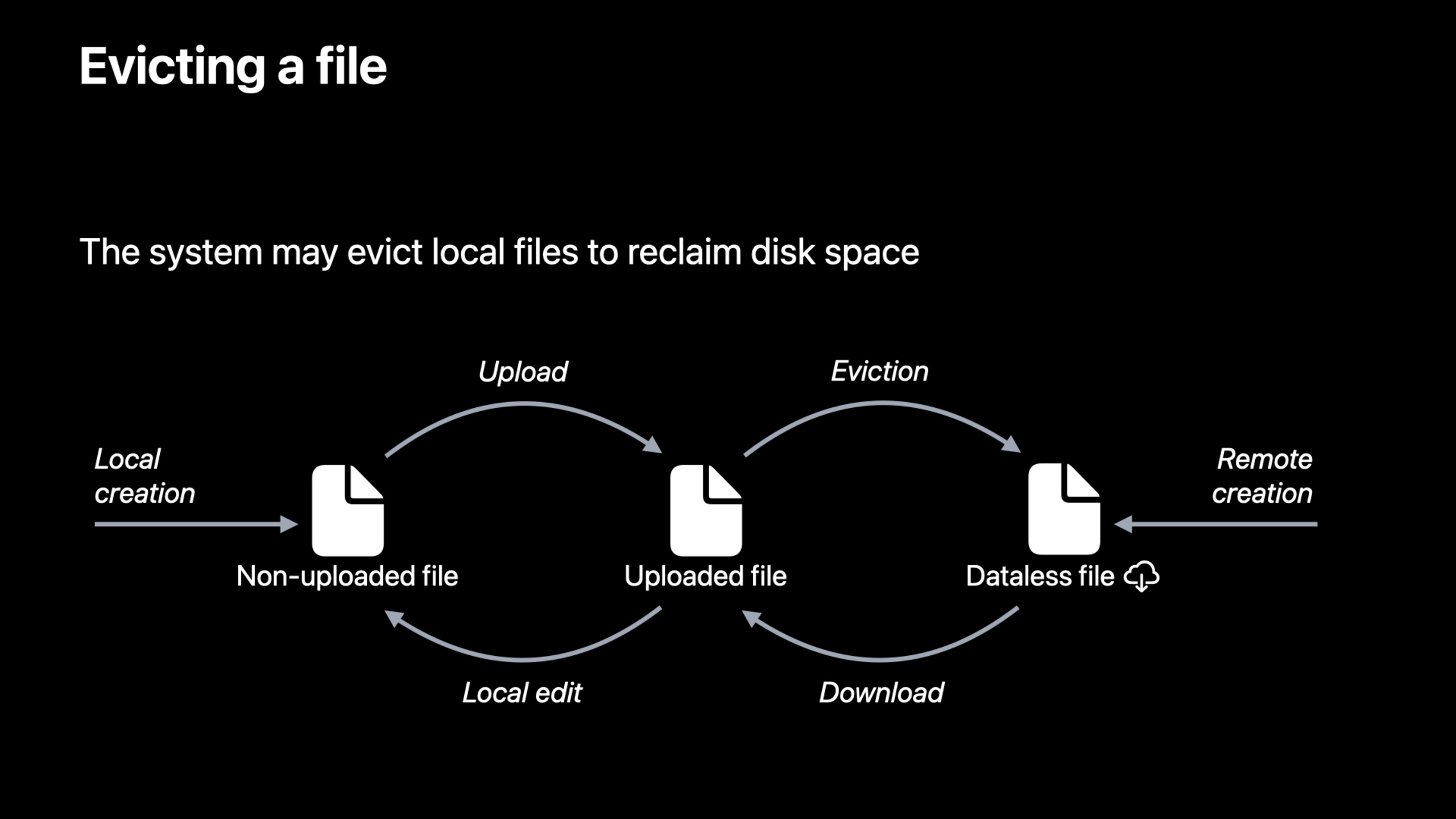
After the local file upload is complete, the system knows it can be downloaded again. When disk space is tight, the system can automatically evict such files and turn them into dataless files again.
This process does not call extension. The system selects the smallest number of least recently used files to make room for recording videos or downloading system updates.
Developers can still actively trigger or prevent eviction through other methods of FileProvider, but emergency disk reclamation is handled by the system.
Detailed Content
1. Create domain and put the cloud disk into Finder
(12:31) The entry of FileProvider is domain. The speech said that domain usually corresponds to a login session on the cloud service. It has a unique identifier. After creation, add it through the manager, and an entry will appear in the Finder sidebar.
import FileProvider

func addFruitBasketDomain() {
    let domain = NSFileProviderDomain(
        identifier: NSFileProviderDomainIdentifier("fruitbasket"),
        displayName: "FruitBasket"
    )

    NSFileProviderManager.add(domain) { error in
        if let error = error {
            NSLog("Failed to add FileProvider domain: \(error)")
            return
        }

        NSLog("FileProvider domain added")
    }
}
Key points:
import FileProviderIntroducing the FileProvider framework. -NSFileProviderDomainRepresents a synchronizable file tree. -identifierIt is the unique identifier of the domain and is usually bound to the user login session. -displayNameIs the name displayed to the user in the Finder sidebar. -NSFileProviderManager.addRegister the domain to the system.- completion handler is used to receive registration failure errors.
If the user logs out of the account, the domain can be removed. The talk mentioned that this is also useful during the development and testing phase, as you’ll be cleaning out old Finder entries repeatedly.
import FileProvider

func removeFruitBasketDomain(_ domain: NSFileProviderDomain) {
    NSFileProviderManager.remove(domain) { error in
        if let error = error {
            NSLog("Failed to remove FileProvider domain: \(error)")
            return
        }

        NSLog("FileProvider domain removed")
    }
}
Key points:
- Parameters
domainIs the FileProvider domain to be removed. -NSFileProviderManager.removeTell the system to delete this entry. - Call it when the user logs out to prevent the Finder from displaying the cloud disk.
- Call it during development to clear the test domain.
2. Enumerate directories and let dataless files appear locally first
(04:26) When the user opens the directory, the kernel detectsreaddirCall and pause. The enumerator of the system call extension. The extension fetches metadata from the server and returns several items to the system.
The talk emphasizes that directory enumerations are paginated. You can return part of the item first. The system continues the request from where it left off.
import FileProvider

final class FruitEnumerator: NSObject, NSFileProviderEnumerator {
    func enumerateItems(
        for observer: NSFileProviderEnumerationObserver,
        startingAt page: NSFileProviderPage
    ) {
        let items: [NSFileProviderItem] = loadMetadataPage(startingAt: page)
        let nextPage: NSFileProviderPage? = nextPageAfter(page)

        observer.didEnumerate(items)
        observer.finishEnumerating(upTo: nextPage)
    }
}
Key points:
FruitEnumeratoraccomplishNSFileProviderEnumerator。enumerateItemsCalled when the system needs the directory contents. -observerIs the extension reply system object. -pageIndicates which page this enumeration starts from. -loadMetadataPageRepresents reading metadata such as file name, size, version, etc. from the server. -observer.didEnumerate(items)Hand over the item on this page to the system. -observer.finishEnumerating(upTo:)End this page and tell the system if there is a next page.
These items will become visible directory items in the Finder. The file contents have not been downloaded yet, so they are still dataless files.
3. Download content when reading dataless files
(03:36) When the process reads the dataless file, the system callsfetchContents. The extension downloads the file contents to a location on disk, then uses a completion handler to pass the URL to the system.
import FileProvider

final class FruitProvider: NSObject, NSFileProviderReplicatedExtension {
    func fetchContents(
        for itemIdentifier: NSFileProviderItemIdentifier,
        version requestedVersion: NSFileProviderItemVersion?,
        request: NSFileProviderRequest,
        completionHandler: @escaping (URL?, NSFileProviderItem?, Error?) -> Void
    ) -> Progress {
        let progress = Progress(totalUnitCount: 100)

        downloadFile(for: itemIdentifier, version: requestedVersion) { localURL, item, error in
            if let error = error {
                completionHandler(nil, nil, error)
                return
            }

            completionHandler(localURL, item, nil)
        }

        return progress
    }
}
Key points:
FruitProvideraccomplishNSFileProviderReplicatedExtension。itemIdentifierIt is a file that the system requires to download. -requestedVersionfornil, the documentation states downloading the latest version. -requestCarry the information requested by the system this time. -completionHandlerThe first parameter is the downloaded local file URL. -completionHandlerThe second parameter is the final item status of the file.- return
Progress, the system can display the download progress in Finder.
In the demonstration, the speaker used Terminal to executecatRead a dataless file. Xcode breakpoint stops atfetchContentshour,catAlso blocked. The cloud icon in Finder turns into a progress indicator. After the completion handler is called, the system replaces the downloaded content into a file visible to the user.catContinue execution.
(11:58) The same file is executed for the second timecat, the breakpoint is no longer triggered. The file is already a normal local file, and extension will not be called when reading.
4. Use working set to synchronize remote changes
(05:27) The entrance to remote changes is.workingSet. When there are changes on the server side, the App notifies the system. The system then requests the working set enumerator for thesyncAnchorsubsequent changes.
import FileProvider

func notifyRemoteChanges() {
    NSFileProviderManager.default.signalEnumerator(for: .workingSet) { error in
        if let error = error {
            NSLog("Failed to signal working set: \(error)")
            return
        }

        NSLog("Working set signaled")
    }
}
Key points:
.workingSetis the special enumerator mentioned in the speech. -signalEnumerator(for:)Reminder system: There are content changes at the specified location.- The completion handler only indicates that the signal operation is completed, not that the system has finished pulling in the changes.
- This method can be called after the remote push notification reaches the Mac.
The working set enumerator needs to implement the current synchronization anchor point and the enumeration of changes starting from a certain anchor point.
import FileProvider

final class WorkingSetEnumerator: NSObject, NSFileProviderEnumerator {
    func currentSyncAnchor(
        completionHandler: @escaping (NSFileProviderSyncAnchor?) -> Void
    ) {
        completionHandler(loadCurrentServerChangeToken())
    }

    func enumerateChanges(
        for observer: NSFileProviderChangeObserver,
        from syncAnchor: NSFileProviderSyncAnchor
    ) {
        let changes = loadServerChanges(after: syncAnchor)

        observer.didUpdate(changes.updatedItems)
        observer.didDeleteItems(withIdentifiers: changes.deletedItemIdentifiers)
        observer.finishEnumeratingChanges(upTo: changes.newSyncAnchor, moreComing: false)
    }
}
Key points:
currentSyncAnchorReturns the current server-side change cursor. -syncAnchorDefined by extension, the system is only responsible for saving the last enumerated location. -enumerateChangesReturns the change after the specified anchor point. -observer.didUpdateReturn the newly added or modified item to the system. -observer.didDeleteItemsReturn the deleted item identifier to the system. -finishEnumeratingChangesReturn the new anchor point for next use by the system.
The system will then asynchronously update user-visible files and use APFS compare-and-swap to avoid losing local changes, the presentation said.
5. Upload local creation, modification and deletion
(06:50) Local modifications go in the opposite direction. The system detects local item changes and then calls the extension’smodifyItem. The parameters contain the exact changed fields.
(14:37) The speech suggested finally implementing sync up and showing create flow. The system hands the new item, focus field, and content URL to the extension. The extension is uploaded to the server, and then the completion handler is used to return the confirmed item from the remote end.
import FileProvider

final class UploadingProvider: NSObject, NSFileProviderReplicatedExtension {
    func createItem(
        basedOn itemTemplate: NSFileProviderItem,
        fields: NSFileProviderItemFields,
        contents url: URL?,
        options: NSFileProviderCreateItemOptions,
        request: NSFileProviderRequest,
        completionHandler: @escaping (NSFileProviderItem?, NSFileProviderItemFields, Bool, Error?) -> Void
    ) -> Progress {
        let progress = Progress(totalUnitCount: 100)

        uploadNewItem(itemTemplate, changedFields: fields, contents: url) { remoteItem, remainingFields, error in
            if let error = error {
                completionHandler(nil, fields, false, error)
                return
            }

            completionHandler(remoteItem, remainingFields, false, nil)
        }

        return progress
    }
}
Key points:
itemTemplateIt is an item that the system requires to create. -fieldsDescribes which fields need processing, such as content or extended attributes. -urlIs the file content location; folders and symbolic links may have no content. -uploadNewItemRepresents uploading local new items to the server. -remoteItemIt is the final item status after being accepted by the server.- The completion handler confirms that the system has handed this change to the extension.
The same goes for local modifications. system callmodifyItem, and provide a file clone when the content changes, so that the upload process can get a stable version.
import FileProvider

final class ModifyingProvider: NSObject, NSFileProviderReplicatedExtension {
    func modifyItem(
        _ item: NSFileProviderItem,
        baseVersion version: NSFileProviderItemVersion,
        changedFields: NSFileProviderItemFields,
        contents newContents: URL?,
        options: NSFileProviderModifyItemOptions,
        request: NSFileProviderRequest,
        completionHandler: @escaping (NSFileProviderItem?, NSFileProviderItemFields, Bool, Error?) -> Void
    ) -> Progress {
        let progress = Progress(totalUnitCount: 100)

        uploadModifiedItem(item, baseVersion: version, changedFields: changedFields, contents: newContents) { finalItem, remainingFields, error in
            if let error = error {
                completionHandler(nil, changedFields, false, error)
                return
            }

            completionHandler(finalItem, remainingFields, false, nil)
        }

        return progress
    }
}
Key points:
itemIs the locally modified item. -versionThis is the version this modification is based on. -changedFieldsTell the extension which fields have changed. -newContentsIs the stable content URL provided by the system. -finalItemIt is the final state after the server-side processing is completed.- If the server detects a conflict, the local file can reflect the cloud truth through the final item status.
6. Finder integration: icon decoration, menu and preflight reminder
(15:59) FileProvider also provides optional system integration points.
Icon decoration can add badges to Finder items, emboss folders, or display sharing status. Developers provide custom artwork through the UTType declared in the app.
<key>NSExtensionFileProviderDecorations</key>
<array>
    <dict>
        <key>Identifier</key>
        <string>com.example.fruitbasket.shared</string>
        <key>BadgeImageType</key>
        <string>com.example.fruitbasket.shared-badge</string>
        <key>Category</key>
        <string>Badge</string>
    </dict>
</array>
Key points:
NSExtensionFileProviderDecorationsin extensionInfo.plistDecoration in the statement. -IdentifierIt is a decorative logo. -BadgeImageTypePoints to the UTType artwork declared in the App. -CategoryIndicates that this type of decoration is used for badges.
Context menu actions allow users to perform custom actions in the Finder right-click menu. The speech mentioned that there are two types of actions, with and without UI. The applicable files are provided byInfo.plistinNSPredicateDecide.
<key>NSExtensionFileProviderActions</key>
<array>
    <dict>
        <key>Identifier</key>
        <string>com.example.fruitbasket.share</string>
        <key>ActivationRule</key>
        <string>TRUEPREDICATE</string>
    </dict>
</array>
Key points:
NSExtensionFileProviderActionsDeclare the Finder context menu action. -IdentifierDistinguish between different actions. -ActivationRuleUse predicate to control which files display this action.- Suitable for operations such as “share link”, “view cloud version” and “open in web page”.
Preflight alerts are used to pop up warnings before users perform actions that may have side effects. Lecture notes, reminder UI and trigger conditions are also passedInfo.plistconfiguration.
Core Takeaways
-
What to do: Create a native Finder entry for the team cloud disk. Why it’s worth doing: FileProvider domain can map each login account to a Finder sidebar entry, so users don’t have to enter your app to find files. How to start: Create first
NSFileProviderDomain,useNSFileProviderManager.addRegister; then implement directory enumerator so that the root directory can list server folders. -
What to do: Make a “download only when opened” material library. Why it’s worth doing: APFS dataless files allow Finder to display the complete directory structure first, and then trigger it when the content is read.
fetchContents, which can save local disk. How to start: Let enumerator return remote material metadata; infetchContents(for:version:request:completionHandler:)Download the original image or video to a local URL. -
What to do: Add a Finder sharing status badge to the design file. Why it’s worth doing: Icon decoration can display the file sharing status directly in the Finder, without the user having to open the webpage to view permissions. How to start: In
Info.plistDeclare FileProvider decorations and use item metadata to determine which files should share the badge. -
What to do: Implement Finder right-click “Copy Shared Link”. Why it’s worth doing: Context menu actions can place high-frequency operations of cloud services next to files, reducing the need for users to switch between Finder and web pages. How to start: In
Info.plistDeclare the FileProvider action, use predicate to limit ordinary files or folders, and then request the server to generate a link in the action handler. -
What it does: Secure local editing synchronization for large file uploads. Why it’s worth doing: The system provides file clone when the content changes, and the extension can upload stable versions without being interrupted by subsequent editing by users. How to get started: Implementation
modifyItem(_:baseVersion:changedFields:contents:options:request:completionHandler:), only inchangedFieldsRead when the content changescontentsURL and upload it.
Related Sessions
- What’s new in CloudKit — CloudKit serves as a backend reference for cloud metadata, permissions, and user data.
- Automate CloudKit tests with cktool and declarative schema — Use the command line to test cloud schema and data status, suitable for synchronizing service development processes.
- What’s new in AppKit — Learn about updates to the system interface that bring macOS Apps closer to the Finder experience.
- Build Mail app extensions — Learn how to build macOS App Extension and system integration ideas.
- Faster and simpler notarization for Mac apps — Mac Apps with FileProvider extension need to complete notarization before publishing.
Comments
GitHub Issues · utterances