
Highlight
SwiftUI New in 2021
.searchable、isSearching、searchCompletionand.onSubmit(of: .search), developers can use declarative code to add search fields, search results, and search suggestions to cross-platform applications.
Core Content
After a list application becomes bigger, search will become a necessity. There are city lists in the weather app, song lists in the music app, and color palette lists in the design tools. Users know what they are looking for, but are forced to scroll from beginning to end.
When doing searches in the past, the first step was to put a search box. The second step is to synchronize the input to the state. The third step is to switch the results list based on the input. When it comes to iPadOS, macOS, watchOS, and tvOS, the location and interaction habits of the search box must be dealt with separately.
SwiftUI 2021 collects these things into a modifier:.searchable. It receives a binding string and passes the search field through the environment to the view tree.NavigationViewThis search field can be recognized and placed in the appropriate location according to the platform.
The Weather example illustrates the basic model. The interface is stillNavigationViewAdd list. Developers put.searchable(text:)Put it on the navigation view. When searching, passisSearchingThe environment value and search text determine whether results are displayed.
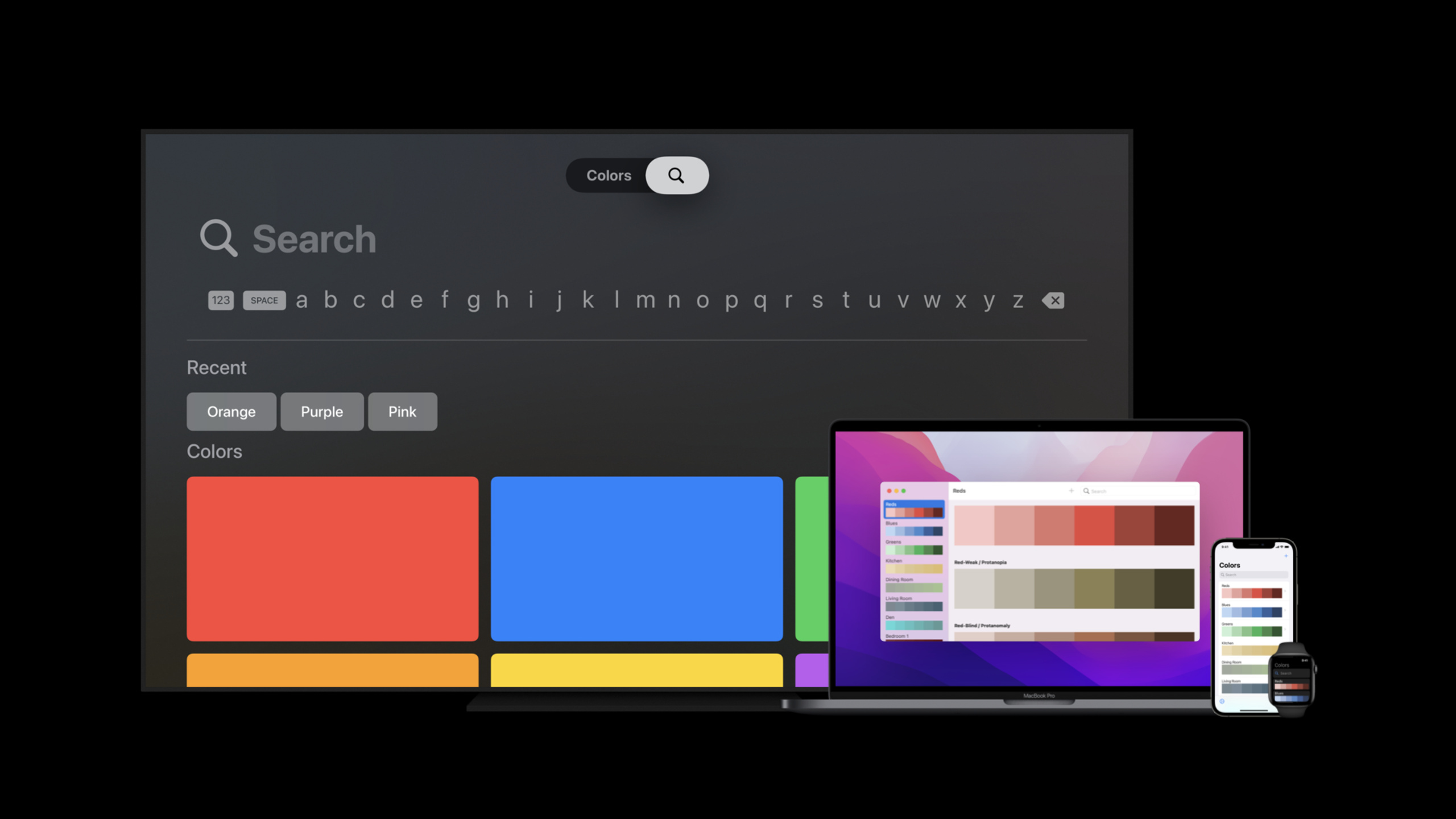
The Colors example illustrates cross-platform behavior. The same double-column navigation view code associates the search bar to the sidebar on iOS and iPadOS, moves the search box to the far right of the toolbar on macOS, and moves it to the top of the view on watchOS. The structure of tvOS is different. Search is usually tab, so the code only.searchableMove to the search tab.
The search box solves the input problem, and the search suggestions solve the problem of “users don’t know what to search for”..searchableCan receive suggestions closure. Suggestions can be hot words in the database or come from the server.searchCompletionCan turn a normal view into clickable suggestions, automatically fill in the search text and close the suggestion panel after selection.
Detailed Content
.searchable: Hand over the search field to SwiftUI
(01:17)
SwiftUI Newsearchableview modifier. Its core input is aBinding<String>. The string holds the current search query, and SwiftUI is responsible for rendering the search fields to the appropriate location for the platform.
import SwiftUI

struct ContentView: View {
    @State private var text = ""

    var body: some View {
        NavigationView {
            List(filteredCities, id: \.self) { city in
                Text(city)
            }
            .navigationTitle("Weather")
        }
        .searchable(text: $text)
    }

    private var filteredCities: [String] {
        let cities = ["Cupertino", "San Francisco", "London", "Tokyo"]

        if text.isEmpty {
            return cities
        }

        return cities.filter { city in
            city.localizedCaseInsensitiveContains(text)
        }
    }
}
Key points:
@State private var text = ""Save the search query and input changes will trigger a view refresh.NavigationViewProvides a navigation structure from which the Weather and Colors examples in the session start.List(filteredCities, id: \.self)Display cities based on filtered array..searchable(text: $text)Bind the search field totext。filteredCitiesusetextCalculates the results; empty queries show the complete list, non-empty queries show matches.
(02:15)
searchableWill put the search field into environment. ifNavigationViewYou can use this field, which will display the field as a search bar. If no view uses it, SwiftUI provides a default implementation that puts the search field in the toolbar.
ContentView()
    .searchable(text: $text)
Key points:
ContentView()is the content you want to mark as searchable..searchable(text: $text)Declare that this content supports search.$textIs binding, the search box and the application state share the same query text.
isSearching: Override the results view when searching
(03:11)
The search field is just the entry point. Real applications also need to decide where the results are displayed. session is recommendedisSearchingThe environment value determines whether the user is searching, and usesoverlayDisplay results so that the state of the main interface is not reset due to search interactions.
import SwiftUI

struct WeatherList: View {
    @Binding var text: String

    @Environment(\.isSearching)
    private var isSearching: Bool

    var body: some View {
        WeatherCitiesList()
            .overlay {
                if isSearching && !text.isEmpty {
                    WeatherSearchResults(text: text)
                }
            }
    }
}

struct WeatherCitiesList: View {
    var body: some View {
        List(["Cupertino", "San Francisco", "London"], id: \.self) { city in
            Text(city)
        }
    }
}

struct WeatherSearchResults: View {
    var text: String

    var body: some View {
        List(["Search result for \(text)"], id: \.self) { result in
            Text(result)
        }
    }
}
Key points:
@Binding var text: Stringreceive outer layer.searchableThe same query text used.@Environment(\.isSearching)Read the search status set by SwiftUI.WeatherCitiesList()Keep the master list alive..overlay { ... }Overlay search results above the main list.if isSearching && !text.isEmptyPrevent users from immediately displaying empty results when they just click into the search box.WeatherSearchResults(text: text)Constructs a results view using the current query.
NavigationView: Select search location by platform
(05:07)
Colors application uses double-columnNavigationView. Bundle.searchableAfter placing it on the navigation view, SwiftUI will select the default associated column based on the number of columns and platform. The two-column structure associates the search bar to the sidebar on iOS and iPadOS. macOS will place the search field in the trailing position of the toolbar.
import SwiftUI

struct ColorsContentView: View {
    @State var text = ""

    var body: some View {
        NavigationView {
            Sidebar(text: $text)
            DetailView()
        }
        .searchable(text: $text)
    }
}

struct Sidebar: View {
    @Binding var text: String

    var body: some View {
        List(filteredPalettes, id: \.self) { palette in
            Text(palette)
        }
    }

    private var filteredPalettes: [String] {
        let palettes = ["Ocean", "Sunset", "Forest", "iMac"]

        if text.isEmpty {
            return palettes
        }

        return palettes.filter { palette in
            palette.localizedCaseInsensitiveContains(text)
        }
    }
}

struct DetailView: View {
    var body: some View {
        Text("Select a palette")
    }
}
Key points:
NavigationView { Sidebar(text: $text); DetailView() }Construct a two-column interface..searchable(text: $text)Place it on the navigation view and let SwiftUI select the default column.Sidebartake overtext, filter the palette list with a query.DetailViewKeep the contents of the detail pane, macOS can put the results in the detail pane.- If you want the search field to be related to other columns, you can
.searchableonto the target column view.
(07:15)
The common search experience in tvOS is a tab. The method in session is: under tvOS, replace the content withTabView,Bundle.searchableon the search tab; other platforms continue to put.searchablePlace it on the navigation view.
import SwiftUI

struct ColorsContentView: View {
    @State var text = ""

    var body: some View {
        NavigationView {
            #if os(tvOS)
            TabView {
                Sidebar(text: $text)
                    .tabItem { Text("Library") }

                ColorsSearch(text: $text)
                    .searchable(text: $text)
                    .tabItem { Text("Search") }
            }
            #else
            Sidebar(text: $text)
            DetailView()
            #endif
        }
        #if !os(tvOS)
        .searchable(text: $text)
        #endif
    }
}

struct ColorsSearch: View {
    @Binding var text: String

    var body: some View {
        if text.isEmpty {
            Text("Search palettes")
        } else {
            List(["Result for \(text)"], id: \.self) { result in
                Text(result)
            }
        }
    }
}
Key points:
#if os(tvOS)Provides a separate navigation structure for tvOS.TabViewCreate the common tabbed structure of tvOS.ColorsSearch(text: $text).searchable(text: $text)Mark only the search tab as searchable.#if !os(tvOS)Preserve the default navigation view search behavior for other platforms.ColorsSearchThe placeholder content is displayed when the query is empty, and the results are displayed when the query is not empty.
suggestions: Use search suggestions to tell users what to search for
(09:09)
Search suggestions reduce the cost of trial and error when users don’t know what to type..searchableThe suggestions closure can return an array of views. session shows two modes: manually writing text with the button, or usingsearchCompletionCompleted automatically.
import SwiftUI

struct ColorsContentView: View {
    @State var text = ""

    private let suggestions = [
        ColorSuggestion(text: "Ocean"),
        ColorSuggestion(text: "Sunset"),
        ColorSuggestion(text: "Forest")
    ]

    var body: some View {
        NavigationView {
            Sidebar(text: $text)
            DetailView()
        }
        .searchable(text: $text) {
            ForEach(suggestions) { suggestion in
                ColorsSuggestionLabel(suggestion)
                    .searchCompletion(suggestion.text)
            }
        }
    }
}

struct ColorSuggestion: Identifiable {
    let id = UUID()
    let text: String
}

struct ColorsSuggestionLabel: View {
    let suggestion: ColorSuggestion

    init(_ suggestion: ColorSuggestion) {
        self.suggestion = suggestion
    }

    var body: some View {
        Text(suggestion.text)
    }
}
Key points:
suggestionsIt is dynamic suggestion data, and the session mentions that it can come from the application database or server..searchable(text: $text) { ... }The trailing closure provides a suggested view.ForEach(suggestions)Generate a label for each suggestion.ColorsSuggestionLabel(suggestion)Is a non-interactive view..searchCompletion(suggestion.text)Convert the label to selectable suggestions, update the search text and close the suggestions after selection.
(09:43)
If you want to control the selection behavior yourself, you can also put buttons in suggestions. Modify the same one directly after the button is clickedtextBinding.
import SwiftUI

struct ManualSuggestionsView: View {
    @State private var text = ""

    private let suggestions = [
        ColorSuggestion(text: "Blue"),
        ColorSuggestion(text: "Green"),
        ColorSuggestion(text: "Purple")
    ]

    var body: some View {
        NavigationView {
            List(suggestions) { suggestion in
                Text(suggestion.text)
            }
        }
        .searchable(text: $text) {
            ForEach(suggestions) { suggestion in
                Button {
                    text = suggestion.text
                } label: {
                    ColorsSuggestionLabel(suggestion)
                }
            }
        }
    }
}
Key points:
@State private var text = ""Is the state shared by the search box and suggestion button.Button { text = suggestion.text }Writes suggested text to the query on click.labeluse the sameColorsSuggestionLabel, the display logic can be reused.- This way of writing is suitable for suggestions that require additional custom behavior.
.onSubmit(of: .search): Initiate query after user submits
(10:21)
Some searches are not suitable for every character entered. For example, server-side queries, full-text searches, and expensive database requests. SwiftUI NewonSubmitmodifier (submit modifier), passed in.searchFinally, the closure is executed when the user submits a search query. Session mentions are usually triggered by selecting a search suggestion or pressing Enter on a hardware keyboard.
import SwiftUI

struct SearchSubmitView: View {
    @State private var text = ""
    @State private var results: [String] = []

    var body: some View {
        NavigationView {
            List(results, id: \.self) { result in
                Text(result)
            }
        }
        .searchable(text: $text) {
            MySearchSuggestions()
        }
        .onSubmit(of: .search) {
            fetchResults()
        }
    }

    private func fetchResults() {
        results = ["Submitted query: \(text)"]
    }
}

struct MySearchSuggestions: View {
    var body: some View {
        Text("Ocean")
            .searchCompletion("Ocean")
    }
}
Key points:
.searchable(text: $text)Responsible for entering queries.MySearchSuggestions()Provide achievable suggestions..onSubmit(of: .search)Only listens for search submissions.fetchResults()Update the results array after submission.- session also mentioned
onSubmitAvailable forTextFieldandSecureFieldnon-search submission scenario.
Core Takeaways
-
What to do: Add a search bar to the local favorites list. Why it’s worth doing:
.searchable(text:)Search fields are placed as is customary for iOS, iPadOS, macOS, and watchOS. How to start: Include the favorites pageNavigationView,Increase@State private var text = "",Bundle.searchable(text: $text)Place it on the navigation view or target column. -
What to do: Make a list of “temporarily overwrite results during search”. Why it’s worth doing:
isSearchingAble to distinguish between ordinary browsing and search interactions,overlayThe original list scroll position and selection status can be retained. How to start: Reading in list view@Environment(\.isSearching),whenisSearching && !text.isEmptyUsed when.overlayDisplay the results view. -
What to do: Add popular searches and historical searches to the search box. Why it’s worth doing: suggestions closure can generate suggestions based on database or server data.
searchCompletionQuery text is automatically filled in and suggestions are turned off. How to get started: Maintain onesuggestionsarray, in.searchable(text:) { ForEach(suggestions) { ... } }Add for each label in.searchCompletion(suggestion.text)。 -
What to do: Change the server-side search to “Query after submission”. Why it’s worth doing:
.onSubmit(of: .search)Only runs when explicitly submitted by the user, suitable for network requests and full-text retrieval. How to start: Put the request function in.onSubmit(of: .search) { fetchResults() }, read the currenttext。 -
What to do: Make a separate search tab for tvOS applications. Why it’s worth doing: The session pointed out that tvOS usually presents searches as tabs, and a separate search page is closer to the platform habit than stuffing the search box into the original structure. How to start: In
#if os(tvOS)Use in branchTabView,Bundle.searchable(text:)put inColorsSearchon this page.
Related Sessions
- What’s new in SwiftUI — Learn about the overall updates for SwiftUI 2021, including the multi-platform search API.
- SwiftUI on the Mac: Build the fundamentals — Practice toolbar, sidebar, table, and
.searchable。 - Direct and reflect focus in SwiftUI — Learn input focus, keyboard retract and
onSubmitsupporting usage. - Showcase app data in Spotlight — Submit app data to Spotlight indexing and use the index results to drive in-app full-text search.
Comments
GitHub Issues · utterances