
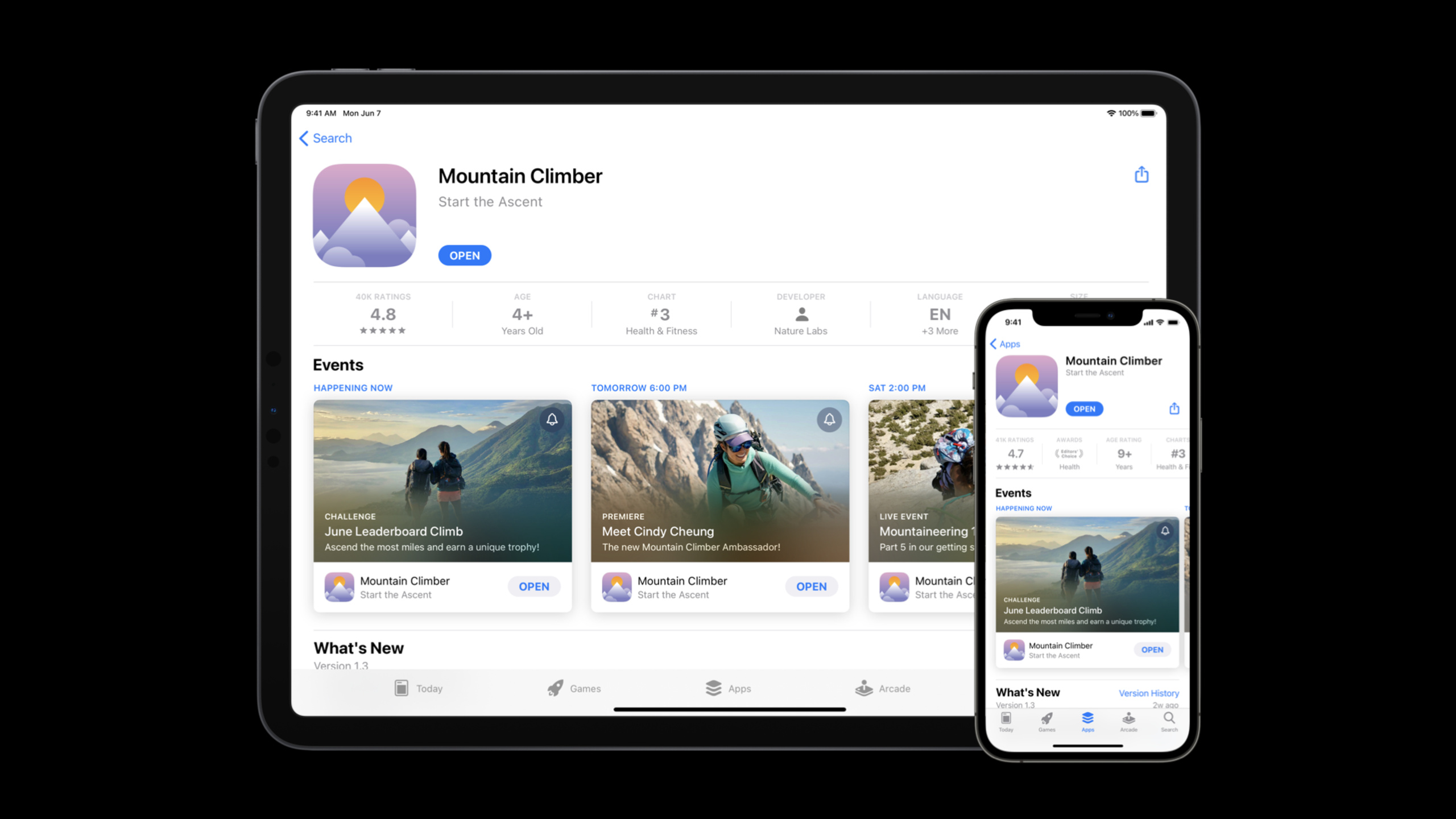
Highlight
Apple has added In-App Events to the App Store, allowing developers to create, schedule and measure in-app events in App Store Connect, allowing limited-time challenges, premieres and events to appear directly on product pages, search results, recommendations and Editors’ Picks.
Core Content
You’ve created an activity in the app. Games have weekend competitions, fitness apps have seven-day challenges, and video apps have movie premieres. The problem is, the user has to open the app before they can see it.
The previous approach mainly relied on off-site marketing and push. Push can only reach installed users. Social media requires users to leave the App Store and come back. The activity itself takes place within the app, but the discovery portal is scattered outside the app.
Apple introduces In-App Events at WWDC21. Events become event cards on the App Store. Cards can display images or videos, event names, short descriptions, and automatically updated time reminders.
In this way, the activity enters the App Store discovery link. Users may see activity when browsing product pages, searching for apps, and opening the Games and Apps tabs. Installed users can click Open to enter the in-app activities. Users who have not installed it will see the event details page.
The creation portal is also placed in App Store Connect. Developers fill in the activity information, available areas, start and end time, release time, deep link (deep link) and activity purpose. After the event passes review, it will be automatically released according to the schedule.
The focus of this session is new operational channels. It connects the limited-time content in the app to the App Store’s display, reminder, search, recommendation and analysis system.
Detailed Content
Activity Card: Put the activities in the app into the App Store
(01:08) In-App Events will appear in the App Store in the form of event cards. Cards support images or videos and display the activity name, short description, and time indicator. The time indicator automatically updates as the event approaches and starts.
There is no Code tab code snippet in this field. The App Store display structure is used here to represent the core fields.
In-App Event Card
- Media: image or video
- Event Name
- Short Description
- Time Indicator: updates before and after start
- Action for installed users: Open
Key points:
MediaIt is the visual content of the card, which can be a picture or a video.Event Nameis the name of the activity that users see on the App Store.Short DescriptionUse a short sentence to describe the content of the activity.Time IndicatorAutomatically updated by the App Store to indicate that an event is about to start or has already started.OpenFor installed users, click to enter the app directly.
(01:33) Activity cards first appear on the product page. Users who have downloaded the app will see the activity above the screenshot; users who have not downloaded the app will see the activity below the screenshot. When the user clicks on the card, they will enter the event details page. Detail pages have longer descriptions and larger media assets.
App Product Page
- Installed users: event cards above screenshots
- New users: event cards below screenshots
- Tap event card: Event Details Page
- Direct link: App Store URL + unique event ID
Key points:
Installed users’s activities are positioned higher because these users can participate immediately.New usersYou can still see activity, which can be a reason to download.Event Details PageHosts a more complete description of the event.unique event IDCan be appended to the app’s App Store URL for external marketing links.
Discovery Portal: Search, Recommendations and Editor’s Picks
(02:13) Developers can warm up up to two weeks before the event. Users can request notifications when an event starts. This notification comes from the App Store and takes installed users to an in-app activity. Users who have not installed it will enter the event details page.
Before event starts
- Promote event up to 14 days early
- User requests notification
- App Store sends notification at event start
- Installed user: open app event
- New user: open event details page
Key points:
14 daysThis is the upper limit for preheating, and activities cannot occupy the display space indefinitely.notificationSent by the App Store, developers don’t need to use their own push system to do this.Installed userYou can directly participate in the event after receiving the notification.New userYou will see the details page first and then decide whether to download.
(02:35) In-App Events also enter search results. When users search for an app, if they have already downloaded the app, they will see the activity card appear with the app. When users search for events directly, event cards always appear next to the app.
App Store discovery
- Product page
- Search by app name
- Search by event name
- Games tab and Apps tab personalized recommendations
- Today, Games, Apps editorial curation
Key points:
Search by app nameFor existing users, help them know what is happening in the app.Search by event nameFor users specifically looking for an event.personalized recommendationswill appear on the Games and Apps tabs.editorial curationCurated by the Apple editorial team in the Today, Games, Apps tabs.
App Store Connect: Create event metadata
(03:28) Creating an activity starts in App Store Connect. Developers enter an app, select In-App Events under Features on the left, and click Create In-App Event. The first step is to fill in the Reference Name. It is only visible within App Store Connect and can be up to 64 characters long.
App Store Connect
→ Select app
→ Features
→ In-App Events
→ Create In-App Event
→ Reference Name: up to 64 characters, internal only
Key points:
Select appIndicates that the activity must be hung under an existing app.FeaturesIt is the function entrance on the left side of App Store Connect.In-App EventsIt is a page for managing activities.Reference NameIt is only used for internal identification of the team and will not be displayed in the App Store.
(04:14) Activity information fields all support localization. Developers need to fill in the event name, short description, card media, long description, detail page media and badge. The name can be up to 30 characters, the short description up to 50 characters, and the long description up to 120 characters. The video will loop for up to 30 seconds.
Event Information
- Event Name: up to 30 characters
- Short Description: up to 50 characters
- Event Card Media: image or video
- Long Description: up to 120 characters
- Event Details Media: image or video
- Video limit: 30 seconds, loops
- Badge: event type
Key points:
Event NameWill be displayed on the card and details page.Short DescriptionUsed in activity cards to quickly explain activities.Long DescriptionUsed on the details page, you can add rewards and other information.Event Card MediaDecide on the visual content on the card.Event Details MediaUsed on detail pages, the size is larger.BadgeIndicates the type of activity to help users quickly determine the nature of the activity.
Available regions and scheduling: control display time
(05:57) In-App Events, like apps and in-app purchases, need to set availability by country or region. Events can only be published in countries or regions where the parent app is already available.
Availability
- Scope: Country or Region
- Constraint: event availability must be inside parent app availability
Key points:
Country or Regionis the granularity of activity availability.parent app availabilityIt is a hard constraint that the activity cannot be published to areas where the app is not available.
(06:20) Scheduling includes three times: start (the activity starts within the app), end (the activity ends within the app), and publish date (the activity first appears in the App Store). The minimum campaign duration is 15 minutes and the maximum duration is 31 days. The launch date can be up to 14 days before the start date.
Schedule
- Event Start: when the event begins inside the app
- Event End: when the event ends inside the app
- Publish Date: when the event first appears on the App Store
- Duration: 15 minutes to 31 days
- Promotion window: up to 14 days before start
Key points:
Event StartAlign real activity start times within the app.Event EndAlign the real activity end time within the app.Publish DateControls when the App Store starts showing activity.DurationThere are clear upper and lower limits, and campaigns cannot be shorter than 15 minutes or longer than 31 days.Promotion windowLet developers warm up in advance, but no more than 14 days in advance.
(07:09) After the event ends, it will no longer be discoverable through browsing or searching. The event details page will remain accessible via the App Store URL for 30 days. Event archived after 30 days. This 30-day window occurs automatically and cannot be configured. Developers can archive in advance by modifying availability.
After event ends
- Browsing and search discovery: stops
- Event details page URL: remains accessible for 30 days
- Archive: automatic after 30 days
- Early archive: edit availability in App Store Connect
Key points:
Browsing and search discoveryWill stop when the event ends.Event details page URLIt will be retained for 30 days so that external marketing links can still be opened in the short term.ArchiveAutomatically executed by the system.Early archiveModifying availability is done through App Store Connect.
(07:47) Developers can also customize scheduling by country or region. The custom date must be within 48 hours of the default date. This is suitable for handling time zone differences, such as where the start and end times in Europe are moved relative to the default time.
Customize Dates and Times
→ Select Countries or Regions
→ Choose custom start, end, or publish dates
→ Custom dates must be within 48 hours of defaults
→ Done
Key points:
Customize Dates and Timesis an optional entrance.Select Countries or RegionsDecide which regions use custom times.custom start, end, or publish datesUsed to match local time.48 hoursIt is the limit of the custom time relative to the default time.
Deep Link, activity purpose and priority
(08:39) Event Deep Link must be provided in Additional Information. It can be a universal link or a custom URL that targets a specific location within the app. Apple recommends not using URL shorteners or services that add redirects.
Event Deep Link
- Type: universal link or custom URL
- Target: specific place in the app
- Avoid: URL shorteners
- Avoid: unnecessary redirects
Key points:
universal linkYou can associate web links with pages within the app.custom URLYou can open the app with a custom scheme.specific place in the appIt is an event landing page. Users should not just go to the app homepage.URL shortenersandunnecessary redirectsIt may affect the opening experience and should be avoided.
(09:04) Event Purpose tells the App Store which users this event mainly serves: attracting new users, notifying active users, recalling lost users, or targeting these groups at the same time. This selection will participate in personalized recommendations. The App Store uses app usage information and processes this data on the device to reduce data collection and improve privacy.
Event Purpose
- Attract new users
- Keep active users informed
- Bring lapsed users back
- All purposes: default selection
- Used for personalized recommendations
- App usage information: processed on device
Key points:
Attract new usersIt is suitable to use activities as reasons for downloading.Keep active users informedSuitable for notifying users who already use frequently used apps.Bring lapsed users backSuitable for recalling users who haven’t opened the app for a while.All purposesis the default value and is suitable for most activities.processed on deviceIt is the privacy handling method in the App Store’s personalized recommendations.
(09:45) Priority level affects the ordering of activities on the product page. High-priority activities are sorted before ordinary activities; within the same group, they are sorted by start time. Developers also need to indicate whether the activity requires an in-app purchase or subscription. This information will be displayed on the card and details page, and will also affect the review experience.
Product page ordering
1. High-priority events
2. Normal-priority events
3. Start time within each priority group

Monetization disclosure
- Requires In-App Purchase: yes/no
- Requires Subscription: yes/no
Key points:
High-priority eventsDisplayed first, appropriate for the most important activities.Normal-priority eventsPresented in regular order.Start timeResponsible for sorting within the same priority.Requires In-App PurchaseandRequires SubscriptionUsers will be prompted with payment requirements on the App Store.
Auditing, Status Lifecycle and Quantity Limits
(10:34) After saving, the activity enters the draft state. Events must be reviewed before being posted. After developers fill out the required metadata, they can submit the activity for review. This process does not require creating a new version of the app or uploading a new binary (binary package).
Submission
- Save event
- State: Draft
- Add for Review after required metadata is complete
- No new app version required
- No new binary required
Key points:
Save eventThe current configuration will be saved.DraftIndicates that the activity has not yet been submitted for review.Add for ReviewIt is the action of entering the review.No new app version requiredReduced release costs for operational activities.No new binary requiredIt means that only the App Store Connect metadata can be changed.
(11:04) After the activity passes review, it enters the approved status. Activities that are published in the future are marked as Set to Publish; activities that are already due to be published are marked as Published. After entering Past, the link to the details page will continue to be accessible for 30 days. After entering Archived, the link is no longer accessible.
In-App Event lifecycle
Draft
→ Review
→ Approved
→ Set to Publish
→ Published
→ Past
→ Archived
Key points:
DraftThis is the editing stage.ReviewIt’s the App Store review stage.ApprovedIndicates that the review has been approved.Set to PublishIndicates waiting for a future publish date.PublishedIndicates that it is being displayed on the App Store.PastIndicates that the event has ended, but the link to the details page is still accessible for 30 days.ArchivedIndicates an active archive and the link is invalid.
(11:57) Each app can have up to 10 activities in approved status, and up to 5 activities can be published to the App Store at the same time. If the schedule of an activity exceeds these two limits, the developer cannot submit it for review.
Limits per app
- Approved events: up to 10
- Published events at the same time: up to 5
- Review submission blocked if schedule exceeds limits
Key points:
Approved eventsIncludes activities that have been approved, awaiting release, or are being released.Published events at the same timeControl the number of activities displayed on the App Store at the same time.Review submission blockedThis will occur when the schedule exceeds the limit.
App Analytics and App Store Connect API
(12:13) After an event is published, developers can measure performance in App Analytics. Activity pages link directly to corresponding activity data in App Analytics. Available metrics include impressions, the number of times a user opened the app or detail page, downloads and re-downloads resulting from activity, and the number of users who subscribed to a notification.
App Analytics for In-App Events
- Impressions
- Where users saw the event: product page, search, other locations
- App opens
- Event details page opens
- Downloads and redownloads from the event
- Notification opt-ins
Key points:
ImpressionsIndicates the number of times the activity was seen in the App Store.product page、searchandother locationsUsed to split display sources.App opensRepresents the opening behavior brought about by the activity.Event details page opensRepresents details page access behavior.Downloads and redownloadsUsed to measure the impact of campaigns on installations and recalls.Notification opt-insIndicates how many users have reserved event start reminders.
(13:17) Apple also announced that the In-App Event feature will support the App Store Connect API. Full specifications will be available later in the year. For teams with a set activity cadence, this means activity creation, scheduling and management can be plugged into automated release processes.
Automation entry
- App Store Connect API
- Scope: In-App Event functionality
- Spec availability: later in 2021
Key points:
App Store Connect APIIt is an automated entrance.In-App Event functionalityCovers the event management capabilities introduced in this session.later in 2021This is the specification release time given here.
Core Takeaways
-
What to do: Make weekly competition event cards for mobile games. Why it’s worth doing: Events can appear in the App Store up to 14 days in advance, and users can make an appointment to start being notified. How to start: Create an event in App Store Connect → Features → In-App Events, fill in the contest name, short description, video within 30 seconds and event deep link.
-
What to do: Create a regional challenge for a fitness app. Why it’s worth doing: Different countries or regions can set custom schedules within the default time of 48 hours, which is suitable for starting in local time. How to start: First set the default start, end, and publish date, and then use Customize Dates and Times to adjust the time for the target area.
-
What to do: Make a new movie premiere entrance for the video app. Why it’s worth doing: The event details page can use long descriptions and larger media resources, and users who have not installed it can also see the premiere content in the App Store. How to start: Prepare card media and details page media for the premiere event, and point the Event Deep Link to the playback or reservation page in the app.
-
What to do: Make a limited-time member live broadcast for the subscription app. Why it’s worth doing: Activity cards and details pages can show whether subscription is required, and users know the participation conditions before entering. How to start: Mark Requires Subscription accurately in Additional Information, and clearly write down the live broadcast time and membership requirements in the long description.
-
What to do: Create an activity review board. Why it’s worth doing: App Analytics provides display, source, open, download, re-download and notification appointment data to determine whether the activity brings real conversions. How to get started: Go to App Analytics from the campaigns page in App Store Connect after the campaign is published and split impressions by product page, search, and other sources.
Related Sessions
- What’s new in App Analytics — Explains the new store-side indicators in App Analytics and how to measure the exposure, conversion and download effects of In-App Events.
- Get ready to optimize your App Store product page — Explains custom product pages and product page optimization, suitable for planning App Store marketing materials together with event cards.
- Meet TestFlight on Mac — Explains how TestFlight supports test distribution and feedback collection for Mac apps, covering the pre-release verification process.
- Distribute apps in Xcode with cloud signing — Explains the process of distributing from Xcode to App Store Connect, suitable for managing version launches together with event release plans.
Comments
GitHub Issues · utterances