
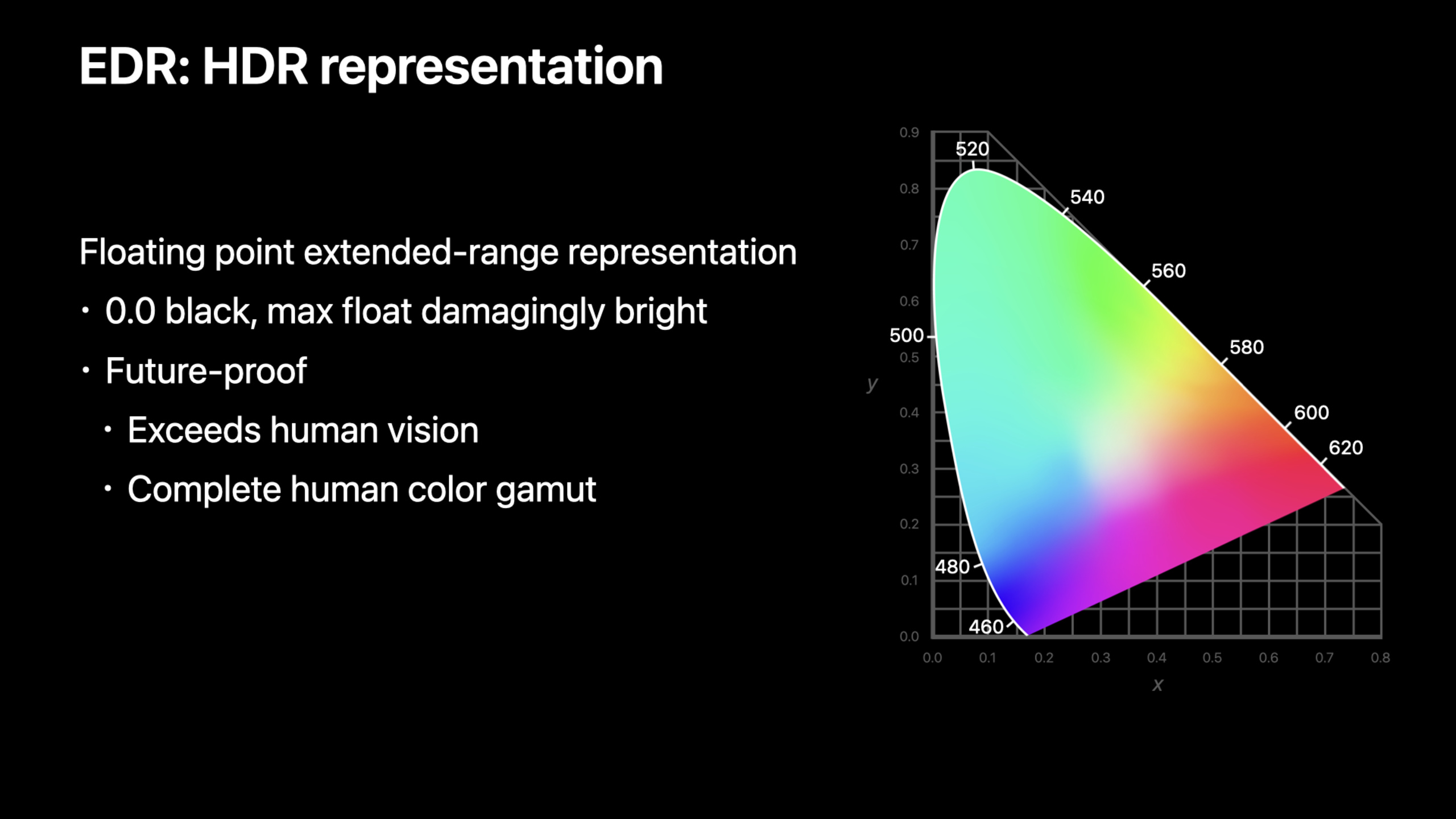
Highlight
EDR allows applications to output brightness values beyond the SDR range (>1.0) on displays that support HDR. The system automatically performs tone mapping based on the display capabilities; on Pro Display XDR, it can reach up to about 6 times the SDR brightness.
Core Content
Your rendering engine outputs color values in the range 0-1. This is fine on an SDR display, but is a waste of hardware power on an HDR display. The Pro Display XDR can display pixels 6 times brighter than SDR, and the MacBook Pro can display 2-3 times brighter pixels. How to take advantage of this extra dynamic range?
EDR (Extended Dynamic Range) is Apple’s solution. It is similar to color management, but manages the brightness range.
Detailed Content
What is EDR?
(00:50)
EDR refers to two things at the same time:
- HDR representation format: allows color values to exceed 1.0
- HDR rendering technology: The system automatically maps according to the display capabilities
In SDR systems, white is defined as 1.0. In EDR, 1.0 is still SDR white, but values greater than 1.0 are allowed. The system automatically decides when displaying: brighter pixels are directly displayed on the HDR screen, and tone mapping is performed on the SDR screen to compress it to the 1.0 range.
(02:30)
Key points:
- SDR white = 1.0
- EDR allowed values > 1.0
- System automatically handles mapping of HDR and SDR displays
- Different monitors have different EDR upper limits
Four steps to add EDR support
(03:37)
Apple recommends four steps to add EDR:
- Detect EDR support
- Configure rendering target
- Output HDR value in shader
- Processing tone mapping
Detect EDR support
(05:00)
// Check whether the screen supports EDR
let screen = window.screen
let maxEDR = screen.maximumExtendedDynamicRangeColorComponentValue

if maxEDR > 1.0 {
    // Supports EDR
    print("EDR max: \(maxEDR)")  // About 6.0 on Pro Display XDR
}(05:00)
Key points:
maximumExtendedDynamicRangeColorComponentValueReturn EDR cap- 1.0 means EDR is not supported
- The larger the value, the stronger the HDR capability of the monitor
- Different screens may have different values
Configure CAMetalLayer
(17:52)
// Configure the Metal layer to support EDR
metalLayer.wantsExtendedDynamicRangeContent = true
metalLayer.pixelFormat = .rgba16Float  // 16-bit float format

// Set the colorspace
if let edrColorSpace = CGColorSpace(name: CGColorSpace.displayP3_PQ) {
    metalLayer.colorspace = edrColorSpace
}(18:53)
Key points:
wantsExtendedDynamicRangeContent = trueEnable EDR- Use 16-bit float pixel format (
.rgba16Float) - Choose a color space that supports HDR (such as Display P3 PQ)
- Requires full screen or separate window for maximum EDR capabilities
Output HDR values in Shader
(20:30)
fragment float4 hdrFragment(...) {
    // Scene rendering
    float3 sceneColor = computeLighting(...);

    // Scene values may exceed 1.0
    // For example, sun reflections may reach 4.0 or higher

    // Output directly; the EDR system handles mapping
    return float4(sceneColor, 1.0);
}(21:00)
Key points:
- Directly output values exceeding 1.0
- No manual clamp required
- EDR system automatically maps based on monitor capabilities
- Keep linear space, don’t do gamma correction
Tone Mapping
(22:30)
For SDR displays, the system will automatically do tone mapping. But if you want to control the mapping curve yourself, you can do it in the shader:
float3 toneMap(float3 hdrColor, float maxEDR) {
    // Simple Reinhard tone mapping
    float3 mapped = hdrColor / (1.0 + hdrColor);

    // Or use ACES filmic tone mapping
    // mapped = ACESFilm(hdrColor);

    return mapped;
}(23:30)
Key points:
- System automatically handles mapping of SDR displays
- Custom tone mapping is only used when a specific style is required -Keep linear space until last step
- Different scenarios may require different tone mapping curves
EDR and AVPlayer
(16:00)
AVPlayer automatically supports EDR. When playing HDR content, it automatically takes advantage of the monitor’s EDR capabilities.
let player = AVPlayer(url: hdrVideoURL)
let playerLayer = AVPlayerLayer(player: player)

// AVPlayer handles EDR automatically, with no extra configuration needed
playerLayer.videoGravity = .resizeAspect(16:00)
Key points:
- AVPlayer automatically detects HDR content
- Automatically utilize EDR display capabilities
- No manual configuration required
- Automatic tone mapping on SDR displays
Core Takeaways
-
Add HDR highlight effect to the game. Light sources such as the sun, explosions, and neon lights can output 2-6 times SDR brightness. Entrance API:
metalLayer.wantsExtendedDynamicRangeContent = true。 -
Use 16-bit float render target. HDR content requires sufficient accuracy, and 8-bit is not enough. Entrance API:
pixelFormat = .rgba16Float。 -
Detect monitor EDR capability adjustment content. Different monitors have different EDR upper limits, and adjust the intensity of HDR content based on capabilities. Entrance API:
screen.maximumExtendedDynamicRangeColorComponentValue。 -
Test the effect on both SDR and HDR displays. The system will automatically tone map, but the effect may be different. Ensure good visuals on both monitors.
-
Configure EDR workflows for professional video applications. Display P3 PQ color space + 16-bit float + EDR enabled. Entrance API:
CGColorSpace.displayP3_PQ。
Related Sessions
- Capture and process ProRAW images — ProRAW shooting and processing
- Create image processing apps powered by Apple silicon — Apple Silicon image processing optimization
- Explore Core Image kernel improvements — Core Image Metal kernel new way of writing
Comments
GitHub Issues · utterances