
Highlight
VideoToolbox adds a new low-latency H.264 hardware encoding mode, which eliminates frame rearrangement and the rate controller quickly adapts to network changes. 720p@30fps can reduce latency by about 100ms and supports time-domain scalability and long-term reference frames.
Core Content
You develop a video conferencing application. Users reported delays in conversations and frequent interruptions. Where does the delay come from?
Video encoders usually have a frame reordering buffer internally (to improve compression efficiency with B-frames), which introduces a 3-5 frame delay. The rate controller also responds slowly to network changes. Added together, end-to-end latency can exceed 200ms.
VideoToolbox’s new low-latency mode specifically addresses this issue.
Detailed Content
How low-latency mode works
(02:05)
Low latency mode performs two core optimizations:
- Eliminate frame rearrangement. Adopting a one-in-one-out encoding mode, each frame is encoded and output immediately after input without waiting for subsequent frames.
- Fast code rate adaptation. The rate controller responds faster to network changes and reduces delays caused by congestion.
For 720p@30fps video, low-latency mode can reduce latency by about 100ms. This is critical in video conferencing.
(03:14)
Key points:
- Low latency mode always uses hardware accelerated encoding
- Only supports H.264 encoding
- Supported by both iOS and macOS
- Slightly less efficient compression than default mode, but significantly lower latency
Enable low latency mode
(05:03)
The enabling method is very simple, you only need to set a flag when creating a compression session:
var encoderSpecification: CFMutableDictionary = CFDictionaryCreateMutable(
    kCFAllocatorDefault,
    0,
    &kCFTypeDictionaryKeyCallBacks,
    &kCFTypeDictionaryValueCallBacks
)

// Enable low-latency rate control
CFDictionarySetValue(
    encoderSpecification,
    kVTVideoEncoderSpecification_EnableLowLatencyRateControl,
    kCFBooleanTrue
)

// Create the compression session
let session = VTCompressionSessionCreate(
    allocator: kCFAllocatorDefault,
    width: 1280,
    height: 720,
    codecType: kCMVideoCodecType_H264,
    encoderSpecification: encoderSpecification,
    imageBufferAttributes: nil,
    compressedDataAllocator: nil,
    outputCallback: outputHandler,
    refcon: &context,
    compressionSessionOut: &session
)

// Configure the bitrate, same as usual
VTSessionSetProperty(
    session,
    key: kVTCompressionPropertyKey_AverageBitRate,
    value: 2000000 as CFNumber  // 2 Mbps
)(05:03)
Key points:
kVTVideoEncoderSpecification_EnableLowLatencyRateControlEnable low latency mode- Other configurations (bit rate, resolution) are the same as usual
- Encoder automatically uses hardware acceleration
- Receive the encoded frame in the output callback
New Profile support
(06:10)
Two new profiles are added to low-latency mode:
- Constrained Baseline Profile (CBP): used for low-cost applications with the best compatibility
- Constrained High Profile (CHP): Higher compression ratio, suitable for bandwidth-limited scenarios
// Use Constrained Baseline Profile
VTSessionSetProperty(
    session,
    key: kVTCompressionPropertyKey_ProfileLevel,
    value: kVTProfileLevel_H264_ConstrainedBaseline_AutoLevel
)

// Use Constrained High Profile
VTSessionSetProperty(
    session,
    key: kVTCompressionPropertyKey_ProfileLevel,
    value: kVTProfileLevel_H264_ConstrainedHigh_AutoLevel
)(07:35)
Key points:
- CBP has the best compatibility and is supported by almost all decoders
- CHP compression is more efficient
- Select a profile based on the other party’s decoding ability
AutoLevelLet the encoder automatically select the level
Time domain scalability
(07:54)
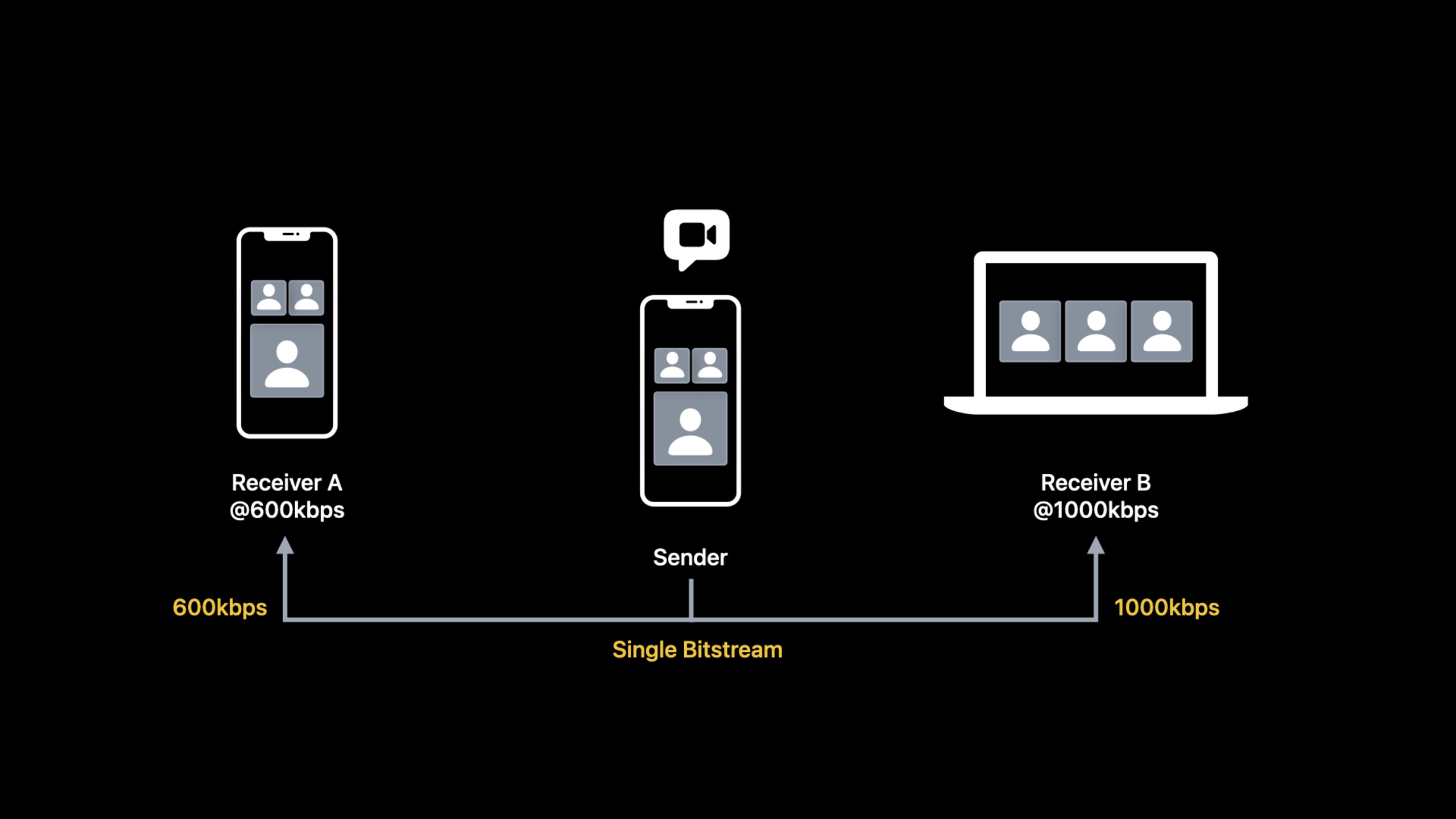
In a multi-party video conference, each receiver has different bandwidth. The traditional approach is to encode different code streams for each receiver, which is inefficient.
Temporal scalability only encodes a single bitstream, but splits the frames into two layers:
- Base layer: contains half the frame rate and can be decoded independently
- Enhancement layer: Supplementary frames, together with the base layer provide full frame rate
// Set the base layer frame rate fraction
VTSessionSetProperty(
    session,
    key: kVTCompressionPropertyKey_BaseLayerFrameRateFraction,
    value: 0.5 as CFNumber  // Half of the frames go to the base layer
)

// Set the base layer bitrate fraction
VTSessionSetProperty(
    session,
    key: kVTCompressionPropertyKey_BaseLayerBitRateFraction,
    value: 0.6 as CFNumber  // 60% of the bitrate goes to the base layer
)(11:15)
Key points:
- base layer frame rate is half of the input
- The base layer code rate is recommended to account for 60%-80% of the total code rate
- Low bandwidth receiver only receives base layer
- High-bandwidth receiver receives base + enhancement layer
- The frame loss of the enhancement layer does not affect other frames
Maximum frame quantization parameter
(12:26)
Frame QP (Quantization Parameter) controls image quality and bit rate. The lower the QP, the higher the quality and the greater the bitrate.
In low-latency mode, you can set the maximum allowed QP to prevent the encoder from excessively reducing quality in complex scenes.
VTSessionSetProperty(
    session,
    key: kVTCompressionPropertyKey_MaxAllowedFrameQP,
    value: 30 as CFNumber  // QP cap is 30
)(14:22)
Key points:
- QP range is 1-51
- Encoder will not use higher QP after setting cap
- If the bitrate budget is insufficient, the encoder will drop frames instead of reducing quality
- Suitable for screen sharing and other scenarios that require clear text
Long term reference frame (LTR)
(14:45)
After the network packet is lost, the decoder needs to request a refresh frame. The traditional approach is to send I-frames (key frames), but I-frames are large and may aggravate congestion when the network is poor.
LTR uses smaller predicted frames (LTR-P) instead of I-frames for refresh.
// Enable LTR
VTSessionSetProperty(
    session,
    key: kVTCompressionPropertyKey_EnableLTR,
    value: kCFBooleanTrue
)

// The encoder marks LTR frames in the output that require confirmation
// After the application layer receives confirmation, it tells the encoder through AcknowledgedLTRTokens

// Request a refresh frame
VTSessionSetProperty(
    session,
    key: kVTCompressionPropertyKey_ForceLTRRefresh,
    value: kCFBooleanTrue
)(17:07)
Key points:
- LTR frames are slightly larger than normal P-frames, but much smaller than I-frames
- The application layer is responsible for frame confirmation and retry logic
- Encoder falls back to I-frame when no confirmed LTR
- Suitable for scenarios with unstable network
Core Takeaways
-
Enable low-latency encoding for video conferencing applications. One line of configuration reduces latency by about 100ms. Entrance API:
kVTVideoEncoderSpecification_EnableLowLatencyRateControl。 -
Optimizing multi-party conferences with temporal scalability. One code stream serves receivers with different bandwidths, which saves power than encoding multiple code streams. Entrance API:
kVTCompressionPropertyKey_BaseLayerFrameRateFraction。 -
Set maximum QP for screen sharing. Prevent text and UI from becoming blurred in complex scenes. Entrance API:
kVTCompressionPropertyKey_MaxAllowedFrameQP。 -
Use LTR to improve weak network recovery capabilities. After packet loss, LTR-P frames are used to refresh, which arrive faster than I-frames. Entrance API:
kVTCompressionPropertyKey_EnableLTR。 -
Select a profile based on the other party’s decoding capabilities. Use CBP to communicate with low-end devices, and use CHP to communicate with high-end devices. Entrance API:
kVTCompressionPropertyKey_ProfileLevel。
Related Sessions
- What’s new in AVFoundation — AVFoundation asynchronous property loading new API
- Evaluate videos with the Advanced Video Quality Tool — AVQT Video Quality Evaluation Tool
- Edit and play back HDR video with AVFoundation — AVFoundation HDR video editing and playback
Comments
GitHub Issues · utterances