
Highlight
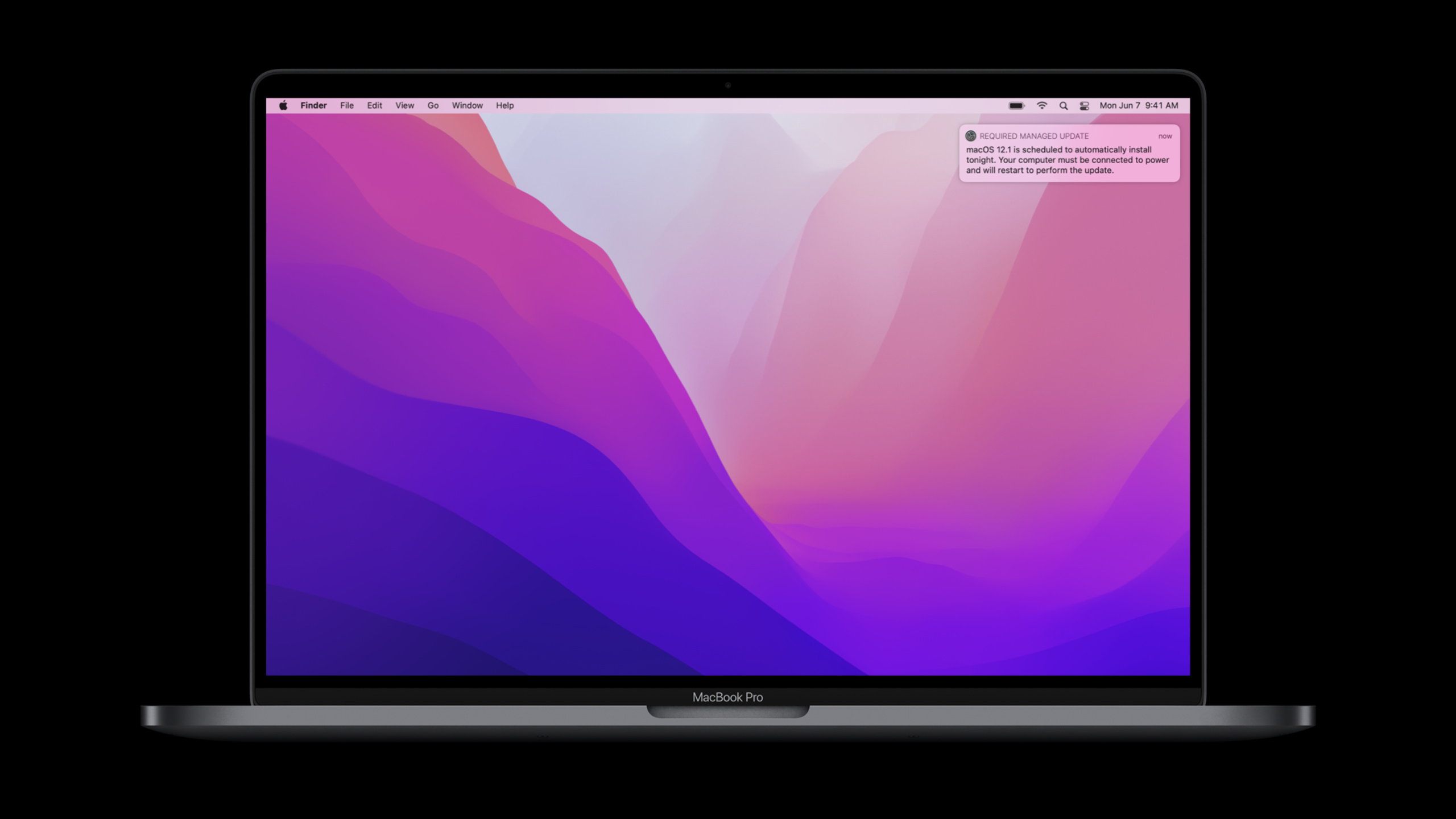
macOS Monterey lets the MDM server use version numbers to deploy Mac updates, use bootstrap tokens to schedule Apple silicon Mac nightly installations, and limit the number of user deferrals through MaxUserDeferrals to help organizations complete system upgrades as planned after testing is completed.
Core Content
What IT administrators fear most is that the pace of system updates is out of control.
A company may have thousands of Macs, iPhones, and iPads. After a new system is released, security patches should be installed as soon as possible. Internal VPNs, printer drivers, financial systems, and classroom apps must also be verified first. If the user clicks the update himself, the service may be interrupted. The administrator keeps blocking updates, and the device will stay on the old system.
This session splits the process into three stages: first testing, then deployment, and finally forced completion.
Test Phase, AppleSeed for IT allows organizations to validate new systems during the beta phase. After the official version is released, deferred (delayed updates) temporarily prevents supervised devices from displaying updates to users. Administrators can control the update window from 1 to 90 days.
During the deployment phase, macOS Monterey brings Mac closer to the iOS update process. The MDM server can obtain the version list from the Apple Software Lookup Service and use the device’s hardware identification to determine suitability. Previously, Macs required the device to scan for available updates and then send the results back to the server. Now one less round trip is needed.
Finally, there is the issue of execution. The user may click “Remind Later” continuously. macOS Monterey adds MaxUserDeferrals. Administrators can specify the maximum number of deferrals allowed. After the number of times is used up, the device will forcefully install the update and notify the user in advance of the remaining times.
Test and Delay: Give the organization a window to verify
Organizations can use AppleSeed for IT to obtain pre-release software, test plans and feedback channels before a new system is released. Any non-student Managed Apple ID from Apple School Manager or Apple Business Manager can participate.
After the official version is released, deferral will prevent supervised devices from showing updates to users in the software update interface. The default delay is 30 days, but can be set from 1 to 90 days. The delay only affects the user interface and does not prevent MDM commands from deploying the specified updates.
Deployment and execution: Reduce server round-trips and reduce user interruptions
Mac used to passScheduleOSUpdateScanDetermine available updates locally on the device. The server needs to wait for the scan results before selecting a version to deploy.
macOS Monterey addedSoftwareUpdateModelID, so that MDM can get the hardware model string. The Apple Software Lookup Service also includes macOS hardware identification. The server can compare the two and directly determine whether a certain version is suitable.
Apple silicon Macs also require certification before they can be updated. After macOS 11.2, automatic updates can use MDM bootstrap tokens. macOS Monterey extends this capability toInstallLater, the device can be installed at night, and the user can open the new system the next day.
Detailed Content
1. Use deferral to control update display
(02:16) Deferral is for supervised devices. It waits a specified number of days after Apple releases an update before showing it to users.
Starting with macOS 11.3, administrators can delay major releases, minor releases, and supplemental updates respectively. This allows security updates to be released first and then continue to verify the new major version.
forceDelayedMajorSoftwareUpdates = true
forceDelayedMajorSoftwareUpdatesDelay = 90

forceDelayedSoftwareUpdates = true
forceDelayedSoftwareUpdatesDelay = 14

forceDelayedAppSoftwareUpdates = true
forceDelayedAppSoftwareUpdatesDelay = 14

ManagedDeferredInstallDelay = 30
Key points:
forceDelayedMajorSoftwareUpdatesTurn on major version delay.forceDelayedMajorSoftwareUpdatesDelayIndicates the number of days that the major version is delayed. The value range is from session: 1 to 90 days.forceDelayedSoftwareUpdatesTurn on minor version deferral.forceDelayedSoftwareUpdatesDelaySet individual delay days for minor versions.forceDelayedAppSoftwareUpdatesTurn on supplemental update delay.forceDelayedAppSoftwareUpdatesDelaySet individual deferral days for supplemental updates.ManagedDeferredInstallDelayIt is an old key; when a certain type of delay is enabled but does not have a corresponding delay period, the system will fall back to using it.
(02:58) This set of restrictions only affects the Software Update interface. MDM can still send specified updates to the device within the delay window.
# User interface
Software Update UI -> Show updates after the deferral expires

# MDM command
MDM ScheduleOSUpdate -> Can deploy a specified update during the deferral period
Key points:
- The first line represents the update entry that users see in the system settings.
Software Update UIWill be affected by delay strategy.MDM ScheduleOSUpdateIs the command path for administrators to deploy updates.- MDM commands are not blocked by deferred and are suitable for active push after the test is completed.
2. Use SoftwareUpdateModelID to determine Mac update applicability
(05:23) macOS Monterey Previously, available updates for Mac could only be evaluated on user devices. The MDM server needs to send it firstScheduleOSUpdateScan, let the Mac query the server and determine suitability, then wait for the results to be sent back.
ScheduleOSUpdateScan
  -> Mac queries the software update server
  -> Mac determines available updates and applicability
  -> Mac sends scan results back to MDM
  -> MDM selects the update to deploy
Key points:
ScheduleOSUpdateScanTrigger a device-side scan.- Mac queries software update servers itself.
- Suitability judgment occurs on the device side.
- MDM cannot be deployed until the scan results come back.
(06:44) macOS Monterey addedDeviceInformation query key:SoftwareUpdateModelID. It returns the hardware model string for iOS and macOS to MDM. The Apple Software Lookup Service also includes macOS hardware identification in the JSON feed.
DeviceInformation query:
  SoftwareUpdateModelID -> "MacBookPro17,1"

Apple Software Lookup Service:
  SupportedDevices -> ["MacBookPro17,1", "MacBookAir10,1"]

if SoftwareUpdateModelID in SupportedDevices:
  deploy ProductVersion
Key points:
SoftwareUpdateModelIDyesDeviceInformationThe new key in the query.- The return value is the device hardware model string, and the session description is supported by both iOS and macOS.
- The Apple Software Lookup Service provides identification of available system versions and applicable hardware.
- The MDM server compares the hardware identifiers on both sides to determine whether the update is applicable.
- After the judgment is completed, the server can directly deploy the target version.
(07:25) macOS Monterey also begins to supportProductVersion. Previously macOS would ignore it and useProductKey. If both keys are provided at the same time, the system still usesProductKey。
ScheduleOSUpdate:
  ProductVersion = "12.1"

# May appear together for compatibility with the old flow
ScheduleOSUpdate:
  ProductVersion = "12.1"
  ProductKey = "012-34567"

# When both are present
selected update = ProductKey
Key points:
ProductVersionSpecify the update with a version number. iOS already uses this key.- macOS Monterey starts to support
ProductVersion。 ProductKeyIs the product identifier used by the old macOS process.- When two keys exist at the same time,
ProductKeypriority. - If the device cannot find an applicable update for the corresponding version, a corresponding response will be returned.
3. Use ScheduleOSUpdate to select the installation action
(10:02) After MDM determines which version the device is suitable for, useScheduleOSUpdateDeploy to macOS, iOS, and iPadOS. The install action must be set in the command, which determines the download, notification and installation behavior.
ScheduleOSUpdate:
  InstallAction = InstallASAP
  ProductVersion = "12.1"
Key points:
ScheduleOSUpdateIs the MDM command to deploy updates.InstallActionis an option that must be set.InstallASAPIndicates to perform the installation as soon as possible.ProductVersionSpecify the system version to deploy.
(10:19) macOS installation actions includeInstallASAP、DownloadOnly、NotifyOnlyandInstallLater. On Apple silicon Mac,InstallASAPAuthentication will be completed using bootstrap token.
InstallAction = InstallASAP
# Execute immediately; the user can cancel; Apple silicon Mac uses the bootstrap token

InstallAction = DownloadOnly
# Download in the background without starting installation

InstallAction = NotifyOnly
# Notify the user only without starting installation

InstallAction = InstallLater
# Schedule overnight installation, usually between 2:00 and 4:00
Key points:
InstallASAPSuitable for userless devices, commands are executed immediately.DownloadOnlyIt is suitable for downloading updates in advance to reduce the wait for official installation.NotifyOnlyOnly alert users that updates are available.InstallLaterNighttime installation will be arranged.- session description The night window is typically 2:00 to 4:00 and requires the device to be plugged into power.
(09:29) macOS Monterey makes Apple silicon MacInstallLaterYou can also use bootstrap tokens. The premise is that you already support bootstrap token and useScheduleOSUpdateofInstallLater action。
ScheduleOSUpdate:
  InstallAction = InstallLater
  ProductVersion = "12.1"

Authentication:
  MDM Bootstrap Token
Key points:
InstallLaterLet the device be installed at a later time of your choosing.- Automatic non-interactive updates for Apple silicon Macs require certification.
MDM Bootstrap TokenAutomatic renewal of required certifications can be completed.- macOS Monterey extends bootstrap token support to
InstallLater。
4. Use MaxUserDeferrals to force macOS updates
(13:55) After testing is completed, administrators need to prevent users from continually postponing updates. macOS Monterey givesInstallLaterAdd execution strategy:MaxUserDeferrals。
ScheduleOSUpdate:
  InstallAction = InstallLater
  ProductVersion = "12.1"
  MaxUserDeferrals = 3
Key points:
InstallAction = InstallLaterUse the nightly installation process.MaxUserDeferralsSpecifies the maximum number of deferrals a user can make.- The session description sets this key and it will be hidden after reaching the upper limit.
InstallForceRestart。 - When the administrator wants to modify the maximum number of postponements, he only needs to send a new one
InstallLaterOrder.
(15:01) User notifications will show the number of deferrals remaining. After the user selects Remind Me Tomorrow, the remaining times decrease. After the number of times is used up, the system notifies the user that this update will be forcibly executed.
remainingDeferrals = MaxUserDeferrals

user selects "Remind Me Tomorrow"
remainingDeferrals = remainingDeferrals - 1

if remainingDeferrals == 0:
  InstallForceRestart applies
Key points:
remainingDeferralsIndicates the remaining number of times displayed in the notification.Remind Me TomorrowUpdates will be delayed and one less opportunity will be available.remainingDeferrals == 0Indicates that the maximum number of postponements has been reached.- After reaching the upper limit, the machine will restart to perform the update, even if the user is still using the device.
5. Use RecommendationCadence to control the display of updated versions of iOS/iPadOS
(15:55) iOS and iPadOS will now give users two update options in Settings: upgrade to the next major OS, or stay in the current major release and continue to receive important security updates.
MDM can be accessed through the Settings commandSoftwareUpdateSettingsThe dictionary controls which version is displayed. The key key isRecommendationCadence。
Settings:
  SoftwareUpdateSettings:
    RecommendationCadence = 0
Key points:
SettingsIs a command used by MDM to adjust device settings.SoftwareUpdateSettingsIs a dictionary that controls the display of software updates.RecommendationCadenceDetermines which update options users see.0is the default view; you also get this view without MDM restrictions.
(16:38) RecommendationCadence has three values. 0 shows available updates in both major and minor categories. 1 shows the update with the lower version number when both versions are available. 2 shows updates with higher version numbers.
RecommendationCadence = 0
# Show all available updates

RecommendationCadence = 1
# If both versions are available, show the lower version number

RecommendationCadence = 2
# If both versions are available, show the higher version number
Key points:
0It is suitable for users to choose their own upgrade path.1It’s good for devices to stay on the current major version and receive security updates.2Suitable for guiding users to upgrade to a newer major version.- if existing
enforceSoftwareDelayUpdateDelay setting, the device will consider the delay first and then pressRecommendationCadencefilter.
Core Takeaways
-
What to do: Make an MDM update dashboard and group devices by “upgradeable, delayed, to be forced, completed”. Why it’s worth doing:
SoftwareUpdateModelIDand Apple Software Lookup Service allow the server to determine the applicability of Mac updates in advance and save one more device scan. How to start: First collect the information of each deviceSoftwareUpdateModelID, and then compare it with the device list of the lookup feed to generate a target device list for each version. -
What to do: Implement a “nightly update” strategy for corporate Macs. Why it’s worth it: macOS Monterey supports Apple silicon Macs in
InstallLaterUsing bootstrap tokens in the process, users do not have to wait for installation during working hours. How to get started: Confirm that the device is supervised and has an MDM bootstrap token, then sendScheduleOSUpdate,BundleInstallActionset toInstallLater。 -
What to do: Set a limited number of deferrals for high-risk security updates. Why it’s worth doing:
MaxUserDeferralsIt can give users time to prepare and prevent the device from staying in the old version for a long time. How to start: InInstallLaterAdd to the commandMaxUserDeferrals, starting from 3 times, explain the mandatory installation time in the notification copy. -
What to do: Provide a “stay in current major version” update policy for school iPads. Why it’s worth doing: iOS/iPadOS
RecommendationCadence = 1Lower versions can be shown first, allowing devices to continue receiving important security updates while avoiding switching major versions mid-semester. How to start: Write via Settings commandSoftwareUpdateSettings,BundleRecommendationCadenceset to1, combined with deferred to control the display time. -
What to do: Split major and minor updates into different approval flows. Why it’s worth doing: Starting from macOS 11.3, major versions, minor versions, and supplementary updates can be delayed separately, and security fixes do not need to be slowed down by major version verification. How to start: Set separately in the configuration profile
forceDelayedMajorSoftwareUpdates、forceDelayedSoftwareUpdatesandforceDelayedAppSoftwareUpdates, allowing different update types to enter different test windows.
Related Sessions
- What’s new in managing Apple devices — Continue to learn about device management updates for iOS 15, iPadOS 15, and macOS Monterey.
- Meet declarative device management — Learn to declare device policies to the device side for execution, reducing MDM server polling.
- Explore account-driven User Enrollment — Understand the account-driven enrollment process and Managed Apple ID in BYOD scenarios.
- Improve MDM assignment of Apps and Books — See how app and book assignments are handled asynchronously in large-scale organizations.
- Manage devices with Apple Configurator — Learn how to assign and restore your Mac with Apple Configurator.
Comments
GitHub Issues · utterances