
Highlight
Apple introduced Screen Time API in iOS and iPadOS 15, allowing parental control apps to request guardian authorization, monitor usage time, and enforce restrictions through Family Controls, Device Activity, and Managed Settings, while leaving app and website usage data on the device.
Core Content
The core problem with parental control apps has always been on children’s devices.
After parents set rules, children usually won’t actively open the app. It is difficult for developers to run code at the right time and ensure that rules are always in effect. For example, blocking games after ten o’clock in the evening, or unblocking entertainment apps after using a learning app for thirty minutes. Traditional background tasks are not suitable for this scenario.
Privacy issues are more sensitive. Parental control apps will encounter information such as app usage records, website access records, category selections, etc. Developers need to know what to restrict, but they should not transmit to the server which apps children have used and which websites they have visited.
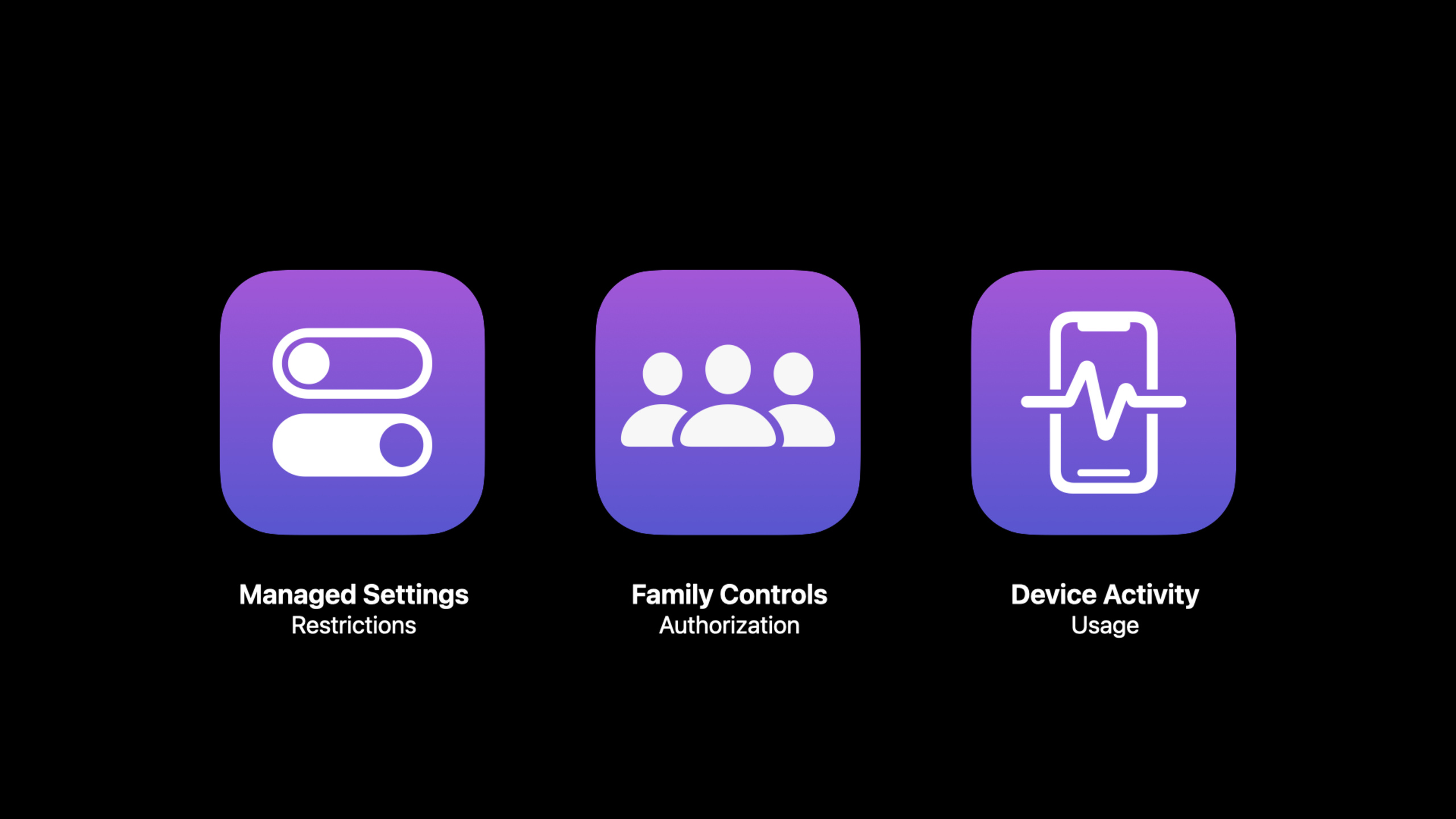
Screen Time API breaks this thing down into three frameworks.
Family Controls are responsible for authorization and privacy boundaries. It relies on Family Sharing, requires guardians to approve apps using the Screen Time API, and uses opaque tokens to represent apps, websites, and categories.
Device Activity is responsible for running extensions when the app is not launched. The developer declares a time window and usage threshold, and the system calls the extension when the time begins, ends, or when the threshold is reached.
Managed Settings are responsible for actually enforcing the limits. After the extension is activated, you can lock the account, prevent password changes, filter web traffic, block apps, or unblock previously set settings.
These three frameworks are connected together to form a complete process: the guardian authorizes on the child device, the parent device selects the rules, the rules are synchronized to the child device, and the Managed Settings restrictions are triggered by the Device Activity extension on the child device.
Detailed Content
Family Controls: Let the guardian authorize it first
(07:22) The first step in the Homework demo is to request Family Controls authorization when the app starts. The speech made it clear that this request would require approval from a guardian in the family. When running for the first time, the system displays an authorization prompt; after the guardian clicks Allow, he or she needs to authenticate with Apple ID and password.
import FamilyControls
import SwiftUI

@main
struct HomeworkApp: App {
    @StateObject private var model = HomeworkModel()

    var body: some Scene {
        WindowGroup {
            ContentView()
                .environmentObject(model)
                .task {
                    AuthorizationCenter.shared.requestAuthorization { result in
                        switch result {
                        case .success:
                            model.isAuthorized = true
                        case .failure:
                            model.isAuthorized = false
                        }
                    }
                }
        }
    }
}

final class HomeworkModel: ObservableObject {
    @Published var isAuthorized = false
}
Key points:
import FamilyControlsIntroducing the Family Controls framework.AuthorizationCenter.sharedInitiate the request using a shared authorization center.requestAuthorizationThe guardian approval process will be triggered..successIndicates that the current children’s device has been authorized..failureThis may happen when you log into an iCloud account that is not part of the Family Sharing child account, which the talk mentions at 08:06.
(08:25) Successful authorization will also bring system-level protection. Children’s devices cannot sign out of iCloud; if an app contains an on-device web content filter based on Network Extensions, it will be automatically installed and prevented from being removed by children.
Device Activity: Let the extension run according to the time window
(09:31) Children will not actively open parental control apps, so Homework uses Device Activity Schedule to set blocking every day. The speech said that Schedule is a time window, and the system will call the App extension at the beginning and end of the window.
import DeviceActivity

final class HomeworkMonitor: DeviceActivityMonitor {
    override func intervalDidStart(for activity: DeviceActivityName) {
        // Called the first time the system uses the device after the time window starts.
    }

    override func intervalDidEnd(for activity: DeviceActivityName) {
        // Called the first time the system uses the device after the time window ends.
    }
}
Key points:
DeviceActivityMonitorIs an extended principal class.intervalDidStartThe corresponding time window begins.intervalDidEndThe corresponding time window ends.- The talk explains at 10:14 that these two methods are called when the device is used for the first time, either at the beginning or after the end of time.
(10:26) The main App needs to create an Activity name and Schedule. The name is used to identify the activity in the extension; the Schedule is used to indicate the time range of monitoring. Homework demo Name the activitydaily, set to repeat every day.
import DeviceActivity
import Foundation

let daily = DeviceActivityName("daily")

let schedule = DeviceActivitySchedule(
    intervalStart: DateComponents(hour: 0, minute: 0),
    intervalEnd: DateComponents(hour: 23, minute: 59),
    repeats: true
)

let center = DeviceActivityCenter()
try center.startMonitoring(daily, during: schedule)
Key points:
DeviceActivityName("daily")Give this monitoring rule a name and the extension callback will receive the same name.DeviceActivityScheduleDefine time boundaries.repeats: trueIndicates that this rule is executed repeatedly.DeviceActivityCenterResponsible for registration monitoring.startMonitoringGive the name and schedule to the system, which is then expanded by system calls.
Family Activity Picker: Let guardians choose apps, websites and categories
(11:09) Before restricting, you need to know what the guardian wants to restrict. Family Controls provides the SwiftUI component Family Activity Picker. Guardians can select items from apps, websites and categories used by the family.
import FamilyControls
import SwiftUI

struct ContentView: View {
    @State private var isPickerPresented = false
    @State private var selection = FamilyActivitySelection()

    var body: some View {
        Button("Select discouraged apps") {
            isPickerPresented = true
        }
        .familyActivityPicker(
            isPresented: $isPickerPresented,
            selection: $selection
        )
    }
}
Key points:
FamilyActivitySelectionSave guardian selection.ButtonTrigger the selector display.familyActivityPickerIt is the SwiftUI view modifier mentioned in the speech.selectionWhen bound to the App model, the guardian’s selection updates are written back to the model.- The selection result is an opaque token, which is used to restrict or monitor the corresponding App, website and category.
(04:08) These tokens are key to privacy by design. The system allows apps to use tokens for restriction and monitoring, but the tokens do not reveal the readable identity of the app or website, and people outside the family sharing group cannot know what children specifically use.
Managed Settings: Block and unblock in the extension
(11:59) After getting the guardian’s selection, the extension sets the application block at the beginning of the time window and clears the block at the end of the time window. The speech clearly mentioned that you need to import the Managed Settings module to access the application shield restriction.
import DeviceActivity
import ManagedSettings

final class HomeworkMonitor: DeviceActivityMonitor {
    private let store = ManagedSettingsStore()
    private let model = HomeworkModel.shared

    override func intervalDidStart(for activity: DeviceActivityName) {
        store.shield.applications = model.discouragedSelection.applicationTokens
    }

    override func intervalDidEnd(for activity: DeviceActivityName) {
        store.shield.applications = nil
    }
}
Key points:
import ManagedSettingsIntroduce limiting capabilities.ManagedSettingsStoreSave restrictions to apply to the device.store.shield.applicationsCorresponds to the application shield restriction in the speech.model.discouragedSelection.applicationTokensOpaque token from Family Activity Picker.nilIndicates removing a previously set app block. The speech directly describes this operation at 12:14.
(12:30) Managed Settings are not limited to blocking apps. Restrictions listed in the speech also include blocking account creation or removal, blocking apps and websites entirely, and restricting media content by age. Media apps can also read Movies and TV content restrictions and do not require Family Controls authorization.
Device Activity Events: Unlimiting with usage thresholds
(13:51) The second rule of the Homework demo is: Unblock entertainment apps after children use enough encouraging apps. Device Activity Events are used here to monitor usage thresholds.
import DeviceActivity
import FamilyControls
import Foundation

let daily = DeviceActivityName("daily")
let encouraged = DeviceActivityEvent.Name("encouraged")

let event = DeviceActivityEvent(
    applications: model.encouragedSelection.applicationTokens,
    threshold: DateComponents(minute: 30)
)

let center = DeviceActivityCenter()
try center.startMonitoring(
    daily,
    during: schedule,
    events: [encouraged: event]
)
Key points:
DeviceActivityEvent.Name("encouraged")Give the event a name, which the extended callback will use to identify the event.applicationsUse an encouraging App token chosen by the guardian.thresholdIndicates the usage time to be accumulated, which is called usage threshold in the speech.eventsSign up with Schedule, mentioned at 13:41.- When the threshold is reached, the system calls the Device Activity monitor extension.
(14:46) Extension passedeventDidReachThresholdReceive notifications. Homework is receivingencouragedAfter the event, set app blocking tonil, making previously blocked apps available again.
import DeviceActivity
import ManagedSettings

final class HomeworkMonitor: DeviceActivityMonitor {
    private let store = ManagedSettingsStore()

    override func eventDidReachThreshold(
        _ event: DeviceActivityEvent.Name,
        activity: DeviceActivityName
    ) {
        if event == DeviceActivityEvent.Name("encouraged") {
            store.shield.applications = nil
        }
    }
}
Key points:
eventDidReachThresholdCalled when the usage threshold is reached.eventIndicates the name of the triggered event.activityIndicates which Schedule the event belongs to.- judge
encouragedThen unblock it to avoid false triggering by other events. store.shield.applications = nilReuse the previous unblocking method.
Custom Shields: Make the system shield page your own experience
(15:27) The default blocking page is from Screen Time. Managed Settings also provides two extension points: one to customize the appearance of the shielding page, and one to handle the button actions of the shielding page.
import ManagedSettings
import UIKit

final class HomeworkShieldConfigurationProvider: ShieldConfigurationProvider {
    override func configuration(shielding application: Application) -> ShieldConfiguration {
        ShieldConfiguration(
            backgroundBlurStyle: .systemMaterial,
            backgroundColor: .systemBackground,
            icon: UIImage(systemName: "book.closed.fill"),
            title: ShieldConfiguration.Label(text: "Homework first", color: .label),
            subtitle: ShieldConfiguration.Label(text: "Read for 30 minutes to unlock this app.", color: .secondaryLabel),
            primaryButtonLabel: ShieldConfiguration.Label(text: "Ask for Access", color: .white),
            primaryButtonBackgroundColor: .systemBlue,
            secondaryButtonLabel: ShieldConfiguration.Label(text: "OK", color: .systemBlue)
        )
    }
}
Key points:
ShieldConfigurationProviderIt is the main class of appearance customization extension.configurationReceive currently blocked applications.ShieldConfigurationReturns the background effect, background color, icon, title, subtitle, and button label.- The system will display this configuration on apps blocked by Homework, the talk explains this at 16:37.
(16:50) The second extension point handles buttons. Extensions should be inheritedShieldActionHandler, rewritehandle, and calls the completion handler to return the shield action response. Responses listed in the talk include closing the blocked app, or delaying the action and redrawing the blocking configuration.
import ManagedSettings

final class HomeworkShieldActionHandler: ShieldActionHandler {
    override func handle(
        action: ShieldAction,
        for application: ApplicationToken,
        completionHandler: @escaping (ShieldActionResponse) -> Void
    ) {
        switch action {
        case .primaryButtonPressed:
            completionHandler(.defer)
        case .secondaryButtonPressed:
            completionHandler(.close)
        @unknown default:
            completionHandler(.close)
        }
    }
}
Key points:
ShieldActionHandlerIs the main class of button action extension.handleTells the extension whether the user pressed the primary or secondary button.applicationIndicates the currently blocked App token.completionHandlermust be called, and the speech makes this requirement clear at 17:14..deferCan be used to wait for the guardian’s action and let the blocking page update the status..closeClose blocked apps.
Core Takeaways
1. Learn to change the entertainment mode for children
- What to do: Automatically unlock game and video apps after children use reading, learning, or creative apps for 30 minutes.
- Why it’s worth doing: Device Activity Events can monitor the usage threshold of encouraged apps, and Managed Settings can remove previous blocking.
- How to start: Use Family Activity Picker to let the guardian choose two sets of apps; use
DeviceActivityEventMonitor and encourage apps; ineventDidReachThresholdMiddle handlestore.shield.applicationsset tonil。
2. Focus mode for a fixed period of time
- What to do: Automatically block social, gaming and short video apps from after dinner to before going to bed every day.
- Why it’s worth it: Device Activity Schedule can evoke extensions at the beginning and end of repeating time windows, so children don’t have to actively open the app.
- How to get started: Create
DeviceActivitySchedule,set uprepeats: true;existintervalDidStartSet blocking; inintervalDidEndClear the shield.
3. Home web filtering tool
- What to do: Install end-side web content filters for children’s devices and adjust access scope in accordance with parental rules.
- Why it’s worth doing: The speech mentioned that after Family Controls is authorized, the Network Extensions web content filter in the App will be automatically installed and cannot be removed by children.
- How to start: First add the Family Controls capability; request guardian authorization; put the web filtering logic into the Network Extensions extension, and then use Managed Settings to manage relevant restrictions.
4. Age rating protection for content apps
- What: Video or TV apps hide inappropriate content based on the Movies and TV restrictions on your device.
- Why it’s worth doing: Managed Settings provides an API to read Movies and TV content restrictions, and the talk explains that this read does not require Family Controls authorization.
- How to start: Read the system media restrictions when the media app starts or refreshes the content list; use the restriction results to filter the content list to avoid showing content that exceeds the allowed age.
5. Branded blocking page
- What to do: Change the default Screen Time blocking page to one with app branding, explanation of reason, and a “Request Access” button.
- Why it’s worth it: Custom Shields allows setting backgrounds, icons, titles, subtitles and buttons and letting the extension handle button actions.
- How to start: Implementation
ShieldConfigurationProviderReturn to customShieldConfiguration;accomplishShieldActionHandlerHandles primary and secondary buttons; primary button returns.deferWait for guardian confirmation.
Related Sessions
- Apple’s privacy pillars in focus — Explains Apple’s engineering principles for driving privacy capabilities in iOS 15, suitable for viewing in conjunction with the privacy design of the Screen Time API.
- Meet the Location Button — Introducing the location button for on-demand authorization and showing how system controls can reduce authorization friction for sensitive data.
- Get ready for iCloud Private Relay — Describes how iCloud Private Relay reduces the exposure of user activities at the network level.
- Meet privacy-preserving ad attribution — Describes how ad attribution works without tracking user activity across apps and websites.
Comments
GitHub Issues · utterances