
Highlight
Apple provides Accessibility Custom Content API, which allows data-intensive interfaces to hand over core information to VoiceOver to read directly, and put supplementary information into More Content rotor for users to access on demand.
Core Content
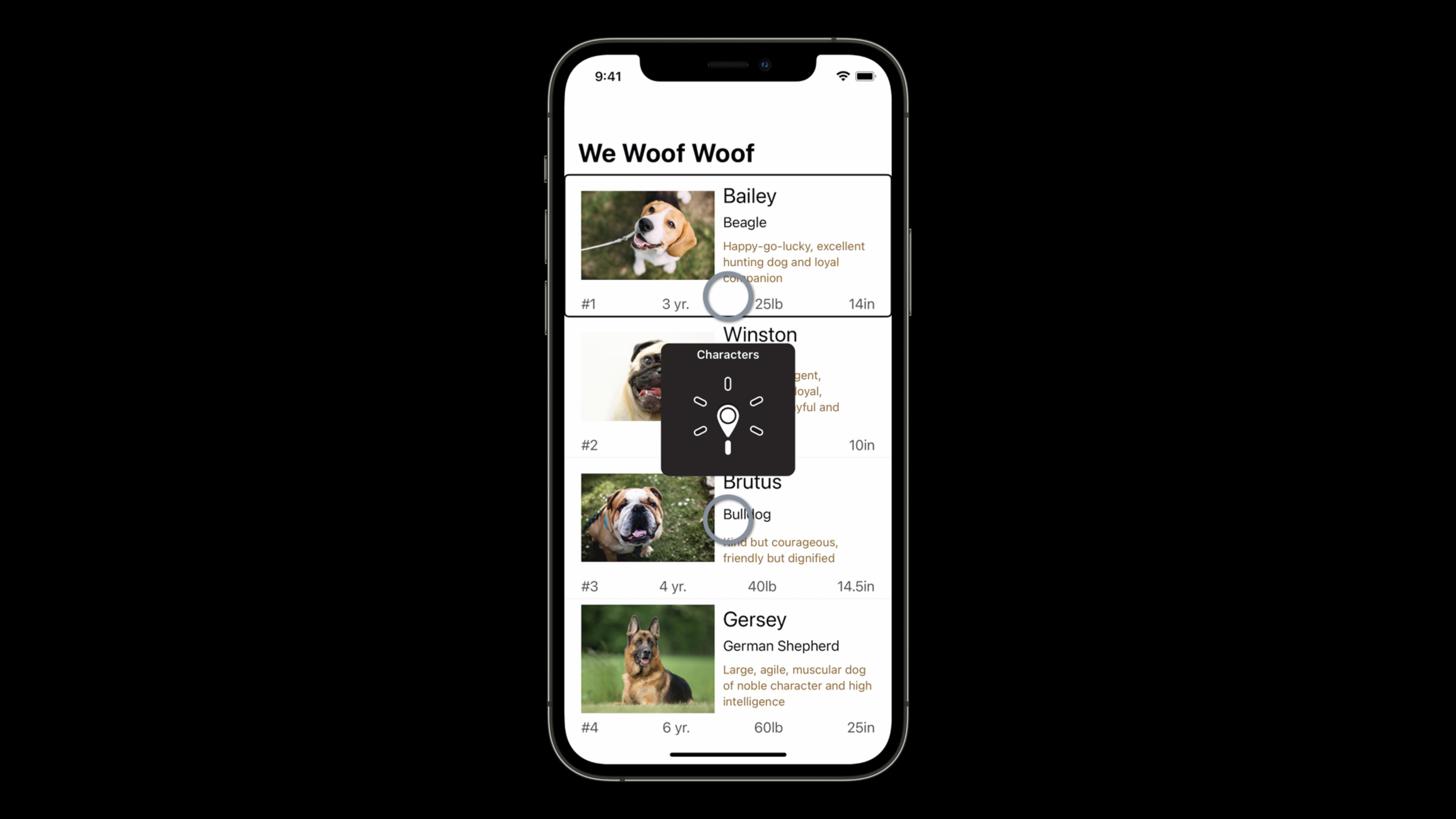
A list cell looks pretty ordinary: photo of dog, name, breed, personality description, popularity, age, weight, height.
By default, VoiceOver reads these in interface order. When users swipe to the first dog, they hear the name, breed, long description, ranking, age, weight, and height. Slide to the next dog and repeat again.
The problem is information density. If there is too much reading, the user has to find the key points in a long list of speech sounds. Read too little, and users won’t get complete information. Different users care about different information: some people look at age first, some people look at weight first, and some people just want to quickly scan the list.
Apple provides the Accessibility Custom Content API in the Accessibility framework. Developers can split the elements into two layers: the accessibility tag only retains the core content, such as dog name and breed; the detailed fields put custom content and hand it over to the More Content rotor.
The results are straightforward. When VoiceOver focuses on a cell, it first says “Bailey, beagle. More content available.” When the user wants to hear details, open the More Content rotor, and then browse age, popularity, weight, height, and description one by one.
This capability solves the rhythm problem of data-intensive interfaces. The default read aloud is kept short, details are still accessible, and the user decides when to listen.
Detailed Content
Use More Content rotor to carry supplementary information
(01:50)
The Accessibility Custom Content API is provided by the Accessibility framework, and the talk states that it is available on all Apple platforms. Its goal is to allow assistive technology to present the “right amount” of information.
On iOS, users turn the VoiceOver rotor to More Content and then swipe up or down to browse supplemental content. On macOS, after the VoiceOver cursor is resting on an element, you can useVO + Command + /Open the More Content menu.
The key APIs areAXCustomContentProviderandAXCustomContent。
import UIKit
import Accessibility

class DogTableViewCell: UITableViewCell, AXCustomContentProvider {

    var coverImage: UIImageView!
    var name: UILabel!
    var type: UILabel!
    var desc: UILabel!
    var popularity: UILabel!
    var age: UILabel!
    var weight: UILabel!
    var height: UILabel!

    override var accessibilityLabel: String? {
        get {
            guard let nameLabel = name.text else { return nil }
            guard let typeLabel = type.text else { return nil }
            return nameLabel + ", " + typeLabel
        }
        set { }
    }

    var accessibilityCustomContent: [AXCustomContent]! {
        get {
            let notes = AXCustomContent(label: "Description", value: desc.text!)
            let popularity = AXCustomContent(label: "Popularity", value: popularity.text!)
            let age = AXCustomContent(label: "Age", value: age.text!)
            let weight = AXCustomContent(label: "Weight", value: weight.text!)
            let height = AXCustomContent(label: "Height" , value: height.text!)
            return [age, popularity, weight, height, notes]
        }
        set { }
    }
}
Key points:
import AccessibilityIntroducing Accessibility framework,AXCustomContentandAXCustomContentProviderfrom here.DogTableViewCellaccomplishAXCustomContentProvider, indicating that this cell can provide custom auxiliary content.accessibilityLabelReturn onlynameandtypeto have VoiceOver read the most important information first when it focuses.AXCustomContent(label:value:)Make a field into a key-value pair, for example"Age"andage.text!。accessibilityCustomContentReturns an array, the order of which determines the order in which VoiceOver renders the fields in the More Content rotor.
Use importance to read key information in advance
(06:49)
Some supplementary information should still be spoken by default. The example in the speech was the age of a dog. For those looking to adopt, age may be a decision-making field, and hiding in a rotor increases operational costs.
AXCustomContenthaveimportanceproperty. set it to.highLater, VoiceOver will read this field directly when focusing on the element, and it will still appear in the More Content rotor.
import UIKit
import Accessibility

class DogTableViewCell: UITableViewCell, AXCustomContentProvider {

    var coverImage: UIImageView!
    var name: UILabel!
    var type: UILabel!
    var desc: UILabel!
    var popularity: UILabel!
    var age: UILabel!
    var weight: UILabel!
    var height: UILabel!

    override var accessibilityLabel: String? {
        get {
            guard let nameLabel = name.text else { return nil }
            guard let typeLabel = type.text else { return nil }
            return nameLabel + ", " + typeLabel
        }
        set { }
    }

    var accessibilityCustomContent: [AXCustomContent]! {
        get {
            let notes = AXCustomContent(label: "Description", value: desc.text!)
            let popularity = AXCustomContent(label: "Popularity", value: popularity.text!)
            let age = AXCustomContent(label: "Age", value: age.text!)
            age.importance = .high
            let weight = AXCustomContent(label: "Weight", value: weight.text!)
            let height = AXCustomContent(label: "Height" , value: height.text!)
            return [popularity, age, weight, height, notes]
        }
        set { }
    }
}
Key points:
let age = AXCustomContent(label: "Age", value: age.text!)Create an age field.age.importance = .highMark age as high priority.- VoiceOver will read the dog’s name, breed and age when focusing on the cell.
return [popularity, age, weight, height, notes]Preserves access to the rotor.
Add custom content in SwiftUI
(07:47)
WWDC21 also brings the same capability to SwiftUI. The minimum approach is to use on the viewaccessibilityCustomContentmodifier, passing in label, value and optionalimportance。
struct SampleView: View {
    var body: some View {
        VStack {
            Text(name)
            Text(description)
        }
        .accessibilityElement(children: .combine)
        .accessibilityCustomContent("Description", description, importance: .high)
    }
}
Key points:
VStackThere isText(name)andText(description)Two paragraphs of text..accessibilityElement(children: .combine)Combine child elements into one accessibility element..accessibilityCustomContent("Description", description, importance: .high)Add custom content to the description field.importance: .highHave this description rendered directly by VoiceOver when the element is focused.
Organize the default reading content of SwiftUI cell
(08:10)
SwiftUI will automatically start fromTextInfer accessibility content. In data-intensive cells, this will cause the description and each numerical field to automatically enter the reading queue.
The way the speech is handled is: first use the supplementary fieldsaccessibilityHidden(true), to prevent them from entering the default label; then pass the same data throughaccessibilityCustomContentAdd it back.
import SwiftUI
import Accessibility

struct DogCell: View {
    var dog: Dog
    var body: some View {
        VStack {
            HStack {
                dog.image
                    .resizable()
                VStack(alignment: .leading) {
                    Text(dog.name)
                        .font(.title)
                    Spacer()
                    Text(dog.type)
                        .font(.body)
                    Spacer()
                    Text(dog.description)
                        .fixedSize(horizontal: false, vertical: true)
                        .font(.subheadline)
                        .foregroundColor(Color(uiColor: UIColor.brown))
                        .accessibilityHidden(true)
                }
                Spacer()
            }
            .padding(.horizontal)
            HStack(alignment: .top) {
                VStack(alignment: .leading) {
                    HStack {
                        Text(dog.popularity)
                        Spacer()
                        Text(dog.age)
                        Spacer()
                        Text(dog.weight)
                        Spacer()
                        Text(dog.height)
                    }
                    .foregroundColor(Color(uiColor: UIColor.darkGray))
                    .accessibilityHidden(true)
                }
                Spacer()
            }
            .padding(.horizontal)
            Divider()
        }
        .accessibilityElement(children: .combine)
        .accessibilityCustomContent("Age", dog.age, importance: .high)
        .accessibilityCustomContent("Popularity", dog.popularity)
        .accessibilityCustomContent("Weight", dog.weight)
        .accessibilityCustomContent("Height", dog.height)
        .accessibilityCustomContent("Description", dog.description)
    }
}
Key points:
Text(dog.description)is still displayed on the interface, but.accessibilityHidden(true)Prevent it from entering the default reading.- Include
popularity、age、weight、heightofHStackAlso hidden to prevent VoiceOver from reading all values at once. .accessibilityElement(children: .combine)put the wholeVStackas a focusable element..accessibilityCustomContent("Age", dog.age, importance: .high)Let Age be spoken by default and remain in the More Content rotor.- The next four
.accessibilityCustomContentPut popularity, weight, height and description into rotor.
Use AccessibilityCustomContentKey to reuse keys
(08:57)
If the same custom content value is updated or removed multiple times in the SwiftUI hierarchy, the talk recommends creatingAccessibilityCustomContentKeyExtension. This allows you to reuse keys and avoid repeatedly writing localized strings in different locations.
import SwiftUI
import Accessibility

extension AccessibilityCustomContentKey {
    static var age: AccessibilityCustomContentKey {
        AccessibilityCustomContentKey("Age")
    }
}

struct DogCell: View {
    var dog: Dog
    var body: some View {
        VStack {
            HStack {
                dog.image
                    .resizable()
                VStack(alignment: .leading) {
                    Text(dog.name)
                        .font(.title)
                    Spacer()
                    Text(dog.type)
                        .font(.body)
                    Spacer()
                    Text(dog.description)
                        .fixedSize(horizontal: false, vertical: true)
                        .font(.subheadline)
                        .foregroundColor(Color(uiColor: UIColor.brown))
                        .accessibilityHidden(true)
                }
                Spacer()
            }
            .padding(.horizontal)
            HStack(alignment: .top) {
                VStack(alignment: .leading) {
                    HStack {
                        Text(dog.popularity)
                        Spacer()
                        Text(dog.age)
                        Spacer()
                        Text(dog.weight)
                        Spacer()
                        Text(dog.height)
                    }
                    .foregroundColor(Color(uiColor: UIColor.darkGray))
                    .accessibilityHidden(true)
                }
                Spacer()
            }
            .padding(.horizontal)
            Divider()
        }
        .accessibilityElement(children: .combine)
        .accessibilityCustomContent(.age, dog.age, importance: .high)
        .accessibilityCustomContent("Popularity", dog.popularity)
        .accessibilityCustomContent("Weight", dog.weight)
        .accessibilityCustomContent("Height", dog.height)
        .accessibilityCustomContent("Description", dog.description)
    }
}
Key points:
extension AccessibilityCustomContentKeyAdd static attributes to custom content keys.AccessibilityCustomContentKey("Age")Create reusable age keys..accessibilityCustomContent(.age, dog.age, importance: .high)Use key objects instead of strings.- By reusing a key, the same item can be updated or removed elsewhere in the hierarchy.
Core Takeaways
-
What to do: Create a VoiceOver structure of “core information + detailed parameters” for the product list. Why it’s worth doing: Product cards usually contain price, specifications, inventory, promotions and descriptions, and reading aloud by default tends to become too long. Accessibility Custom Content allows you to put specifications and descriptions into the More Content rotor. How to start: Let cell implement
AXCustomContentProvider,accessibilityLabelOnly the product name and price are retained, and the specification field isAXCustomContent(label:value:)return. -
What to do: Set high-priority fields for filtered lists such as pet adoptions, housing listings, and used cars. Why it’s worth doing: Fields such as age, area, mileage, etc. will directly affect the selection, and the user should not open the rotor every time to hear it. How to get started: Create for key fields
AXCustomContent,set upimportance = .high, and then check the speaking order when VoiceOver is focused. -
What: Maintain separate visual text and accessibility text for SwiftUI complex cards. Why it’s worth doing: Cards can continue to display rich typography, VoiceOver only reads core content by default, and supplementary fields pass
accessibilityCustomContentsupply. How to start: Add to the description and parameter areas.accessibilityHidden(true), used on the outer container.accessibilityElement(children: .combine)and many times.accessibilityCustomContent。 -
What: Define fields that will be updated repeatedly
AccessibilityCustomContentKey。 Why it’s worth doing: The same field may be set, updated, or removed in the parent view and subview. Reusing keys can reduce string duplication. How to get started: ExtensionAccessibilityCustomContentKey,createstatic var, again.accessibilityCustomContent("Age", ...)Change to.accessibilityCustomContent(.age, ...)。
Related Sessions
- SwiftUI Accessibility: Beyond the basics — Explains SwiftUI accessibility preview, custom control semantics, navigation grouping, and rotor.
- Support Full Keyboard Access in your iOS app — Introduces how to enable iOS apps to support full keyboard navigation.
- Bring accessibility to charts in your app — Explain how charts provide navigable data structures for assistive technologies.
- Create accessible experiences for watchOS — Shows how watchOS apps handle dynamic fonts, accessibility, and SwiftUI accessible experiences.
Comments
GitHub Issues · utterances