
Highlight
Full Keyboard Access for iOS allows users to operate iPhone and iPad using only the keyboard, and developers can adapt apps to keyboard users through custom actions, keyboard shortcuts, interactivity markers, input tags, and accessibility paths.
Core Content
Some users cannot touch the screen stably. Limited finger movement range, hand tremors, and difficulty in fine operations will make tapping, long pressing, and dragging a burden.
iOS already offers AssistiveTouch (assistive touch), Switch Control (switch control) and Voice Control (voice control). Full Keyboard Access adds another input method: users can use only an external keyboard to complete system navigation, element selection, operation menus, search and gesture modes.
This is especially important for the iPad. Users can use the arrow keys to move, space to activate, Tab to enter different areas, Tab-Z to open the action menu, and Tab-F to find interface elements. The keyboard changes from auxiliary input to full input path.
The problems encountered by developers will appear in the details. The button can be selected by Tab, but there is no response when pressing Space; the card supports long-pressing to keep it on top, but keyboard users cannot find this action; the settings button only has a gear icon, and users do not know whether to search for “settings” or “prefs”.
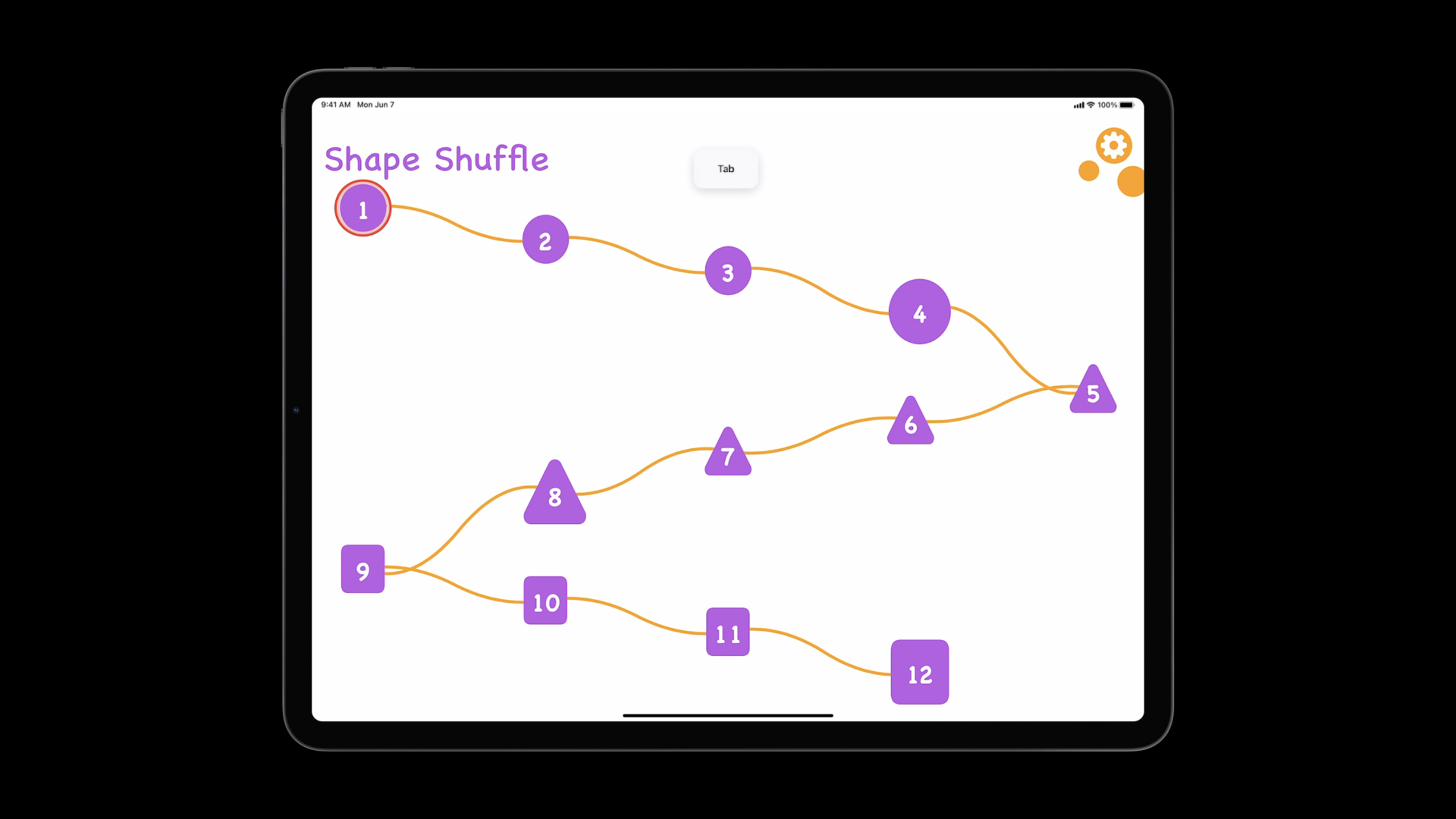
Apple used a small game called Shape Shuffle to demonstrate the repair process in this session. The core approach is to supplement the accessibility information of existing controls: what actions does this element have, when it will respond, what other words users may use to find it, and what shape the focus outline should be.
Detailed Content
Add Accessibility Custom Action to common actions
(07:06) Cards in Shape Shuffle support two actions: adding to the board and adding pins. Touch users can double-click or long-press, and keyboard users will see the same action in the Tab-Z action menu.
The entrance to UIKit isUIAccessibilityCustomAction. Hang the action onaccessibilityCustomActionsLater, it can be discovered by VoiceOver, Switch Control, and Full Keyboard Access.
// Accessibility custom actions

let addAction = UIAccessibilityCustomAction(
    name: gameLocString("add"), image: UIImage(systemName: "plus.square")) { _ in
        self.addCard()
        return true
    }

let pinAction = UIAccessibilityCustomAction(
    name: gameLocString("pin"), image: UIImage(systemName: "pin.fill")) { _ in
        self.pinCard()
        return true
    }

cardView.accessibilityCustomActions = [addAction, pinAction]
Key points:
UIAccessibilityCustomActionDefines an action that assistive technology can call.nameUsing localized strings, the action menu will display this text.imageNot shown for Full Keyboard Access, but used in Switch Control.- Call the original business method in the closure
addCard()andpinCard(), return after successtrue。 cardView.accessibilityCustomActionsBind two actions to the current card.
Provide shortcut keys for keyboard users
(08:39) Custom actions are suitable for assistive technology users. Keyboard shortcuts have wider coverage: users who turn on Full Keyboard Access can use them, and users with ordinary external keyboards can also use them.
iOS and iPadOS 15 bring Mac Catalyst 13’s menu building API to iOS. Developers canAppDelegateCoveredbuildMenu(with:),createUIKeyCommand, then insertUIMenuBuilder。
// Keyboard shortcuts

// In AppDelegate.swift
override func buildMenu(with builder: UIMenuBuilder) {
    super.buildMenu(with: builder)
    guard builder.system == .main else {
        return
    }

    let pinCommand = UIKeyCommand(
        title: gameLocString("pin"),
        image: UIImage(systemName: "pin.fill"),
        action: #selector(GameViewController.pinFocusedCard),
        input: "P",
        discoverabilityTitle: gameLocString("pin.card")
    )

    let addCommand = UIKeyCommand(
        title: gameLocString("add"),
        image: UIImage(systemName: "plus.square"),
        action: #selector(GameViewController.addFocusedCard),
        input: "A",
        discoverabilityTitle: gameLocString("add.card")
    )

    let identifier = UIMenu.Identifier("gameplay_menu")
    let menu = UIMenu(
        title: gameLocString("gameplay"),
        image: UIImage(systemName: "rectangle.grid.3x2"),
        identifier: identifier,
        children: [addCommand, pinCommand]
    )

    builder.insertSibling(menu, afterMenu: .view)
}
Key points:
buildMenu(with:)This is where commands are added to the system menu.guard builder.system == .mainLimit this logic to only apply to the main menu.UIKeyCommandBind titles, icons, selectors and keys together.input: "P"andinput: "A"Define shortcut keys for pin and add respectively.discoverabilityTitleWill appear in the shortcut panel displayed after holding down Command.UIMenuGroup both commands into the “gameplay” menu.builder.insertSibling(menu, afterMenu: .view)Insert the menu after the View menu.
Enable the command only when there is a focused card
(09:22) Shortcut keys cannot be used forever. Shape Shuffle add and pin only make sense after the card is selected.
UIKit uses the responder chain to determine whether an action is executable. covercanPerformAction(_:withSender:), you can make the shortcut panel only display commands in the correct state.
// Keyboard shortcuts

// In GameViewController.swift
override func canPerformAction(_ action: Selector, withSender sender: Any?) -> Bool {
    if action == #selector(addFocusedCard) || action == #selector(pinFocusedCard) {
        return self.focusedCard != .none
    }
    return super.canPerformAction(action, withSender: sender)
}
Key points:
canPerformActionDetermines whether a selector is currently executable.#selector(addFocusedCard)Corresponds to the add shortcut key in the previous example.#selector(pinFocusedCard)Corresponds to the pin shortcut key.self.focusedCard != .noneMake sure the user has selected a card. -Other actions are handed over tosuper, to avoid affecting system menus and other controls.
Let focus skip elements that cannot be interacted with
(10:35) After developers adapt VoiceOver, they often mark many views as accessible elements. Shape Shuffle’s triangles, colors, and numbers need to be read by VoiceOver, so the code will setisAccessibilityElementandaccessibilityLabel。
itemView.isAccessibilityElement = true
itemView.accessibilityLabel = gameLocString(for: item)
Key points:
isAccessibilityElement = trueletitemViewEnter the accessibility tree.accessibilityLabelProvides text that VoiceOver reads.- Full Keyboard Access’s cursor may also access these accessibility elements.
- If the element can only be read but cannot be manipulated, keyboard users will encounter false focus like “it is selected but nothing happens when pressing space”.
(11:01) The solution is to setaccessibilityRespondsToUserInteraction. when it isfalse, the element will still be read by VoiceOver, but motion-assisted technologies like Full Keyboard Access and Switch Control will skip it.
itemView.accessibilityRespondsToUserInteraction = falseKey points:
- This attribute is only available in
isAccessibilityElementAlready fortrueIt makes sense. - By default, the system will try to determine whether an accessible element is interactive.
- Manually set to when an element serves VoiceOver reading but should not accept keyboard or switch control focus
false。 - Don’t overwrite for Full Keyboard Access
canBecomeFocused, because it affects the entire focus engine, and also affects Tab navigation without Full Keyboard Access turned on.
Provide more input tags for the search function
(13:41) Full Keyboard Access has a Find function. After the user presses Tab-F, he or she can enter text to quickly jump to interface elements.
The problem is with the icon button. The settings button might be called “Settings”, or the user might type “prefs”, “preferences”, or “gear”.accessibilityUserInputLabelsAllows developers to provide multiple sets of inputable names for the same control.
self.accessibilityUserInputLabels = [
    gameLocString("settings"),
    gameLocString("prefs"),
    gameLocString("preferences"),
    gameLocString("gear")
]
Key points:
accessibilityUserInputLabelsis an array of strings.- Every string should be localized and consistent with the interface language.
- Full Keyboard Access’s Find uses these strings to match elements.
- These names are also used by Voice Control, and the user can speak either name to trigger the control.
- This does not replace VoiceOver’s
accessibilityLabel。
Improve focus outline with Accessibility Path
(14:52) Full Keyboard Access’s cursor surrounds the control with a rectangle by default. Shape Shuffle’s level buttons are circles, triangles, and squares, and the rectangular cursor doesn’t fit the visual shape.
accessibilityPathYou can tell the system the true shape of an element. This API is also used by VoiceOver.
// Accessibility path

let rect = circleLevelButton.convert(levelButton.bounds, to: nil)

circleLevelButton.accessibilityPath = UIBezierPath(ovalIn: rect)
Key points:
convert(_:to:)Convert button bounds to screen coordinates.accessibilityPathScreen coordinates are required.UIBezierPath(ovalIn:)Create a circular or elliptical path.- After setting, Full Keyboard Access’s cursor will fit the circular button.
If the button isUIScrollViewHere, scrolling changes screen coordinates. Apple recommends coverageaccessibilityPathoraccessibilityFrame, recalculated each time it is read.
// If your button is in a scroll view, it’s generally better to
// override accessibilityPath and/or accessibilityFrame
extension CircleButton {
    open override var accessibilityPath: UIBezierPath? {
        get {
            let rect = self.convert(self.bounds, to: nil)
            return UIBezierPath(ovalIn: rect)
        }
        set {
            // no-op
        }
    }
}
Key points:
- extension
CircleButton, overrides inherited fromUIViewofaccessibilityPath。 - The getter uses the current bounds to recalculate the screen coordinates each time.
- return
UIBezierPath(ovalIn:), let the system get the latest circular path. - Leave the setter blank to prevent external writes from corrupting the dynamic calculation results.
Core Takeaways
-
What to do: Add keyboard operation menus to list items such as cards, emails, tasks, photos, etc. Why it’s worth doing:
UIAccessibilityCustomActionIt will serve Full Keyboard Access, VoiceOver and Switch Control at the same time, and users can perform collection, archiving and deletion without touching the screen. How to get started: Create for each list itemUIAccessibilityCustomAction, put the business method into the action closure, and then assign it toaccessibilityCustomActions。 -
What: Design iPad keyboard shortcuts for high-frequency operations. Why it’s worth doing:
UIKeyCommandAllow users who turn on Full Keyboard Access to use the same set of shortcuts as regular keyboard users. How to start: InbuildMenu(with:)Created inUIKeyCommand, add for each commanddiscoverabilityTitle,usecanPerformActionControl available status. -
What to do: Clean up “false focus”. Why it’s worth doing: If the keyboard cursor falls on an element that cannot be interacted with, the user will mistakenly think that the application is stuck. How to start: Open Full Keyboard Access and use Tab to traverse the interface; after discovering elements that are only used for reading aloud, keep them
isAccessibilityElement,BundleaccessibilityRespondsToUserInteractionset tofalse。 -
What to do: Add multiple sets of search terms to the icon button. Why it’s worth doing: When users use Find or Voice Control, they may not necessarily know the name the developer gave the control. How to start: Set icon buttons for settings, sharing, filtering, and favorites
accessibilityUserInputLabels, write common synonyms and colloquial names. -
What: Makes the custom shape control’s focus outline match the visual shape. Why it’s worth doing:
accessibilityPathIt allows Full Keyboard Access and VoiceOver to use the same real outline, reducing the misalignment of focus position and visual interface. How to start: UseUIBezierPathDescribe the shape of the control; static controls are set directlyaccessibilityPath, the controls in the scroll area override the getter dynamic calculation.
Related Sessions
- SwiftUI Accessibility: Beyond the basics — Learn Accessibility Preview, accessibility presentation, child elements, and focus management in SwiftUI.
- Tailor the VoiceOver experience in your data-rich apps — Improve the VoiceOver reading experience for complex data interfaces with the Custom Content API.
- Bring accessibility to charts in your app — Provide accessible data semantics and navigation for charts.
- Focus on iPad keyboard navigation — An in-depth understanding of iPadOS’s keyboard focus system and tab navigation.
Comments
GitHub Issues · utterances