
Highlight
iOS 15 supports Safari Web Extensions for the first time. Developers can write cross-platform extensions using the standard WebExtensions API and distribute them through the App Store. Users can grant access to each site on demand in Safari settings.
Core Content
Web Extensions allow users to deeply customize their browser experience: block ads, translate web pages, manage passwords, and highlight code.These extensions are written in HTML, CSS, and JavaScript and are based on the WebExtension API standard common to all major browsers.
Prior to iOS 15, Safari Web Extensions only ran on macOS.Starting with iOS 15, users can install extensions on iPhone and iPad.This means that the same extension code can reach all platform users of Safari.
There is one key difference with Web Extensions on iOS: they are part of the app.The user installs an “App with Extension” from the App Store and then enables the extension in Safari settings.This design allows the extension to adhere to the iOS security model and privacy principles.
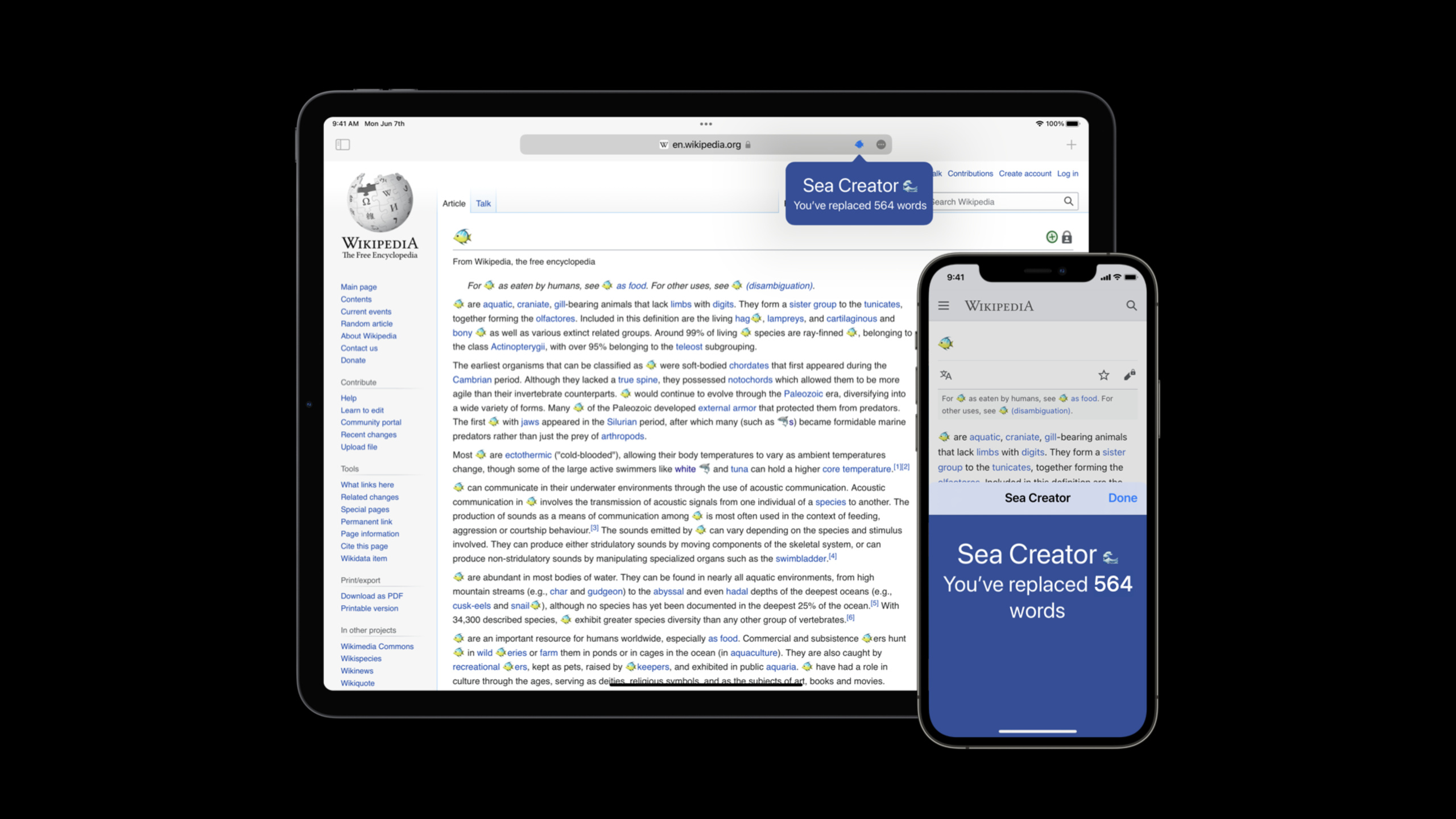
The Sea Creator sample extension shows typical usage: replacing sea creature names with emojis in a web page, displaying daily ocean knowledge on the start page, and a counter tracking the number of words replaced.When the user enables the extension on a site for the first time, Safari will pop up a permission request, and the user can choose to allow access to “only this site” or “all sites”.
Detailed Content
Relationship between extension and App
(04:20) On iOS, Web Extensions must exist as part of the App:
Install the app from the App Store
    ↓
Enable the extension in Safari settings
    ↓
Grant access per site
    ↓
The extension starts working
Xcode 13 provides the Safari Extension App template.Select this template when creating a new project, and Xcode will generate:
- An iOS App container
- a Safari Extension target
- Manifest.json and base files required for extension
Key points:
- Extensions are nested targets of Apps
- The App itself can be empty (only as a carrier), or it can provide additional functions
- An App can contain multiple extensions
- When the user deletes the app, the extension will also be deleted
Safari Web Extension Converter
(05:40) If you already have extensions written for other browsers, you can use the conversion tool to quickly port them:
xcrun safari-web-extension-converter /path/to/extension/folderThis command will:
- Analyze the manifest.json of existing extensions
- Create a new Xcode project
- Add extension files to the project
- Generate iOS/macOS adapted configurations
Key points:
- Supports conversion from browser extensions such as Chrome, Firefox, Edge, etc.
- Automatically handle API differences between different browsers
- Retains all functionality of the original extension
- Export dual-platform projects to run on iOS and macOS
iOS-specific limitations and adaptations
Extensions on iOS need to consider the following limitations:
| Features | macOS | iOS | Description |
|---|---|---|---|
| Sidebar | Supported | Not supported | Popup replacement available on iOS |
| DevTools Panel | Supported | Not Supported | Unable to debug the extension itself on iOS |
| Native Messaging | Support | Support | Ways to communicate with container apps |
| Start Page | Support | Support | Customize New Tab Page |
Key points:
- The code needs to be tested for the platform:
if (navigator.platform.includes('iPad')) - popups are displayed as smaller pop-ups on iOS
- Touch events need to be adapted (larger click area)
- Try to avoid relying on desktop-specific interactions such as mouse hovering
Permission model and user privacy
(11:20) Safari inherits the permission model from macOS to iOS:
// Permission declarations in manifest.json
{
  "permissions": ["activeTab", "storage"],
  "host_permissions": [
    "https://*/*"
  ]
}
The interaction process when the user first activates the extension:
- Data types that Safari display extensions can access
- The user selects “Allow” or “Deny”
- Users can choose the access scope: “This site” or “All sites”
- Users can revoke permissions at any time in Safari settings
Key points:
activeTabPermissions: Only access the current tab when the user actively clicks on the extension<all_urls>Requires explicit authorization from the user to work- Users can set permissions individually for each site
- Safari status bar will show icon when extension is activated
Debugging Tips
(13:15) Debugging extensions on iOS:
- Enable extensions in Safari settings
- Connect the device to your Mac
- Select devices and pages in Safari’s Develop menu
- Web Inspector will display extended context (popup, background, content script)
Key points:
- iOS Safari requires “Web Inspector” to be enabled in settings
- Only one context (popup or background or content script) can be debugged at a time
- use
console.log()View the output in Web Inspector - use
browser.runtime.sendMessage()Test messaging
Core Takeaways
-
Content Extraction and Notes: Develop an extension to extract key information when reading an article and send it to the container App.When the user clicks the extension icon, the App receives the article title, URL and selected text through Native Messaging and stores them in the local database.Entrance API:
browser.runtime.sendNativeMessage()。 -
Custom start page: declared in the extension’s manifest.json
chrome_url_overridesCover new tab page.Give users a personalized start page that displays bookmarks, to-dos, or news summaries.Cooperatebrowser.storage.localSave user configuration. -
Cross-Site Data Synchronization: Utilize
browser.storage.syncSync extended settings and user data across a user’s multiple devices.When the user saves a set of bookmarks or configurations on the desktop, the iOS side automatically synchronizes them.Note that data has a size limit (100KB per item). -
Privacy-Friendly Password Management: Develop a password filling extension, but only fill the current site password when the user actively clicks, without automatically scanning all forms.use
activeTabPermissions replace site-wide access, and passwords are stored in the container app’s Keychain and are not exposed through Web APIs.
Related Sessions
- What’s new in Safari — New features and improvements in Safari 15
- Meet async/await in Swift — A new paradigm for concurrent programming in Swift
- What’s new in WebKit — New features and API updates in WebKit
- Design great web experiences — Best practices in web design
Comments
GitHub Issues · utterances