
Highlight
iOS 15 introduces CLLocationButton. Users can click the button to grant one-time location authorization to the application without going through the traditional system permission pop-up window, allowing a lower-friction user experience for scenarios where “occasional positioning is only required”.
Core Content
Many applications only need to obtain the user’s location once at a specific moment.Find nearby parks, check the nearest store, check in and clock in - these scenarios do not require continuous tracking of user movements.
However, the traditional location authorization process is not friendly to these scenarios.A permission request pops up as soon as the app is launched. Users are faced with three options: “Allow during use”, “Allow once” and “Do not allow”. They often choose to refuse because they are not sure how the app will use location data.Once “Not Allowed” is clicked, all subsequent location functions of the application will be unavailable, and the user must go to settings to manually turn it on.
iOS 15’s CLLocationButton changes this flow.
Developers put buttons next to interfaces where users explicitly need location information—such as the “Find nearby parks” button.After the user clicks, the system directly grants a one-time Allow-Once authorization, and the application immediately obtains the location data.There are no pop-up windows to interfere, and the user’s psychological burden is also smaller.
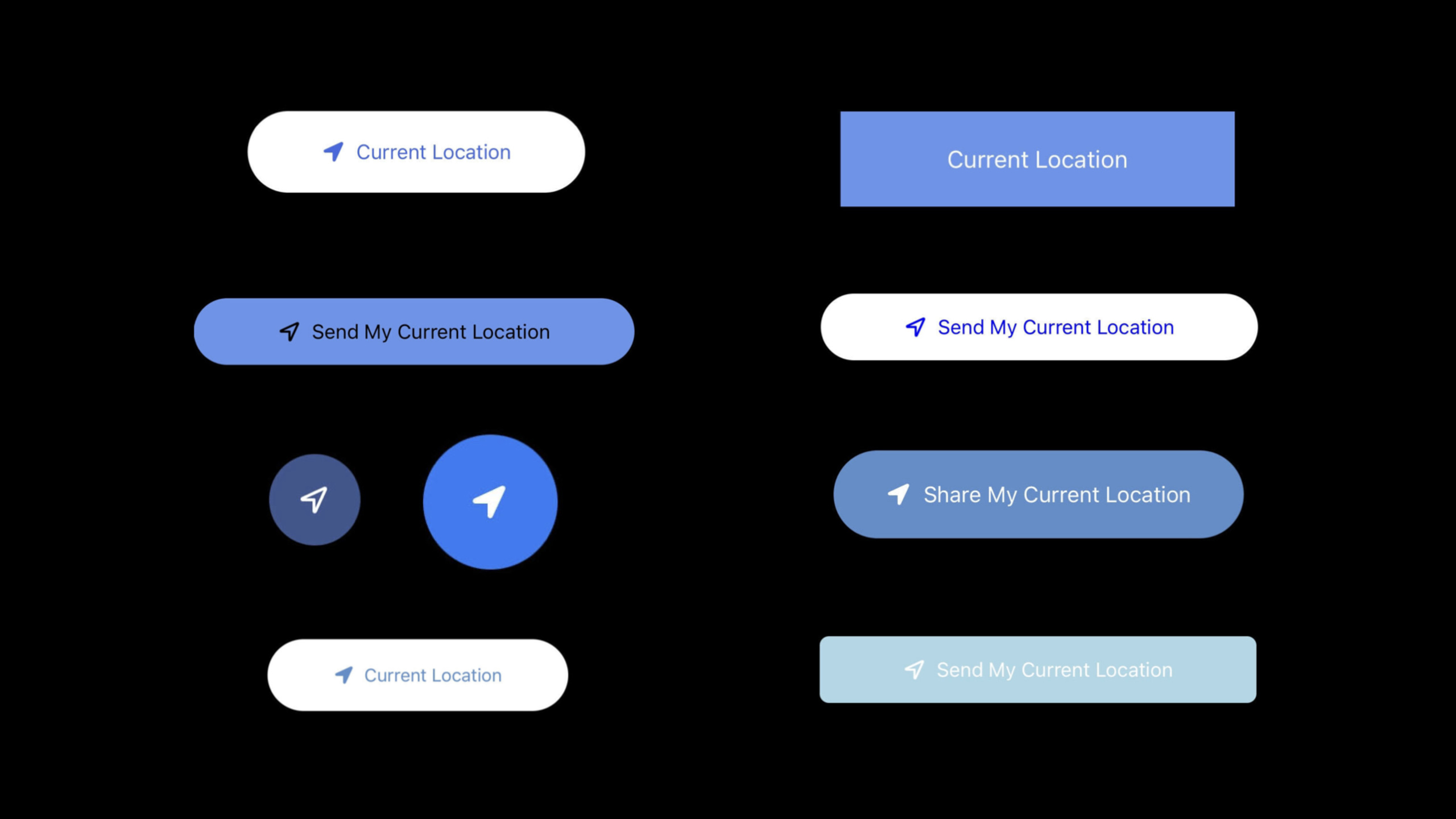
This button is rendered by the system with the standard location arrow icon and “Current Location” label to ensure that users can recognize that this is a location-related operation.The location arrow on the status bar will briefly turn blue, indicating that the user has just authorized location access.
For users who previously selected “Not Allowed”, clicking the Location Button will trigger a guided prompt, giving the user the opportunity to reset the app’s status to “Undecided” and use the Location Button to obtain the location again.This gives applications that have been accidentally killed a chance to be “resurrected”.
watchOS 8 also adds Region-based user notifications, which allow applications to push notifications when users arrive at specific locations without the need for “always” location authorization.
Detailed Content
CLLocationButton in UIKit
(04:09) CLLocationButton belongs to the CoreLocationUI framework, inherits from UIControl, and is used similarly to ordinary UIButton.
Four exclusive attributes:
icon: Set arrow type (arrowFilled、arrowOutline)label: Set button label (.currentLocation、.sendCurrentLocation、.none)cornerRadius: Fillet sizefontSize:Label font size
Comparison of migrating from UIButton to CLLocationButton:
// Original UIButton approach
let button = UIButton()
button.setTitle("Current Location", for: .normal)
button.addTarget(self, action: #selector(showNearbyParks), for: .touchUpInside)

func showNearbyParks() {
    locationManager.requestWhenInUseAuthorization()
    locationManager.startUpdatingLocation()
    // ... render the map
}
// New CLLocationButton approach
let locationButton = CLLocationButton()
locationButton.label = .currentLocation
locationButton.addTarget(self, action: #selector(showNearbyParks), for: .touchUpInside)
func showNearbyParks() {
// No need to call requestWhenInUseAuthorization anymore
// The system automatically grants one-time authorization when the button is tapped
locationManager.startUpdatingLocation()
// ... render the map
}Key points:
- Create CLLocationButton instead of UIButton
- set up
labelProperty defines button text - No more calls needed
requestWhenInUseAuthorization, button click automatically processes authorization - Other business logic remains unchanged
LocationButton in SwiftUI
(06:30) SwiftUI provides a native LocationButton:
import CoreLocationUI

struct ParkFinderView: View {
    @StateObject var locationManager = LocationManager()

    var body: some View {
        LocationButton(.currentLocation) {
            locationManager.requestLocation()
        }
        .symbolVariant(.fill)
        .tint(.blue)
    }
}
Key points:
LocationButtonIs a SwiftUI native view- The first parameter is the label type, and the closure is the business logic after clicking
.symbolVariant(.fill)Set solid arrow icons.tint(.blue)Set button background color
Custom styles and restrictions
(06:53) CLLocationButton supports custom appearance, but the system will check for readability:
let button = CLLocationButton()
button.icon = .arrowFilled
button.tintColor = .black
button.backgroundColor = .white
button.cornerRadius = 25.0
Key points:
- Default style: white text, blue background, “Current Location” label
- You can modify the foreground color, background color and rounded corners
- When the width and height are equal and cornerRadius is half the width, a round button can be obtained
The system blocks authorization and outputs logs in the following situations:
- The button size is too small or the text exceeds the button range
- Transparency (alpha) is too low, affecting legibility
- Insufficient contrast between foreground and background colors
Xcode’s Issue Navigator will display these readability issues in real time to facilitate developers’ debugging.
Authorization status interaction
(10:55) The impact of Location Button on existing authorization status:
| Current authorization status | Behavior after using Location Button |
|---|---|
| NotDetermined | A confirmation prompt will appear on the first click, and a one-time authorization will be granted directly for each subsequent click |
| While Using | Does not affect existing authorization and behaves the same as a normal button |
| Don’t Allow | A boot prompt will appear after clicking, and the status can be reset to NotDetermined |
Key points:
- Location Button is essentially Allow-Once authorization
- Users will see the “When I Share” option in privacy settings
- Applications that already have “period of use” authorization will not be affected
- Permanently rejected apps can be “resurrected” via the Location Button
Core Takeaways
-
Nearby search function optimization: In the scenario of “finding nearby restaurants/gas stations/charging piles”, use CLLocationButton to replace the traditional authorization pop-up window.The location is requested only when the user clicks the button, and the conversion rate is higher than the pop-up window at startup.Entrance API:
CLLocationButton()+startUpdatingLocation()。 -
Check-in and clock-in scenarios: In “one-time positioning” scenarios such as attendance, travel clock-in, exercise recording, etc., place the Location Button next to the clock-in button.The user clearly knows that the location will be obtained after clicking, and the psychological acceptance is higher.Cooperate
CLGeocoderThe reverse resolved address is displayed to the user for confirmation. -
Disabled App Recall: For apps that were previously denied location permission by the user, display the Location Button on the interface that requires location.After the user clicks, the system will guide you to reset the authorization status, giving the application a second chance.This is much easier than asking users to turn it on manually in settings.
-
watchOS Geofence Notifications: Using Region-based notifications in the Apple Watch app, users are reminded to start exercising when they arrive at the gym and to feed the dog when they get home.No “always” authorization is required, the system monitors the geolocation and triggers notifications on your behalf.
Related Sessions
- What’s new in Foundation — New features of the Foundation framework
- Build a great user experience for spatial audio — User experience design for spatial audio
- Apple’s privacy pillars in focus — Apple’s core philosophy of privacy protection
- What’s new in MapKit — New features and improvements in MapKit
Comments
GitHub Issues · utterances