
Highlight
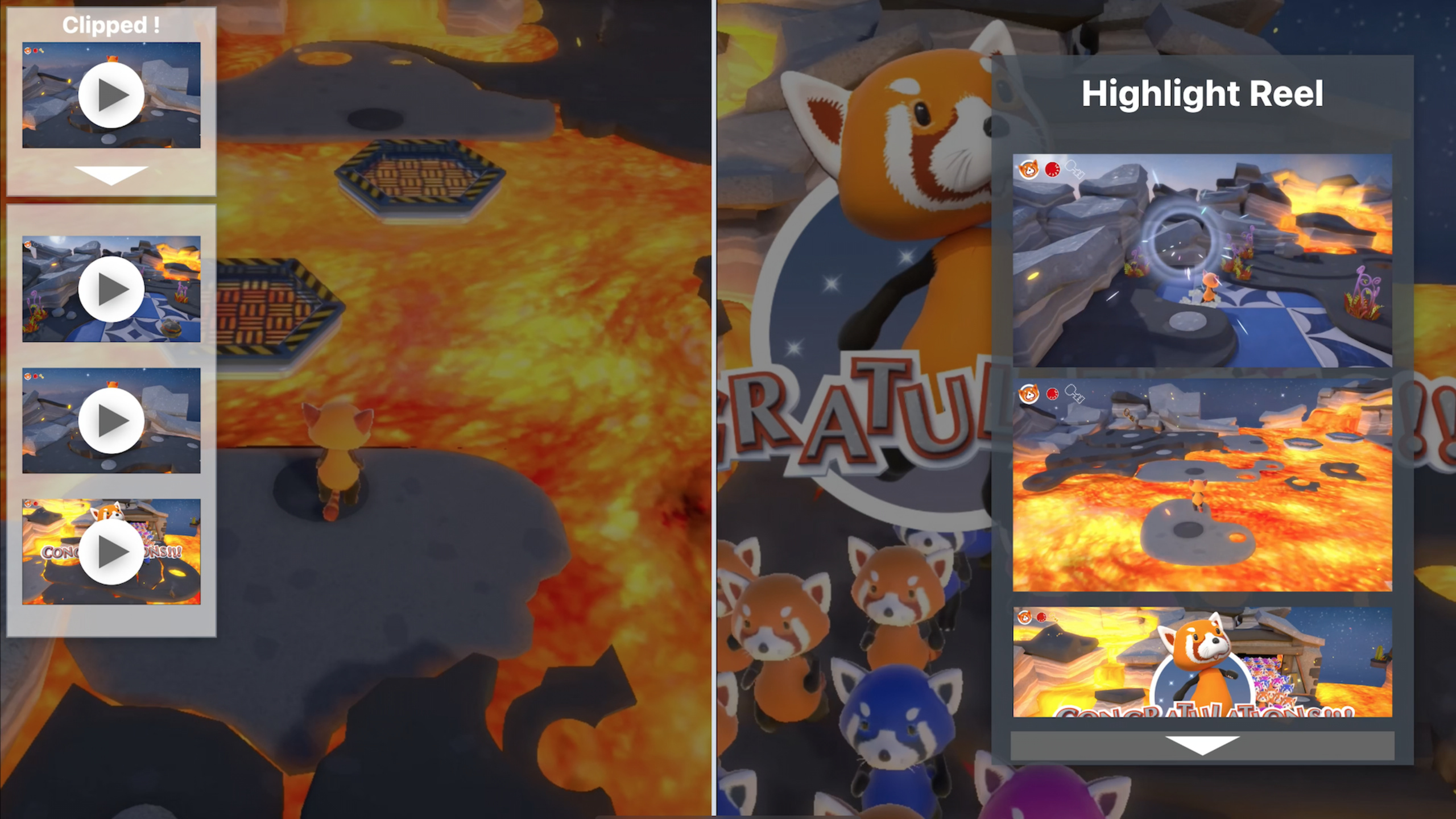
ReplayKit has added Clips Recording capabilities on iOS 15 and macOS Monterey: a 15-second rolling audio and video buffer is automatically maintained after the app is launched. Players can save up to 15 seconds of footage in the past by triggering export at exciting moments without starting recording in advance.
Core Content
Players achieve five kills, unlock hidden levels, and set speed records—these moments often come suddenly.According to the past practice, players must record the entire game screen and then edit it from the long video afterwards.This takes up a lot of storage space and the editing process is cumbersome.
ReplayKit’s Clips Recording changes this process.
Called after the application startsstartClipBuffering, ReplayKit begins to maintain a scrolling buffer in memory, continuously saving the last 15 seconds of screen images and application audio.When the buffer is full, old data is automatically overwritten by new data.When great moments happen, the app callsexportClipYou can export up to 15 seconds of the past as a separate video file.
Developers can design multiple triggering methods: add an export button to the interface for players to manually control, or it can be automatically triggered by game logic - such as automatically saving clips when defeating a boss, completing a combo, or refreshing a record.
The exported clips are saved at the URL specified by the application, and developers can freely build subsequent experiences: display highlights of the game, add custom watermarks and filters, or save them directly to the album.
The Game Controller framework also has built-in support for Clips Recording.Players can export clips by pressing the record button on the controller, and these clips will be saved directly to the album or desktop.
Detailed Content
Start and stop scrolling buffer
(05:19) The core of Clips Recording is three APIs:startClipBuffering、stopClipBufferingandexportClip。
Code to start the buffer:
func startClipBuffering() {
    RPScreenRecorder.shared().startClipBuffering { error in
        if error != nil {
            print("Error attempting to start Clip Buffering")
            self.setClipState(active: false)
        } else {
            self.setClipState(active: true)
            self.setupCameraView()
        }
    }
}
Key points:
RPScreenRecorder.shared()Get the singleton instance, which is the entrance to all functions of ReplayKitstartClipBufferingStart rolling buffering, no need to specify the duration, the system is fixed for maintenance for 15 seconds- Handle errors in the callback and update the UI state to let the user know that recording has been activated
setupCameraView()Front camera screen overlay can be set to record player reactions
Code to stop the buffer:
func stopClipBuffering() {
    RPScreenRecorder.shared().stopClipBuffering { error in
        if error != nil {
            print("Error attempting to stop clip buffering")
        }
        self.setClipState(active: false)
        self.tearDownCameraView()
    }
}
Key points:
stopClipBufferingRelease scroll buffer resources- After stopping, you can switch to other functions of ReplayKit, such as live broadcast (in-app broadcast)
- Remember to clean up the camera preview view
Export video clips
(06:13) Exporting clips can be manually triggered by the user:
@IBAction func exportClipButtonTapped(_ sender: Any) {
    if self.isActive && self.getClipButton.isEnabled {
        exportClip()
    }
}
Actual export logic:
func exportClip() {
    let clipURL = getAppTempDirectory()
    let interval = TimeInterval(5)

    print("Generating clip at URL: \(clipURL)")
    RPScreenRecorder.shared().exportClip(to: clipURL, duration: interval) { error in
        if error != nil {
            print("Error attempting to export clip")
        } else {
            self.saveToPhotos(tempURL: clipURL)
        }
    }
}
Key points:
exportClip(to:duration:)Two parameters: target file URL and segment duration (maximum 15 seconds)- A 5-second clip is exported in the example, which can be adjusted according to the scene.
- After successful export, the clip will be saved at the specified URL. Developers can save it to the album, upload it to the server, or perform post-processing.
- The export process is handled by ReplayKit for encoding and encapsulation, and developers do not need to care about the details of the video format.
Integrate with gamepad
(07:26) The Game Controller framework has built-in Clips Recording support.When the player presses the record button on the controller, the system will automatically export the clip and save it to the photo album or desktop.
If developers want to build their own clip experiences (such as displaying highlights in the game), they need to integrate both the ReplayKit Clips API and the gamepad framework.suggestion:
- Monitor using KVO
RPScreenRecorderofavailableandrecordingproperty - Follow
RPScreenRecorderDelegateprotocol to promptly respond to changes in recording status
Core Takeaways
-
Auto Highlight Capture: Use game events to automatically trigger when reaching the finish line in a racing game, hitting a combo in a fighting game, or discovering a hidden easter egg in a puzzle game
exportClip, generating an instant replay of “what just happened” to the player.Entrance API:RPScreenRecorder.shared().exportClip(to:duration:)。 -
Current Highlights Generation: Collect all automatically exported clips of this round at the end of the level, use
AVFoundationSpliced into a highlight video, with background music and settlement data (number of kills, time spent, etc.) as sharing materials.The fragment file has been saved in the local URL and can be read directly. -
Player reaction recording: Turn on the front camera simultaneously when starting the buffer (
setupCameraView), the exported clip will contain both screen footage and picture-in-picture player expressions.Suitable for jump scare moments in horror games, or real interactive reactions in AR games. -
Archive highlights of live broadcast: During the live broadcast, when the popularity of the barrage reaches its peak or the anchor manually marks it, the clips will be automatically exported and saved locally.These clips can be later edited into short videos and released to other platforms to realize the content reuse of “live broadcast + short video”.
Related Sessions
- Record and stream your app with ReplayKit — Learn more about ReplayKit’s complete recording and live streaming capabilities
- Support game controllers in your app — Integrate controllers and support built-in screen recording triggers
- Build a great user experience for spatial audio — Combining spatial audio with ReplayKit audio recording
- What’s new in AVFoundation — Post-process exported clips with AVFoundation
- Meet ScreenCaptureKit — A more modern screen capture solution on macOS
Comments
GitHub Issues · utterances