
Highlight
Core Data introduced in iOS 15 and macOS Monterey
NSCoreDataCoreSpotlightDelegate, which can automatically index Core Data data into Spotlight with just two lines of code, supporting custom attribute sets, start-stop control, and full-text search.
Core Content
User data is trapped in the app
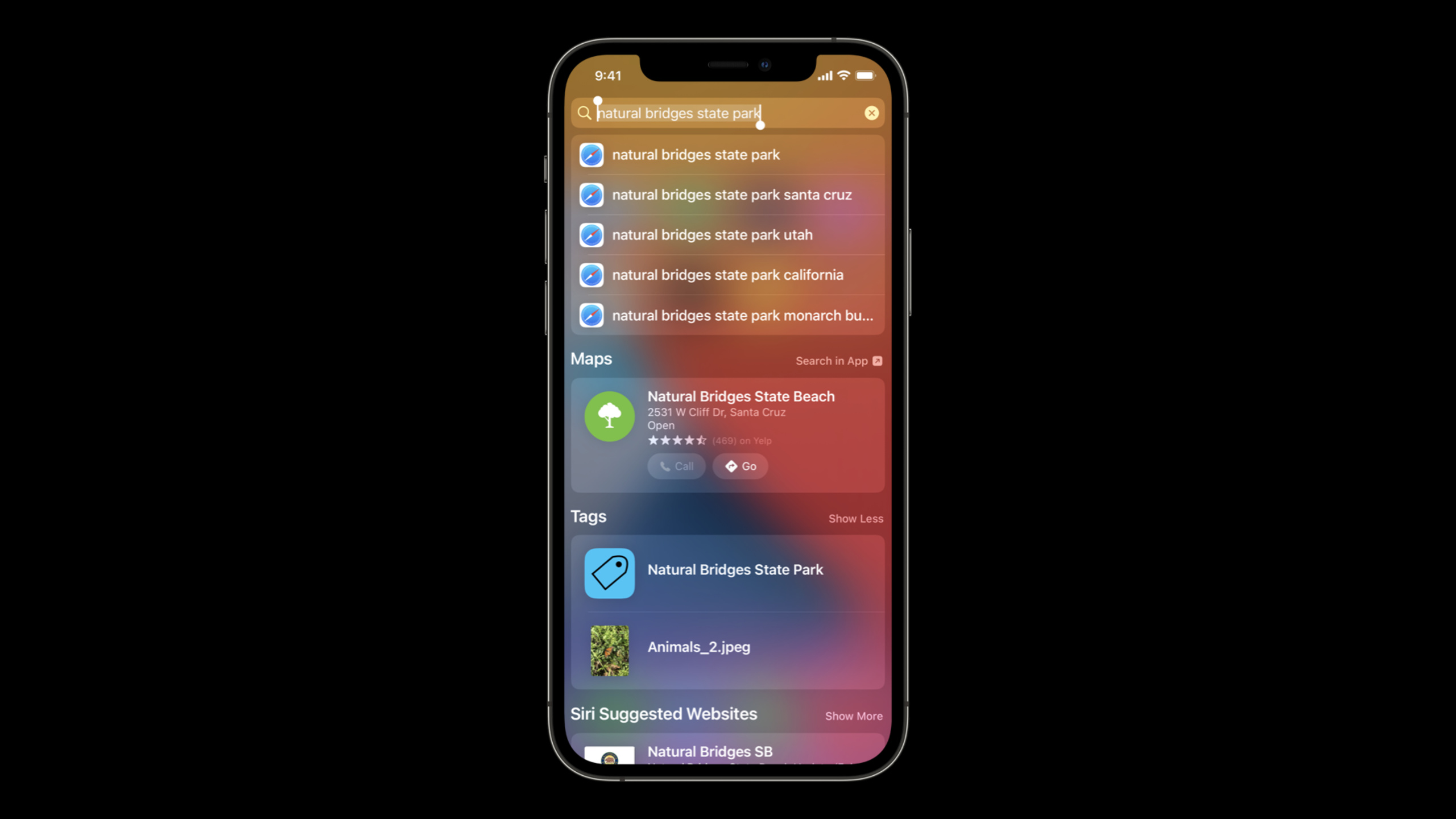
You made a photo tagging app, and users tagged hundreds of photos.One day the user wanted to find a photo of “Natural Bridges State Park”, but he forgot which app it was in.He searched the system Spotlight and found nothing - because the data is completely trapped in your app.
this isNSCoreDataCoreSpotlightDelegateproblem to be solved.It automatically monitors data changes in Core Data and indexes content into Spotlight.Users don’t need to open your app to find its content in system searches.
(00:48)
Why use this delegate?
Three reasons:
- Functional parity with Core Spotlight API
- Significantly reduce the implementation code (from dozens of lines to two lines)
- Provide additional functions: index management, update notification, deletion control
(02:05)
Two steps to open index
Step 1: In the Core Data model editor, check “Index in Spotlight” for the attribute you want to index, and set the Spotlight Display Name (defined with NSExpression).
Step 2: Create a delegate and start indexing.
let spotlightDelegate = NSCoreDataCoreSpotlightDelegate(
    forStoreWith: description,
    coordinator: coordinator
)
spotlightDelegate.startSpotlightIndexing()
Key points:
- Storage type must be SQLite
- persistent history tracking must be enabled
- Available from iOS 15
forStoreWith:coordinator:Initializer, oldforStoreWith:model:Deprecated
(02:40)
Detailed Content
Customize Spotlight Index
The basic implementation is sufficient, but it is more flexible after customization.Create a subclass to define the domain, index name, and attribute set.
class TagsSpotlightDelegate: NSCoreDataCoreSpotlightDelegate {
    override func domainIdentifier() -> String {
        return "com.example.apple-samplecode.tags"
    }

    override func indexName() -> String? {
        return "tags-index"
    }

    override func attributeSet(for object: NSManagedObject) -> CSSearchableItemAttributeSet? {
        if let photo = object as? Photo {
            let attributeSet = CSSearchableItemAttributeSet(contentType: .image)
            attributeSet.identifier = photo.uniqueName
            attributeSet.displayName = photo.userSpecifiedName
            attributeSet.thumbnailData = photo.thumbnail?.data

            for case let tag as Tag in photo.tags ?? [] {
                if let name = tag.name {
                    if attributeSet.keywords != nil {
                        attributeSet.keywords?.append(name)
                    } else {
                        attributeSet.keywords = [name]
                    }
                }
            }
            return attributeSet
        } else if let tag = object as? Tag {
            let attributeSet = CSSearchableItemAttributeSet(contentType: .text)
            attributeSet.displayName = tag.name
            return attributeSet
        }
        return nil
    }
}
Key points:
domainIdentifierDistinguish between different indexes, especially important when there are multiple indexesindexNameName the index to facilitate subsequent managementattributeSet(for:)Define the metadata displayed in Spotlight for each managed object- If the model indexes relationship attributes, this method must be overridden to define which fields of the relationship participate in the index
CSSearchableItemAttributeSetConcurrent access has undefined behavior, single thread modification
(06:24)
Integrated in Core Data Stack
import Foundation
import CoreData

class CoreDataStack {
    private(set) var spotlightIndexer: TagsSpotlightDelegate?

    lazy var persistentContainer: NSPersistentContainer = {
        let container = NSPersistentContainer(name: "Tags")

        guard let description = container.persistentStoreDescriptions.first else {
            fatalError("Failed to retrieve a persistent store description.")
        }

        description.type = NSSQLiteStoreType
        description.setOption(true as NSNumber,
            forKey: NSPersistentStoreRemoteChangeNotificationPostOptionKey)
        description.setOption(true as NSNumber,
            forKey: NSPersistentHistoryTrackingKey)

        container.loadPersistentStores(completionHandler: { (_, error) in
            guard let error = error as NSError? else { return }
            fatalError("Failed to load persistent stores: \(error)")
        })

        spotlightIndexer = TagsSpotlightDelegate(
            forStoreWith: description,
            coordinator: container.persistentStoreCoordinator
        )

        container.viewContext.mergePolicy = NSMergeByPropertyObjectTrumpMergePolicy
        container.viewContext.automaticallyMergesChangesFromParent = true

        do {
            try container.viewContext.setQueryGenerationFrom(.current)
        } catch {
            fatalError("Failed to pin viewContext: \(error)")
        }

        return container
    }()
}
Key points:
NSPersistentHistoryTrackingKeyMust be enabled, delegate relies on history to track changesNSPersistentStoreRemoteChangeNotificationPostOptionKeyEnable remote change notifications- delegate in
loadPersistentStoresCreated afterwards, but the index must be started before any data changes
(05:24)
Start/stop control and update notification
class PhotosViewController: UICollectionViewController {
    private var spotlightUpdateObserver: NSObjectProtocol?
    var spotlightIndexer: TagsSpotlightDelegate!

    override func viewDidLoad() {
        super.viewDidLoad()
        toggleSpotlightIndexing(enabled: true)
    }

    private func toggleSpotlightIndexing(enabled: Bool) {
        if enabled {
            spotlightIndexer.startSpotlightIndexing()
        } else {
            spotlightIndexer.stopSpotlightIndexing()
        }

        let center = NotificationCenter.default
        if spotlightIndexer.isIndexingEnabled && spotlightUpdateObserver == nil {
            spotlightUpdateObserver = center.addObserver(
                forName: NSCoreDataCoreSpotlightDelegate.indexDidUpdateNotification,
                object: nil,
                queue: .main
            ) { notification in
                let userInfo = notification.userInfo
                let storeID = userInfo?[NSStoreUUIDKey] as? String
                let token = userInfo?[NSPersistentHistoryTokenKey] as? NSPersistentHistoryToken
                print("Store \(storeID ?? "") indexed up to token \(String(describing: token))")
            }
        } else if !enabled {
            if let observer = spotlightUpdateObserver {
                center.removeObserver(observer)
                spotlightUpdateObserver = nil
            }
        }
    }

    @IBAction func deleteSpotlightIndex(_ sender: Any) {
        toggleSpotlightIndexing(enabled: false)
        spotlightIndexer.deleteSpotlightIndex { error in
            if let err = error {
                print("Error deleting index: \(err.localizedDescription)")
            } else {
                print("Spotlight index deleted.")
            }
        }
    }
}
Key points:
startSpotlightIndexing()andstopSpotlightIndexing()Control indexing timing, suitable for pausing when the app performs heavy CPU or disk operationsindexDidUpdateNotificationexistsave:Or publish asynchronously after the batch operation is completed- The notification’s userInfo contains
NSStoreUUIDKey(store UUID) andNSPersistentHistoryTokenKey(Historical token) deleteSpotlightIndexNew in iOS 15, you can clear the index without deleting Core Data data
(09:51)
Use Spotlight index to implement in-app full-text search
After the indexing is completed, the same data can be used for full-text search within the app without additional storage.
extension PhotosViewController: UISearchResultsUpdating {
    func updateSearchResults(for searchController: UISearchController) {
        guard let userInput = searchController.searchBar.text, !userInput.isEmpty else {
            dataProvider.performFetch(predicate: nil)
            reloadCollectionView()
            return
        }

        let escapedString = userInput
            .replacingOccurrences(of: "\\", with: "\\\\")
            .replacingOccurrences(of: "\"", with: "\\\"")
        let queryString = "(keywords == \"" + escapedString + "*\"cwdt)"

        searchQuery = CSSearchQuery(
            queryString: queryString,
            attributes: ["displayName", "keywords"]
        )

        searchQuery?.foundItemsHandler = { items in
            DispatchQueue.main.async {
                self.spotlightFoundItems += items
            }
        }

        searchQuery?.completionHandler = { error in
            guard error == nil else {
                print("CSSearchQuery error: \(error!)")
                return
            }
            DispatchQueue.main.async {
                self.dataProvider.performFetch(searchableItems: self.spotlightFoundItems)
                self.reloadCollectionView()
                self.spotlightFoundItems.removeAll()
            }
        }

        searchQuery?.start()
    }
}
Key points:
CSSearchQueryDirectly query the Spotlight index without building your own search logic- Query string syntax:
keywords == "searchTerm*"cwdt - Modifiers:
cNot case sensitive,dDon’t distinguish between accents,wMatch based on words foundItemsHandlerCalled zero or more times, returning the matchingCSSearchableItemcompletionHandlerCalled only once, executed after all results are returned- User input must be escaped before searching to prevent query syntax errors
(13:13)
Core Takeaways
1. Add Spotlight index to note-taking apps
- What: Allow users to find note content directly in system search
- Why it’s worth doing: The core value of Note App is fast retrieval, and Spotlight index extends the retrieval scope to the system level.
- How to start: Check “Index in Spotlight” for the note title and content properties in the Core Data model, create a delegate and start indexing
2. Use Spotlight index instead of self-built search
- What to do: No longer maintain a separate search database, use it directly
CSSearchQueryQuery the Spotlight Index - Why is it worth doing: Reduce the amount of code, search performance is optimized by the system, automatically supports pinyin, fuzzy matching, etc.
- How to get started: Replace existing search logic with
CSSearchQuery,usefoundItemsHandlerandcompletionHandlerProcessing results
3. Add tag search to photo management app
- What: Let users find photos in Spotlight via tags
- Why it’s worth it: When there are a large number of photos, tags are the most effective way to search; Spotlight indexing makes tag search available across apps
- How to start: In
attributeSet(for:)Add the tag name tokeywordsArray, users can search for any tag name to find the corresponding photo
4. Implement on-demand start and stop of indexes
- What: Pause Spotlight indexing while the app is performing a large data import or sync
- Why it’s worth doing: Indexing operations consume CPU and disk I/O. Pausing during performance-sensitive periods can avoid lags.
- How to start: Called before data import starts
stopSpotlightIndexing(), called after the import is completestartSpotlightIndexing()
5. Index deletion to provide users with privacy control
- What to do: Add “Clear Search Index” option to settings page
- Why it’s worth doing: New in iOS 15
deleteSpotlightIndexAllows users to clear search indexes without deleting data, meeting privacy needs - How to start: Add the switch in settings and call
deleteSpotlightIndex(completionHandler:)and give the user a confirmation prompt after completion
Related Sessions
- Build apps that share data through CloudKit and Core Data — Learn the data sharing between Core Data and CloudKit, and combine it with Spotlight index to achieve cross-device search
- Craft search experiences in SwiftUI — Build a search interface in SwiftUI to work with Spotlight index data
- Add intelligence to your widgets — Add intelligent recommendations to widgets and link them with Spotlight index data
- Meet the Screen Time API — Content filtering and privacy control of Screen Time API
Comments
GitHub Issues · utterances