
Highlight
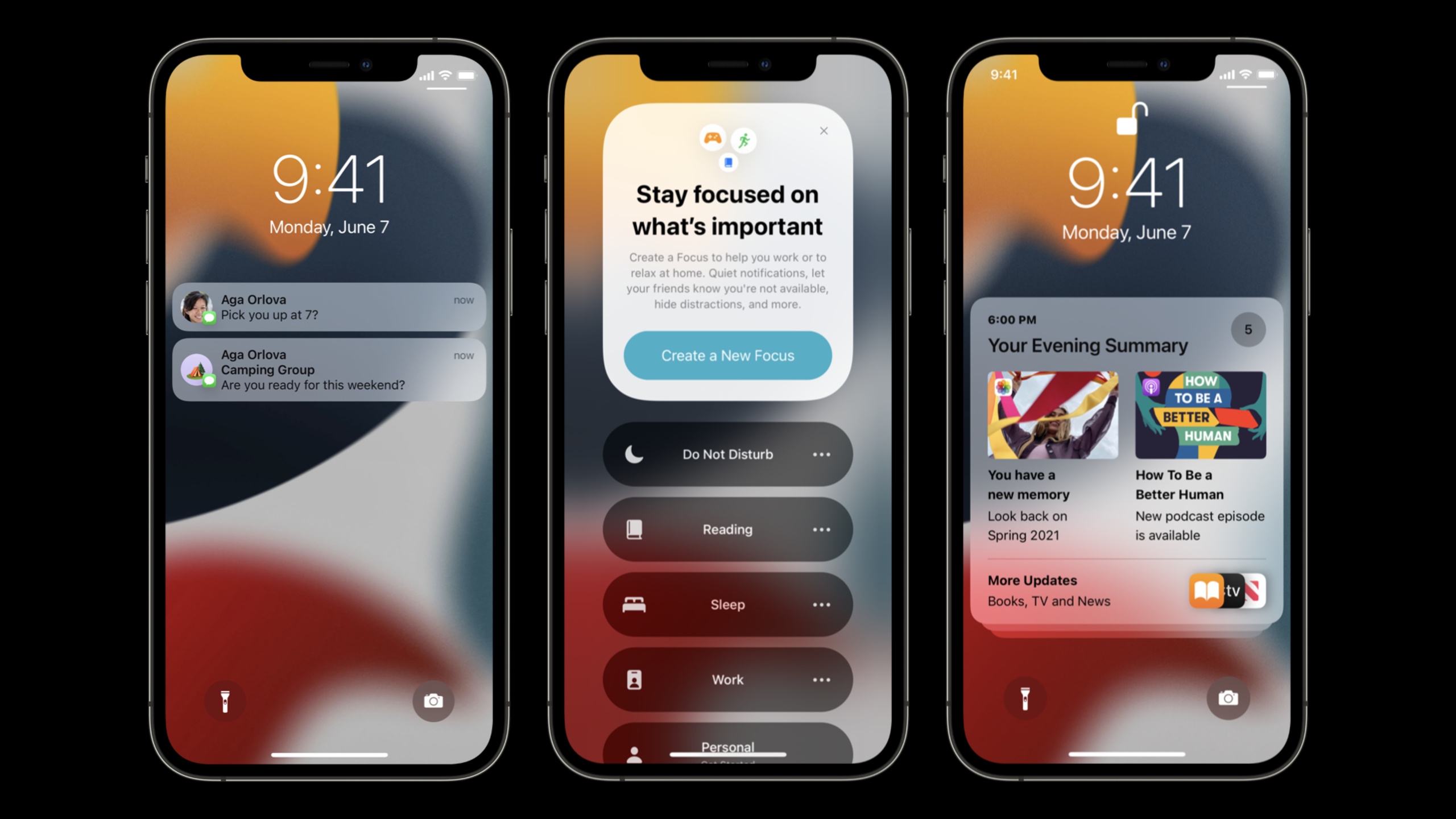
iOS 15 introduces four notification interruption levels (Passive, Active, Time Sensitive, Critical), and a new Communication Notifications mechanism, allowing message and call notifications to penetrate Focus and notification summaries, while deeply integrating notifications with contacts and Shortcuts through SiriKit Intents.
Core Content
Visual upgrade of notifications
Previously, notification action buttons only had text, and users needed to read to understand the function of each button.
Notifications in iOS 15 have a new look that puts more emphasis on content and media.Action buttons can now be accompanied by icons.useUNNotificationActionIconCreate a system icon or template icon and pass it toUNNotificationActionconstructor.When you expand a notification, an icon appears next to the button, making it easy to identify the action at a glance.
At the same time, the size of the application icon in the notification has become larger, and it is necessary to ensure that high-resolution icons are provided.
System Administration Tools: Notification Summary and Focus
Users receive dozens of notifications every day and their lock screen is constantly interrupted.iOS 15 introduces two management tools.
Notification summary: Non-urgent notifications can be displayed in batches at preset times (such as 8 a.m. and 6 p.m.) to reduce the number of active interruptions.Notifications that are included in the summary will still appear in the lock screen notification list.Developers can setrelevanceScoreKeep important notifications at the top of your summary.
Focus: Users can set Focus based on activity or time period (such as work, sleep, reading), allowing only specific apps and contacts to send interrupting notifications.For example, under work Focus, only Mail, Messages and direct communication from colleagues can penetrate.
Interruption level: Make the notification “sensible”
Previously, all notifications were either loud or silent, with no in-between state.iOS 15 introducesUNNotificationInterruptionLevel, divided into four levels:
| Level | Behavior | Penetration Focus/Summary | Applicable scenarios |
|---|---|---|---|
| Passive | Silent delivery, no screen or ringing | No | Restaurant recommendations, new series released |
| Active | Ring + bright screen (default behavior) | No | Sports scores, live broadcast reminders |
| Time Sensitive | Ring + bright screen | Yes (requires user permission) | Account security, package delivery |
| Critical | Ring + bright screen, bypass mute switch | Yes | Severe weather, security alert |
The Passive level is suitable for notifications that “don’t need to be read immediately, but should be looked at when you have time”.Time Sensitive requires the user to turn on the corresponding Capability in Xcode, and cannot be abused - the user can choose to turn off the Time Sensitive permission of an application.
Communication Notifications: Make message notifications more like system messages
Communications from people (calls, messages) should be taken more seriously than ordinary notifications.iOS 15 allows apps to mark notifications as communication notifications through SiriKit Intents, resulting in the following upgraded experiences:
- Show sender avatar
- Standardization and localization of titles and subtitles
- Siri automatically announces content on AirPods, HomePod, and CarPlay
- Able to penetrate Focus and notification summaries (based on the user’s interaction history with contacts)
- Associate with system contacts to appear in Share Sheet and Spotlight suggestions
The implementation is inUNNotificationServiceExtensionin, useINSendMessageIntentorINStartCallIntentUpdate the notification content and donate the interaction.
Detailed Content
Add icon for notification action
(01:57)
let likeActionIcon = UNNotificationActionIcon(systemImageName: "hand.thumbsup")
let likeAction = UNNotificationAction(
    identifier: "like-action",
    title: "Like",
    options: [],
    icon: likeActionIcon
)

let commentActionIcon = UNNotificationActionIcon(templateImageName: "text.bubble")
let commentAction = UNTextInputNotificationAction(
    identifier: "comment-action",
    title: "Comment",
    options: [],
    icon: commentActionIcon,
    textInputButtonTitle: "Post",
    textInputPlaceholder: "Type here…"
)

let category = UNNotificationCategory(
    identifier: "update-actions",
    actions: [likeAction, commentAction],
    intentIdentifiers: [],
    options: []
)
Key points:
UNNotificationActionIconSupport system SF Symbol (systemImageName) or in-app template image (templateImageName)UNTextInputNotificationActionIt is an operation with an input box, suitable for comment and reply scenarios.- The icon is displayed to the left of the action button after the notification is expanded
Set interrupt level
(08:19)
Local notification settings Passive level:
let content = UNMutableNotificationContent()
content.title = "Passive"
content.body = "I'm a passive notification, so I won't interrupt you."
content.interruptionLevel = .passive

let trigger = UNTimeIntervalNotificationTrigger(timeInterval: 5, repeats: false)
let request = UNNotificationRequest(
    identifier: "passive-request-example",
    content: content,
    trigger: trigger
)
Push notification setting Passive level:
{
    "aps": {
        "alert": {
            "title": "Passive",
            "body": "I'm a passive notification, so I won't interrupt you."
        },
        "interruption-level": "passive"
    }
}
Key points:
interruptionLevelyesUNMutableNotificationContentnew properties- Used in pushing payload
"interruption-level"Key, value can be"passive"、"active"、"time-sensitive"、"critical" - The default is if not set
active
Time Sensitive Notification
(11:13)
let content = UNMutableNotificationContent()
content.title = "Urgent"
content.body = "Your account requires attention."
content.interruptionLevel = .timeSensitive

let trigger = UNTimeIntervalNotificationTrigger(timeInterval: 0, repeats: false)
let request = UNNotificationRequest(
    identifier: "time-sensitive-example",
    content: content,
    trigger: trigger
)
Push version:
{
    "aps": {
        "alert": {
            "title": "Urgent",
            "body": "Your account requires attention."
        },
        "interruption-level": "time-sensitive"
    }
}
Key points:
- Time Sensitive Notifications needs to be turned on in Xcode’s Signing & Capabilities
- Abuse of Time Sensitive permissions will cause the user to turn off the app
- Suitable for truly urgent scenarios such as account security reminders, package delivery, medication reminders, etc.
Communication Notification:Message notification
(16:08)
existUNNotificationServiceExtensionHandle push notifications in:
func didReceive(
    _ request: UNNotificationRequest,
    withContentHandler contentHandler: @escaping (UNNotificationContent) -> Void
) {
    let incomingMessageIntent: INSendMessageIntent = // Parse from the payload
    let interaction = INInteraction(intent: incomingMessageIntent, response: nil)
    interaction.direction = .incoming
    interaction.donate(completion: nil)

    do {
        let messageContent = try request.content.updating(from: incomingMessageIntent)
        contentHandler(messageContent)
    } catch {
        // Handle error
    }
}
Key points:
UNNotificationContentProvidingThe protocol is the bridge connecting Intents and notification contentinteraction.directionThe notification must be.incomingdonate()Let Siri learn who the user interacts with to optimize Focus penetration recommendations
Create INPerson and INSendMessageIntent
(18:29)
let person = INPerson(
    personHandle: handle,
    nameComponents: nameComponents,
    displayName: displayName,
    image: image,
    contactIdentifier: contactIdentifier,
    customIdentifier: customIdentifier,
    aliases: nil,
    suggestionType: suggestionType
)

let intent = INSendMessageIntent(
    recipients: [person2],
    outgoingMessageType: .outgoingMessageText,
    content: content,
    speakableGroupName: speakableGroupName,
    conversationIdentifier: conversationIdentifier,
    serviceName: serviceName,
    sender: person1,
    attachments: nil
)

let interaction = INInteraction(intent: intent, response: nil)
interaction.direction = .incoming
Key points:
INPersonfor each parameter (contactIdentifier、customIdentifier、imageetc.) will improve user experienceconversationIdentifierUsed to group notifications for the same conversation- Sender passed
senderParameter specification will be displayed in the notification title
Donate Outgoing Intents
(17:48)
When users actively send messages within the application, they must also donate Intent:
func sendMessage(...) {
    let intent: INSendMessageIntent = // Create the Intent
    let interaction = INInteraction(intent: intent, response: nil)
    interaction.direction = .outgoing
    interaction.donate(completion: nil)
}
Key points:
- Outgoing donations help Siri determine which contacts should be suggested through Focus
- Only Outgoing donations will be used for contact suggestions to avoid interference from spam calls
- Required in Info.plist
NSUserActivityTypesAdd the corresponding Intent type or implement Intents Extension
Core Takeaways
- Choose appropriate interrupt levels for different scenarios
- What to do: Classify all notifications in the app according to their urgency, and set them as Passive, Active, and Time Sensitive respectively.
- Why it’s worth doing: Reduce the number of times users are interrupted and increase the arrival rate of important notifications.Users are more willing to retain notification permissions for apps that are “sensible”
- How to start: Audit existing notifications, change recommendation and update categories to Passive, and change security reminders to Time Sensitive.The entry API is
UNMutableNotificationContent.interruptionLevel
- Integrate Communication Notifications for social/messaging applications
- What to do: Make in-app private messages, group chats, and call notifications display avatars, penetrate Focus, and be announced by Siri
- Why it’s worth doing: System-level experience upgrade, user perception is obvious.After integrating with system contacts, your app will appear in both Share Sheet and Spotlight
- How to start: Add Notification Service Extension, in
didReceiveChinese useINSendMessageIntentUpdate notification content.At the same time, donate the Outgoing Intent when the foreground user sends a message
- Use relevanceScore to optimize notification summary sorting
- What to do: Set a relevance score for notifications so the most important notifications appear at the top of the summary
- Why it’s worth doing: The notification summary will collapse multiple notifications, and only those with high scores will be highlighted.
- How to get started: Settings
UNMutableNotificationContent.relevanceScore, range 0.0 to 1.0
- Add icons for notification actions
- What to do: Match all custom notification actions with SF Symbol icons
- Why it’s worth doing: Icons are more intuitive than text, and users can identify the meaning of operations without reading.
- How to get started: Create
UNNotificationActionIcon(systemImageName:)and pass inUNNotificationActionThe constructor of
Related Sessions
- Meet Focus — Learn how Focus mode works and how to configure it
- What’s new in SiriKit — New features in SiriKit and updates to the Intents framework
- Build a custom experience for Group Activities — Build a multi-person real-time collaboration experience
- Design for Communication Notifications — Design guidelines for communication notifications
Comments
GitHub Issues · utterances