
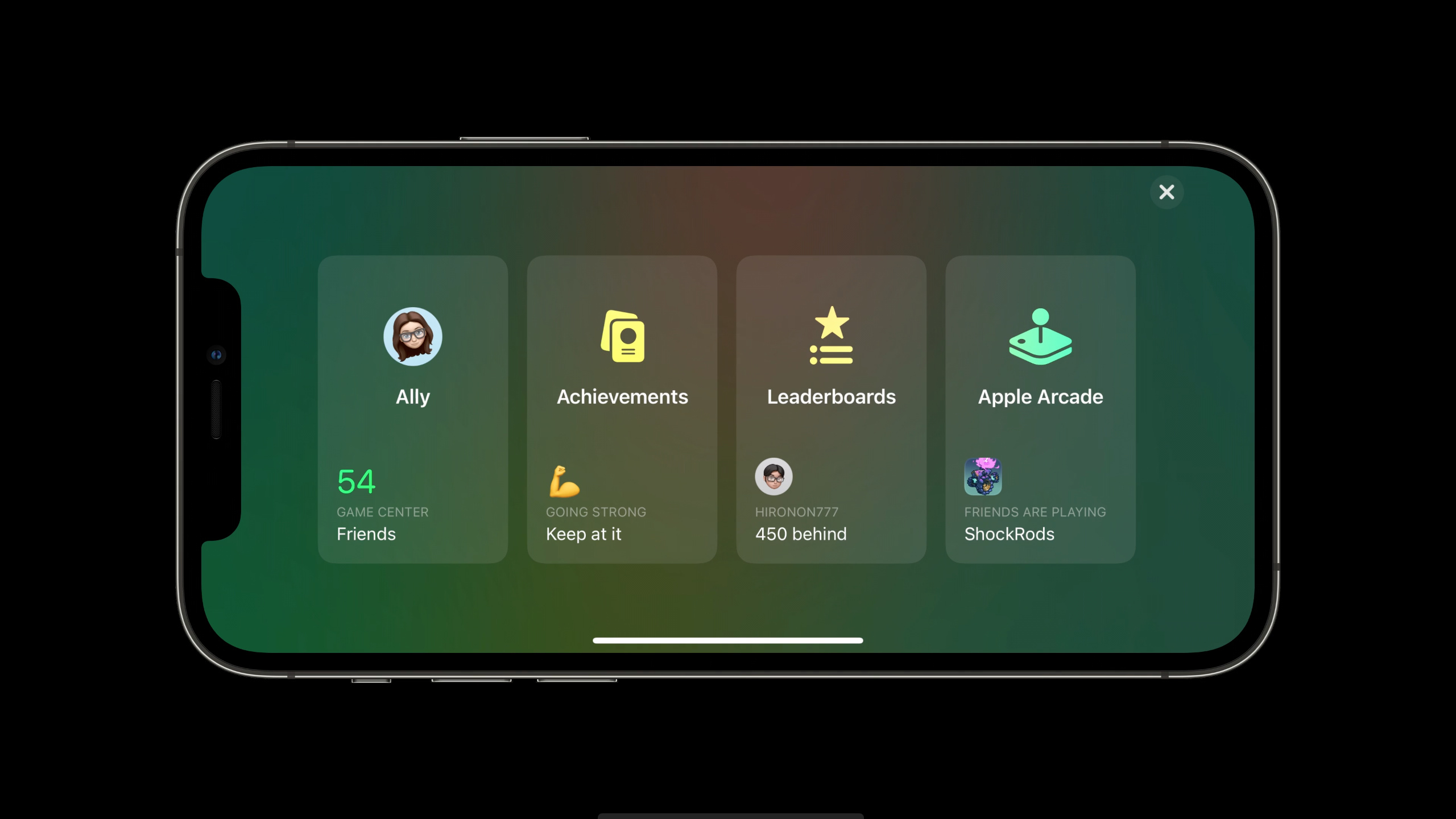
Highlight
iOS 15 brings Friends API (privacy-friendly friend list access), Fast Start multiplayer mode (a minimum number of people can start the game, and subsequent players dynamically join), and two system-level widgets (Friends Are Playing and Continue Playing) to Game Center, all with zero-code access.
Core Content
Game Center is Apple’s gaming social network that allows players to participate in leaderboards, track achievements, and play multiplayer games with a single ID.However, for a long time, developers have wanted to use friend relationships for social functions, but they have basically been unable to do so.iOS 15 has made substantial improvements in three dimensions: discovery, social interaction, and multiplayer games.
Game Discovery: Automatic Exposure
(01:04)
Apple deeply integrates Game Center into the App Store.In the Games and Arcade tabs, players can see the games their friends are playing.When you enter the product page of a game, you can also see which friends are playing it. Click on the friend’s avatar to view the other person’s Game Center information and directly download the games the other person has played.
These features work automatically for all Game Center-enabled games and require no additional code.
Game Center Widget
(02:37)
iOS 15 adds two new Game Center widgets:
- Friends Are Playing: Displays the games that friends are playing recently, click to jump directly
- Continue Playing: Displays games that players have recently played and support Game Center, making it easy to quickly return to the game
Both widgets support the iPad’s large format.There is also zero code access, as long as the game supports Game Center, it will automatically appear in the widget.
Improvements to friend system
(03:26)
Friend requests continue to be sent through Messages, but a new Friend Requests inbox is added to centrally manage all pending requests.macOS also supports sending and receiving friend requests.
Friends API
(03:55)
This is the most important developer-facing feature of the year.The Friends API allows you to access a player’s Game Center friends list after authorization.The list only contains two-way friends (that is, the other party has also authorized your game), and Apple will automatically synchronize the authorization status across devices.
Send a friend request in-game:
let error = GKLocalPlayer.local
    .presentFriendRequestCreatorFromViewController(using: navigationController)

if error != nil {
    print("Fail to send friend request with error: \(error!.localizedDescription).")
}
Key points:
- After calling, the Messages friend request interface will pop up.
- Automatically dismiss after the user completes, returning an optional error
- It is recommended to use SF Symbols as button icons
Check friend list authorization status:
GKLocalPlayer.local.loadFriendsAuthorizationStatus { (authorizationStatus, error) in
    guard error == nil else {
        print("Fail to load friends list with error: \(error!.localizedDescription).")
        return
    }

    switch authorizationStatus {
    case .notDetermined:
        // The player has not made a choice yet
    case .denied:
        // The player denied the access request
    case .restricted:
        // Collected player data should be deleted
    case .authorized:
        // The player has authorized access; the friends list can be loaded
    @unknown default:
        break
    }
}
Key points:
- Need to be added in Info.plist
NSGKFriendListUsageDescription .restrictedCollected data must be deleted- Recommended in
applicationDidFinishLaunchingCheck the status from time to time and delay the authorization prompt until the appropriate time.
Load friends and show on progress map:
func loadFriendsOnProgressionMap() async {
    do {
        let friends = try await GKLocalPlayer.local.loadFriends()
        if friends.count > 0 {
            let leaderboards = try await GKLeaderboard.loadLeaderboards(IDs: ["progress"])
            if let leaderboard = leaderboards.first {
                let entries = try await leaderboard.loadEntries(for: friends, timeScope: .allTime)
                for entry in entries.1 {
                    let avatar = try await entry.player.loadPhoto(for: .normal)
                    let name = entry.player.displayName
                    let friendLevel = entry.score
                    // Show friends' positions on the progress map
                }
            }
        }
    } catch {
        print("Error: \(error.localizedDescription).")
    }
}
Key points:
loadFriends()return[GKPlayer], only includes friends who have been authorized in both directions- combine
GKLeaderboard.loadEntries(for:timeScope:)Get a friend’s score on a specific leaderboard - Simplify asynchronous call chains with Swift async/await
Multiplayer matchmaking improvements
(05:26)
A new Suggestions Shelf has been added to the matching interface to intelligently recommend people you may want to invite:
- Nearby Players
- Game Center groups you’ve played with recently
- Messages group for frequent chats
Game Center Groups are a new concept this year: players who have recently played real-time or turn-based battles together will automatically form a group, allowing you to invite the entire group with one click.
After the invitation is sent, players can be dynamically added or deleted in the lobby.Players who have not yet accepted can click the X to remove, and players who have accepted and left can also be removed.
Fast Start Mode
(17:44)
Fast Start is the core new API for multiplayer games this year.After it is turned on, the game can start immediately when the minimum number of players is reached. Other players will continue to connect in the background and join the game dynamically after being connected.
Enable Fast Start:
let request = GKMatchRequest()
request.minPlayers = 2
request.maxPlayers = 6
request.playerGroup = 2021

let vc = GKMatchmakerViewController(matchRequest: request)
vc.canStartWithMinimumPlayers = true
vc.delegate = self
self.present(vc, animated: true, completion: nil)
Key points:
canStartWithMinimumPlayers = trueTurn on Fast StartminPlayersIt is the minimum number of people that can play the game- Once minPlayers is reached, the moderator can choose to start immediately or continue waiting.
Processing subsequent players joining:
func matchmakerViewController(_ viewController: GKMatchmakerViewController, didFind match: GKMatch) {
    viewController.dismiss(animated: true, completion: nil)
    let gameVC = GameSceneViewController()
    gameVC.match = match
    match.delegate = gameVC
    self.present(gameVC, animated: true, completion: nil)
}

func match(_ match: GKMatch, player: GKPlayer, didChange state: GKPlayerConnectionState) {
    if state == .connected {
        self.addPlayer(player)
    }
}
Key points:
didFindMatchMedium settingsmatch.delegateMonitor player connection statusdidChangeStatemedium processing.connectedstatus, adding new players to the game- The invited party passes
GKMatchmakerViewController(invite:)accept invitation
func player(_ player: GKPlayer, didAccept invite: GKInvite) {
    if let vc = GKMatchmakerViewController(invite: invite) {
        vc.matchmakerDelegate = self
        self.present(vc, animated: true, completion: nil)
    }
}
Controller support
(06:04)
All Game Center UI now supports gamepad navigation.Press the Home button on the controller to directly call up the Game Center dashboard, and press it again to return to the game.Zero-code access, no Xcode version upgrade required.Your own UI will need to add handle support separately.
Detailed Content
The complete process of connecting the game to Game Center
To make the game support Game Center, you need to enable the Game Center function in App Store Connect, and then authenticate local players in the code:
GKLocalPlayer.local.authenticateHandler = { viewController, error in
    if let viewController = viewController {
        // Need to show the sign-in UI
        self.present(viewController, animated: true)
    } else if GKLocalPlayer.local.isAuthenticated {
        // Authentication succeeded; Game Center APIs can be called
        self.loadGameCenterData()
    } else {
        // Authentication failed or the user canceled
        print("Game Center authentication failed: \(error?.localizedDescription ?? "unknown")")
    }
}
Rankings and Achievements
Game Center core features also include:
- Leaderboard: Players submit scores and rank globally or among friends
- Achievement: Track player milestones in the game
- Challenge: Initiate a score challenge to your friends
These functions have been refreshed in the UI in iOS 14, and iOS 15 allows players to call out the dashboard at any time through the Access Point API.
Mix of custom UI and native UI
You can embed Game Center data in your custom game UI.For example, displaying the highest score of the current level on the level selection interface, or displaying a real-time ranking indicator during the game.At the same time, players are provided with a complete Game Center entrance through Access Point.
Core Takeaways
- Display friend locations in progress map
- What to do: In the level selection or world map interface, mark the level each friend is currently in.
- Why it’s worth it: Social comparison is one of the strongest motivations for gaming.When players see their friends ahead of themselves, they will have a strong desire to catch up.
- How to start: Connect to the Friends API, map the leaderboard scores to levels, and render friend avatars on the map
- Exclusive ranking list for friends
- What to do: Display the “Friend Ranking” view in the game, only showing the score comparison between friends
- Why it’s worth doing: The global leaderboard is too far away for ordinary players, and the friend list is more competitive and accessible.
- How to start:
loadFriends()Get the friends list and then useloadEntries(for:timeScope:)Load friend scores
- Connect to Fast Start to reduce waiting time
- What to do: Fast Start is enabled for the multiplayer battle game. 2 people can start the game, and others will join one after another.
- Why it’s worth it: Waiting for all players to be in position is the biggest drain on battle games.Fast Start allows players to enter the game immediately and handles remaining connections in the background
- How to start:
canStartWithMinimumPlayers = true+ indidChangeStateProcessing dynamic join
- Use Game Center Groups for Quick Restart
- What to do: Display the “recently played together” groups in the matching interface, and invite your last teammates with one click
- Why it’s worth doing: The acquaintance game has a much higher retention rate than random matching.Game Center automatically maintains groups, you don’t need to build a social graph yourself
- How to get started: Using the system
GKMatchmakerViewController, the Suggestions Shelf will automatically display recent groups
- Add Continue Playing deep link
- WHAT TO DO: Make sure the game supports direct access to recent levels via URL scheme or Universal Link
- Why it’s worth doing: Click on the Continue Playing widget to enter the game directly, but if the game always starts from the main menu, the experience will be broken.
- How to start: Use
NSUserActivityOr customize the URL scheme to save the game state and restore it at startup
Related Sessions
- Support real-time and turn-based multiplayer with Game Center — Detailed explanation of Game Center multiplayer technology, including real-time and turn-based matching
- Tap into virtual and physical game controllers — Game controller support, with Game Center’s controller navigation function
- What’s new in Game Center: Widgets, friends, and multiplayer improvements — The complete content of this Session
Comments
GitHub Issues · utterances