
Highlight
iOS 15 introduced for UIKit Sheet
UISheetPresentationController, supports medium/large double-height docking (detent), non-modal interaction, custom rounded corners and grabbers, making half-screen card-style UI a system-level native capability.
Core Content
In the past, when I wanted to make a half-screen draggable card in iOS, I basically had to write a set of custom transition animations by myself.The system’s built-in Sheet only has a full-screen height. When the user selects a picture or changes a setting, the entire interface is covered, and the user has to reopen it after completing the operation.
iOS 15 adds a complete set of customization APIs to Sheet.The core idea is: Sheet no longer has only one state of “full screen”, but can switch between multiple “detents”.The system predefines two docking points: medium (about half screen) and large (full screen).You can have the Sheet support both heights, or just keep one of them.
More importantly, you can remove the dimming view.This means that while the Sheet is floating in mid-air, users can still interact with the content behind it.For example, the picture selector opens in half-screen mode. After the user clicks on the photo, the photo is displayed directly on the postcard behind it. The Sheet remains open and can be changed to another picture at any time.
Get Sheet controller
(01:36)
The first step to customize a Sheet is to getUISheetPresentationControllerExample.How to get it andpopoverPresentationControllerSame: read the target view controller’s before presentsheetPresentationControllerproperty.
if let sheet = viewController.sheetPresentationController {
    // Customize the sheet
}
present(viewController, animated: true)
Key points:
sheetPresentationControlleronly inmodalPresentationStylefor.formSheetor.pageSheetReturns non-nil- The default is
.pageSheet, so in most cases just read it directly
Set stops
(02:21)
detentsProperties determine which heights the Sheet supports.The default is only[.large()], so it will be full screen if not set.
if let sheet = picker.sheetPresentationController {
    sheet.detents = [.medium(), .large()]
}
present(picker, animated: true)
Three common configurations:
[.large()]—Default behavior, full screen Sheet[.medium(), .large()]— Drag to switch between half screen and full screen[.medium()]— Fixed half screen, unable to drag to full screen
Non-modal image selector
(03:27)
Let’s look at a practical scenario: usePHPickerViewControllerSelect picture.The writing method of iOS 14 is to present full-screen picker and dismiss after selecting.iOS 15 can be changed to half screen permanent:
func showImagePicker() {
    let picker = PHPickerViewController()
    picker.delegate = self
    if let sheet = picker.sheetPresentationController {
        sheet.detents = [.medium(), .large()]
    }
    present(picker, animated: true)
}

func picker(_ picker: PHPickerViewController, didFinishPicking results: [PHPickerResult]) {
    // assign result to imageView.image
    // No longer calls dismiss
}
Key points:
detentsset to[.medium(), .large()], the picker opens in half-screen mode- Remove
dismiss(animated:), the picker remains open and the user can continue to select images. - Users can still drag the Sheet to full screen to browse more photos
Disable automatic scrolling expansion
(05:34)
Under the default behavior, when the scroll view scrolls to the top and continues to scroll down, the Sheet will automatically expand to large.For scenarios like the image picker, you may want scrolling to affect only the content and not the Sheet height:
if let sheet = picker.sheetPresentationController {
    sheet.detents = [.medium(), .large()]
    sheet.prefersScrollingExpandsWhenScrolledToEdge = false
}
Key points:
prefersScrollingExpandsWhenScrolledToEdgeDefaults to true- After setting to false, the height can only be changed by dragging the bar at the top of the Sheet
Programmatically switch stops
(06:12)
After the user selects the photo, let the Sheet automatically shrink to the medium height, which not only gives feedback but also makes the content behind it visible:
func picker(_ picker: PHPickerViewController, didFinishPicking results: [PHPickerResult]) {
    // assign result to imageView.image
    if let sheet = picker.sheetPresentationController {
        sheet.animateChanges {
            sheet.selectedDetentIdentifier = .medium
        }
    }
}
Key points:
selectedDetentIdentifierControl current stop- Must use
animateChangeswrap, otherwise the switch has no animation animateChangesThe linked animations of other Sheets in the stack will be processed at the same time.
Remove background mask
(07:12)
Removing dimming view is the key to achieving non-modal interaction:
if let sheet = picker.sheetPresentationController {
    sheet.detents = [.medium(), .large()]
    sheet.prefersScrollingExpandsWhenScrolledToEdge = false
    sheet.smallestUndimmedDetentIdentifier = .medium
}
Key points:
smallestUndimmedDetentIdentifierAfter being set to medium, the medium height does not display the mask.- Mask fades in when user drags to large
- After removing the mask, users can interact with content inside and outside the Sheet at the same time
Horizontal screen and visual customization
(08:44)
Sheet in iOS 13 is full screen by default in landscape mode.iOS 15 offers an alternative look for bottom snapping:
if let sheet = fontPicker.sheetPresentationController {
    sheet.prefersEdgeAttachedInCompactHeight = true
    sheet.widthFollowsPreferredContentSizeWhenEdgeAttached = true
}
Show grabber indicator bar:
if let sheet = fontPicker.sheetPresentationController {
    sheet.prefersGrabberVisible = true
}
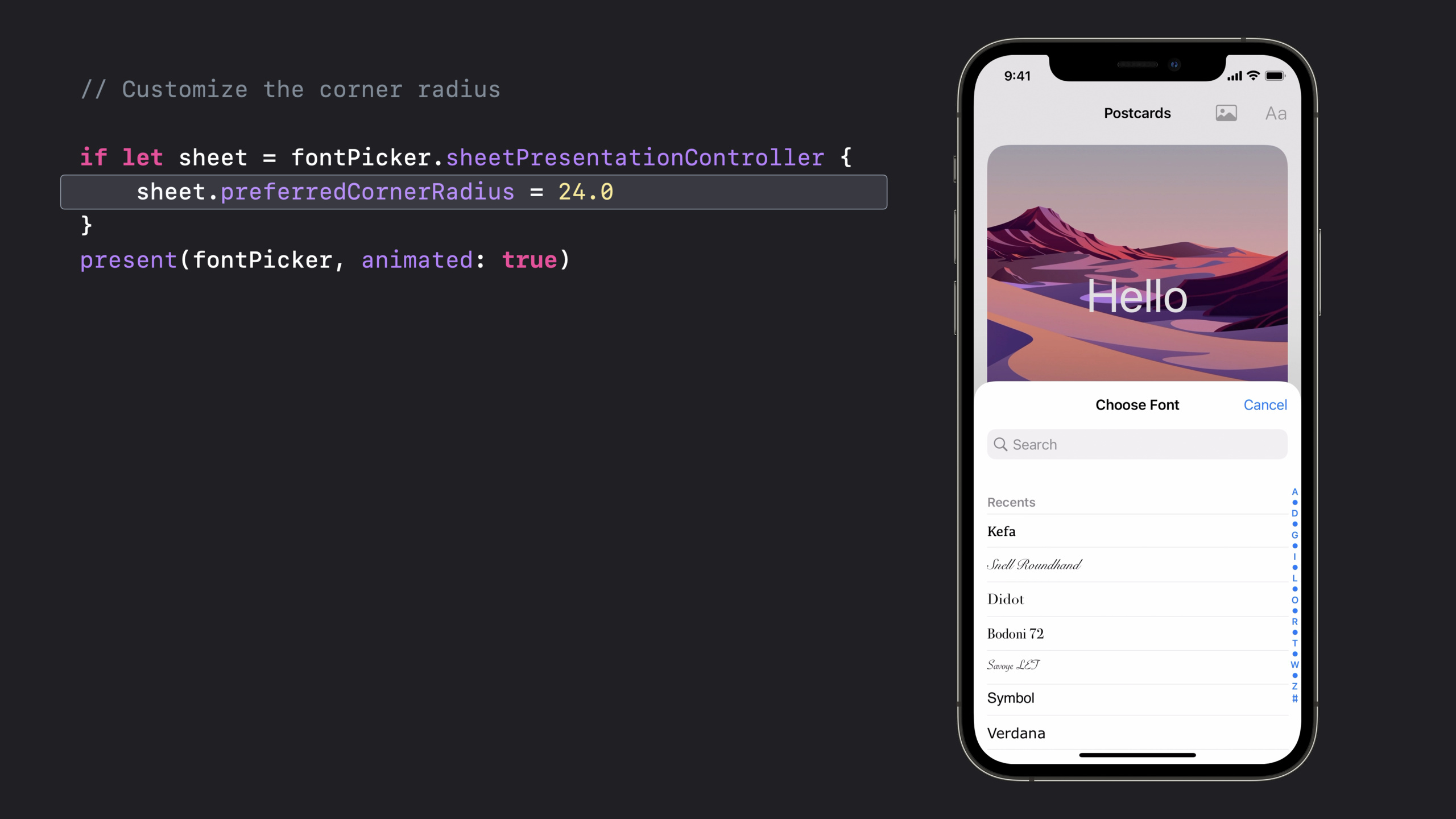
Custom rounded corners:
if let sheet = fontPicker.sheetPresentationController {
    sheet.preferredCornerRadius = 20.0
}
Key points:
prefersEdgeAttachedInCompactHeightMake the bottom of the horizontal screen Sheet adsorb instead of full screenwidthFollowsPreferredContentSizeWhenEdgeAttachedlet the width followpreferredContentSize- The system will automatically maintain the rounded corners consistency of stacked sheets
Popover adapts to customized Sheet
(10:05)
Use popover on iPad, and it will automatically become a customized Sheet on iPhone:
func showImagePicker(_ sender: UIBarButtonItem) {
    let picker = PHPickerViewController()
    picker.delegate = self
    picker.modalPresentationStyle = .popover
    if let popover = picker.popoverPresentationController {
        popover.barButtonItem = sender

        let sheet = popover.adaptiveSheetPresentationController
        sheet.detents = [.medium(), .large()]
        sheet.prefersScrollingExpandsWhenScrolledToEdge = false
        sheet.smallestUndimmedDetentIdentifier = .medium
    }
    present(picker, animated: true)
}

func picker(_ picker: PHPickerViewController, didFinishPicking results: [PHPickerResult]) {
    if let sheet = picker.popoverPresentationController?.adaptiveSheetPresentationController {
        sheet.animateChanges {
            sheet.selectedDetentIdentifier = .medium
        }
    }
}
Key points:
adaptiveSheetPresentationControllerGet popover’s adaptive Sheet under compact size class- The configuration method is exactly the same as that of ordinary Sheet
- Also pass in the delegate method
popoverPresentationController?.adaptiveSheetPresentationControlleraccess
Detailed Content
Detailed explanation of Detent mechanism
UISheetPresentationController.DetentIt is a new type introduced in iOS 15 and represents the natural docking height of Sheet.The system currently provides two predefined values:
.medium()— Approximately 50% of full screen height.large()— full screen height
detentsThe properties are an array, the order does not affect functionality.selectedDetentIdentifierRepresents the currently active stop, which can be toggled through code at runtime.
Animation and interaction details
animateChangesis a key method.It accepts a closure, and modifying the Sheet property in the closure will produce smooth animation.This method coordinates the animation of the entire Sheet stack, including the zoom rebound of the underlying Sheet.
Keyboard avoidance is also built-in.When the Sheet is at medium height, if the inner text box gains focus and the keyboard pops up, the Sheet will automatically expand upward to avoid the keyboard, and will automatically rebound after the keyboard is retracted.
Complete configuration example
Combining all the above features, a typical non-modal image selector configuration is as follows:
func showImagePicker() {
    let picker = PHPickerViewController()
    picker.delegate = self

    if let sheet = picker.sheetPresentationController {
        // Support medium and large detents
        sheet.detents = [.medium(), .large()]
        // Scrolling does not automatically expand it
        sheet.prefersScrollingExpandsWhenScrolledToEdge = false
        // Do not show the dimming view at medium height, allowing interaction with content behind it
        sheet.smallestUndimmedDetentIdentifier = .medium
        // Show the grabber
        sheet.prefersGrabberVisible = true
        // Custom corner radius
        sheet.preferredCornerRadius = 20.0
    }

    present(picker, animated: true)
}

func picker(_ picker: PHPickerViewController, didFinishPicking results: [PHPickerResult]) {
    // Process the selected images
    if let result = results.first {
        result.itemProvider.loadObject(ofClass: UIImage.self) { image, error in
            DispatchQueue.main.async {
                self.imageView.image = image as? UIImage
            }
        }
    }

    // Automatically collapse back to medium height after selection
    if let sheet = picker.sheetPresentationController {
        sheet.animateChanges {
            sheet.selectedDetentIdentifier = .medium
        }
    }
}
Key points:
detentsDefine available heightprefersScrollingExpandsWhenScrolledToEdgeControl scrolling behaviorsmallestUndimmedDetentIdentifierControl mask rangeanimateChangesWrap property changes to animate- not called
dismiss, keep the Sheet permanent
Core Takeaways
- Make a half-screen resident tool panel
- What to do: In drawing and note-taking apps, make the toolbar a medium detent Sheet, so that the main canvas is always visible when the user selects a tool.
- Why it’s worth doing: In the past, toolbars either occupied a fixed space at the bottom, or popped up full screen, interrupting the creative flow.Half-screen Sheet takes up no space or interrupts
- How to start: Use
detents = [.medium()]+smallestUndimmedDetentIdentifier = .mediumImplementing a non-modal tool panel
- Make a foldable details page
- What to do: In map apps, use medium/large double detent for location details. By default, basic information is displayed in half screen. Pull up to see the complete content.
- Why it’s worth doing: System Map App has verified this interaction model.use
UISheetPresentationControllerCan be reproduced directly without custom transitions - How to start:
detents = [.medium(), .large()]+prefersGrabberVisible = true, the user can switch by dragging
- Make cross-device adaptive pop-up windows
- What to do: Use popover on iPad, and it will automatically become a customized Sheet on iPhone. One set of code can adapt to both devices.
- Why it’s worth doing:
adaptiveSheetPresentationControllerMake popover’s compact adaptive behavior customizable, eliminating the need to write two sets of logic - How to get started: Settings
modalPresentationStyle = .popover, and then configurepopover.adaptiveSheetPresentationController
- Configuration panel for real-time preview
- What to do: In photo editing and filter apps, the panel for adjusting parameters is opened with a half-screen Sheet, and the main image changes in real time during adjustments.
- Why is it worth doing: After removing dimming, users can see the panel and main image at the same time, making the experience of adjusting parameters more intuitive.
- How to start:
smallestUndimmedDetentIdentifier = .medium+ No dismiss, parameter changes are directly reflected in the view behind
- Replace existing custom card
- WHAT TO DO: If you now use
UIViewControllerCustomize transitions to implement half-screen cards and migrate toUISheetPresentationController - Why is it worth doing: The gestures, animations, and keyboard avoidance implemented by the system are more complete, and the code volume has been reduced from a few hundred lines to a dozen lines.
- How to start: Delete the custom transition code and configure it during present
sheetPresentationControllerThe properties of
Related Sessions
- What’s new in UIKit — Overview of UIKit’s annual new features, including all updates including Sheet
- Meet UIKit for Mac — Learn about differences in Sheet behavior on Mac
- The process of inclusive design — The impact of non-modal interaction on accessibility experience
Comments
GitHub Issues · utterances