
Highlight
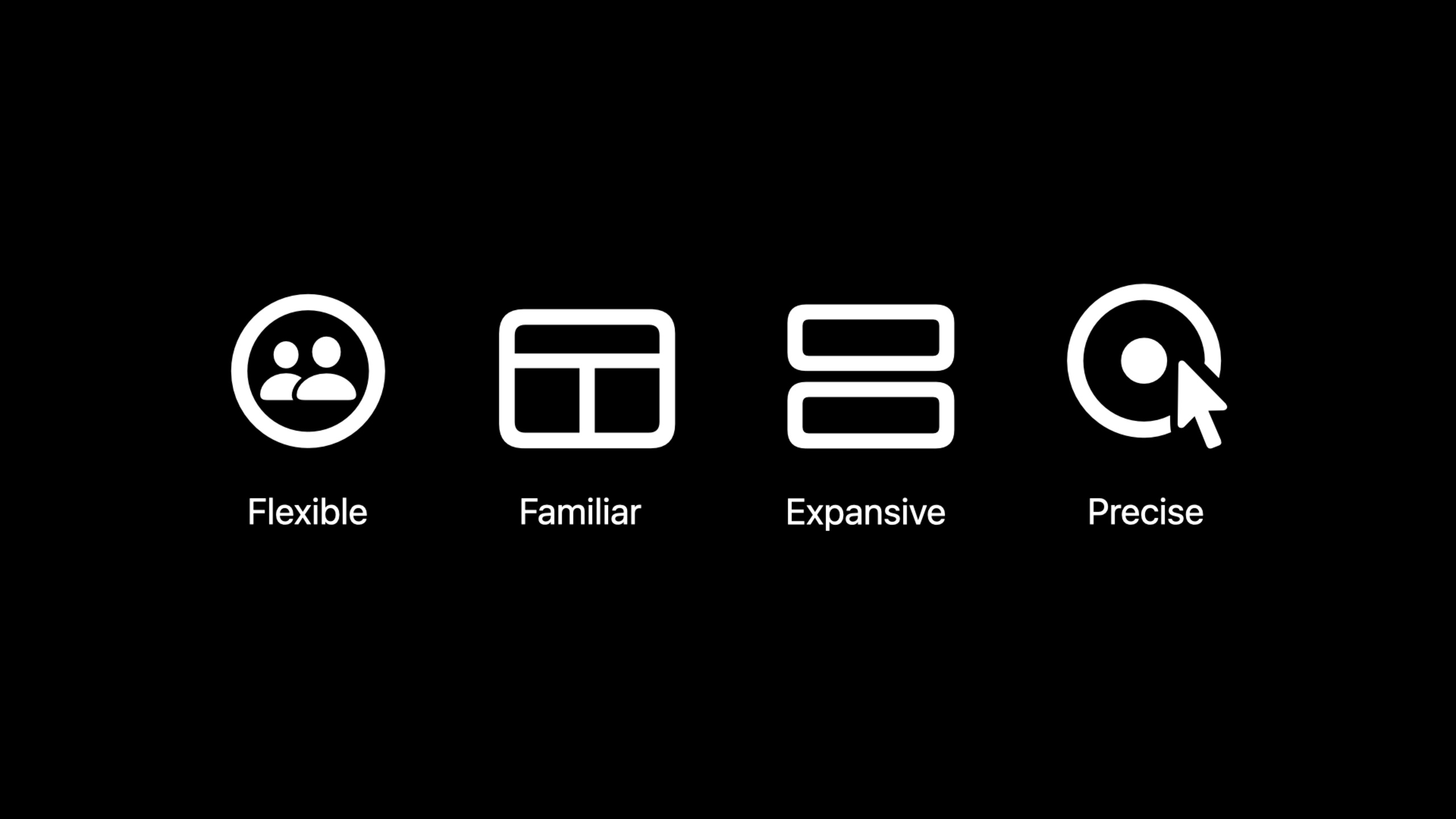
Excellent Mac Apps have four common characteristics: flexible (customizable), familiar (following system conventions), vast (taking advantage of the large screen), and precise (high information density).Session demonstrates how to implement these principles with SwiftUI using a gardening management app.
Core Content
SwiftUI improvements in macOS Monterey make it truly usable for building production-grade Mac apps.Session uses a gardening tracking app as a run-through example, built from scratch.
SwiftUI implementation of four core principles:
- Flexible: use
@SceneStorageSave the sidebar expanded state and selected items so that the user’s interface configuration is maintained after restarting - Familiar: Use
CommandsModifiers build the standard menu bar,ToolbarItemPlace it at the agreed location - Broad: use
TableDisplay multiple columns of data,DisclosureGroupControl content display - Accurate: Table’s compact row height, Sidebar’s minimum width setting
Detailed Content
Sidebar: Construction of outline view
Sidebar of Mac App is usually usedDisclosureGroupImplement outline view.Cooperate@SceneStorageCan save expanded state (06:09).
@SceneStorage("expansionState") private var expansionState = Set<String>()

var body: some View {
    List {
        DisclosureGroup("Current Year", isExpanded: $isCurrentExpanded) {
            ForEach(currentYearGardens) { garden in
                Label(garden.name, systemImage: "leaf")
                    .tag(garden.id)
            }
        }
        DisclosureGroup("History") {
            GardenHistoryOutline()
        }
    }
    .frame(minWidth: 150)
}
Key points:
@SceneStorageAutomatically save the state when the app exits and restore it after restartingDisclosureGroupProvides a collapsible outline viewtag()Cooperateselectionbinding supports keyboard navigation and selected state
Table: Multi-column data display
TableIt is a new component of macOS Monterey, similar toNSTableView(09:14)。
Table(plants, selection: $selectedPlant, sortOrder: $sortOrder) {
    TableColumn("Name", value: \.name)
    TableColumn("Variety", value: \.variety)
    TableColumn("Days to Maturity") { plant in
        Text("\(plant.daysToMaturity)")
    }
}
Key points:
TableSupports multi-column display, thanListSuitable for more complex dataselectionbinding supports single or multiple selectionsortOrderbinding automatically supports column sorting- Automatically downgrade to
List
Toolbar: Toolbar configuration
The toolbar is the standard place for Mac users to discover functionality (11:21).
Table(plants) {
    // Column definitions...
}
.toolbar {
    ToolbarItem(placement: .primaryAction) {
        Button(action: addPlant) {
            Label("Add Plant", systemImage: "plus")
        }
    }
    ToolbarItem(placement: .automatic) {
        DisplayModePicker()
    }
}
Key points:
ToolbarItemofplacementDetermine location in toolbar.primaryActionPlace it in a prominent position on the left.automaticLet the system determine the location based on space- Buttons can be disabled based on selected state
Searchable: Search function
There’s always a hardware keyboard on your Mac, and searching is an effective way to quickly sift through your data (12:15).
Table(plants.filter { searchText.isEmpty || $0.name.contains(searchText) }) {
    // Column definitions...
}
.searchable(text: $searchText)
Key points:
.searchableModifier adds search box to toolbar- The search box on Mac is fixed to the right side of the toolbar
- support
Cmd+FShortcut keys focus search box - Automatically handle focus and keyboard navigation
Commands: Menu bar configuration
The menu bar is an important way for Mac users to explore functionality (13:17).
@main
struct GardenApp: App {
    var body: some Scene {
        WindowGroup {
            ContentView()
        }
        .commands {
            SidebarCommands()
            CommandGroup(before: .newItem) {
                Button("Add Plant") {
                    // Add plant
                }
                .keyboardShortcut("n", modifiers: .command)
            }
            CommandMenu("Plants") {
                Button("Mark as Watered") {
                    // Mark as watered
                }
                .keyboardShortcut("w", modifiers: [.command, .shift])
            }
        }
    }
}
Key points:
.commandsModifier configuration menu barSidebarCommands()Add standard sidebar toggle menuCommandGroup(before:)Insert custom command before system menuCommandMenuCreate a new top-level menu
FocusedSceneValue: Communication between windows
Menu commands for multi-window apps need to act on the foreground window (14:01).
struct GardenDetail: View {
    @Binding var garden: Garden?

    var body: some View {
        Table(plants, selection: $selectedPlants) {
            // Column definitions...
        }
        .focusedSceneValue(\.selectedGarden, $garden)
        .focusedSceneValue(\.selectedPlants, $selectedPlants)
    }
}
struct PlantCommands: Commands {
@FocusedValue(\.selectedGarden) private var focusedGarden: Binding<Garden>?
var body: some Commands {
CommandMenu("Plants") {
Button("Mark as Watered") {
focusedGarden?.wrappedValue.markAsWatered()
}
.disabled(focusedGarden == nil)
}
}
}Key points:
@FocusedValueRead the value of the currently focused windowfocusedSceneValueExpose binding to menu commands- Menu commands automatically act on the front window
- No need to manually track window focus
Core Takeaways
-
Use @SceneStorage to save user interface state: Mac App has multiple windows, and the state of each window should be saved independently.
@SceneStorageThis is handled automatically, eliminating the need to manually read and write UserDefaults. -
Use Table instead of List to display complex data: When you need multi-column, sortable data, use
Tableinstead ofList。TableDesigned for information density, supports sorting and selection, automatically downgrades toList。 -
Menu bar shortcuts for all actions: Mac users expect to access all functions through the menu bar and shortcuts.Even if your app has a toolbar, these actions should be repeated in the menu bar to increase the discoverability of the functionality.
-
Add search function with Searchable: Mac’s toolbar has enough space.
.searchableMake the search box appear in the standard position, supportCmd+FFocused and in line with user habits. -
Use FocusedSceneValue to achieve collaboration between windows: The menu commands of a multi-window App need to act on the front window.
focusedSceneValue+@FocusedValueThis is achieved without the need to manually manage focus tracking.
Related Sessions
- SwiftUI on the Mac: Add the finishing touches — Finishing touches and advanced features for Mac Apps, including drag and drop, photo attachments
- Build a great Mac app with SwiftUI — A complete guide to building native Mac apps with SwiftUI
- What’s new in SwiftUI — SwiftUI comprehensive update in WWDC21
- What’s new in AppKit — Updates to AppKit in macOS 12
Comments
GitHub Issues · utterances