
Highlight
iOS 15 brings many important updates to UIKit: UIButton.Configuration provides a declarative button configuration method, UIDatePicker restores the scroll wheel style, Sheet supports medium height detent, cross-app dragging comes to iPhone, UIColor gets new colors such as systemMint.
Core Content
The UIKit update for iOS 15 covers five directions: productivity, UI refinement, API enhancement, performance improvement, and security and privacy.
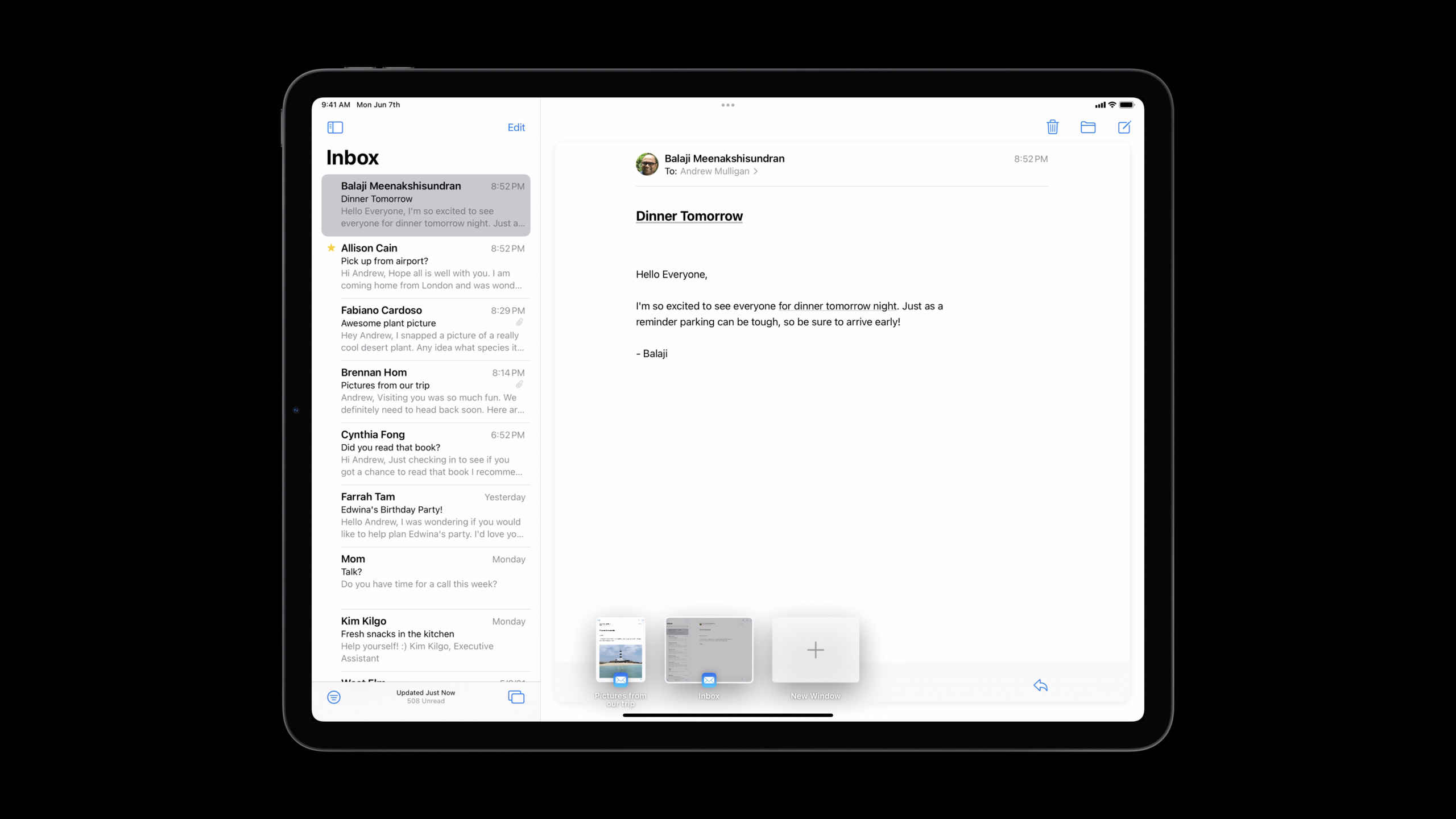
In terms of productivity, iPadOS 15 introduces the Center Window multitasking style, which can be triggered by long pressing + selecting “Open in new window”.Keyboard navigation is based onUIFocusSystem, now shares the same set of APIs with tvOS.UIMenuBuilderUsed to build the main menu, giving Command key shortcuts a category and search interface.
In terms of UI refinement,UIToolbarandUITabBarRemove the background material when scrolling to the bottom.List header has four new styles: plain, grouped, prominent, and extra prominent.UIDatePickerThe scroll wheel style has been restored, and keyboard input using clicks is supported.
In terms of API enhancements,UIButtonGained a new Configuration API, supporting fill, tint, gray and other styles.SF Symbols supports three color modes: layered, palette, and multicolor.UIImageAddedbyPreparingForDisplay()andbyPreparingThumbnail(ofSize:)Asynchronous methods.
In terms of performance, the cell prefetching of UICollectionView and UITableView has been improved, leaving nearly two frames of time for cell preparation.UIImage’s new API can decode images in the background thread to avoid main thread lag.
In terms of security and privacy,UILocationButtonProvides one-time grant of location permissions.The Paste action no longer displays a notification banner when the user explicitly calls it (Cmd-V or clicks the Paste button).
Detailed Content
Create an “Open in new window” action
(01:41)
let newSceneAction = UIWindowScene.ActivationAction { _ in
    let userActivity = NSUserActivity(activityType: "com.myapp.detailscene")
    return UIWindowScene.ActivationConfiguration(userActivity: userActivity)
}
Key points:
UIWindowScene.ActivationActionIt is a new API in iOS 15- Show “Open in new window” on iPad and Mac Catalyst, auto-hide on iPhone
- Multiple scene support needs to be enabled in Info.plist
Customize the main menu
(03:06)
class AppDelegate: UIResponder, UIApplicationDelegate {
    override func buildMenu(with builder: UIMenuBuilder) {
        guard builder.system == .main else { return }
        // Modify the main menu with the builder...
    }
}
Key points:
- exist
UIApplicationDelegatemedium rewritebuildMenu(with:) builder.system == .mainMake sure to only do this when modifying the main menu- use
UIMenu.IdentifierReferences to system menus (e.g..file、.edit、.view)
Customize the appearance of Toolbar and TabBar
(06:26)
let appearance = UITabBarAppearance()
appearance.backgroundEffect = nil
appearance.backgroundColor = .blue

tabBar.scrollEdgeAppearance = appearance

let scrollView = ... // content scroll view
viewController.setContentScrollView(scrollView, for: .bottom)
Key points:
- iOS 15 Medium
UIToolbarandUITabBarBackground material is removed by default when scrolling to the bottom - set up
scrollEdgeAppearanceThis behavior can be customized - If the system cannot infer the correct scroll view, use
setContentScrollView(_:for:)clearly specified
Using UIButton.Configuration
(11:31)
var config = UIButton.Configuration.tinted()
config.title = "Add to Cart"
config.image = UIImage(systemName: "cart.badge.plus")
config.imagePlacement = .trailing
config.buttonSize = .large
config.cornerStyle = .capsule

let addToCartButton = UIButton(configuration: config)
Key points:
UIButton.ConfigurationProvides declarative button configuration- Supported styles:
.plain、.gray、.tinted、.filled - You can configure attributes such as title, picture, size, rounded corner style, etc.
- Can be updated after configuration:
button.configuration = updatedConfig
Use layered colors Symbol
(13:30)
let configuration = UIImage.SymbolConfiguration(
    hierarchicalColor: UIColor.systemOrange
)

let image = UIImage(
    systemName: "sun.max.circle.fill",
    withConfiguration: configuration
)
Key points:
- iOS 15 adds three new SF Symbols color modes
.hierarchicalColorApply a single layered color.paletteColorsApply multiple specified colors.multicolorUse the symbol’s built-in multi-color representation
Cell configuration update processor
(19:30)
let cell: UICollectionViewCell = ...

cell.configurationUpdateHandler = { cell, state in
    var content = UIListContentConfiguration.cell().updated(for: state)
    content.text = "Hello world!"
    if state.isDisabled {
        content.textProperties.color = .systemGray
    }
    cell.contentConfiguration = content
}
Key points:
- iOS 15 adds a new closed cell update method
- No need to create a cell subclass, you can set it directly when creating the cell
stateParameters includeisHighlighted、isSelected、isDisabledWaiting state
Asynchronously prepare image display
(21:01)
if let image = UIImage(contentsOfFile: pathToImage) {
    Task {
        let preparedImage = await image.byPreparingForDisplay()
        imageView.image = preparedImage
    }
}
Key points:
byPreparingForDisplay()Decoding pictures in background thread- Avoid main thread lag and improve scrolling performance
- use
TaskStart an asynchronous operation
Generate thumbnails
(21:29)
if let bigImage = UIImage(contentsOfFile: pathToBigImage) {
    Task {
        let smallImage = await bigImage.byPreparingThumbnail(ofSize: smallSize)
        imageView.image = smallImage
    }
}
Key points:
byPreparingThumbnail(ofSize:)Generate thumbnails of specified size- Execute in the background and release the main thread
- More efficient than manual scaling, utilizing system cache
Core Takeaways
1. Refactor the button code using UIButton.Configuration
If your app has a lot of custom button styles, useUIButton.ConfigurationReplace scattered property settings.This will make the code clearer and easier to maintain.
Implementation idea: Create factory methods for commonly used styles (such asprimaryButton()、secondaryButton()), returns the preconfiguredUIButton.Configuration.Apply these configurations directly where needed.
2. Check out the new appearance for Toolbar and TabBar
iOS 15 MediumUIToolbarandUITabBarThe background material is removed by default when scrolling to the bottom.If your app relies on the old look and feel, check for visual issues.
Implementation idea: Run the App, scroll to the bottom of the content, and check whether the toolbar/tabbar meets expectations.If there is a problem, set a customscrollEdgeAppearance。
3. Use layered color symbols to enhance brand recognition
If your app has a brand color, usehierarchicalColorLet SF Symbol bring out your brand colors.This is more layered than a single color tint.
Implementation idea: Create a brand colorUIImage.SymbolConfiguration, applied to key system icons (such as navigation bar buttons, Tab icons).
4. Use asynchronous image preparation to improve scrolling performance
If your app displays a large number of images, scrolling may freeze.usebyPreparingForDisplay()Prepare images in the background.
Implementation idea: in cellconfigurationUpdateHandlerStart an asynchronous task in , prepare the picture and then update itimageView.image.Ensure that the Task is canceled when the cell is reused.
5. Enable cross-app drag and drop for iPhone
iOS 15 brings cross-app drag and drop to iPhone.If your app accepts drag and drop data (such as URLs, images, text), make sure to implementUIDropInteraction。
Implementation ideas: ImplementationdropInteraction(_:performDrop:),fromUIDropSessionGet initemProviders, handles different data formats based on type.
Related Sessions
- Take your iPad apps to the next level — Multi-window, keyboard shortcuts, and pointer enhancements in iPadOS 15
- Meet the UIKit Button System — UIButton.Configuration API in-depth explanation
- Meet TextKit 2 — Next-generation text engine TextKit 2
- Focus on iPad keyboard navigation — iPad keyboard navigation system
Comments
GitHub Issues · utterances