
Highlight
macOS Monterey brings five major updates to AppKit: custom coloring of controls, SF Symbols 3 layered rendering, TextKit 2 non-linear typesetting engine, deep integration of Swift 5.5 concurrency features, and Shortcuts automation support.
Core Content
Control coloring and button design updates
macOS Monterey allows setting custom coloring for individual buttons, segmented controls, and sliders viabezelColor、selectedSegmentColorandtrackFillColoraccomplish.This was already available on the Touch Bar and now extends to in-window controls.
One key design change: Push Buttons no longer have an accent color highlight when clicked, but instead are consistent with other clickable elements.Needed for custom drawinginteriorBackgroundStyleDetermine the underlying style.
Layered rendering for SF Symbols 3
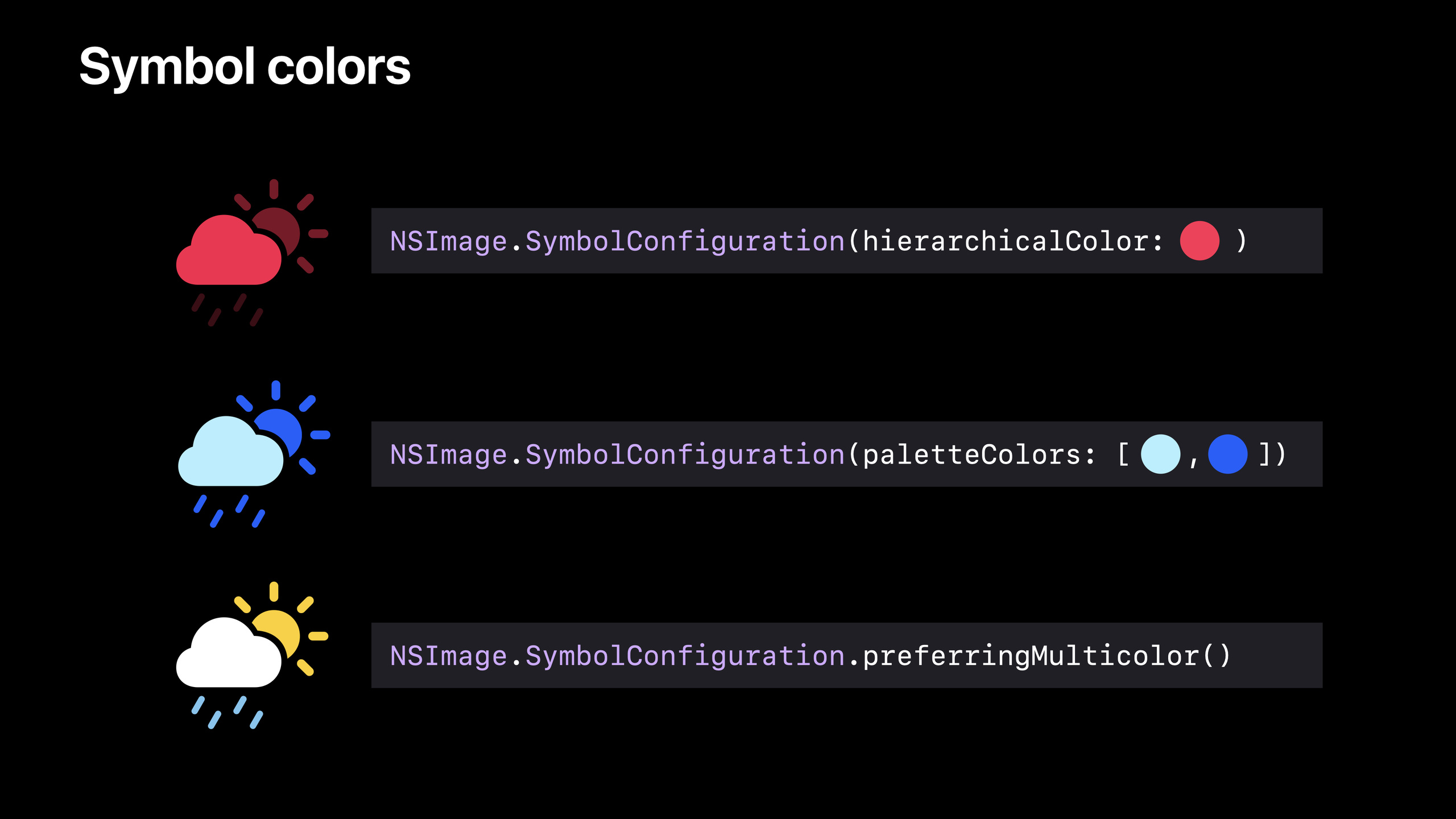
SF Symbols 3 introduces two new rendering modes:
- Hierarchical: single color, differentiated by opacity
- Palette: Specify colors individually for each layer
Symbol variant mapping is also supported, such as automatically getting filled versions from hollow hearts.
Non-linear layout for TextKit 2
TextKit 2 uses a non-linear layout system. For large documents, only paragraphs near the visible area are typed, avoiding linear calculations from beginning to end.TextEdit’s plain text documents and AppKit text fields have been quietly made available in Big Sur using TextKit 2.
Swift Concurrency Integration
AppKit willNSResponder、NSView、NSViewControllerand other core classes marked as@MainActor, the compiler level ensures that UI operations are executed on the main thread.NSColorSamplerWait for the asynchronous API to provide an async/await version.
Detailed Content
Control coloring and background style judgment (04:18)
// Set a semantic color for the button
let preorderButton = NSButton(title: "Preorder", target: self, action: #selector(preorder))
preorderButton.bezelColor = NSColor.systemOrange

// Set the selected color for the segmented control
let segmentControl = NSSegmentedControl()
segmentControl.selectedSegmentColor = NSColor.systemGreen

// Set the track fill color for the slider
let slider = NSSlider()
slider.trackFillColor = NSColor.systemBlue
Determine the background style when customizing drawing:
class CustomButtonCell: NSButtonCell {
    override func drawInterior(withFrame cellFrame: NSRect, in controlView: NSView) {
        // interiorBackgroundStyle reflects the underlying style of the button bezel
        // .normal — colorless state (regular button)
        // .emphasized — colored/emphasized state (tinted button, default button, toggle on state)
        if interiorBackgroundStyle == .emphasized {
            // Draw white content on a colored background
            drawWhiteContent()
        } else {
            // Draw dark content on a colorless background
            drawDarkContent()
        }
    }
}
Key points:
- Colored buttons appear colored in all active states, unlike normal buttons which are white/gray
- Avoid confusion between colored buttons and Default Buttons, both have a colored appearance
- Labels or icons must be used to assist in conveying the purpose of the control, not color alone
interiorBackgroundStylealternative checkhighlightstatus to determine the drawing strategy
Color Picker (14:40)
@IBAction func pickColor(_ sender: Any?) {
    Task {
        guard let color = await NSColorSampler().sample() else { return }
        textField.textColor = color
    }
}
Key points:
NSColorSampler().sample()Is an async method, the user selects a color from anywhere on the screen- After the call, the thread gives up and waits for the user to complete the selection before continuing the execution.
- Can be used directly in
guard let, the code is more natural than the completion handler
Automatic localization of menu shortcut keys
macOS Monterey automatically handles localization of menu shortcuts:
// Automatically map unavailable shortcuts
// Command-backslash has no backslash key on a Japanese keyboard
// The system automatically maps it to an equivalent, typeable shortcut

// Directional shortcuts are automatically mirrored in RTL languages
// Command-[ automatically becomes Command-] in RTL languages

// For absolute-direction actions, such as left alignment, disable mirroring
let alignLeftItem = NSMenuItem(title: "Align Left", action: #selector(alignLeft), keyEquivalent: "[")
alignLeftItem.allowsAutomaticKeyEquivalentMirroring = false

// Disable localization entirely for a menu item
let customItem = NSMenuItem(title: "Custom", action: #selector(custom), keyEquivalent: "k")
customItem.allowsAutomaticKeyEquivalentLocalization = false

// Disable automatic localization for the entire app
func applicationShouldAutomaticallyLocalizeKeyEquivalents(_ application: NSApplication) -> Bool {
    return false
}
Key points:
- Most applications do not require manual intervention, the system handles it automatically
- Disable mirroring only if the shortcut key has an absolute directional meaning (e.g. Align Left)
- App-level disabling is a last resort, use menu item-level controls first
Swift property wrapper automatically refreshes the view
class ConfigurableView: NSView {
    // Automatically call setNeedsDisplay when the property changes
    @Invalidating(.display) var foregroundColor: NSColor = .label

    // Automatically call setNeedsLayout when the property changes
    @Invalidating(.layout) var spacing: CGFloat = 8

    // Automatically call setNeedsUpdateConstraints when the property changes
    @Invalidating(.constraints) var maxWidth: CGFloat = 200

    // Automatically call invalidateIntrinsicContentSize when the property changes
    @Invalidating(.intrinsicContentSize) var title: String = ""

    // Combine multiple invalidation operations
    @Invalidating(.display, .layout) var cornerRadius: CGFloat = 0
}
Key points:
@InvalidatingyesNSViewNested property wrapper for- Property types must follow
Equatable, the wrapper only performs invalidation when the value actually changes - Built-in support
.display、.layout、.constraints、.intrinsicContentSize、.restorableState - Passable
NSViewInvalidatingProtocol defines custom invalidation behavior
Shortcuts integration
AppKit apps support Shortcuts through Services:
// Implement the validRequestor method to declare acceptable/provided data types
extension MyView: NSServicesMenuRequestor {
    override func validRequestor(forSendType sendType: NSPasteboard.PasteboardType?,
                                 returnType: NSPasteboard.PasteboardType?) -> Any? {
        if returnType == .string {
            return self
        }
        return super.validRequestor(forSendType: sendType, returnType: returnType)
    }

    func readSelection(from pboard: NSPasteboard) -> Bool {
        // Read data from the pasteboard
        return true
    }

    func writeSelection(to pboard: NSPasteboard, types: [String]) -> Bool {
        // Write data to the pasteboard
        return true
    }
}
Key points:
- If the app already supports Services, Shortcuts is automatically supported
- Shortcuts appear everywhere in the Services menu
- AppKit checks whether each responder can provide/accept data of the specified type through the responder chain
Core Takeaways
- What to do: Add screen color picking functionality to the Mac version of the design tool
- Why it’s worth doing:
NSColorSamplerThe async/await API enables professional color pickers with just one line of code - How to start: Called in the action of the color picking button
await NSColorSampler().sample(), get the color and apply it to the selected element
- What to do: Create colorful label icons using SF Symbols 3’s Palette mode in File Manager for Mac
- Why it’s worth doing: Palette mode can specify different colors for different layers of the symbol. The label icon can be gray in the background layer and colored in the foreground layer.
- How to get started: Use
NSImage.SymbolConfiguration(paletteColors: [backgroundColor, foregroundColor])Configure symbol rendering
- What to do: Migrate to TextKit 2 for Mac text editor to support very large documents
- Why it’s worth doing: TextKit 2’s non-linear layout significantly improves performance on large documents, only the visible area is typeset
- How to get started: Create
NSTextLayoutManagersubstituteNSLayoutManager,useNSTextContentStorageManage text content
- What: Used in AppKit applications
@InvalidatingSimplify custom view properties
- Why it’s worth doing: Eliminate a lot of
didSetinsetNeedsDisplay/setNeedsLayoutBoilerplate code - How to start: Add the configuration properties of the custom view
@Invalidating(.display)or@Invalidating(.layout)annotation
Related Sessions
- What’s new in Mac Catalyst — Mac Catalyst new API, complementary to AppKit
- Qualities of a great Mac Catalyst app — Qualities of a great Mac Catalyst app
- Meet TextKit 2 — In-depth introduction to TextKit 2
Comments
GitHub Issues · utterances