
Highlight
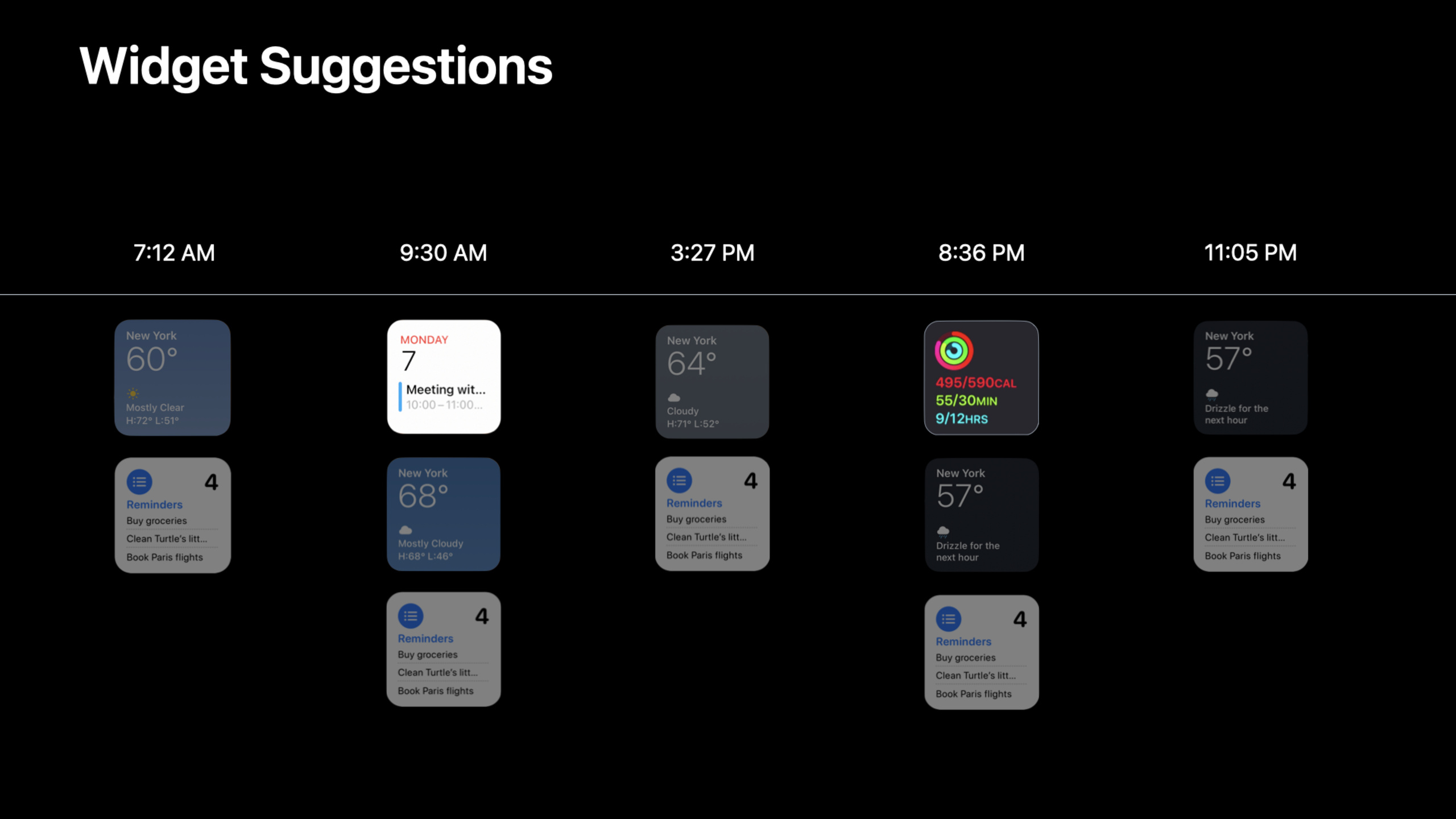
iOS 15 introduces Widget Suggestions and the enhanced Smart Rotate mechanism. Developers can use three APIs (INRelevantShortcut, TimelineEntryRelevance, INInteraction) to make widgets automatically appear in the user’s Smart Stack at the right time, without the need for users to manually add them.
Core Content
From passive waiting to active appearance
Previously, widgets were fixed there after the user added them to the home screen.Users need to actively swipe to search, and the system will not automatically switch based on the scene.This means that many widgets are “sleeping” most of the time, and users don’t even know that they have installed a potentially useful widget.
iOS 15 changes this paradigm.Widget Suggestions allow the system to temporarily insert widgets into the Smart Stack based on user behavior and information provided by the application.Smart Rotate allows the system to automatically switch between multiple widgets to display the most relevant information at the moment.
Three ways to make widgets smart
Apple provides three independent APIs that developers can combine as needed:
- INRelevantShortcut: The application actively informs the system that “there is information worth displaying now”, and the system will temporarily insert the widget into the Smart Stack
- TimelineEntryRelevance: The widget scores each timeline entry and tells the system how worthy of display this entry is.
- INInteraction: The application records the user’s behavior of viewing specific information, and the system automatically recommends it after learning the rules.
These three APIs can be used individually or in combination.The core idea is to change the widget from “passive waiting” to “active appearance”.
Detailed Content
Use INRelevantShortcut to implement Widget Suggestions (09:14)
When the app detects a high-value scene, it can donate aINRelevantShortcut, allowing the system to temporarily insert the corresponding widget into the user’s Smart Stack.
// The user just completed a purchase; donate the related shortcut
var relevantShortcuts: [INRelevantShortcut] = []

let intent = ViewRecentPurchasesIntent()
intent.card = Card(identifier: card.identifier)
intent.category = .all

if let shortcut = INShortcut(intent: intent) {
    let relevantShortcut = INRelevantShortcut(shortcut: shortcut)
    relevantShortcut.shortcutRole = .information
    relevantShortcut.widgetKind = "CardRecentPurchasesWidget"

    let dateProvider = INDateRelevanceProvider(
        start: Date(),
        end: Date(timeIntervalSinceNow: 1800)
    )
    relevantShortcut.relevanceProviders = [dateProvider]

    relevantShortcuts.append(relevantShortcut)
}

INRelevantShortcutStore.default.setRelevantShortcuts(relevantShortcuts) { error in
    if let error = error {
        print("Failed to set relevant shortcuts. \(error)")
    } else {
        print("Relevant shortcuts set.")
    }
}
Key points:
shortcutRoleset to.informationIndicates that this widget displays information contentwidgetKindMust match widget’s kind stringINDateRelevanceProviderA validity period of 30 minutes is specified, after which the system will automatically remove the widget.- by replacing the entire
relevantShortcutsArray to update or revoke previous donations
Use TimelineEntryRelevance to implement Smart Rotate (12:35)
For widgets that already exist in Smart Stack, you can useTimelineEntryRelevanceLet the system know when it should rotate to this widget.
struct CardRecentPurchasesEntry: TimelineEntry {
    let date: Date
    let relevance: TimelineEntryRelevance?
    let card: IntentCard?
    let category: PurchaseCategory
}

let relevance = TimelineEntryRelevance(score: 16.29, duration: 1800)
let entry = CardRecentPurchasesEntry(
    date: Date(),
    relevance: relevance,
    card: card,
    category: category
)
Key points:
scoreIt is a relative score, the higher it is, the more worthy it is of display.A positive number means it can be rotated, 0 means it can be skipped.durationSpecify the validity period (in seconds) of the score. After expiration, the system will treat it as 0- The absolute value of the score is not important, what is important is the relative size between all timeline entries of the same widget
- set up
duration: 0Indicates that the score is valid until the next entry providing relevance
Use INInteraction to let the system learn user habits (17:01)
When a user views information related to widget content in your app, donate aINInteraction, the system will learn the user’s behavior pattern and automatically recommend widgets when predicting that the user is likely to view it again.
.onAppear {
    let intent = ViewRecentPurchasesIntent()
    intent.card = Card(identifier: card.id.uuidString, displayString: card.name)
    intent.category = .all

    let interaction = INInteraction(intent: intent, response: nil)
    interaction.donate { error in
        if let error = error {
            print(error.localizedDescription)
        }
    }
}
Key points:
- The timing of your donation is important: Donate while the user is viewing information that corresponds to the widget content
- The system will collect multiple donation data points and establish a behavioral model
- The donated intent must be exactly the same as the intent used by the widget configuration
- This method does not require the application to actively determine “when to display”, the system decides based on historical data.
Configure Intent definition file
useINRelevantShortcutandINInteractionBefore, you need to ensure in the Intent Definition File:
- “Intent is eligible for Siri Suggestions” is checked
- Created a Supported Combination containing the necessary parameters
Core Takeaways
- What to do: Add the “Recent Transactions” widget to e-commerce/payment applications, which will automatically pop up after the user completes the payment.
- Why it’s worth doing: Combine
INRelevantShortcut+INDateRelevanceProvider, users can see transaction details directly on the home screen within 30 minutes after consumption without opening the app - How to get started: Create a
IntentConfigurationwidget, donate in the callback when the user completes the paymentINRelevantShortcut
- What to do: Add a training status widget to the fitness application, and automatically switch the display according to the current training intensity
- Why it’s worth doing: Take advantage
TimelineEntryRelevanceThe score mechanism allows the widget to automatically jump to the top of the Smart Stack during high-intensity training and hide during low-intensity training. - How to start: In
getTimelineThe score is calculated based on the training data. The higher the training intensity, the higher the score.
- What to do: Add the “continue reading” widget to news/content applications and learn users’ reading habits
- Why it’s worth doing: Pass
INInteractionDonate the user’s reading behavior, and the system will automatically recommend widgets at the time when the user usually reads. - How to start: On the article details page
onAppeartime donationINInteraction, use article category as intent parameter
- What to do: Add a trip widget to the travel app, and it will automatically appear on the home screen before the flight/train departs
- Why it’s worth doing:
INRelevantShortcutCooperateINDateRelevanceProvider, automatically displayed from 2 hours before the start of the trip to 1 hour after the end - How to start: Calculate the start and end times when the itinerary data is updated, and donate the relevant shortcut of the corresponding time window
Related Sessions
- What’s new in WidgetKit — WidgetKit basic updates and new features in iOS 15
- Meet the UIKit button system — iOS 15 UIKit control improvements, related to widget design
- Build a workout app for Apple Watch — Apple Watch app and widget data linkage
- What’s new in SwiftUI — SwiftUI’s update in iOS 15 can be used for widget development
Comments
GitHub Issues · utterances