
Highlight
iOS 15 brings three major improvements to PHPicker: ordered selection, pre-selected photos, and loading progress; it also adds PHCloudIdentifier to enable cross-device photo synchronization, and relaxes restrictions on custom albums in restricted photo library mode.
Core Content
Your app needs to let the user select several photos.The previous approach was to request full photo library permissions and then write a photo browser yourself.This was changed by PHPicker in iOS 14: the system provides a selector, and the App can only get the photos selected by the user, and privacy is protected.
iOS 15 builds on this by doing four things.
The first thing is privacy transparency.(01:15) Users see the instructions “Only use the system photo picker” in the settings and know that your app can only access the selected photos.This increases trust and encourages developers to use system selectors instead of custom implementations.
The second thing is ordered selection.(02:02) When users select multiple photos, they can control the order.The selector will show numbers 1, 2, and 3 instead of a simple check mark.This is useful for puzzles, slideshows, social media multi-image posting, etc.
The third thing is to pre-select photos.(02:45) The user selected 3 photos before. When the selector is opened again, these 3 photos are selected by default.Users can deselect or append new photos.This solves the pain point of “not knowing what was selected before when reselecting”.
The fourth thing is loading progress.(06:29) If the user turns on iCloud photo optimized storage, the photos may not be local.In the past, only a circle could be displayed, but now the real download progress can be obtained through NSProgress to give users clearer feedback.
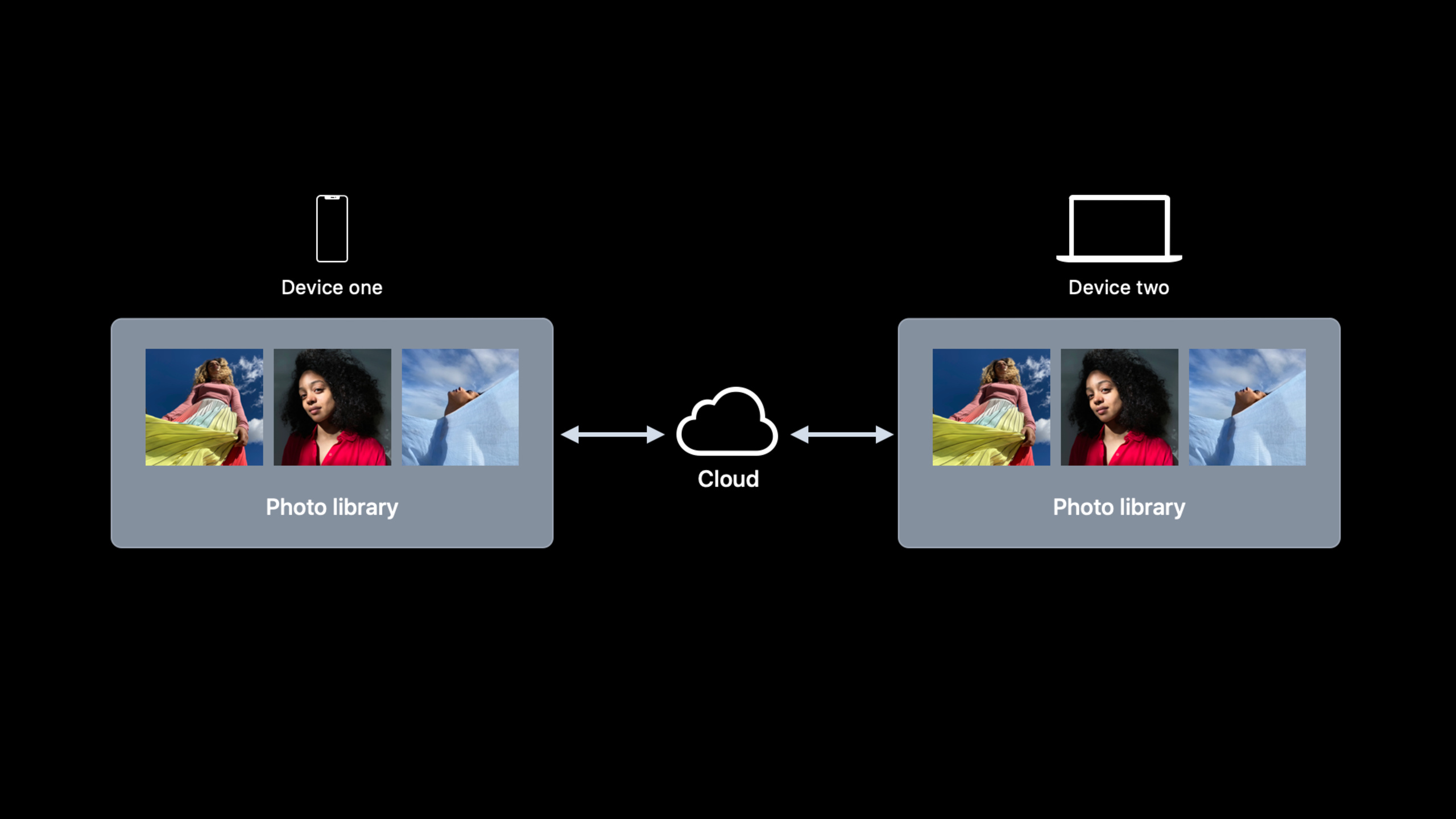
For apps that require deep integration with photo libraries, iOS 15 also brings PHCloudIdentifier.(08:58) The user edited a set of photos on the iPhone, and the photos should appear automatically when the iPad version of the app is opened.The problem is that the local identifier is different for each device.PHCloudIdentifier provides a mechanism for finding the same photo across devices without requiring you to deal with the details of iCloud sync.
Finally, there are improvements to the Restricted Photo Gallery mode.(15:10) In the restricted mode of iOS 14, apps cannot create or access custom photo albums. iOS 15 lifts this restriction.Apps can create their own photo albums and read and write them normally in restricted mode.Also addedpresentLimitedLibraryPickerAPI can actively pop up the selector to allow users to add more photos, and obtain the new photo identifier through the completion handler.
Detailed Content
Configure ordered selection and pre-selected photos
import PhotosUI

var existingSelection: [PHPickerResult] = []

func presentPicker() {
    var config = PHPickerConfiguration(photoLibrary: .shared())
    config.selectionLimit = 0  // 0 means unlimited
    config.selection = .ordered  // ordered selection

    // Preselect previously selected photos
    let previousIdentifiers = existingSelection.compactMap { $0.assetIdentifier }
    config.preselectedAssetIdentifiers = previousIdentifiers

    let picker = PHPickerViewController(configuration: config)
    picker.delegate = self
    present(picker, animated: true)
}
Key points:
selection = .orderedEnable ordered selection, the selector displays a numerical sequencepreselectedAssetIdentifiersPass in the previously selected asset identifier array- Configuration is required
PHPickerConfiguration(photoLibrary:)Initialization is required to obtain the asset identifier. - default
selection = .defaultOnly the checkmarks are displayed, the order is not displayed
Process selection results and merge old and new data
extension ViewController: PHPickerViewControllerDelegate {
    func picker(_ picker: PHPickerViewController, didFinishPicking results: [PHPickerResult]) {
        picker.dismiss(animated: true)

        var updatedSelection: [PHPickerResult] = []

        for result in results {
            if let existing = existingSelection.first(where: {
                $0.assetIdentifier == result.assetIdentifier
            }) {
                // Preselected and not canceled: use the old result (including the item provider)
                updatedSelection.append(existing)
            } else {
                // Newly selected: use the new result
                updatedSelection.append(result)
            }
        }

        existingSelection = updatedSelection

        // Load image data
        for result in updatedSelection {
            result.itemProvider.loadObject(ofClass: UIImage.self) { image, error in
                // Process the image
            }
        }
    }
}
Key points:
- In the returned results of pre-selected photos,
itemProvideris empty because there is no actual data to transfer - Need to replace empty item provider of pre-selected result with old picker result
- Deselected photos will not appear in the results and will naturally be filtered out
- If the user clicks Cancel, results only contain the preselected asset identifier and all item providers are empty
Show loading progress
for result in results {
    let progress = result.itemProvider.loadObject(ofClass: UIImage.self) { image, error in
        // Loading complete
    }

    // Update the UI with NSProgress
    progress.observeValue(forKeyPath: "fractionCompleted", options: .new) { _, _, _ in
        DispatchQueue.main.async {
            self.progressView.progress = Float(progress.fractionCompleted)
        }
    }
}
Key points:
loadObjectreturnNSProgressObject, you can observe the download progress- When photos are stored in iCloud and not downloaded locally, the progress starts from 0 and gradually increases
- Locally existing photos will be completed immediately, and the progress will jump directly to 1.0
Sync photos across devices using PHCloudIdentifier
// Source device: get the cloud identifier
let localIdentifiers = selectedAssets.map { $0.localIdentifier }

PHPhotoLibrary.shared().cloudIdentifierMappings(forLocalIdentifiers: localIdentifiers) { mappings in
    var cloudIDs: [PHCloudIdentifier] = []

    for (localID, mapping) in mappings {
        if let cloudID = mapping.cloudIdentifier {
            cloudIDs.append(cloudID)
        } else if let error = mapping.error {
            print("Mapping failed for \(localID): \(error)")
        }
    }

    // Serialize cloudIDs and sync them through CloudKit
    let archivedData = try? NSKeyedArchiver.archivedData(withRootObject: cloudIDs, requiringSecureCoding: true)
    // Upload to CloudKit...
}
Key points:
cloudIdentifierMappings(forLocalIdentifiers:)Returns a mapping of local identifiers to cloud identifiers- Mapping may have failed and needs to be handled
identifierNotFoundandmultipleIdentifiersFoundTwo kinds of mistakes PHCloudIdentifierCan be serialized to a string and synced over the network or CloudKit
// Target device: use cloud identifiers to find local photos
let cloudIdentifiers: [PHCloudIdentifier] = // Download from CloudKit and deserialize

PHPhotoLibrary.shared().localIdentifierMappings(forCloudIdentifiers: cloudIdentifiers) { mappings in
    var localIDs: [String] = []

    for (cloudID, mapping) in mappings {
        if let localID = mapping.localIdentifier {
            localIDs.append(localID)
        } else if let error = mapping.error {
            if let multipleIDs = error.userInfo[PHLocalIdentifiersErrorKey] as? [String] {
                // Multiple matches; let the user choose
            }
        }
    }

    let fetchResult = PHAsset.fetchAssets(withLocalIdentifiers: localIDs, options: nil)
    // Display the photo
}
Key points:
localIdentifierMappings(forCloudIdentifiers:)Reverse lookup of local identifiermultipleIdentifiersFoundWhen error occurs,userInfo[PHLocalIdentifiersErrorKey]Contains all matching local identifiers- Mapping operations are expensive and are recommended to be performed when loading and saving. Local identifiers are used for daily interactions.
Manage photo albums in restricted photo library mode
// Create a custom album in limited mode
PHPhotoLibrary.shared().performChanges {
    let creationRequest = PHAssetCollectionChangeRequest.creationRequestForAssetCollection(withTitle: "My App Photos")
    let placeholder = creationRequest.placeholderForCreatedAssetCollection
} completionHandler: { success, error in
    // Handle the result
}
Key points:
- Starting from iOS 15, custom photo albums can be created, obtained and updated in restricted photo library mode
- Photos created by the app will automatically be added to the restricted selection set
- Scenarios that require deep integration are still recommended to guide users to grant full access permissions
Actively pop up restricted photo picker
// Let the user add more photos to the limited selection set
PHPhotoLibrary.shared().presentLimitedLibraryPicker(from: self) { identifiers in
    // identifiers are the photo identifiers newly added by the user
    let newAssets = PHAsset.fetchAssets(withLocalIdentifiers: identifiers, options: nil)
    // Process the newly added photos
}
Key points:
presentLimitedLibraryPickerActively pop up the system selector- completion handler returns the photo identifier added by the user, not all selected photos
- Suitable for calling when the “Add more photos” button is clicked
Core Takeaways
- Organized release of multiple pictures on social apps
- What to do: Allow users to control the order of publishing when selecting multiple photos. The first one is the cover, and the following ones are arranged by serial number.
- Why it’s worth doing:
selection = .orderedThis can be achieved with one line of code. When the user selects a picture, he can directly see the serial numbers 1, 2, and 3. - How to get started: Settings
config.selection = .ordered, the order in which the results array is read is the order specified by the user
- Cross-device photo diary synchronization
- What: Photo journals created by users on iPhone automatically load the same photos when opened on iPad and Mac
- Why it’s worth doing:
PHCloudIdentifierThe complexity of iCloud sync is taken care of, you just need to save the identifier and sync to CloudKit - How to start: Use
cloudIdentifierMappingsObtain the cloud ID and synchronize it to the CloudKit database for the target device.localIdentifierMappingsCounter-investigation
- Cross-device continuation of photo editing project
- What: Photo editing app lets users start editing on iPhone and continue on iPad
- Why it’s worth doing: The metadata of the editing project (filter parameters, cropping box) is small and synchronized through CloudKit; the photo itself is located through PHCloudIdentifier
- How to start: Save the editing parameters + the cloud identifier of the photo to CloudKit, and restore the editing state after the target device checks back.
- Smart photo album management in restricted mode
- What to do: In restricted photo library mode, the App automatically creates a photo album to save its own generated content (such as collage results, filtered photos)
- Why it’s worth doing: iOS 15 removes the restriction that prevents photo albums from being created in restricted mode. Users do not need to grant full permissions to use it normally.
- How to start: Detect the current permission status and call it normally in restricted mode
creationRequestForAssetCollection, automatically added to the user’s selection set after creation
- Photo selection experience with progress bar
- What: Show real download progress when selecting iCloud Photos instead of spinning in circles
- Why it’s worth doing:
loadObjectreturnedNSProgressCan be directly bound to UIProgressView, significantly improving the experience - How to start: Monitoring
fractionCompletedProperties, update progress bar, hide after loading is completed
Related Sessions
- Meet the new Photos picker — WWDC 2020 introduces the basic introduction of PHPicker
- Handle the Limited Photos Library in your app — WWDC 2020 explains how to handle limited photo libraries
- What’s new in Camera Capture — New features of camera capture, closely related to photo processing
Comments
GitHub Issues · utterances