
Highlight
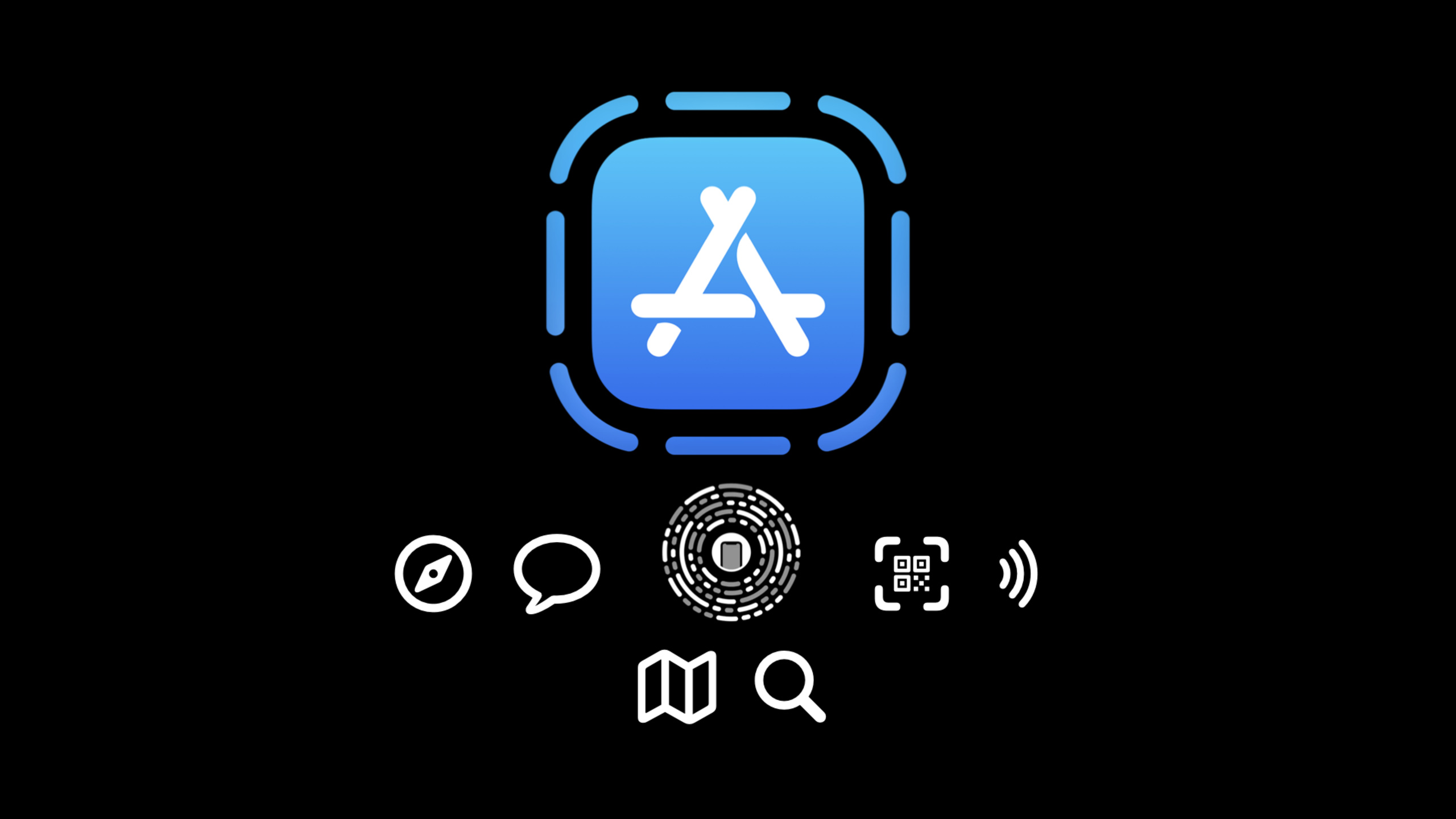
iOS 15 brings stricter size limits and richer discovery for App Clips. Developers need systematic size optimization, correct metadata configuration, and the location verification API so users get a lightweight experience instantly when scanning an App Clip Code or visiting a web page.
Core Content
Size Limits Are a Hard Gate
App Clips’ core value is instant availability. Users scan a QR code or tap an NFC tag and expect to reach the feature UI within seconds. That promise depends on a hard constraint: size must be small enough for fast download on cellular networks.
Apple sets explicit App Clip size limits. Verify repeatedly during development—don’t discover oversize builds only at submission. Xcode can generate size reports: export IPA per device variant and check uncompressed size.
Optimization Path from the Fruta Sample
The presenter walks through a modified Fruta sample—a deliberately bloated example showing common traps.
After generating a size report, all device variants were similar in size. That means app thinning wasn’t working; resources may be packaged suboptimally.
Unpacking the IPA revealed:
- Images as standalone bundle resources, not in Asset Catalog
- A documentation zip and README file
- An unnecessary linked framework
- Localization folders possibly containing redundant content
Basic Optimization Steps
Check build optimization settings
Ensure Archive builds use Release configuration with optimization set to default “Smallest Size, Fastest Speed.”
Use Asset Catalog
Asset Catalog provides two benefits:
- Xcode automatically optimizes media at build time
- App Thinning support—users download only resources for their device
Put images shared by App and App Clip in a shared Asset Catalog; App-only images in a separate catalog excluded from the App Clip target.
Clean up unnecessary files
Use Target Membership editor to exclude README, documentation zip, and other non-shipping files.
Trim code
Review source files in Build Phases; remove modules the App Clip doesn’t need. In Fruta, recipe and rewards belong to the full app and can be removed from the Clip target.
Manage localization strings
Create dedicated string files for the App Clip instead of including all full-app localizations.
Advanced Optimization Strategies
Evaluate external dependencies
App Clips should link only necessary frameworks. Prefer system frameworks:
- Sign in with Apple instead of custom login
- Apple Pay instead of custom payment
- NSURLSession for networking
- RealityKit / Metal for 3D graphics
Image format choices
- Transparency or high-frequency detail (sharp edges): PNG
- Non-photographic assets: try PNG8 for major size reduction
- Photographic assets: JPEG with appropriate compression
- Icons and UI controls: SVG or SF Symbols
SF Symbols offers 2000+ configurable symbols, multiple weights and sizes, automatic alignment with text labels, and native Dynamic Type support.
// [14:18](https://developer.apple.com/videos/play/wwdc2021/10013/?time=858)
label.text = "Hello"

let textStyle = UIFont.TextStyle.largeTitle

label.font = .preferredFont(forTextStyle: textStyle)
let config = UIImage.SymbolConfiguration(textStyle: textStyle)

imageView.image = UIImage(systemName: "pencil.and.outline", withConfiguration: config)

// Align baseline of text and symbol image
imageView.firstBaselineAnchor.constraint(equalTo: label.firstBaselineAnchor).isActive = true
Key points:
UIFont.TextStyle.largeTitleapplies to both label font and symbol configurationUIImage.SymbolConfiguration(textStyle:)keeps symbols in the same sizing system as textfirstBaselineAnchorconstraint aligns symbol and text baselines
Build variants at runtime
Don’t ship multiple images for different presentations of the same asset. Use one base image and build variants in code at runtime.
Deferred loading
If still over limit after optimization, defer-load some assets from a CDN. Ship low-resolution placeholders in the App Clip; replace with high-resolution versions via AsyncImage after launch.
Ensuring App Clips Display Correctly
Metadata configuration
In App Store Connect, each App Clip needs a Default Experience for Safari and Messages. For QR, NFC, App Clip Code, and other physical invocations, add Advanced Experiences.
Configuration changes take time to propagate to devices—not instant.
Web Meta Tag
Add the correct meta tag in the page <head> to trigger App Clip card display.
<!-- [18:08](https://developer.apple.com/videos/play/wwdc2021/10013/?time=1088) -->
<meta name="apple-itunes-app" content="app-id=myAppStoreID, app-clip-bundle-id=appClipBundleID, app-clip-display=card">
Key points:
app-id: App Store IDapp-clip-bundle-id: App Clip bundle IDapp-clip-display=card: Display as card
Verify Universal Links association
Invocation domains must be securely associated with App / App Clip via Associated Domains entitlements and AASA file. Misconfiguration prevents App Clip display.
Troubleshooting common issues
If the App Clip card doesn’t appear in Safari:
- Check meta tag syntax
- Confirm app-clip-bundle-id is correct
- Verify web URL association with App Clip experience
- Check Associated Domains in entitlements
- Confirm AASA file is accessible and correctly formatted
App Clip-Specific Features
Location verification
App Clips can verify users are in a specific geographic region via APActivationPayload—useful for in-store scenarios.
// [27:41](https://developer.apple.com/videos/play/wwdc2021/10013/?time=1661)
if let activationPayload = userActivity?.appClipActivationPayload {
  activationPayload.confirmAcquired(in: region) { inRegion, error in
    if let error = error as? APActivationPayloadError {
      if error.code == APActivationPayloadError.disallowed {
        // User denied permission
        // Or invocation was not from visual code or NFC
      } else if error.code == APActivationPayloadError.doesNotMatch {
        // Activation payload is not the most recent
        // Catch in testing. Handle as above.
      }
    } else if error == nil {
      // Platform was able to determine location
      // OK to check inRegion
    }
  }
}
Key points:
confirmAcquired(in:)verifies activation via visual code or NFC within the specified regiondisallowedmeans user denied permission or invocation method doesn’t qualifydoesNotMatchmeans activation payload expired—catch in testing- On success, check
inRegionto see if user is in the region
Testing recommendations
- Use Network Link Conditioner at different bandwidths
- Verify App Clip completes tasks in reasonable time on slow networks
- Test location verification edge cases
Detailed Content
Complete Size Report Generation Flow
- Select the full App scheme
- Product > Archive
- In Organizer, click Distribute App
- Choose Development
- Select App Clip target
- App Thinning dropdown: All compatible device variants
- Ensure Rebuild from bitcode is checked
- After export, open App Thinning Size Report.txt
- Check uncompressed size per device variant
Inspecting IPA Contents
# Rename .ipa to .zip and unzip
mv AppClip.ipa AppClip.zip
unzip AppClip.zip

# View Payload contents
cd Payload/AppClip.app
ls -la
Look for:
- Standalone images in
.bundleresources - Unnecessary documentation files
- Unused frameworks
- Oversized localization folders
- Executable size
Asset Catalog Separation Strategy
SharedAssets.xcassets    # Shared by App and Clip
AppOnlyAssets.xcassets   # App only
Exclude AppOnlyAssets.xcassets from App Clip target membership.
Image Optimization Checklist
| Scenario | Recommended | Notes |
|---|---|---|
| Needs transparency | PNG | Lossless |
| Non-photo, few colors | PNG8 | Major size reduction |
| Photo, lossy OK | JPEG | Tune compression |
| Icons, controls | SVG / SF Symbols | Vector, any size |
Core Takeaways
1. Design instant experiences for offline scenarios
- What: Create App Clips for restaurants, retail, parking—scan to order, pay, retrieve car
- Why: App Clips remove full-app download friction; conversion beats traditional flows
- How: Add App Clip target in Xcode, configure Associated Domains, implement core task flow
2. Replace custom icons with SF Symbols
- What: Replace all custom icons with SF Symbols
- Why: Built into the system—no App Clip size cost; supports Dynamic Type and Dark Mode
- How: Browse SF Symbols app; load with
UIImage(systemName:)
3. Implement location-based verification
- What: Add geographic verification for in-store services
- Why: Prevents remote abuse; gives merchants trustworthy visit data
- How: Use
APActivationPayload.confirmAcquired(in:)with aCLRegion
4. Build progressive resource loading
- What: Ship low-quality placeholders in App Clip; load HD from CDN after launch
- Why: Break size limits while preserving final experience quality
- How: SwiftUI AsyncImage or UIKit async image loading
5. Establish size monitoring in CI
- What: Add App Clip size checks to CI; verify on every commit
- Why: Avoid last-minute oversize surprises before release
- How: Script
xcodebuild archive, parse Size Report, set threshold alerts
Related Sessions
- What’s new in App Store Connect — App Store Connect updates including App Clip experience configuration
- Configure and link your App Clips — Deep dive into App Clip configuration and linking
- What’s new in Universal Links — Universal Links updates related to App Clip domain verification
Comments
GitHub Issues · utterances