
Highlight
iOS 15 brings three improvements to App Clips: full-size App Clip Cards on the web, local experiences on device for end-to-end testing, and Apple-designed App Clip Codes for natural offline discovery.
Core Content
From Web Page to App Clip—How Many Steps?
Imagine you run a juice shop. A customer opens your website after a friend’s recommendation. The page shows a Smart App Banner—the customer has to notice the banner, tap to open, then confirm in the card that appears. Three steps to reach your App Clip and place an order.
This flow worked in iOS 14, but conversion was limited by user attention. The banner was too small and easy to miss; too many steps meant drop-off at each one.
Full-Size App Clip Card
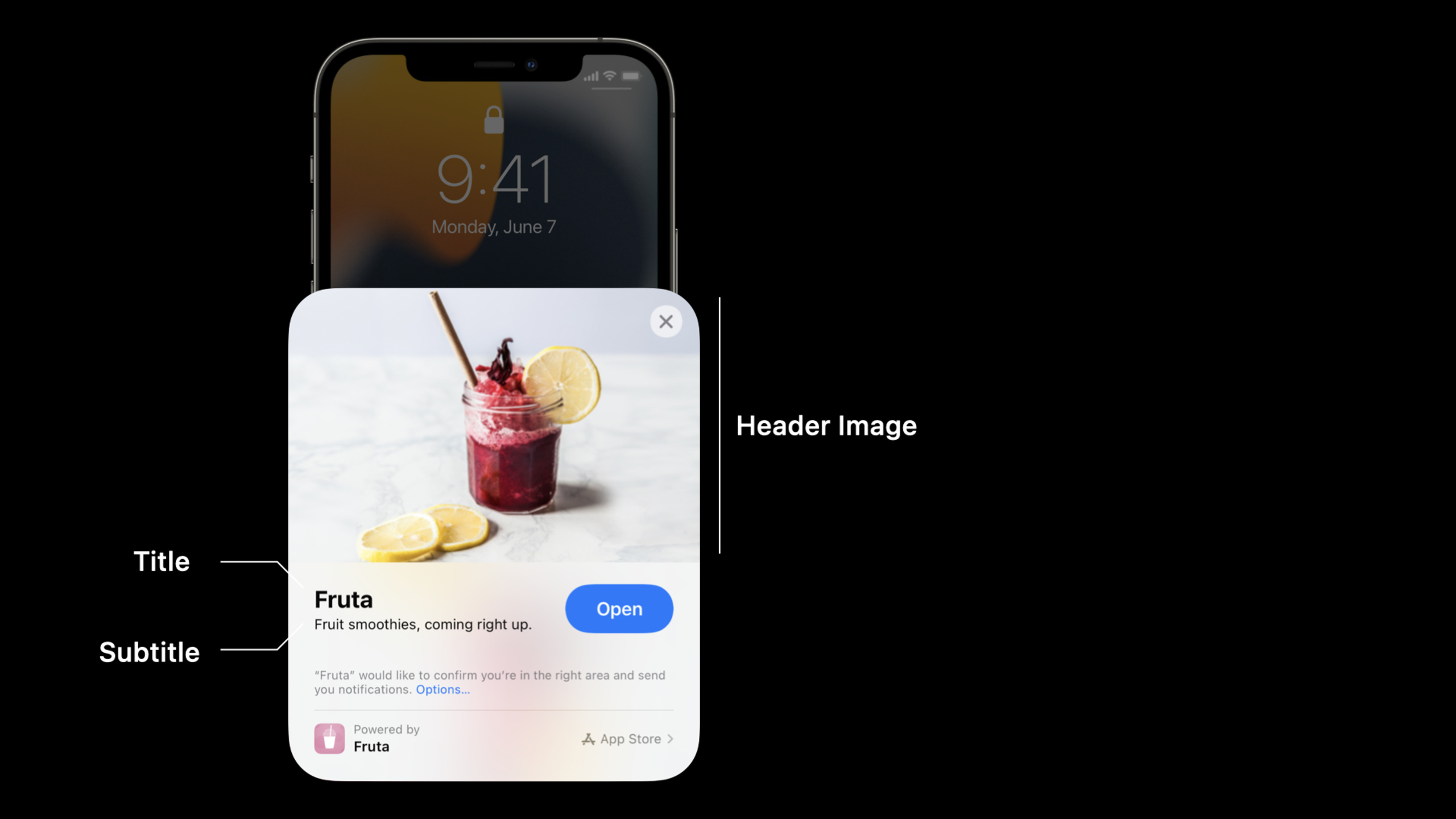
iOS 15 and iPadOS 15 let web pages add an app-clip-display key to the apple-itunes-app meta tag, with value card. When the page loads, a full-size App Clip Card appears in the center of the page.
Users see title, subtitle, action button, and brand header image, and can launch the App Clip in one tap. If they choose “View in Safari,” Safari remembers that choice and restores the original banner on the next visit.
More practically, SFSafariViewController embedded in third-party apps also supports the full-size card. A food recommendation app embedding your juice shop page can show your App Clip Card without leaving the app.
Local Testing Without App Store Connect
When developing an App Clip, you might not have registered any experiences in App Store Connect yet. That used to mean no way to test the full end-to-end flow—from scan to card to launch.
iOS 15’s Local Experiences fixes this. Go to Developer Settings on device, choose Local Experiences, fill in App Clip name, title, URL prefix, Bundle ID, and pick a header image from Photos. Once configured, you can trigger the local experience via QR code, NFC tag, App Clip Code, Safari, or Messages.
Local experiences support most regular invocation methods but won’t appear in Maps, location suggestions, or Spotlight—those require registered experiences. Local experiences work only with App Clips installed via Xcode or beta builds.
App Clip Code: Visual Codes for Offline Scenarios
App Clip Code is Apple’s visual code designed specifically for App Clips, supported since iOS 14.3. Nearly a billion devices worldwide can recognize them directly.
Each App Clip Code encodes a unique URL; iOS decodes the URL before sending it to the App Clip. Your existing URL handling logic needs no changes.
Two types:
- NFC-integrated: Users can scan with the camera or tap an NFC tag. Good for vending machines, restaurant tables, store windows.
- Scan-only: For places users can’t reach, or where NFC isn’t suitable—such as digital displays in marketing emails.
You can customize foreground and background colors, or hide the App Clip logo. Apple recommends keeping the logo when space allows so new users recognize the App Clip entry at a glance.
For ARKit App Clips, you can use App Clip Code as an anchor to track its position in the physical world—for example, scanning a code on packaging to view a guitar in AR without opening the box.
Detailed Content
App Clip Card in Safari
(03:27)
Before iOS 15, web pages used the apple-itunes-app meta tag to show a Smart App Banner—a small banner fixed at the top that users had to discover.
iOS 15 adds the app-clip-display key. Set the value to card for a full-size App Clip Card:
<meta name="apple-itunes-app"
      content="app-id=123456789,
               app-clip-bundle-id=com.example.app.clip,
               app-clip-display=card">
Key points:
app-id: Your full app’s App Store IDapp-clip-bundle-id: The App Clip’s Bundle IDapp-clip-display=card: Enables full-size card mode
The card appears in the page center with title, subtitle, action button, and header image. Tapping launches the App Clip directly.
If the user taps “View in Safari,” Safari remembers the preference and restores the banner style on the next visit.
Card in SFSafariViewController
(04:16)
When third-party apps load web pages with SFSafariViewController, the full-size App Clip Card appears too. Your App Clip can be discovered and launched directly inside another app’s UI.
In the demo, FoodGrid (a third-party food app) embeds the Fruta juice shop page. When users tap Fruta’s store info, SFSafariViewController opens and the full-size App Clip Card appears. One tap launches Fruta’s App Clip to order.
Configuring Local Experiences
(04:42)
On device, go to Settings > Developer > Local Experiences and fill in:
| Field | Description |
|---|---|
| App Clip name | Name shown on the card |
| Title | Card title text |
| URL prefix | URL prefix that triggers this experience |
| Bundle ID | App Clip Bundle Identifier |
| Header image | Image from Photos for the card header |
After setup, test with:
- QR code scan
- NFC tag read
- App Clip Code scan
- Matching URL in Safari
- Link in Messages
Local experiences won’t appear in Maps, Siri suggestions, or Spotlight. Those channels need experiences registered in App Store Connect.
Generating App Clip Codes
(08:45)
Two ways to create App Clip Codes:
Option 1: App Store Connect
For production with registered URLs. Download generated codes directly from App Store Connect.
Option 2: App Clip Code Generator CLI
For development, testing, batch generation, or automation.
After downloading from Apple Developer, use in Terminal:
# List all available templates
AppClipCodeGenerator templates

# Generate NFC-integrated App Clip Code
AppClipCodeGenerator generate \
  --url https://fruta.example.com/order \
  --template 4 \
  --style nfc \
  --output fruta.svg

# Generate scan-only
AppClipCodeGenerator generate \
  --url https://fruta.example.com/order \
  --template 2 \
  --style scan \
  --output fruta-scan.svg
Key points:
templates: Lists visual templates; previews at/Library/Developer/AppClipCodeGenerator/SampleTemplates--url: App Clip experience URL; must be registered as an advanced experience in App Store Connect--template: Visual style template number--style nfc|scan: NFC-integrated or scan-only--output: Output SVG path
Output is SVG vector art, scalable from letter size to 24×36 inch posters without quality loss.
App Clip Code Usage Guidelines
(11:20)
Apple’s design guidelines:
- Place codes on a flat surface, upright—don’t rotate
- Code width at least 1 inch; smaller sizes hurt scanning
- Keep codes unobstructed, undamaged, and not too close to other codes
- Add brief text beside the code explaining how to use it
ARKit Integration
(10:24)
If your App Clip uses ARKit, App Clip Code can serve as an AR anchor. ARKit tracks the code’s position in the physical world so virtual content overlays accurately nearby.
See WWDC21 session “Explore ARKit 5” for implementation details.
Core Takeaways
1. Restaurant/café scan-to-order
Place an NFC-integrated App Clip Code on each table. Customers tap when seated to open the ordering App Clip—menu, pay, and pickup number without downloading the full app.
Entry: Create an App Clip target in Xcode, configure Associated Domains, add app-clip-display=card to web meta tags.
2. Retail AR try-on
Place App Clip Codes at cosmetics counters or eyewear displays. Customers scan to open an AR App Clip for virtual makeup or glasses, then jump to purchase.
Entry: Combine ARKit ARAnchor with App Clip Code tracking; see “Explore ARKit 5”.
3. Parking lot frictionless payment
Put App Clip Codes at parking spots or payment machines. Drivers scan to open a parking App Clip, auto-detect spot number, pay with Apple Pay.
Entry: Use Core Location, CLLocationButton for precise location authorization, and local experiences to test the full flow during development.
4. Event/conference quick check-in
Place App Clip Codes at registration. Attendees scan to open a check-in App Clip, auto-fill registration info, and complete check-in.
Entry: Use App Clip Code Generator to batch codes for different events/dates, each with different URL parameters.
5. Shared content preview
Embed App Clip previews in social share links. Recipients tap to open the App Clip and view content without downloading the full app first.
Entry: Configure Messages App Clip previews and share card styling in App Store Connect.
Related Sessions
- Explore ARKit 5 — Use App Clip Code as an AR anchor for real-world tracking.
- Showcase app data in Spotlight — Surface App Clip content in Spotlight to improve discoverability.
- Send communication and Time Sensitive notifications — Use notification interruption levels and time-sensitive notifications to reach App Clip users at critical moments.
- Meet the Location Button — Low-friction location authorization for location-based App Clips.
Comments
GitHub Issues · utterances