
Highlight
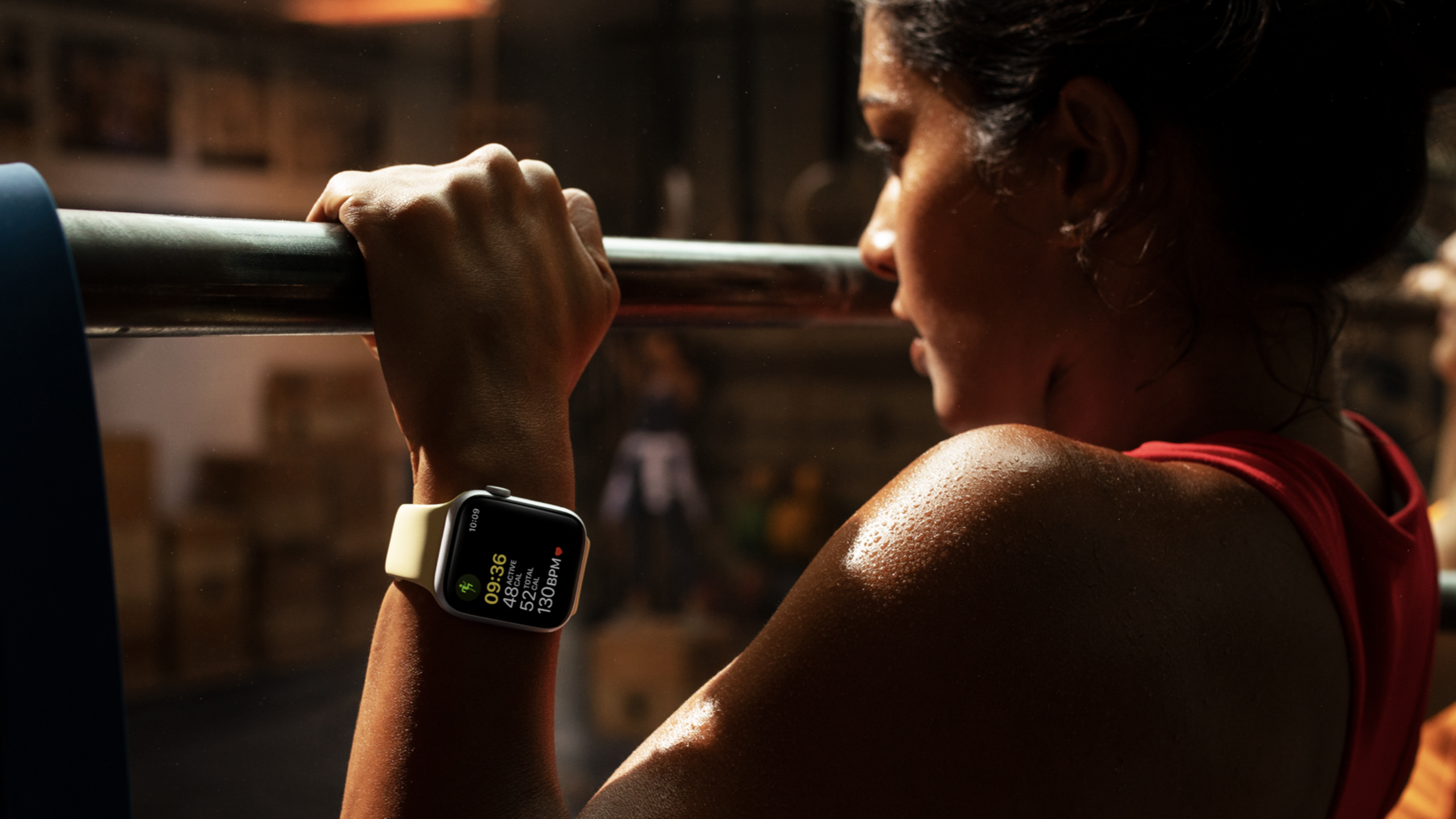
Apple demonstrates building an Apple Watch workout app from scratch with SwiftUI and HealthKit—collecting real-time heart rate, energy, and distance, saving workout records, and adapting to Always On with TimelineView.
Core Content
Building an Apple Watch workout app isn’t about how many buttons you have.
The real challenge starts after the workout begins. Users are running or cycling—their wrist goes up and down, the screen enters Always On low-frequency refresh. The app must keep showing elapsed time, energy, heart rate, and distance, then save the record to HealthKit when finished.
Previously, scattering this logic across SwiftUI views mixed UI, permissions, session state, and data collection. Pause buttons changed session state, summary pages waited for save completion, and live metrics had to adapt to screen refresh rates.
In this Code-Along, Apple breaks it into a complete path: SwiftUI three-screen structure, WorkoutManager for HealthKit sessions, and TimelineView so the metrics page refreshes appropriately in Always On.
Starting a Workout with One Tap
When users open the workout app, they shouldn’t see complex settings first. The starting point is a StartView: three workout types—cycling, running, walking. Each is a NavigationLink that starts a workout session directly.
After tapping, the workout screen uses watchOS’s common three-page layout: controls on the left, metrics in the center, Now Playing on the right. Metrics show by default—after starting, users care most about time, energy, heart rate, and distance.
Managing Workout Lifecycle with One Object
HealthKit workout sessions follow a clear flow: request authorization, create configuration, start HKWorkoutSession, collect data with HKLiveWorkoutBuilder, save as HKWorkout when done.
This session puts that state in WorkoutManager. SwiftUI views read it via @EnvironmentObject. Buttons only trigger pause or end; the metrics page only displays published data.
Always On Changes Refresh Behavior
Apple Watch Always On lowers refresh frequency. Workout apps can’t keep showing hundredths at high frequency—that’s inappropriate and doesn’t match Always On information needs.
The solution is TimelineView. It sets refresh intervals via TimelineScheduleMode and controls hundredths display via context.cadence. Active screens show finer time; low-frequency states show only minutes and seconds.
Detailed Content
Workout Type List
(03:25) Apple models workout types with HealthKit’s HKWorkoutActivityType. To use it directly in a SwiftUI List, the talk adds Identifiable and display names to the enum.
import HealthKit

var workoutTypes: [HKWorkoutActivityType] = [.cycling, .running, .walking]

extension HKWorkoutActivityType: Identifiable {
    public var id: UInt {
        rawValue
    }

    var name: String {
        switch self {
        case .running:
            return "Run"
        case .cycling:
            return "Bike"
        case .walking:
            return "Walk"
        default:
            return ""
        }
    }
}
Key points:
import HealthKitbrings inHKWorkoutActivityType.workoutTypesholds the three workouts to display.Identifiablelets enum values serve asListdata sources.idusesrawValue, matching the HealthKit enum raw value.nameconverts HealthKit types to short watch UI labels.
(04:22) The list uses carousel style—the watchOS visual effect suited for vertically scrolling lists.
List(workoutTypes) { workoutType in
    NavigationLink(
        workoutType.name,
        destination: Text(workoutType.name)
    ).padding(
        EdgeInsets(top: 15, leading: 5, bottom: 15, trailing: 5)
    )
}
.listStyle(.carousel)
.navigationBarTitle("Workouts")
Key points:
List(workoutTypes)generates a row per workout type.NavigationLinkprovides navigation to the next page per row.paddingenlarges tap targets for quick pre-workout actions..listStyle(.carousel)uses watchOS carousel list effect..navigationBarTitle("Workouts")sets the start page title.
Three-Page Layout During Workout
(06:55) After the workout starts, users need controls, live metrics, and media. The talk uses TabView for horizontal paging with metrics as the default page.
@State private var selection: Tab = .metrics

enum Tab {
    case controls, metrics, nowPlaying
}

TabView(selection: $selection) {
    Text("Controls").tag(Tab.controls)
    Text("Metrics").tag(Tab.metrics)
    Text("Now Playing").tag(Tab.nowPlaying)
}
Key points:
selectionstores the current page.- Default is
.metrics—show data first after workout starts. Tabenum lists three pages.TabView(selection:)binds current page state.tagassociates each child view with an enum value.
(16:09) Placeholder text is then replaced with real views.
ControlsView().tag(Tab.controls)
MetricsView().tag(Tab.metrics)
NowPlayingView().tag(Tab.nowPlaying)
Key points:
ControlsViewholds end, pause, and resume buttons.MetricsViewshows elapsed time, energy, heart rate, distance.NowPlayingViewprovides in-workout media controls.- All three pages reuse the same
Tabtags.
Elapsed Time Formatting
(11:42) Elapsed time can’t be shown as plain numbers. The talk creates ElapsedTimeView and ElapsedTimeFormatter, using DateComponentsFormatter for minutes and seconds, appending hundredths when needed.
struct ElapsedTimeView: View {
    var elapsedTime: TimeInterval = 0
    var showSubseconds: Bool = true
    @State private var timeFormatter = ElapsedTimeFormatter()

    var body: some View {
        Text(NSNumber(value: elapsedTime), formatter: timeFormatter)
            .fontWeight(.semibold)
            .onChange(of: showSubseconds) {
                timeFormatter.showSubseconds = $0
            }
    }
}

class ElapsedTimeFormatter: Formatter {
    let componentsFormatter: DateComponentsFormatter = {
        let formatter = DateComponentsFormatter()
        formatter.allowedUnits = [.minute, .second]
        formatter.zeroFormattingBehavior = .pad
        return formatter
    }()
    var showSubseconds = true

    override func string(for value: Any?) -> String? {
        guard let time = value as? TimeInterval else {
            return nil
        }

        guard let formattedString = componentsFormatter.string(from: time) else {
            return nil
        }

        if showSubseconds {
            let hundredths = Int((time.truncatingRemainder(dividingBy: 1)) * 100)
            let decimalSeparator = Locale.current.decimalSeparator ?? "."
            return String(format: "%@%@%0.2d", formattedString, decimalSeparator, hundredths)
        }

        return formattedString
    }
}
Key points:
ElapsedTimeViewtakes aTimeInterval.showSubsecondscontrols hundredths display.Text(NSNumber(value:), formatter:)uses a custom formatter in SwiftUI.DateComponentsFormatterhandles minutes and seconds.allowedUnits = [.minute, .second]limits output units.zeroFormattingBehavior = .padkeeps zero-padded format like03:15.truncatingRemainder(dividingBy: 1)gets the fractional part.Locale.current.decimalSeparatoruses the locale decimal separator.
Requesting HealthKit Authorization
(29:35) The workout app writes workouts and reads heart rate, energy, distance, and activity rings. HealthKit authorization is requested centrally in WorkoutManager.
// Request authorization to access HealthKit.
func requestAuthorization() {
    // The quantity type to write to the health store.
    let typesToShare: Set = [
        HKQuantityType.workoutType()
    ]

    // The quantity types to read from the health store.
    let typesToRead: Set = [
        HKQuantityType.quantityType(forIdentifier: .heartRate)!,
        HKQuantityType.quantityType(forIdentifier: .activeEnergyBurned)!,
        HKQuantityType.quantityType(forIdentifier: .distanceWalkingRunning)!,
        HKQuantityType.quantityType(forIdentifier: .distanceCycling)!,
        HKObjectType.activitySummaryType()
    ]

    // Request authorization for those quantity types.
    healthStore.requestAuthorization(toShare: typesToShare, read: typesToRead) { (success, error) in
        // Handle error.
    }
}
Key points:
typesToSharedeclares workout records to write.HKQuantityType.workoutType()represents the workout type.typesToReaddeclares HealthKit data to read..heartRatefor current and average heart rate..activeEnergyBurnedfor active energy..distanceWalkingRunningand.distanceCyclingfor walking/running and cycling distance.HKObjectType.activitySummaryType()for summary activity rings.requestAuthorizationtriggers system authorization.
(30:20) Authorization is requested when the start page appears.
.onAppear {
    workoutManager.requestAuthorization()
}
Key points:
.onAppearruns when the start page appears.workoutManageris the shared object injected into SwiftUI environment.- Authorization happens before the user starts a workout.
Starting the Workout Session
(27:42) Real-time HealthKit workouts depend on HKWorkoutSession and HKLiveWorkoutBuilder—the former for session state, the latter for live data collection and final workout generation.
func startWorkout(workoutType: HKWorkoutActivityType) {
    let configuration = HKWorkoutConfiguration()
    configuration.activityType = workoutType
    configuration.locationType = .outdoor

    do {
        session = try HKWorkoutSession(healthStore: healthStore, configuration: configuration)
        builder = session?.associatedWorkoutBuilder()
    } catch {
        // Handle any exceptions.
        return
    }

    builder?.dataSource = HKLiveWorkoutDataSource(
        healthStore: healthStore,
        workoutConfiguration: configuration
    )

    // Start the workout session and begin data collection.
    let startDate = Date()
    session?.startActivity(with: startDate)
    builder?.beginCollection(withStart: startDate) { (success, error) in
        // The workout has started.
    }
}
Key points:
HKWorkoutConfigurationstores workout type and location type.activityTypecomes from the user’s start page selection.locationType = .outdoorsets outdoor workout.HKWorkoutSessioncreates the HealthKit workout session.associatedWorkoutBuilder()gets the session’s builder.HKLiveWorkoutDataSourcelets the builder fetch live HealthKit data.startDateis the common start for session and data collection.startActivity(with:)starts the workout session.beginCollection(withStart:)begins collecting live samples.
(29:06) Selecting a workout type automatically starts the session.
var selectedWorkout: HKWorkoutActivityType? {
    didSet {
        guard let selectedWorkout = selectedWorkout else { return }
        startWorkout(workoutType: selectedWorkout)
    }
}
Key points:
selectedWorkoutrecords the user’s selected workout.didSetruns when selection changes.guardfilters out nil values.startWorkout(workoutType:)connects navigation selection to HealthKit session.
Pause, Resume, and End
(33:29) Workout controls are exposed through WorkoutManager. UI buttons don’t touch the HealthKit session directly—they only call these methods.
// MARK: - State Control

// The workout session state.
@Published var running = false

func pause() {
    session?.pause()
}

func resume() {
    session?.resume()
}

func togglePause() {
    if running == true {
        pause()
    } else {
        resume()
    }
}

func endWorkout() {
    session?.end()
}
Key points:
@Published var runningpublishes running state to SwiftUI.pause()pauses the HealthKit session.resume()resumes the HealthKit session.togglePause()toggles action based on current state.endWorkout()ends the session.
(34:11) Session state changes come back via HKWorkoutSessionDelegate. On end, stop data collection first, then complete workout save.
// MARK: - HKWorkoutSessionDelegate
extension WorkoutManager: HKWorkoutSessionDelegate {
    func workoutSession(_ workoutSession: HKWorkoutSession,
                        didChangeTo toState: HKWorkoutSessionState,
                        from fromState: HKWorkoutSessionState,
                        date: Date) {
        DispatchQueue.main.async {
            self.running = toState == .running
        }

        // Wait for the session to transition states before ending the builder.
        if toState == .ended {
            builder?.endCollection(withEnd: date) { (success, error) in
                self.builder?.finishWorkout { (workout, error) in
                }
            }
        }
    }

    func workoutSession(_ workoutSession: HKWorkoutSession, didFailWithError error: Error) {

    }
}
Key points:
HKWorkoutSessionDelegatereceives session state changes.didChangeToprovides new state, old state, and change time.DispatchQueue.main.asyncputsrunningupdates on the main thread.toState == .runningupdates pause button state.toState == .endedmeans session ended.endCollection(withEnd:)stops data collection.finishWorkoutsaves and producesHKWorkout.
Collecting Live Metrics
(40:25) Live metrics are exposed to SwiftUI via @Published.
// MARK: - Workout Metrics
@Published var averageHeartRate: Double = 0
@Published var heartRate: Double = 0
@Published var activeEnergy: Double = 0
@Published var distance: Double = 0
Key points:
averageHeartRatestores average heart rate.heartRatestores the most recent heart rate.activeEnergystores cumulative active energy.distancestores cumulative distance.@Publishedauto-refreshes bound views when metrics change.
(41:05) HKLiveWorkoutBuilderDelegate notifies which sample types have new data.
// MARK: - HKLiveWorkoutBuilderDelegate
extension WorkoutManager: HKLiveWorkoutBuilderDelegate {
    func workoutBuilderDidCollectEvent(_ workoutBuilder: HKLiveWorkoutBuilder) {
    }

    func workoutBuilder(_ workoutBuilder: HKLiveWorkoutBuilder, didCollectDataOf collectedTypes: Set<HKSampleType>) {
        for type in collectedTypes {
            guard let quantityType = type as? HKQuantityType else { return }

            let statistics = workoutBuilder.statistics(for: quantityType)

            // Update the published values.
            updateForStatistics(statistics)
        }
    }
}
Key points:
HKLiveWorkoutBuilderDelegatereceives builder collection events.didCollectDataOfprovides data types updated this round.collectedTypesmay include heart rate, energy, or distance.guard let quantityTypehandles quantity types only.statistics(for:)gets statistics from the builder.updateForStatisticsconverts HealthKit statistics to UI data.
(42:01) Different metrics use different units and statistics methods.
func updateForStatistics(_ statistics: HKStatistics?) {
    guard let statistics = statistics else { return }

    DispatchQueue.main.async {
        switch statistics.quantityType {
        case HKQuantityType.quantityType(forIdentifier: .heartRate):
            let heartRateUnit = HKUnit.count().unitDivided(by: HKUnit.minute())
            self.heartRate = statistics.mostRecentQuantity()?.doubleValue(for: heartRateUnit) ?? 0
            self.averageHeartRate = statistics.averageQuantity()?.doubleValue(for: heartRateUnit) ?? 0
        case HKQuantityType.quantityType(forIdentifier: .activeEnergyBurned):
            let energyUnit = HKUnit.kilocalorie()
            self.activeEnergy = statistics.sumQuantity()?.doubleValue(for: energyUnit) ?? 0
        case HKQuantityType.quantityType(forIdentifier: .distanceWalkingRunning), HKQuantityType.quantityType(forIdentifier: .distanceCycling):
            let meterUnit = HKUnit.meter()
            self.distance = statistics.sumQuantity()?.doubleValue(for: meterUnit) ?? 0
        default:
            return
        }
    }
}
Key points:
- Return immediately on empty
statistics. - Update UI-related state on the main thread.
- Heart rate unit is
count/minute. mostRecentQuantity()gets current heart rate.averageQuantity()gets average heart rate.- Active energy uses kilocalories.
sumQuantity()gets cumulative energy.- Walking/running and cycling distance convert to meters.
- Unhandled types fall through to
default.
Displaying Live Metrics
(43:35) The metrics page reads values from WorkoutManager, using Measurement.formatted for locale- and workout-appropriate text.
VStack(alignment: .leading) {
    ElapsedTimeView(
        elapsedTime: workoutManager.builder?.elapsedTime ?? 0,
        showSubseconds: true
    ).foregroundColor(Color.yellow)
    Text(
        Measurement(
            value: workoutManager.activeEnergy,
            unit: UnitEnergy.kilocalories
        ).formatted(
            .measurement(
                width: .abbreviated,
                usage: .workout,
                numberFormat: .numeric(precision: .fractionLength(0))
            )
        )
    )
    Text(
        workoutManager.heartRate
            .formatted(
                .number.precision(.fractionLength(0))
            )
        + " bpm"
    )
    Text(
        Measurement(
            value: workoutManager.distance,
            unit: UnitLength.meters
        ).formatted(
            .measurement(
                width: .abbreviated,
                usage: .road
            )
        )
    )
}
Key points:
ElapsedTimeViewshows builder elapsed time.?? 0provides default when builder isn’t created yet.- Energy uses
UnitEnergy.kilocalories. .measurement(width: .abbreviated, usage: .workout)outputs short workout units.numberFormatremoves energy decimals.- Heart rate uses number formatting plus
bpm. - Distance uses
UnitLength.metersas input unit. usage: .roaddisplays distance naturally per locale.
Timeline Refresh in Always On
(45:51) In Always On, workout metrics need lower refresh frequency. The talk customizes TimelineSchedule.
private struct MetricsTimelineSchedule: TimelineSchedule {
    var startDate: Date

    init(from startDate: Date) {
        self.startDate = startDate
    }

    func entries(from startDate: Date, mode: TimelineScheduleMode) -> PeriodicTimelineSchedule.Entries {
        PeriodicTimelineSchedule(
            from: self.startDate,
            by: (mode == .lowFrequency ? 1.0 : 1.0 / 30.0)
        ).entries(
            from: startDate,
            mode: mode
        )
    }
}
Key points:
MetricsTimelineScheduleconforms toTimelineSchedule.startDaterecords workout start time.entries(from:mode:)generates refresh times per system mode.mode == .lowFrequencymeans low-frequency updates.- Low frequency refreshes every 1 second.
- Active state refreshes every
1.0 / 30.0seconds. PeriodicTimelineSchedulecreates periodic entries.
(46:38) The metrics view goes in TimelineView, hiding hundredths based on context.cadence.
TimelineView(
    MetricsTimelineSchedule(
        from: workoutManager.builder?.startDate ?? Date()
    )
) { context in
    VStack(alignment: .leading) {
        ElapsedTimeView(
            elapsedTime: workoutManager.builder?.elapsedTime ?? 0,
            showSubseconds: context.cadence == .live
        ).foregroundColor(Color.yellow)
        Text(
            Measurement(
                value: workoutManager.activeEnergy,
                unit: UnitEnergy.kilocalories
            ).formatted(
                .measurement(
                    width: .abbreviated,
                    usage: .workout,
                    numberFormat: .numeric(precision: .fractionLength(0))
                )
            )
        )
        Text(
            workoutManager.heartRate
                .formatted(
                    .number.precision(.fractionLength(0))
                )
            + " bpm"
        )
        Text(
            Measurement(
                value: workoutManager.distance,
                unit: UnitLength.meters
            ).formatted(
                .measurement(
                    width: .abbreviated,
                    usage: .road
                )
            )
        )
    }
    .font(.system(.title, design: .rounded)
            .monospacedDigit()
            .lowercaseSmallCaps()
    )
    .frame(maxWidth: .infinity, alignment: .leading)
    .ignoresSafeArea(edges: .bottom)
    .scenePadding()
}
Key points:
TimelineViewrecalculates content on custom timeline.fromuses builder start time.context.cadence == .livemeans live refresh state.- Live state shows hundredths.
- Low-frequency state hides hundredths.
- Rounded title font suits quick reading on watch.
monospacedDigit()prevents digit jump visual jitter..ignoresSafeArea(edges: .bottom)uses bottom space for metrics..scenePadding()aligns watchOS scene padding.
(51:45) At the page level, read isLuminanceReduced to hide page indicators in Always On low brightness and auto-return to the metrics page.
@Environment(\.isLuminanceReduced) var isLuminanceReduced

.tabViewStyle(
    PageTabViewStyle(indexDisplayMode: isLuminanceReduced ? .never : .automatic)
)
.onChange(of: isLuminanceReduced) { _ in
    displayMetricsView()
}
Key points:
isLuminanceReducedcomes from SwiftUI environment.- Low brightness usually corresponds to Always On display.
PageTabViewStylecontrols page indicators.- Use
.neverto hide indicators at low brightness. - Use
.automaticin normal state. onChangewatches low brightness state changes.- Call
displayMetricsView()on state change to return to metrics.
Workout Summary and Activity Rings
(21:00) After finishing, the summary can show today’s activity rings. SwiftUI wraps WatchKit’s WKInterfaceActivityRing via WKInterfaceObjectRepresentable.
import HealthKit
import SwiftUI

struct ActivityRingsView: WKInterfaceObjectRepresentable {
    let healthStore: HKHealthStore

    func makeWKInterfaceObject(context: Context) -> some WKInterfaceObject {
        let activityRingsObject = WKInterfaceActivityRing()

        let calendar = Calendar.current
        var components = calendar.dateComponents([.era, .year, .month, .day], from: Date())
        components.calendar = calendar

        let predicate = HKQuery.predicateForActivitySummary(with: components)

        let query = HKActivitySummaryQuery(predicate: predicate) { query, summaries, error in
            DispatchQueue.main.async {
                activityRingsObject.setActivitySummary(summaries?.first, animated: true)
            }
        }

        healthStore.execute(query)

        return activityRingsObject
    }

    func updateWKInterfaceObject(_ wkInterfaceObject: WKInterfaceObjectType, context: Context) {

    }
}
Key points:
WKInterfaceObjectRepresentablebridges WatchKit objects to SwiftUI.healthStoreexecutes HealthKit queries.WKInterfaceActivityRingis the activity ring control.dateComponentsgets today’s date.predicateForActivitySummarycreates today’s activity summary query.HKActivitySummaryQueryreads activity summary.setActivitySummarysets query result on the ring control.DispatchQueue.main.asyncensures UI updates on main thread.
(50:43) The final summary reads total duration, distance, and energy from the saved HKWorkout.
SummaryMetricView(
    title: "Total Time",
    value: durationFormatter
        .string(from: workoutManager.workout?.duration ?? 0.0) ?? ""
).accentColor(Color.yellow)
SummaryMetricView(
    title: "Total Distance",
    value: Measurement(
        value: workoutManager.workout?.totalDistance?
            .doubleValue(for: .meter()) ?? 0,
        unit: UnitLength.meters
    ).formatted(
        .measurement(
            width: .abbreviated,
            usage: .road
        )
    )
).accentColor(Color.green)
SummaryMetricView(
    title: "Total Energy",
    value: Measurement(
        value: workoutManager.workout?.totalEnergyBurned?
                        .doubleValue(for: .kilocalorie()) ?? 0,
        unit: UnitEnergy.kilocalories
    ).formatted(
        .measurement(
            width: .abbreviated,
            usage: .workout,
            numberFormat: .numeric(precision: .fractionLength(0))
        )
    )
).accentColor(Color.pink)
SummaryMetricView(
    title: "Avg. Heart Rate",
    value: workoutManager.averageHeartRate
        .formatted(
            .number.precision(.fractionLength(0))
        )
    + " bpm"
).accentColor(Color.red)
Key points:
workoutManager.workoutis the savedHKWorkout.durationprovides total duration.totalDistanceprovides total distance.doubleValue(for: .meter())converts to meters.totalEnergyBurnedprovides total energy.doubleValue(for: .kilocalorie())converts to kilocalories.- Average heart rate comes from
averageHeartRatesaved during live collection. - Each
SummaryMetricViewuses differentaccentColorto distinguish metrics.
Core Takeaways
-
What: Build an outdoor walking recorder with only start, pause, end, and four core metrics. Why: This session already provides
HKWorkoutSession,HKLiveWorkoutBuilder, and the metrics page structure. How: NarrowworkoutTypesto.walking, start withstartWorkout(workoutType:), update UI withdistanceWalkingRunningandheartRate. -
What: Build a minimal heart rate screen for cycling. Why:
TimelineViewkeeps readable info in Always On;monospacedDigit()suits quick glances during exercise. How: ReuseMetricsTimelineSchedule; show onlyheartRate,averageHeartRate, and elapsed time; usecontext.cadence == .livefor time precision. -
What: Build a post-workout review summary page. Why:
HKWorkoutalready has total duration, distance, and energy; activity rings viaHKActivitySummaryQuery. How: SaveworkoutafterfinishWorkout; useSummaryMetricViewforduration,totalDistance,totalEnergyBurned; embedActivityRingsView. -
What: Build a running app with Apple Watch media controls. Why: Users often need to change songs during workouts; the three-page layout already places
NowPlayingViewon the right. How: KeepNowPlayingView().tag(Tab.nowPlaying)inSessionPagingView; usePageTabViewStyleandisLuminanceReducedfor Always On paging. -
What: Build a watchOS tool for a specific training type, like run-walk intervals. Why:
running,pause(),resume(),togglePause()abstract session control so views focus on training flow. How: Add training phase state outsideWorkoutManager; update SwiftUI text on phase changes; still usesession?.pause()andsession?.resume()for HealthKit.
Related Sessions
- What’s new in watchOS 8 — watchOS 8 system capabilities; Always On and watch face context.
- What’s new in SwiftUI — SwiftUI 2021 updates; watchOS UI building fundamentals.
- Connect Bluetooth devices to Apple Watch — Integrate external Bluetooth sensors for workout scenarios.
- Create accessible experiences for watchOS — Improve workout app accessibility on Apple Watch.
Comments
GitHub Issues · utterances