
Highlight
watchOS 8 lets apps connect to Bluetooth devices during Background App Refresh, so complications can continuously fetch data from accessories and update without the user opening the app.
Core Content
The Old Problem: Bluetooth Only in the Foreground
(00:31)
Before watchOS 8, apps could connect to Bluetooth devices in only two states: while running in the foreground, or during a background session. To see the latest data from a Bluetooth device on a complication, users had to open the app and establish a connection first.
That wasn’t friendly for many scenarios. A temperature sensor user wants to raise their wrist and see the current temperature—not open the app every time.
watchOS 8’s Solution: Bluetooth During Background Refresh
(00:57)
watchOS 8 allows apps to connect to Bluetooth accessories during Background App Refresh. Two core capabilities:
- Update complications: Fetch data from Bluetooth devices and update watch face complications directly
- Send local notifications: e.g. alert when a Bluetooth device battery is low
To use this, add bluetooth-central to UIBackgroundModes in Info.plist.
Connection Lifecycle
(02:04)
The Bluetooth connection lifecycle has several phases:
Initial pairing (foreground):
- User opens the app
- App scans and discovers Bluetooth devices
- Establishes initial connection; pairing may be required
- User exits the app; Bluetooth disconnects
During background refresh (new in watchOS 8):
- System triggers Background App Refresh
- App requests connection to a previously paired device
- Device sends advertisements; Apple Watch connects
- App fetches data, then actively disconnects when done
(02:36)
Accessory Design Best Practices
(02:55)
Background App Refresh can happen anytime, so accessories should advertise as often as possible when there are important updates. If an accessory advertises rarely to save power, it may miss advertisements during background refresh and fail to connect.
One strategy is buffering sensor data on the accessory. When the buffer is nearly full, increase advertisement frequency to improve reconnection chances with Apple Watch.
(03:37)
Under ideal RF conditions, advertise at least every two seconds. In more challenging RF environments, advertise more frequently.
Three User Flows
(04:02)
The session shows three possible connection flows:
Flow 1: Normal connect and disconnect
- App initiates connection during background refresh
- Receives advertisement, establishes connection
- Fetches data, calls
cancelPeripheralConnectionto disconnect - This is the ideal flow
Flow 2: Accessory not nearby or not advertising
- App initiates connection but receives no advertisement
- Expiration handler is called
- App cancels connection request, prepares for next background refresh
- Proactively disconnect before expiration handler to save power
Flow 3: Didn’t disconnect before background refresh ends
- App establishes connection but doesn’t disconnect in time
- Core Bluetooth automatically disconnects when background refresh ends
- On next background refresh, app receives
didDisconnectPeripheralcallback - App can reconnect or wait for the next refresh
(05:28)
Detailed Content
Foreground Device Discovery
(07:35)
When the user is in the foreground, discover and connect:
func centralManager(_ central: CBCentralManager,
                    didDiscover peripheral: CBPeripheral,
                    advertisementData: [String: Any],
                    rssi RSSI: NSNumber) {
    // Add to discovered devices list, then connect
    central.connect(peripheral, options: nil)
}
Key points:
didDiscoverPeripheralis called when an advertisement is detected- Save discovered devices to an array for later use
central.connectinitiates the connection request
Connecting During Background Refresh
(07:55)
Initiate Bluetooth connection in Extension Delegate background task handling:
func handle(_ backgroundTasks: Set<WKRefreshBackgroundTask>) {
    for task in backgroundTasks {
        if let refreshTask = task as? WKApplicationRefreshBackgroundTask {
            // Start background work: connect to Bluetooth device
            central.connect(peripheral, options: nil)

            refreshTask.expirationHandler = {
                // Background time running out—cancel connection
                if let peripheral = self.bluetoothReceiver.connectedPeripheral {
                    self.central.cancelPeripheralConnection(peripheral)
                }
                refreshTask.setTaskCompletedWithSnapshot(false)
            }
        }
    }
}
Key points:
- Initiate Bluetooth connection in
WKApplicationRefreshBackgroundTask expirationHandleris a watchOS 8 API called when background time is almost up- Cancel connection and mark task complete in the expiration handler
- Proactively disconnect before expiration handler to save power
Handling Disconnection
(08:51)
When a Bluetooth device disconnects, the system calls the delegate method:
func centralManager(_ central: CBCentralManager,
                    didDisconnectPeripheral peripheral: CBPeripheral,
                    error: Error?) {
    connectedPeripheral = nil
    delegate?.didCompleteDisconnection(from: peripheral)
}
Key points:
didDisconnectPeripheralcan be called in foreground or background- Clear the
connectedPeripheralreference - Notify delegate that disconnection is complete
Completing Background Tasks in Extension Delegate
(09:08)
func didCompleteDisconnection(from peripheral: CBPeripheral) {
    if let refreshTask = currentRefreshTask {
        refreshTask.setTaskCompletedWithSnapshot(false)
        currentRefreshTask = nil
    }
}
Key points:
- Confirm you’re in Background App Refresh state
- Mark the background task complete
- This ends Background App Refresh and suspends the app
- Set
currentRefreshTaskto nil to avoid completing twice
Info.plist Configuration
Add to the WatchKit Extension Info.plist:
<key>UIBackgroundModes</key>
<array>
    <string>bluetooth-central</string>
</array>(01:35)
This may also appear as “Required background modes” and “App communicates using CoreBluetooth.”
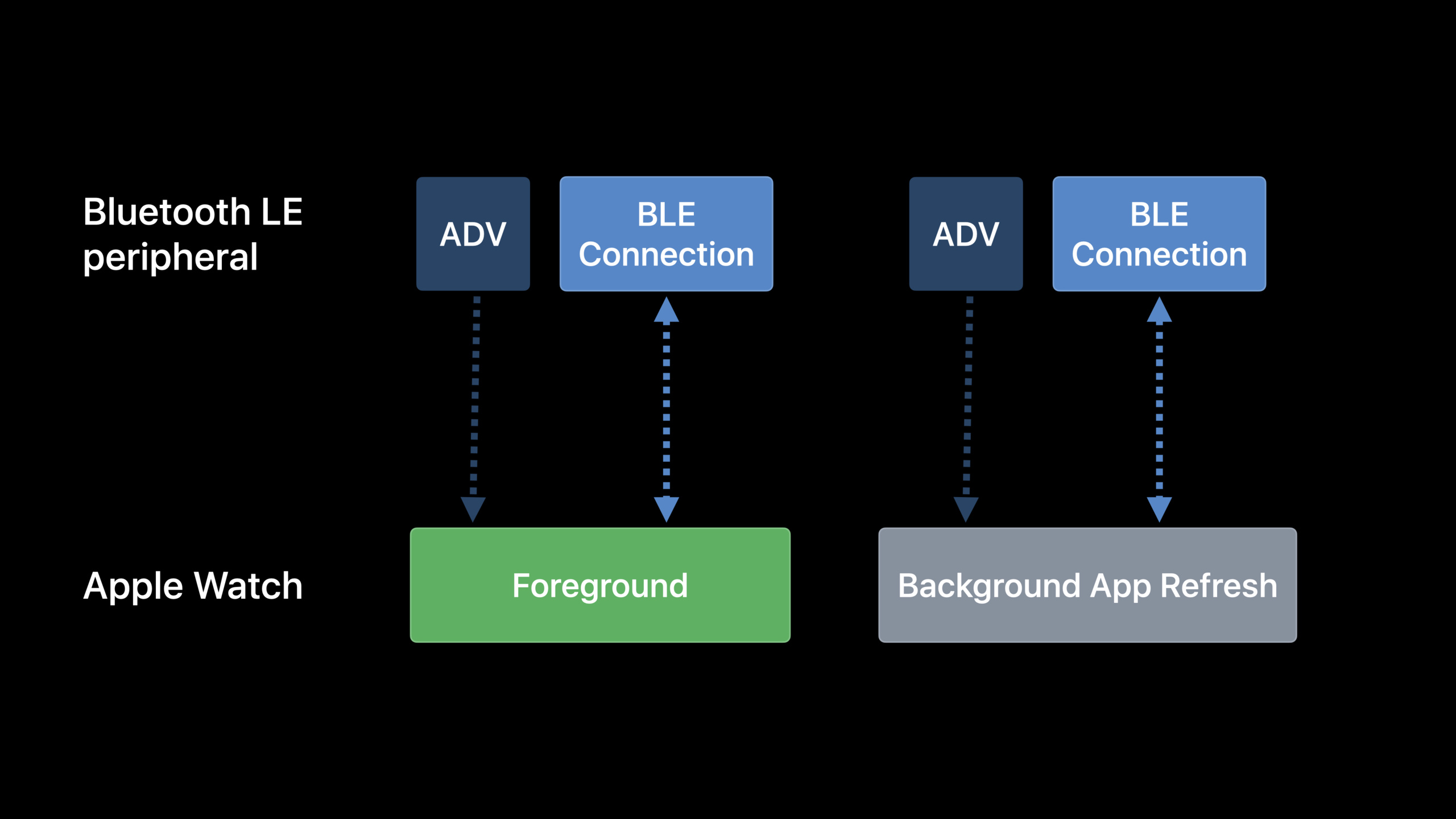
Platform Support Configuration Comparison
(01:50)
BLE support configuration differs by platform. On watchOS, supported configurations include foreground connection and connection during background refresh. Background scanning for new devices is iOS-only; watchOS cannot scan for new devices in the background.
First-Time Device Setup Requirements
(09:26)
First-time Bluetooth device setup requires the app in the foreground. The user must actively use the app to scan for new devices and establish the initial connection. Once discovered and paired, reconnection can happen during background refresh.
After the app leaves the foreground, it cannot scan for new devices—only request connection to previously discovered devices. After connecting and fetching data, actively disconnect to save power.
Core Takeaways
-
Build a Bluetooth thermometer complication: Connect to a temperature sensor and show current temperature on a watch face complication. Background refresh updates data up to four times per hour. Entry APIs:
CBCentralManager+WKApplicationRefreshBackgroundTask. -
Build a sports GPS tracker companion app: Connect to a Bluetooth GPS tracker; show pace and distance on a complication. Auto-disconnect after workouts to save power. Entry APIs:
CBPeripheral’sdidUpdateValueFor+HKWorkoutSession. -
Build a medical device monitoring app: Connect to a Bluetooth pulse oximeter or blood pressure monitor; read data during background refresh and log to HealthKit. Send local notifications on abnormal readings. Entry APIs:
HKHealthStore.save+UNUserNotificationCenter. -
Build a Bluetooth device battery monitor: Read battery level during background connection; show a warning icon on the complication when below threshold. Entry API: battery service UUID
0x180FonCBCharacteristic. -
Build a smart home watch remote: Connect to Bluetooth door locks or light controllers; show device status on complications; tap for quick control. Entry APIs:
CBPeripheral.writeValue+ custom GATT services.
Related Sessions
- What’s new in watchOS 8 — watchOS 8 overview including background context for Bluetooth
- Build a workout app for Apple Watch — Build a workout app with SwiftUI and HealthKit; combine with Bluetooth sensors
- There and back again: Data transfer on Apple Watch — Apple Watch data strategies including background task handling
Comments
GitHub Issues · utterances