
Highlight
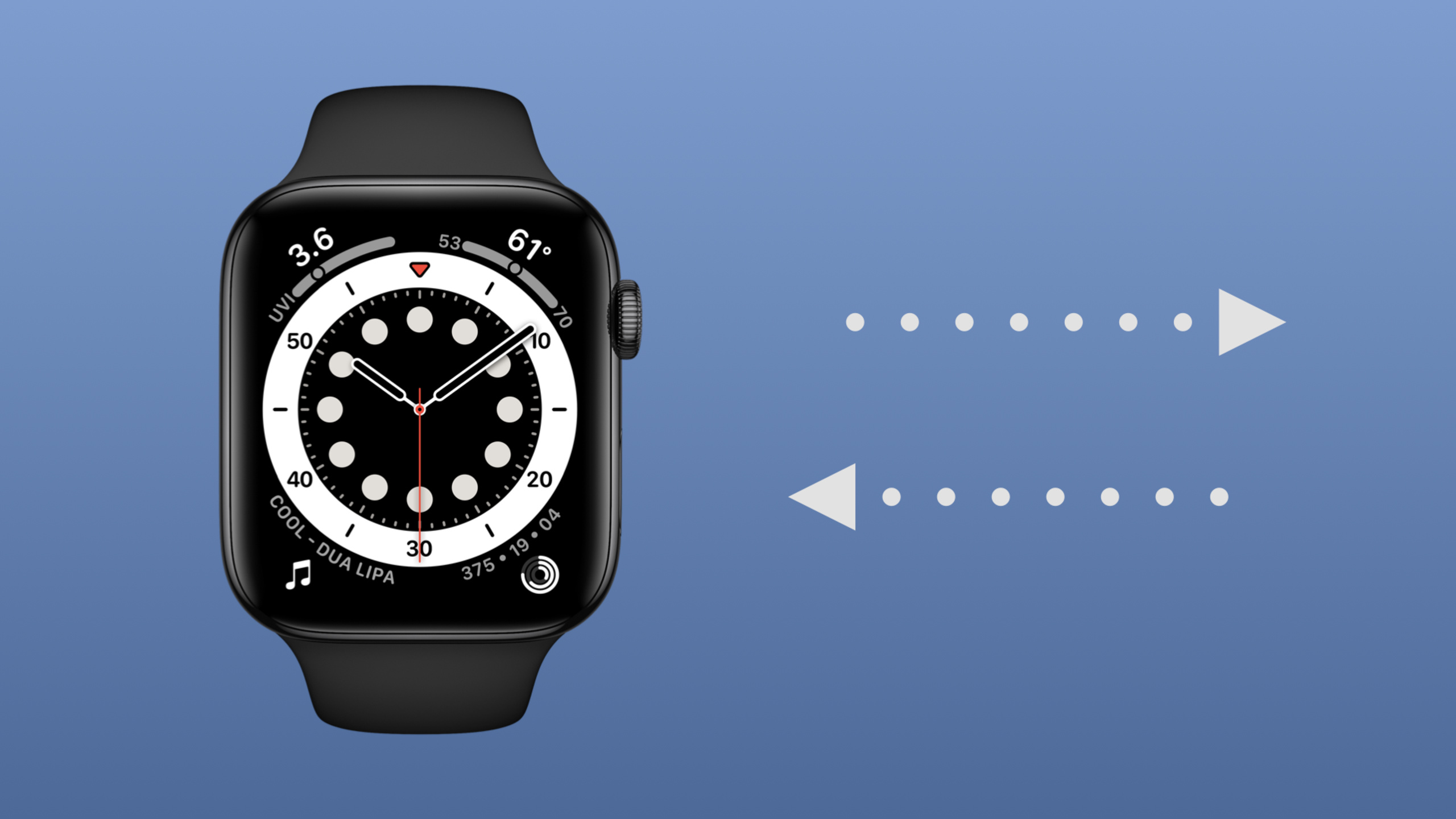
Apple Watch is increasingly independent—from Series 3 cellular, watchOS 6 standalone apps, to watchOS 7 Family Setup. This session systematically covers five data transfer approaches: iCloud Keychain, Core Data + CloudKit, Watch Connectivity, URL Session, and Socket, with use cases and a decision tree for each.
Core Content
Five Questions Before Choosing a Transfer Strategy
(02:08)
Before deciding how to transfer data, ask five questions:
- What type of data? Sensitive credentials, structured data, or large files?
- Where is the data now, and where does it need to go?
- Does it depend on a paired iOS app?
- Does it need to support Family Setup?
- How quickly must data arrive?
Based on the answers, pick the right tool from the toolbox.
iCloud Keychain: Small Sensitive Data Across All Devices
(02:53)
Keychain provides secure storage for passwords, keys, and other sensitive credentials. Since watchOS 6.2, iCloud Keychain sync lets Keychain items sync to all user devices.
The simplest approach is Password Autofill—set textContentType on TextField:
TextField("User:", text: $username)
    .textContentType(.username)

SecureField("Password", text: $password)
.textContentType(.password)(04:20)
This requires Associated Domains capability and an apple-app-site-association file on the server. watchOS 8’s improved text editing makes autofill even better.
For custom data like OAuth tokens, use the Keychain API directly. Set kSecAttrSynchronizable to true so data syncs across devices.
Core Data + CloudKit: Structured Cloud Sync
(11:10)
With Core Data integrated with CloudKit, local databases sync to all devices sharing the same CloudKit container. SwiftUI’s @FetchRequest and @Environment(\.managedObjectContext) make Core Data straightforward on Watch.
(11:59)
Watch storage and battery are limited. For cross-platform apps, carefully consider what data truly needs to be on the watch. Multiple Core Data configurations can separate watch-appropriate data from phone-appropriate data.
Core Data + CloudKit doesn’t depend on a companion iOS app and supports Family Setup. Sync timing is system-determined based on network, battery, etc.—don’t expect instant sync.
Watch Connectivity: Real-Time Communication Between Paired Devices
(13:19)
Watch Connectivity transfers data between Watch and iPhone over Bluetooth range or the same Wi-Fi network. Best for optimizing dual-app experiences and sharing data available on only one side.
(14:38)
Watch Connectivity best practices:
- Activate the session early, ideally at app launch
- All delegate callbacks run off the main queue—dispatch to main for UI updates
- Understand reachability:
sendMessageneeds both sides reachable; background transfer doesn’t
Watch Connectivity offers multiple transfer modes:
- Application Context: Single dictionary; updates replace old values—good for frequently updated config
- User Info Transfer: Queued, in-order delivery; cancellable
- File Transfer: File queue; received files go to document inbox and are deleted after processing
- transferCurrentComplicationUserInfo: Complication-specific data; prioritized
- sendMessage: Real-time bidirectional; both sides must be reachable
(20:31)
Watch Connectivity cannot be used with Family Setup—it depends on a paired iPhone.
URL Session: Direct Server Communication
(21:41)
For most scenarios, URL Session is the best choice for direct server communication. It has foreground and background modes.
Prefer background URL Session. The app doesn’t need to stay foreground; the system runs transfers at appropriate times. For large files, set isDiscretionary = true so the system picks the best moment.
(23:04)
When background transfer completes, the system wakes the app via WKURLSessionRefreshBackgroundTask. Handle this in Extension Delegate and mark completion promptly.
Foreground URL Session suits quick server calls like fetching today’s content list. Foreground sessions have a 2.5-minute timeout and consume more power.
Detailed Content
Complete Keychain OAuth Token Storage Flow
(06:25)
Store token (update if exists, add if not):
func storeToken(_ token: OAuth2Token, for server: String, account: String) throws {
    let query: [String: Any] = [
      kSecClass as String: kSecClassInternetPassword,
      kSecAttrServer as String: server,
      kSecAttrAccount as String: account,
      kSecAttrSynchronizable as String: true,
    ]

    let tokenData = try encodeToken(token)
    let attributes: [String: Any] = [kSecValueData as String: tokenData]

    let status = SecItemUpdate(query as CFDictionary, attributes as CFDictionary)

    guard status != errSecItemNotFound else {
        try addTokenData(tokenData, for: server, account: account)
        return
    }

    guard status == errSecSuccess else {
        throw OAuthKeychainError.updateError(status)
    }
}
Key points:
kSecClassInternetPasswordspecifies internet password typekSecAttrSynchronizableset totrueenables iCloud syncSecItemUpdateupdates existing items; returnserrSecItemNotFoundif missing- Call
addTokenDatawhen item doesn’t exist
Add new item:
func addTokenData(_ tokenData: Data,
                  for server: String,
                  account: String) throws {
    let attributes: [String: Any] = [
      kSecClass as String: kSecClassInternetPassword,
      kSecAttrServer as String: server,
      kSecAttrAccount as String: account,
      kSecAttrSynchronizable as String: true,
      kSecValueData as String: tokenData,
    ]

    let status = SecItemAdd(attributes as CFDictionary, nil)

    guard status == errSecSuccess else {
        throw OAuthKeychainError.addError(status)
    }
}(07:59)
Key points:
SecItemAddadds a new Keychain item- All attributes must be set at add time
errSecSuccessindicates success
Retrieve token:
func retrieveToken(for server: String, account: String) throws -> OAuth2Token? {
    let query: [String: Any] = [
      kSecClass as String: kSecClassInternetPassword,
      kSecAttrServer as String: server,
      kSecAttrAccount as String: account,
      kSecAttrSynchronizable as String: true,
      kSecReturnAttributes as String: false,
      kSecReturnData as String: true,
    ]

    var item: CFTypeRef?
    let status = SecItemCopyMatching(query as CFDictionary, &item)

    guard status != errSecItemNotFound else {
        return nil
    }

    guard status == errSecSuccess else {
        throw OAuthKeychainError.retrievalError(status)
    }

    guard let existingItem = item as? [String : Any],
          let tokenData = existingItem[kSecValueData as String] as? Data else {
        throw OAuthKeychainError.invalidKeychainItemFormat
    }

    return try JSONDecoder().decode(OAuth2Token.self, from: tokenData)
}(08:25)
Key points:
kSecReturnDataset totruereturns data contentSecItemCopyMatchingsearches and copies matching itemserrSecItemNotFoundmeans no stored token- Decode Data to OAuth2Token with
JSONDecoder
Delete token:
func removeToken(for server: String, account: String) throws {
    let query: [String: Any] = [
      kSecClass as String: kSecClassInternetPassword,
      kSecAttrServer as String: server,
      kSecAttrAccount as String: account,
      kSecAttrSynchronizable as String: true,
    ]

    let status = SecItemDelete(query as CFDictionary)

    guard status == errSecSuccess || status == errSecItemNotFound else {
        throw OAuthKeychainError.deleteError(status)
    }
}(09:39)
Key points:
SecItemDeletedeletes matching Keychain itemserrSecItemNotFoundcounts as success—the target already doesn’t exist
Complete Background URL Session Implementation
(23:04)
Create background URL Session:
class BackgroundURLSession: NSObject, ObservableObject, Identifiable {
    private let sessionIDPrefix = "com.example.backgroundURLSessionID."

    enum Status {
        case notStarted
        case queued
        case inProgress(Double)
        case completed
        case failed(Error)
    }

    private var url: URL
    var body: Data?
    var contentType: String?

    private(set) var id = UUID()
    @Published var status = Status.notStarted
    @Published var downloadedURL: URL?

    private var backgroundTasks = [WKURLSessionRefreshBackgroundTask]()

    private lazy var urlSession: URLSession = {
        let config = URLSessionConfiguration.background(withIdentifier: sessionID)
        config.isDiscretionary = false
        config.sessionSendsLaunchEvents = true
        return URLSession(configuration: config,
                          delegate: self, delegateQueue: nil)
    }()

    private var sessionID: String {
        "\(sessionIDPrefix)\(id.uuidString)"
    }

    init(url: URL) {
        self.url = url
        super.init()
    }
}
Key points:
URLSessionConfiguration.backgroundcreates background configsessionSendsLaunchEvents = truewakes the app when tasks completeisDiscretionary = falsemeans don’t defer transfer (good for small data)- Each session needs a unique identifier
Enqueue background transfer:
func enqueueTransfer() {
    var request = URLRequest(url: url)
    request.httpBody = body
    if body != nil {
        request.httpMethod = "POST"
    }
    if let contentType = contentType {
        request.setValue(contentType, forHTTPHeaderField: "Content-type")
    }
    let task = urlSession.downloadTask(with: request)
    task.earliestBeginDate = nextTaskStartDate

    BackgroundURLSessions.sharedInstance().sessions[sessionID] = self

    task.resume()
    status = .queued
}(24:22)
Key points:
downloadTask(with:)creates a download taskearliestBeginDatecan set earliest start timetask.resume()must be called to start- Save session to global list for later background task handling
Handle background tasks (Extension Delegate):
class ExtensionDelegate: NSObject, WKExtensionDelegate {

    func applicationDidFinishLaunching() {
        WatchConnectivityModel.shared.activateSession()
    }

    func handle(_ backgroundTasks: Set<WKRefreshBackgroundTask>) {
        for task in backgroundTasks {
            switch task {
            case let urlSessionTask as WKURLSessionRefreshBackgroundTask:
                if let session = BackgroundURLSessions.sharedInstance()
                        .sessions[urlSessionTask.sessionIdentifier] {
                    session.addBackgroundRefreshTask(urlSessionTask)
                } else {
                    urlSessionTask.setTaskCompletedWithSnapshot(false)
                }
            default:
                task.setTaskCompletedWithSnapshot(false)
            }
        }
    }
}(25:45)
Key points:
- Activate Watch Connectivity session early
- Handle tasks by type
- Save background task to matching session; mark complete after download
- Mark complete immediately if session not found
Connect Extension Delegate to App:
@main
struct MyWatchApp: App {
    @WKExtensionDelegateAdaptor(ExtensionDelegate.self) var extensionDelegate

    var body: some Scene {
        WindowGroup {
            NavigationView {
                ContentView()
            }
        }
    }
}(26:43)
Handle download completion:
extension BackgroundURLSession : URLSessionDownloadDelegate {

    func urlSession(_ session: URLSession,
                    downloadTask: URLSessionDownloadTask,
                    didFinishDownloadingTo location: URL) {
        // Move or process file quickly—it's in a temp location and will be deleted
        saveDownloadedData(location)

        BackgroundURLSessions.sharedInstance().sessions[sessionID] = nil

        DispatchQueue.main.async {
            self.status = .completed
        }

        for task in backgroundTasks {
            task.setTaskCompletedWithSnapshot(false)
        }
    }
}(27:31)
Key points:
- Downloaded file is in a temp location—process or move immediately
- Mark all background tasks complete after processing
- Remove session from global list
- Failing to mark complete promptly can terminate the app
Transfer Strategy Summary
(30:21)
| Scenario | Recommended | Family Setup |
|---|---|---|
| Small sensitive data, all-device sync | iCloud Keychain | Yes |
| Structured database, all-device sync | Core Data + CloudKit | Yes |
| Optimize paired iPhone + Watch experience | Watch Connectivity | No |
| Direct server communication | URL Session / Socket | Yes |
| Real-time bidirectional (both foreground) | Watch Connectivity sendMessage | No |
Core Takeaways
-
Build a cross-device password manager Watch edition: Use iCloud Keychain sync to quickly view common passwords on the watch. Read stored passwords with
SecItemCopyMatching; usetextContentTypefor autofill. Entry APIs: Keychain functions in theSecurityframework. -
Build a family-shared todo Watch app: Use Core Data + CloudKit to sync todos across family members’ Apple Watches. Read with
@FetchRequest;NSPersistentCloudKitContainersyncs automatically. Entry APIs:NSPersistentCloudKitContainer+@FetchRequest. -
Build a workout data sync app: iPhone fetches detailed route data; send to Watch via Watch Connectivity
transferFile; Watch shows simplified info on complications. Entry API:WCSession.transferFile(_:metadata:). -
Build a background data reporting tool: Use background URL Session to batch-upload sensor data when the watch is charging on Wi-Fi. Set
isDiscretionary = truefor optimal transfer timing. Entry APIs:URLSessionConfiguration.background+WKURLSessionRefreshBackgroundTask. -
Build an instant messaging Watch app: Use Watch Connectivity
sendMessagefor real-time iPhone–Watch message sync. Push to the watch immediately when a message arrives on the phone. Entry API:WCSession.sendMessage(_:replyHandler:errorHandler:).
Related Sessions
- What’s new in watchOS 8 — watchOS 8 updates including background data delivery and Bluetooth
- Connect Bluetooth devices to Apple Watch — Bluetooth device connection and data transfer with Apple Watch
- Build apps that share data through CloudKit and Core Data — Sync data across devices with CloudKit and Core Data
Comments
GitHub Issues · utterances