
Highlight
In the final chapter of Swan’s Quest, Apple uses a single-timer step sequencer to combine the Swift Playgrounds content SDK’s seven sampled instruments, MIDI notes, and multi-track playback into a two-part harmony that can complete the challenge.
Core Content
At the end of Chapter 3, Swan is left with a two-part harmony. In previous chapters, ToneOutput has been used to play a single tone, but the difficulty here has changed: the two parts must advance to the same beat, and different instruments must sound at the same time. Manually scheduling multiple timers can cause the beat to drift and the challenge can become a synchronization issue.
The solution in Chapter 4 is a step sequencer. It is essentially a multi-track timing loop that cuts a fixed duration into steps of equal length. Each track represents a pitched instrument, and each column is a beat position. The example in the lecture is eight beats, which is two measures of 4/4.
The Swift Playgrounds content SDK provides sampled instruments. The speech clearly lists seven types: electric guitar, bass guitar, piano, warm bells, seven synth, bass synth, and crystal synth. What the developer has to do is to map each step to a MIDI note, and then traverse all tracks in the same Timer callback.
This chapter also has a finishing touch that is easy to miss. The challenge only requires completing the first round of the sequence. To be called when the index returns to zeroowner.endPerformance(), so that Swan knows that the performance is completed and the player can get the problem-solving progress.
Detailed Content
Use a Timer to drive all steps
(02:26) The sequencer starts with a beat loop. The total duration is 4 seconds, the number of beats is 8, and the Timer interval isduration / Double(numberOfBeats). Advance the index after each trigger, returning to 0 after the last beat.
// A barebones example of a sequencer

let numberOfBeats = 8   // two bars of 4/4
let duration = 4.0      // seconds

let interval = duration / Double(numberOfBeats)

var index = 0
Timer.scheduledTimer(withTimeInterval: interval, repeats: true) { timer in
    // Play each track's Instrument
    // ...

    index = (index + 1 < numberOfBeats) ? index + 1 : 0
}
Key points:
numberOfBeatsSplit the sequence into 8 steps, corresponding to the two bars of 4/4 in transcript. -durationis the playback time of the entire sequence. -intervalIt is obtained by dividing the total duration by the number of steps to avoid setting separate timings for each track. -indexIt is the current step, and the Timer is advanced every time it is triggered.
Use content SDK to play sampled instruments
(03:16) The entrance to sampling instruments isplayInstrument. it needs aInstrument.Kindconsistent with aMIDINoteProtocolnote. provided by SDKInstrument.KindContains seven instruments.
// Sequencer.swift

func playInstrument(_ kind: Instrument.Kind, note: MIDINoteProtocol, volume: Double = 75)


// Instrument.swift

public class Instrument {

    /// The kind of included instruments
    public enum Kind: String {
        case electricGuitar, bassGuitar, piano, warmBells, sevenSynth,
            bassSynth, crystalSynth
    }

    // ...
}
Key points:
kindDecide which sampled instrument you want to play. -notehand overMIDINoteProtocol, so that the playback function does not need to be bound to a specific enum. -volumeThere is a default value of 75, which can be omitted when calling. -Instrument.KindThe seven cases are consistent with the instrument libraries listed in the transcript.
Use MIDI codes to represent notes and rests
(03:38)MIDINoteProtocolOnly an 8-bit MIDI code is required. Subsequent examples useMIDINotesenum represents the second octave, and putsrestMaps to 0, used to express silent gaps in the sequence.
// Sequencer.swift

protocol MIDINoteProtocol {

    /// note as an 8-bit MIDI code
    var midiCode: UInt8 { get }
}
Key points:
midiCodeis the pitch encoding that the playback function actually requires.- The protocol allows track to return different note types, as long as the MIDI code can be finally given.
- The transcript clearly states that the MIDI note contains the 8-bit integer corresponding to the MIDI code.
(03:48) The official example writes C2 to B2 as enum case.restThe presence of is critical because multi-track sequences often require a certain track to be silent at certain steps.
// Example implementation for Notes

enum MIDINotes: UInt8, MIDINoteProtocol {
    case rest = 0

    case C2 = 36
    case D2 = 38
    case E2 = 40
    case F2 = 41
    case G2 = 43
    case A2 = 45
    case B2 = 47

    var midiCode: UInt8 {
        return self.rawValue
    }
}
Key points:
- The raw value of enum is directly the MIDI code.
-
rest = 0Indicates that the current step does not play notes. -midiCodereturnrawValue,satisfyMIDINoteProtocol. - This set of notes covers the notes used in the bass and piano tracks later in the example.
Put the instrument, length and notes for each step into the track
(04:03) Each track needs to know three things: what instrument it uses, how many steps it has in total, and which note should be played given the frame.TrackProtocolPin these three things down.
// Sequencer.swift

protocol TrackProtocol {
    associatedtype NoteType : MidiNoteProtocol

    /// The kind of instrument that the track sequences
    var instrument: Instrument.Kind { get }

    /// Number of beats contained in the sequence
    var length: Int { get }

    /// MIDI code for the sequence frame
    func note(for frame: Int) -> NoteType
}
Key points:
instrumentBind each track to a sampled instrument. -lengthThe number of beats covered by the corresponding track. -note(for:)Returns the notes of this step based on the current frame. -associatedtypeKeep track’s note type generic, as long as it conforms to MIDI note conventions.
(04:21) The example implementation saves the note pattern in an array. When accessing, first check that the array exists, and then check that the frame is not out of bounds; otherwise, return.rest。
// Example implementation for Tracks

struct Track : TrackProtocol {
    var instrument: Instrument.Kind
    var length: Int

    var notes: [MIDINotes]? = nil

    func note(for frame: Int) -> MIDINotes {
        guard let n = notes, frame < n.count else {
            return .rest
        }
        return n[frame]
    }
}
Key points:
notesIs an optional array, allowing the track to be created first and then filled in with the pattern. -guardAt the same time, handle the two situations where there are no notes and frame out of bounds.- Return when out of bounds
.rest, the sequence will silently skip this step. - transcript A special reminder to check if notes exists and make sure the index does not exceed sequence boundaries.
Combine bass and piano tracks
(04:34) After having Timer, note and track, the example creates two tracks, bass and piano, fills in the note pattern respectively, and then traverses the TimertracksPlay the current step.
// A barebones example of a sequencer

let numberOfBeats = 8   // two bars of 4/4
let duration = 4.0      // seconds

var bass = Track(instrument: .bassGuitar, length: numberOfBeats)
var piano = Track(instrument: .piano, length: numberOfBeats)
let tracks = [bass, piano]

bass.notes =  [.rest, .C2, .A2, .rest, .C2, .A2, .D2, .C2 ]
piano.notes = [.A2, .A2, .C2, .F2, .A2, .C2, .none, .F2]

let interval = duration / Double(numberOfBeats)
var index = 0
Timer.scheduledTimer(withTimeInterval: interval, repeats: true, block: { timer in
    for track in tracks {
        playInstrument(track.instrument, note: track.note(for: index))
    }
    index = (index + 1 < numberOfBeats) ? index + 1 : 0
})
Key points:
bassandpianouse differentInstrument.Kind.- two
notesThe length of the array isnumberOfBeatsAlignment, each position represents a step. - The Timer callback traverses all tracks, so multiple instruments share the same beat source.
-
track.note(for: index)Convert the current step into a MIDI note to be played.
Notify the challenge system after the sequence is completed
(05:00) The final challenge only requires the first round of playing to be completed. The official example expands the logic of returning the index to 0 and calls it after reset.owner.endPerformance()。
// Getting credit for our work

Timer.scheduledTimer(withTimeInterval: interval, repeats: true, block: { timer in
    for track in tracks {
        playInstrument(track.instrument, note: track.note(for: index))
    }

    if index + 1 < numberOfBeats {
        index = index + 1
    }

    else {
        index = 0
        owner.endPerformance()
    }
})
Key points:
if index + 1 < numberOfBeatsDetermine whether there is a next step in the sequence.- Only advance when there is still step
index. - at the end
indexReset to 0. -owner.endPerformance()is a signal that the challenge has been completed, and the transcript says that Swan will know that the performance has been completed.
Sample your own instruments from GarageBand
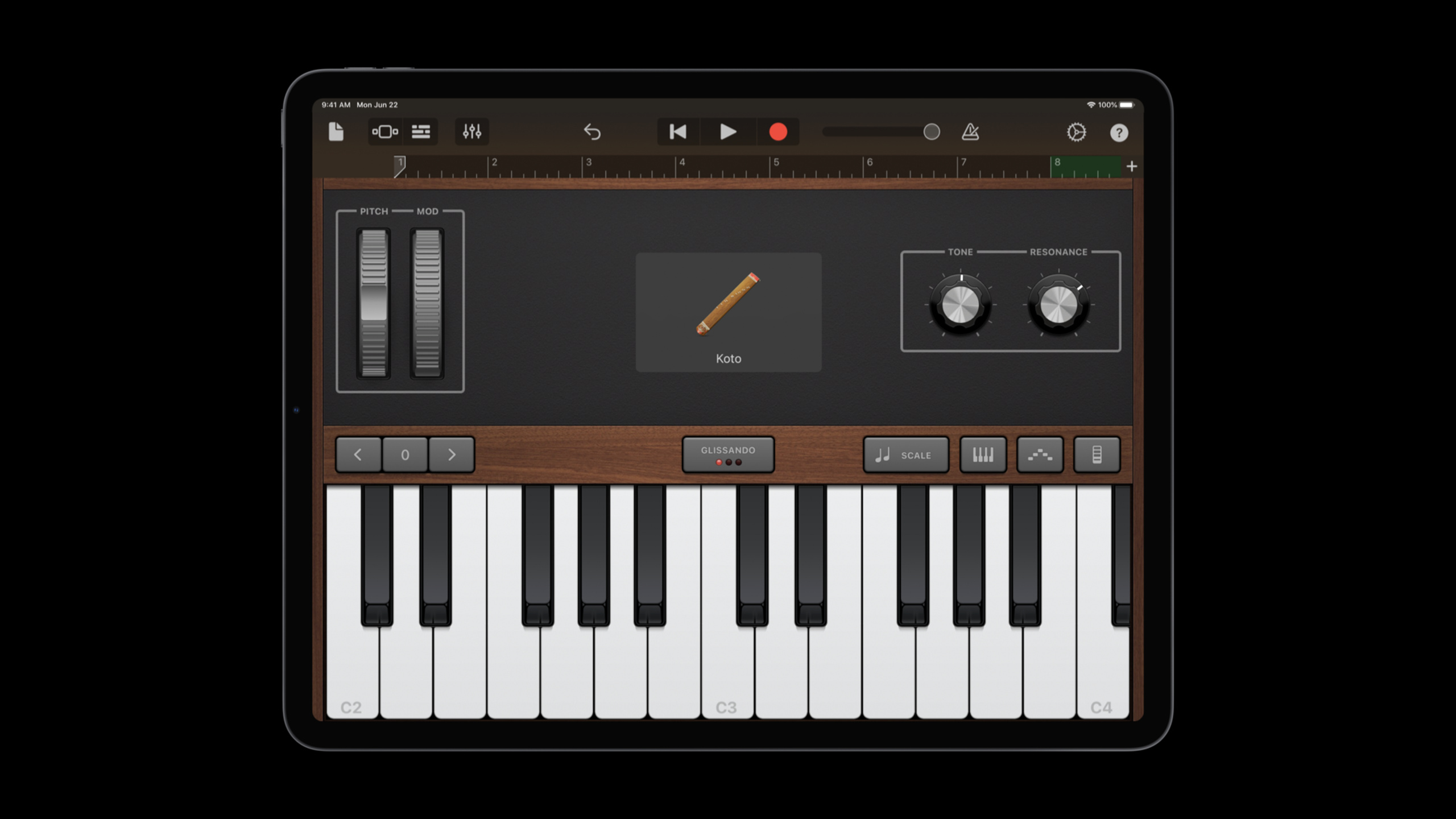
(05:21) At the end of the speech, the process of making homemade sampled musical instruments was introduced. First select the Keyboard or other instrument you want to sample in GarageBand. The example uses koto. You can then adjust tone, resonance and scale; for example, major scale is selected. After recording a single note, play it back and check it, and modify it in GarageBand Editor if necessary.
(06:39) When exporting, the lossless format is uncompressed WAV, and compressed formats can also be used. After exporting, cut the individual notes and then import the project as a custom instrument. This process does not provide Swift API code, the focus is on material preparation links.
Key points:
- Record each note as sound material first, and then enter the project.
- The scale setting can reduce the probability of recording wrong sounds.
- WAV is the most lossless export format mentioned by transcript.
- Once the sampled instrument enters the project, it can serve the previous sequencer model.
Core Takeaways
-
Do a two-part rhythm exercise: Ask learners to fill in the note patterns of bass and piano. After running, you will hear whether the two tracks are aligned according to the eight steps. The reason it’s worth doing is that session uses the same Timer to solve multi-track synchronization. Start directly from
Track、MIDINotesandTimer.scheduledTimerThese three sections of official structure are set up. -
Make a silent interval trainer: Let each step accept a note or rest to help learners understand the role of empty beats in music. The reason it’s worth doing is that transcript explicitly puts
restas silent gaps in the sequence. Give way at the beginningnote(for:)Returns if missing or out of bounds.rest, and then map the visualization grid to the note array. -
Make a background loop playground: use bass, warm bells or crystal synth to make an atmospheric background loop, and then put the melody on another track. The reason it’s worth doing is that step sequencers are suitable for putting multiple track layers together. Start by fixing 8 beats and 4 seconds. Make sure the beat is stable before adjusting the instruments and pattern.
-
Make a self-made sound import process: sample a set of single sounds in GarageBand, export uncompressed WAV, cut it into a single note and import it into the playground book. The reason it’s worth doing is that the session gives a complete route from GarageBand to the project assets. Start with one octave, don’t record the entire library at once.
-
Do Chapter 4 side quest: Add the ToneOutput from Chapter 2 as an instrument of the step sequencer. The reason it’s worth doing is that the final side quest of the transcript is just the combination of the four chapters. Start by letting ToneOutput respond to the same
index, and then decide how to track it with the sampled instrument.
Related Sessions
- Swan’s Quest, Chapter 1: Voices in the dark — Download Quest Create and the chapter playground book starting with Chapter 1 to build the context for Swan’s Quest’s challenges.
- Swan’s Quest, Chapter 2: A time for tones — Continue to look at the basics of ToneOutput and prepare for the final side quest to connect it to the step sequencer.
- Swan’s Quest, Chapter 3: The notable scroll — Fill in where two-part harmony comes from, and why the final chapter requires multi-track playback.
- Create Swift Playgrounds content for iPad and Mac — Learn how to create a Swift Playgrounds book that runs on iPad and Mac.
- Build a SwiftUI view in Swift Playgrounds — Learn the basics of Swift Playgrounds as a prototype and live view environment.
Comments
GitHub Issues · utterances