
Highlight
The Account Authentication Modification Extension of iOS 14 allows the system password manager and in-app settings page to upgrade risky password accounts to strong passwords or Sign in with Apple with one click, and upon success, update or remove the old credentials in iCloud Keychain.
Core Content
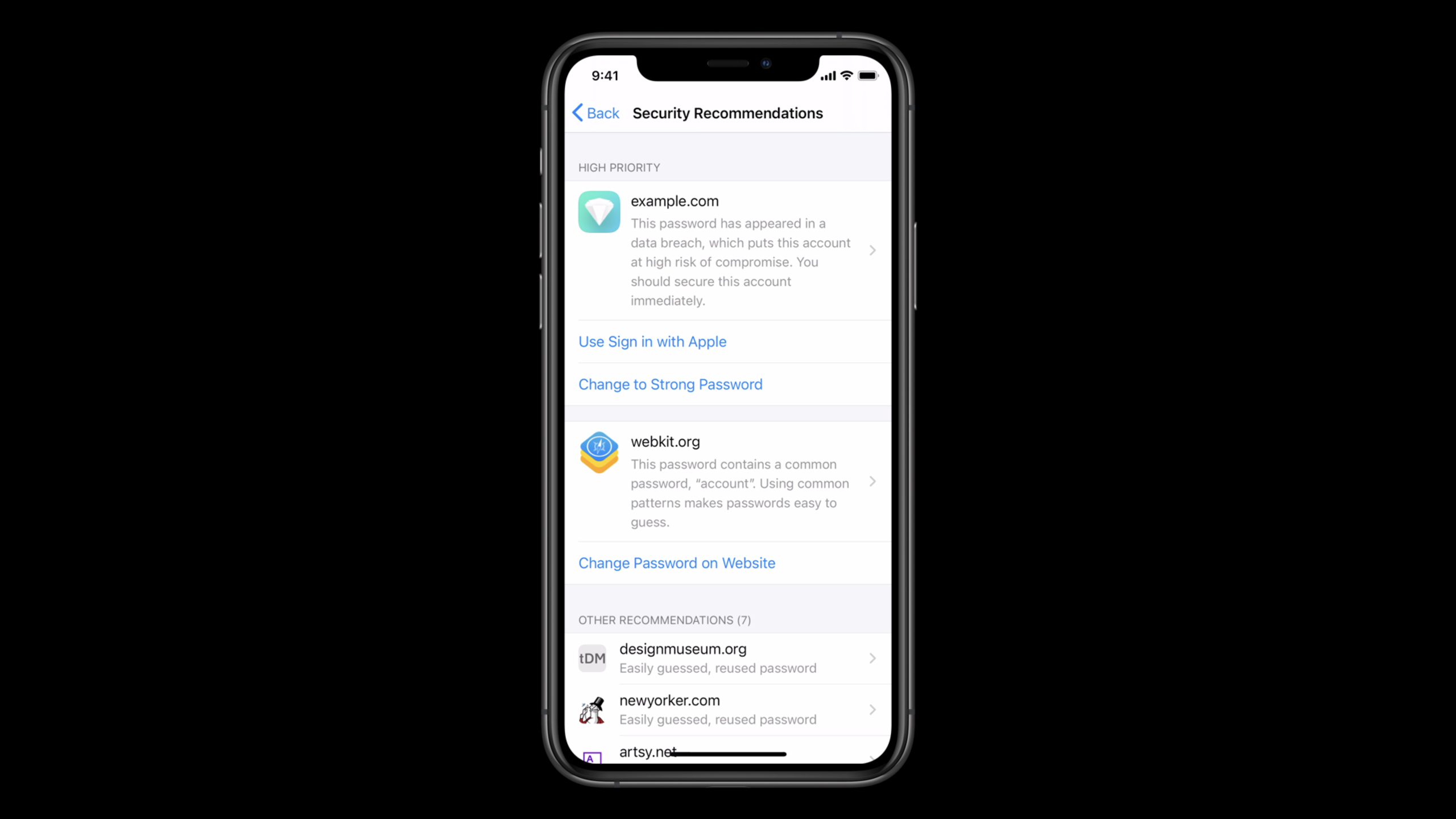
Many account risks will surface after passwords are reused for a long time. Login is smooth now, and it does not prevent the same password from being leaked to other services. iCloud Keychain can already save passwords, provide Password AutoFill, and can also help users reduce the input burden. By iOS 14, the system password manager begins to put the risk directly in front of users: passwords that are reused, easy to guess, and appear in public data leaks will enter Security Recommendations.
The problems with old processes are real. The system can take the user to the website’s change password URL, but the user still has to open the page, find the form, enter the old password, and set a new password. Jay Mulani directly pointed out in his speech that most users will avoid changing passwords because it feels like a hassle.
Apple’s change is to turn “repair account” into a system-level upgrade action. Account Authentication Modification Extension can appear on password details pages, high-priority security recommendations, and system prompts after users log in to applications with weak or leaked passwords. An extension implementation can support two paths: changing to a strong password generated by iCloud Keychain, or upgrading the account to Sign in with Apple.
The same set of capabilities can also be put into the app’s own account settings page. The app creates an upgrade request and the system updates or removes the keychain credentials after the extension is complete. What users see is a short process; developers are responsible for extending authorization, submitting account changes on the server, and displaying additional verification interfaces when necessary.
Detailed Content
Associate app and service domain names
(06:15) In order for the extension to be able to upgrade accounts in iCloud Keychain, the app must first establish a security association with the service domain name. The process is the same as Password AutoFill: the server provides a JSON file to declare the relationship between the domain name and the app; Xcode adds the Associated Domains capability to the app and writes the matching domain name.
Key points:
- The JSON file uses the web credential service to bind the domain name and app to the authentication scenario.
- Associated Domains entitlement is the basis for the system to determine whether this app can provide upgrades for a certain domain name credential.
- After the association is completed, the password saved in the user’s iCloud Keychain and belonging to the service will have a chance to appear in the upgrade portal.
- This pre-step affects both the upgrade button in the system password manager and the upgrade process triggered within the application.
Support strong password upgrade
(07:17) Strong password upgrade starts with a new Account Authentication Modification Extension target. The extension template declares by default that it supports two types of upgrades; if you only want to support strong passwords, you need to retain the strong password change support item in the extension’s Info.plist.
(08:23) When the user triggers a strong password upgrade from the password manager or the system prompt after logging in, the system will start the extension and pass the existing credentials, service identifier, and new strong password generated by the system to the extension. In the request initiated by the system,userInfoAlways empty.
Key points:
- The view controller subclass in the extension is the entry point for business logic, which can communicate with the backend and display the verification interface when necessary.
- After receiving the request, the extension first confirms with the backend whether the upgrade is authorized. It can also read the login cookie or token in the shared container between the app and the extension.
- When authorization fails, the extension uses the failure error code to cancel the request; when it is necessary to explain the reason to the user, the extension can provide copy through the localized failure reason error key.
- After successful authorization, the backend submits the password change, and the extension uses the updated username and password to complete the change password request.
- If the strong passwords generated by the system do not comply with the server-side rules, you can use password rules to constrain the generation rules and write the requirements into the password generation requirements key of the extended Info.plist.
Support upgrade to Sign in with Apple
(11:39) The prerequisite for upgrading to Sign in with Apple is that the app already supports Sign in with Apple. The extension also needs to declare support for upgrade to Sign in with Apple in Info.plist. When the system is triggered, the extension receives the existing password credentials, service identifier, and emptyuserInfo。
(13:36) After the authorization is passed, the extension needs to request Sign in with Apple credential from the system. Can be brought upon requeststateandnonce, used for backend validation of Apple ID credentials. After the extension is submitted to the server, the method to complete the upgrade is called; after the upgrade is completed, the system will delete the keychain password credentials used for the upgrade.
Key points:
- The backend is still the judgment point for whether upgrades are allowed to occur and cannot rely solely on client state.
- The system may not be able to obtain the credential due to the user canceling the Sign in with Apple panel or network problems, and the extension must cancel the request according to the failed path.
- After the server completes account binding, the extension will notify the system that the upgrade is complete.
- After successfully upgrading to Sign in with Apple, this account should no longer be allowed to log in with a password.
Show step-up UI when additional verification is required
(15:08) In the ideal path, the extension can complete the upgrade without displaying the interface. But if the service requires two-step verification, such as SMS two-step verification, the extension can first use user interaction required error code to cancel the initial request. The system then creates a new request that allows interaction and calls the method that prepares the interface.
Key points:
- Strong password upgrade enters prepare interface to change password.
- Sign in with Apple upgrade to prepare interface to convert account to Sign in with Apple.
- The system will add a navigation bar, app name title and cancel button to the extension interface.
- When the user cancels, the system calls cancel request; if the developer overrides this method, the request must still be canceled as soon as possible.
- After the additional verification is completed, the process returns to the previous strong password submission or Sign in with Apple credential request.
Actively initiate an upgrade within the app
(18:06) After the extension is implemented, the app can actively initiate an upgrade on the account settings page. The app creates an upgrade request and executes it, and the system launches the same extension. In-app requests only carry username, not password, because the app should not provide a clear text password, and there is no keychain credential handle held by the system.
(19:19) Strong Password In-app upgrades require a service identifier, username, and optionallyuserInfoAuthorization information. The Shiny app in the speech puts the auth token of the currently logged in user intouserInfo, allowing the extension to use it to confirm upgraded permissions to the backend. When requesting execution, the app also provides a controller delegate and presentation context provider.
(20:22) The in-app Sign in with Apple upgrade is only different in the request object, and the result callback method is the same. On success, the delegate method is responsible for notifying the user; the system then looks up the keychain credential for the same service and username and updates or deletes it depending on the upgrade type. On failure, the delegate method is responsible for displaying the reason for the failure.
Key points:
userInfoIt is the main difference between in-app upgrade and system-initiated upgrade. It is empty when the system initiates it, but the authorization context can be passed when it is initiated by the in-app.- The presentation context provider tells the system in which window to display the necessary UI.
- The delegate success callback is suitable for updating the status of the account settings page, such as hiding the “Upgrade to Sign in with Apple” button.
- The delegate failure callback should map backend authorization failure, network failure, user cancellation, etc. into prompts that the user can understand.
Core Takeaways
-
One-click upgrade of account security page What to do: Add “Upgrade to Sign in with Apple” and “Switch to a Strong Password” to the account settings page. Why it’s worth doing: The speech clearly explains that in-app upgrades can reuse the system-integrated account security upgrade process. After success, the system will update or remove keychain credentials. How to start: First implement the Account Authentication Modification Extension, then use the service identifier, username and
userInfoThe login token in Create an in-app upgrade request. -
Quick fix path for leaked passwords What to do: When a user logs in due to a weak or leaked password, provide repair actions without leaving the app. Why it’s worth doing: iOS 14 will prompt a system prompt when a user logs into an app using a risky password, and the extension can connect this prompt to the actual account change process. How to start: Make the extension support strong password change, add an upgrade interface for submitting new passwords in the backend, and check whether the default strong password complies with existing password rules.
-
Security upgrade requiring secondary verification What to do: For high-risk accounts, require an SMS verification code or already have two-step verification before upgrading. Why it’s worth doing: Extended support for security step-up UI can complete the service’s own authorization requirements while retaining the system upgrade entry. How to start: When the backend returns “further authorization required”, let the extension trigger an interactive request with user interaction required error code, and then complete the verification in the extension interface.
-
App Clip to account link to full app What to do: After users enter the full app from the App Clip, guide them to upgrade their temporary or password account to a more secure login method. Why it’s worth doing: The talk lists the transition from app clips to full apps as an opportunity to provide account security upgrades. How to start: After logging in to the complete app, initiate an in-app upgrade request at the end of account settings or onboarding and put the current login status in
userInfoAvailable for extended licensing. -
Extended licensing in shared containers What to do: Let apps and extensions share login cookies or tokens to reduce repeated logins during upgrades. Why it’s worth doing: The talk suggests that extensions can reuse login state stored in a shared data container, making upgrades as quick and minimally disruptive as possible. How to start: Add the extension to the same app group, store only the short-term state required for upgrade authorization, and let the extension read the shared container before accessing the backend after receiving a system request.
Related Sessions
- AutoFill everywhere — Talking about Password AutoFill, automatic security code filling and automatic strong password, which are the system foundation for the account upgrade entrance.
- Get the most out of Sign in with Apple — Talk about request verification, status processing and existing account migration of Sign in with Apple.
- Meet Face ID and Touch ID for the web — Talk about how websites use Web Authentication API to access Face ID and Touch ID to log in.
- Configure and link your App Clips — Talk about Associated Domains and App Clip configuration, which can be connected to the App Clip upgrade suggestions of this session.
Comments
GitHub Issues · utterances