
Highlight
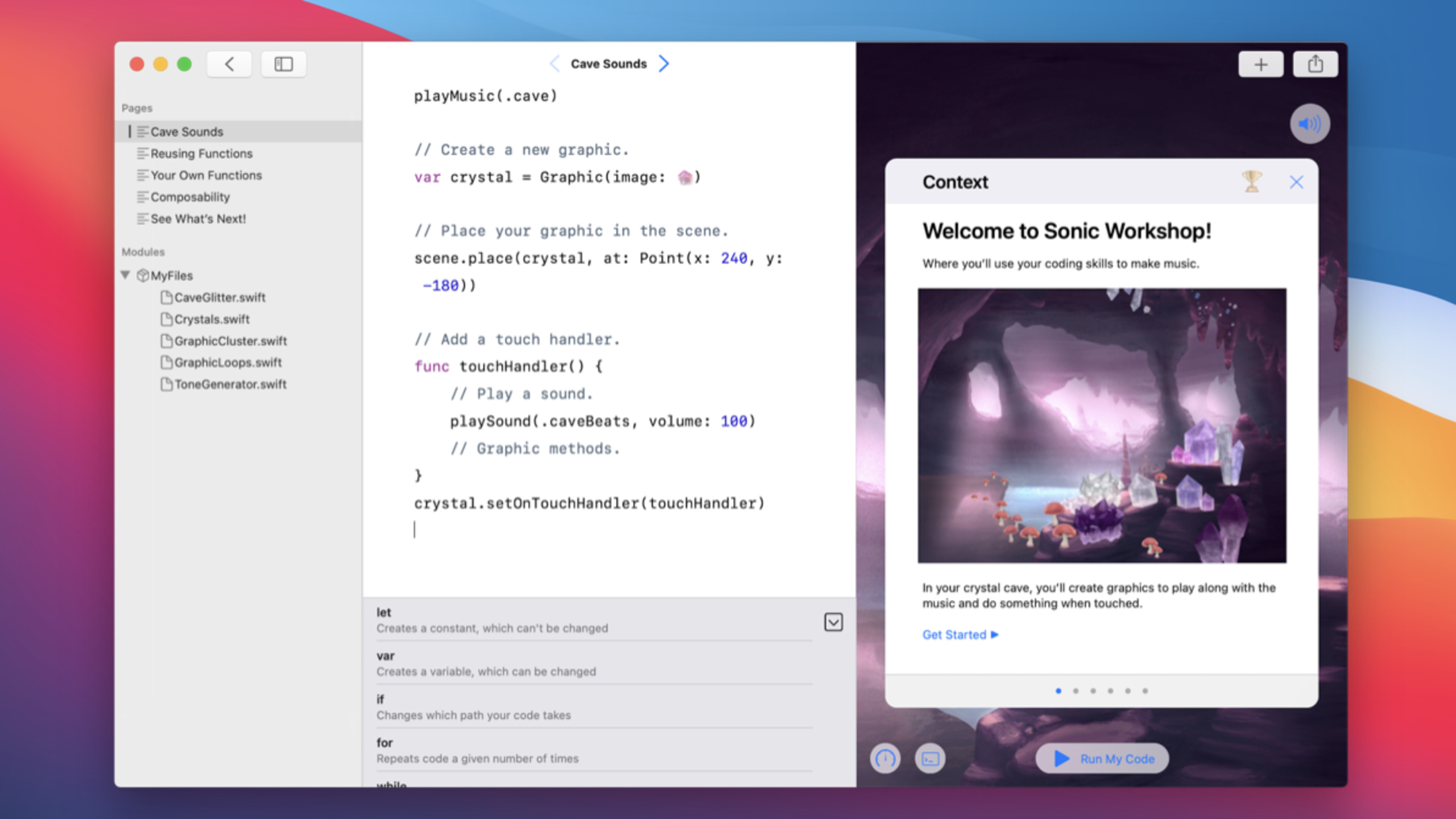
The Mac version of Swift Playgrounds lets the same Playground Book cover both iPad and Mac, allowing authors to use
supportedDevices、requiredCapabilities, quick help, target environment inspection and system color tailor the experience for both types of devices.
Core Content
Swift Playgrounds introduced many people to Swift on iPad first. In 2020, the same app comes to Mac with Mac Catalyst. The problem then becomes more specific: a Playground Book originally written for a touch screen is placed on a Mac with a keyboard, mouse, window toolbar, and different system settings. Text, buttons, code completion, and live view layout may all be exposed in inappropriate places.
Apple broke down the questions into several categories in this session. The first category is the learning experience itself: code completion on Mac has a new expandable area that can display quick help for tokens; on iPad, these descriptions will also appear in the quick help popover and the original code completion bar. As long as the author adds triple-slash documentation comments to declarations and parameters, learners can see clearer instructions when typing code.
The second category is distribution and operating conditions. Playground Book document format addedsupportedDevicesandrequiredCapabilitiesTwo optional keys. The former determines whether a book supports iPad, Mac, or both; the latter uses capabilities such as ARKit, microphone, and Wi-Fi to filter devices. In this way, the author can cover as many devices as possible and only limit chapters that really rely on certain hardware capabilities.
The third category is cross-platform details. The turtle demo from the talk shows off color popups and quick help on Mac, and checks out dark mode and AR buttons on iPad. A white background immediately looks harsh in dark mode due to the use of fixedUIColor.white; After switching to the system background, the interface will follow the theme changes. This example shows that the Playground Book does not end with just putting the same page into two devices. The author needs to check the copywriting, system colors, safe areas and accessibility.
Detailed Content
Let code completion take over the teaching instructions
(01:03) The code completion area of Swift Playgrounds for Mac can be expanded and displays quick help for each token. The quick help text can be localized, and parameters can also be described. The speaker clearly gave the writing method: put three forward slashes directly above the statement, and then add descriptions to the parameters.
Key points:
- Triple-slash documentation comments enter Mac’s expanded code completion area.
- The same description will also appear in the iPad’s quick help popover and original code completion bar.
- This is suitable for teaching content because learners can understand it without leaving the editor
changeTurtleEyesSuch custom methods. - If the Playground Book is intended for multilingual users, the quick help description should also enter the localization process.
Use manifest to control supported devices
(01:46) The Playground Book document format adds two optional keys:supportedDevicesandrequiredCapabilities. If a book is only suitable for a certain platform, you can write it in the book level manifest and feed JSONsupportedDevices. Valid values areiPadandMac。
Key points:
- Both book level manifest and feed JSON need to write the same supported device information.
- Declaration at the same time
iPadandMac, the book will be visible on both platforms. - if from
supportedDevicesremoved fromMac, the book won’t appear in your Mac feed. - This mechanism is suitable for handling platform boundaries for the entire book, such as content that only relies on iPad interaction.
Replace device limits with capability limits
(02:44) Apple recommends supporting as many configurations as possible. Rather than excluding a platform directly, many content simply need to check for a certain capability.requiredCapabilitiesCan be usedUIRequiredDeviceCapabilitiesValues in , such as ARKit, microphone, and Wi-Fi.
Key points:
requiredCapabilitiesAlso put in both the book level manifest and the feed JSON.- The book in the example requires microphone and ARKit. If the device does not meet these capabilities, it will not be displayed.
- This approach is better than just writing
supportedDevicesMore granular, because the differences between Mac and iPad often come from specific hardware capabilities. - If only the AR function is unavailable on a certain page, you can keep other pages and hide the AR entrance according to capabilities or platforms.
Crop the same book by platform
(03:17) The speaker emphasized that it is best to support as many configurations as possible, even if functionality varies on different platforms. Playground content can determine whether it is currently compiled for Mac or iPad through the target environment. The copy should also be checked to avoid bringing Mac users into a touch screen context.
Key points:
- When checking using target environment, the same book can have different experiences on iPad and Mac.
- Copywriting is recommended
taporselectSuch general words should be used sparingly and those that are only suitable for a certain platform should be used sparingly.clickortouch. - The AR button in the demo only appears in non-macOS environments because Mac does not have the required ARKit capabilities.
- This pruning maintains the same distribution path for the book and also reduces the cost of maintaining separate content for each platform.
Respect system colors and live view safe zones
(03:45) Cross-platform content also needs to respond to device settings. System-provided colors, such as label and system background, will automatically adapt to dark mode and system accent color. Authors can also put custom adaptive colors into the book’s asset catalog.
Key points:
- Fixed colors are prone to problems, in the demo
UIColor.whiteCreates an abrupt white background in iPad dark mode. - After switching to the system background, the page will switch between light and dark modes.
- The live view safe area requires special inspection; there are toolbar buttons on the upper right side of Mac’s live view, and the safe area is different from the iPad.
- If the old code uses playground live view safe area container
liveViewSafeAreaGuide, you can now access safe areas using the standard UI layout guide instead.
Core Takeaways
-
Make a cross-platform programming textbook: Make a set of Swift introductory exercises into a Playground Book, supporting both iPad and Mac in the manifest and feed JSON. What makes it worthwhile is that learners can continue the same course in a touchscreen or desktop environment. Start by checking the copy on each page and
click、touchSuch platform words are changed totaporselect。 -
Make an AR practice page with ability filtering: Make the normal page available on both iPad and Mac, and only display the AR portal on iPads that support ARKit. The reason it’s worth doing is that session is clearly recommended
requiredCapabilitiesCover specific hardware requirements. Start by adding ARKit to the book level manifest and feed JSON, then use the target environment to check for hiding the AR button on Mac. -
Make a set of localized code completion teaching cards: Write triple slash quick help for custom turtle methods, parameters and practice APIs, and prepare descriptions for different languages. The reason it’s worth doing is that both the Mac’s expandable completion area and the iPad’s quick help popover display these instructions. At the beginning, first pick 5 tokens that learners are most likely to get stuck on, and add short sentence explanations to them.
-
Make a dark mode acceptance page: Run each live view in the light and dark themes to find the fixed white background, wrong accent color and controls covered by the toolbar. The reason it’s worth doing is that the white background problem in the demo is only revealed after switching to iPad dark mode. Start by replacing fixed colors with adaptive colors in the label, system background, or asset catalog.
-
Make a pre-release platform checklist: Check quick help, supported devices, required capabilities, target environment branch, safe area and auxiliary functions one by one before releasing the Playground Book. The reason it’s worth doing is that session closing lists these items as core checks for cross-platform playground content. Start by running the same page on both Mac and iPad to record inconsistent interactions and layouts on both sides.
Related Sessions
- Build a SwiftUI view in Swift Playgrounds — Continue to see how to create a SwiftUI live view and Xcode-compatible playground in Swift Playgrounds.
- Explore Packages and Projects with Xcode Playgrounds — Learn how Xcode Playgrounds, resources, and Swift packages support rapid experimentation.
- Optimize the interface of your Mac Catalyst app — Supplements the Mac Catalyst app’s approach to adapting the interface and organizing cross-platform code on Mac.
- Accessibility design for Mac Catalyst — Further examination of keyboard, mouse, and accessibility differences between Mac Catalyst and iPad.
- What’s new in education — Learn about Apple’s classroom, assessment, and course integration tools from the perspective of education scenarios.
Comments
GitHub Issues · utterances