
Highlight
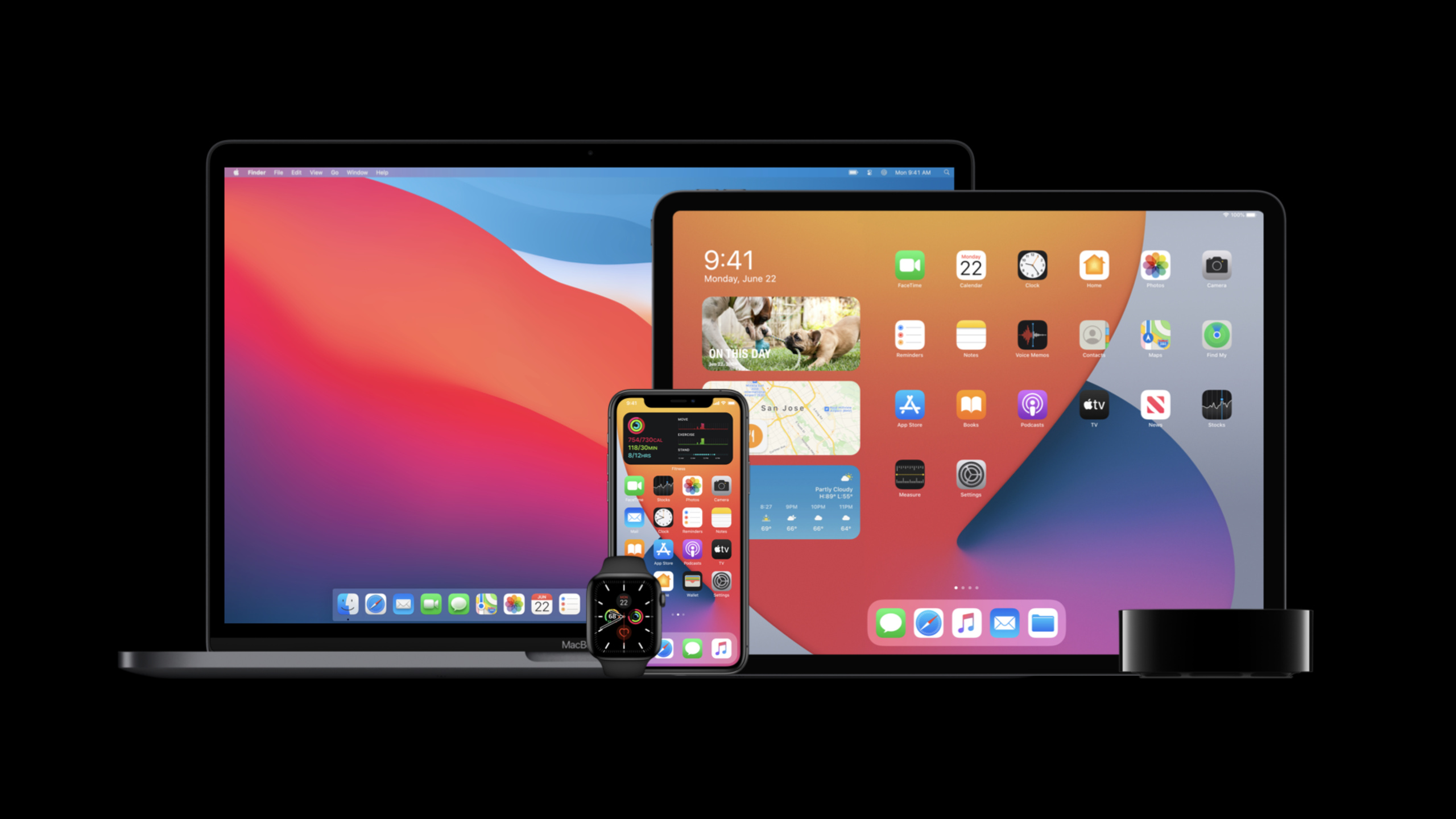
In 2020, Apple integrated capabilities such as automatic device enrollment, Mac supervised management, managed apps, Bootstrap Token, Shared iPad for Business, Per Account VPN, Encrypted DNS, and Set Timezone into the MDM process, allowing organizations to remotely deploy, update, and protect Macs, iPhones, and iPads.
Core Content
After the sudden expansion of remote working, IT administrators encountered very specific problems: Macs had to be sent to employees’ homes, iPhones and iPads were distributed in different regions, the devices had to automatically enter organizational management after they were turned on, and system updates had to leave a test window. Manually configuring each device slows down delivery and leaves gaps where security policies are not issued in a timely manner.
(00:37) Apple is focusing on Mac first. macOS Big Sur makes automatic device enrollment more complete: users only need to select a language and connect to Wi-Fi, and devices owned by the organization are automatically entered into MDM. Enrollment customization can include branding, consent text, and modern authentication, and pre-populate usernames with credentials from the identity provider.
(02:44) The deployment process has also become more like a batch operation in the computer room. Auto-advance for automated device enrollment lets your Mac skip the setup assistant and get to the login screen by just plugging it in to power and Ethernet. The Mac Pro also gets Lights Out Management, which allows administrators to remotely start, shut down, or restart a Mac Pro within the same subnet via MDM.
(04:31) After the device enters the organization, the management capabilities are also added to the Mac. User-approved MDM-registered Macs are considered supervised devices, and administrators can control Activation Lock, use Bootstrap Tokens, query and delete local users, replace or remove profiles, install supervised restrictions, and schedule software updates.
(13:31) Updates to iOS and iPadOS cover deployment, shared devices, hosted apps, data flow control, and network security. Apple Configurator supports apps and books locations of Apple School Manager and Apple Business Manager; Shared iPad is extended to enterprise scenarios; Temporary Session allows users to temporarily use a shared iPad without an account, and delete the session data after logging out.
Detailed Content
1. Zero-touch deployment and remote power control for Mac
(00:58) The goal of automatic device registration is to “unbox and power on.” Once the user selects a language and connects to Wi-Fi, organization-owned devices are automatically enrolled in MDM. During enrollment, Enrollment customization can display branding and consent text, connect to identity providers such as Microsoft Azure Active Directory, Okta, Ping, etc., and pre-populate full and short names.
Key points:
- Automatic device enrollment lets devices enter MDM on first boot, so IT doesn’t need to get the devices and process them one by one.
- Enrollment customization By building authentication into the setup process, organizations can confirm user identities before creating local accounts.
- Setup Assistant steps can be hidden or retained as needed for your organization, examples listed in the presentation include Siri, Touch ID, FileVault, Analytics, and Location.
(02:44) Auto-advance for automated device enrollment brings the bulk setup experience on Apple TV to Mac. The device only requires power and Ethernet, and the network supports DHCP, allowing you to skip the setup assistant and quickly get to the login screen. If the disk is encrypted, the user still needs to enter the password.
Key points:
- This process requires the device to be managed through Apple Business Manager or Apple School Manager.
- It is suitable for wired network environments such as computer rooms, classrooms, and laboratories. Administrators can make devices reach login status in batches.
- Encrypted disks still retain password requirements and deployment speeds do not bypass FileVault protection.
(03:18) Lights Out Management for the new Mac Pro. The administrator first registers a Mac as a controller in the local network, and then registers and connects the Mac Pro to the LOM controller. After the MDM server sends the command, the controller distributes the startup, shutdown, or restart commands to the Mac Pro.
Key points:
- Lights Out Management requires macOS Big Sur, Mac Pro and the controller need to be on the same subnet.
- The device needs to have the Lights Out Management payload installed.
- MDM vendors need to support new Mac commands to integrate remote power operations into their management interfaces.
2. Mac management capabilities are added to MDM
(04:31) In the past, user-approved MDM did not have the full ability to automatically device enroll Macs. macOS Big Sur changes this: any Mac registered to user-approved MDM is considered supervised. Administrators gain a control plane closer to organization-owned devices.
Key points:
- Administrators can control Activation Lock and leverage Bootstrap Token.
- MDM commands can query and list local users, and delete users as needed.
- Administrators can replace or remove profiles, install supervised restrictions, and schedule software updates.
(05:24) Managed Software Updates extends the experience from iOS and iPadOS to Mac for a more complete experience. New MDM commands can force the client Mac to accept software updates and restart; macOS major releases and non-OS updates can be delayed for up to 90 days; the software update catalog is removed, and the Ignore flag is reserved only for major updates.
Key points:
- The 90-day delay leaves a certification window for organizations, which is suitable for verification in the test group before promotion.
- Forced to accept updates and restart to resolve terminals that have not been updated for a long time.
- Removing the catalog and narrowing the Ignore flag are security-side adjustments, and MDM products need to update the old process.
(05:48) Managed Apps are also coming to Mac. Administrators can remove apps through MDM commands, and can also remove them when the device is unregistered; managed app configuration and feedback are supported the same as iOS and iPadOS; qualified unmanaged apps can be converted to managed through MDM.
Key points:
- Mac App management is beginning to approach the iOS hosting model, with uninstallation, configuration, and feedback all handled by MDM.
- Removal of managed apps when a device is unenrolled helps recycle organizational data.
- The talk clearly states that conversion is not supported for installed managed apps on user-enrolled devices.
(06:18) Content Caching gets two management-related updates. macOS will cache the complete 6GB recovery image to allow Macs on the same network to recover faster; the new Content Caching Information MDM command can return registration status, cache pressure, bytes served and other indicators.
Key points:
- The recovery image cache reduces external network downloads, which is suitable for networks where a large number of Macs are restored or updated at the same time.
- MDM can remotely determine whether the cache service is enabled, working properly, and whether it can help the client speed up downloads.
- Apple reminds developers not to poll this command frequently as it is not a real-time replacement for Activity Monitor.
3. Changes to Mac Security Processes
(08:03) A Bootstrap Token is a reserved encryption key provided by the MDM server. macOS can use it to create an administrator account, eliminating the need for administrator password authentication. It also helps users obtain a secure token and boot their Mac using FileVault.
Key points:
- Bootstrap Token is useful for organizations that use online accounts because the login process with mobile accounts will be smoother.
- Once implemented, administrators can take advantage of authorized software updates and kernel extensions.
- This capability supports newer Macs equipped with the Apple T2 Security Chip.
(09:34) Downloaded Profiles are brought to Mac. After the user downloads the profile from email or web page, the system will not install it directly, but will put it in the Profiles pane of System Preferences. Users need to preview, click to install, confirm and enter a password.
Key points:
- Downloaded profiles will remain in System Preferences for 8 minutes and then be removed from the panel.
- In macOS Big Sur, the command line installation profile will be regarded as a downloaded profile, and the installation still needs to be completed manually in the Profiles pane.
- Other functions of the command profiles line tool continue to work as before.
(10:53) The networksetup tool has also tightened permissions. Standard users can only read network settings, turn Wi-Fi on and off, and switch access points. When modifying system-level preferences, the system respects the “Require administrator password” setting; administrators can still perform administrative operations via sudo.
Key points:
- Standard users no longer have the same command line network modification capabilities as administrators.
- If enterprise scripts rely on standard users to modify network configurations, they need to be redesigned.
- Permission boundaries are consistent with the security settings of the graphical interface.
(11:50) Automatic device registration relies on serial numbers to identify devices. Apple says it will start using completely random 10-digit serial numbers across its product line. MDM vendors must handle both the current product serial number format and the new 10-digit random format.
Key points:
- Older 12-digit serial numbers contain identifiable information such as place and time of production.
- The new format reduces the risk of serial numbers being used maliciously.
- Device identification logic cannot assume that serial numbers are always old length or old structure.
4. Shared devices, data flows and network security for iOS and iPadOS
(13:31) Apple Configurator supports apps and books locations provided by Apple School Manager and Apple Business Manager. Administrators can select location in the account menu. Different campus or organizational locations will see different App and book collections. cfgutil has also become more extensible and can restore more devices.
Key points:
- locations allows the same organization to distribute different content by location.
- This capability is suitable for schools, corporate stores, and regional teams to manage apps and books respectively.
- Extensibility improvements to cfgutil for USB batch recovery and configuration.
(14:31) iOS 14’s automatic device registration adds skip keys for Getting Started and Update Completed panes. The Setup Assistant payload is also coming to iOS, and administrators can specify the same skip keys and have them take effect on future upgrades.
Key points:
- Administrators can skip new upgrade panels not yet known about during initial setup.
- Skipping the settings panel during upgrade is no longer limited to devices registered with Apple School Manager or Apple Business Manager.
- This payload is available on all supervised devices.
(15:27) Shared iPad expands from school scenarios to enterprises. Employees can log in to Shared iPads with Managed Apple IDs; organizations using Microsoft Azure Active Directory can use federated authentication; Shared iPads also support the new single sign-on extension.
Key points:
- Shared iPad for Business is a shared device suitable for service industries such as restaurants.
- Administrators can dynamically determine the number of cached users based on the storage space of each user.
- MDM can delete all users on a shared iPad at once and query estimated resident users and quota size.
(16:51) Temporary Session allows users to temporarily log in to a shared iPad without an account. After the user logs out, the data created in this session will be deleted.
Key points:
- Temporary sessions lower the threshold for using shared devices.
- Data is cleaned after logging out, suitable for front desk, visitors, and temporary task devices.
- Organizations do not need to provision a Managed Apple ID for each short-term use.
(17:28) Non-removable managed apps lets administrators lock down only critical apps. Users can still rearrange apps, install new apps, and delete their own installed apps, but they cannot delete or offload hosted apps that are marked as non-removable.
Key points:
- In the past, to prevent deletion of critical apps, a common practice was to lock the entire home screen.
- New capabilities let users preserve space for daily organization while protecting mission-critical apps.
- When deleting or offloading a restricted app, the operation is blocked and a reminder is displayed.
(18:29) Shortcuts supports Managed Open In. When a shortcut triggers an action, if the policy does not allow the data to flow, the shortcut will stop running immediately. The Notification settings payload also adds a Preview Type key, which is used to control when notification previews are displayed: never, always, or only after the device is unlocked.
Key points:
- Managed Open In prevents managed data from flowing into unmanaged apps and services, and vice versa.
- Preview Type only takes effect on supervised devices.
- Both capabilities extend organizational data protection to users’ daily operational paths.
(19:50) Set Timezone MDM command is for cross-region remote devices. Administrators can select the time zone for each device without relying on Location Services. The presentation specifically mentioned that time zone errors can cause authentication issues.
Key points:
- When remote workers are spread across multiple countries, devices should not default to the time zone of the MDM server.
- Set Timezone command allows MDM to directly modify the terminal time environment.
- Does not rely on positioning services and is suitable for scenarios where users turn off positioning or the device does not have stable positioning information.
(20:57) Per Account VPN for iOS allows specifying alternative VPNs for Contacts, Calendars, and Mail domains. Developers only need to replace the keys in the Domain payload. Encrypted DNS settings allow organizations to manage secure DNS through MDM without configuring a VPN.
Key points:
- Per Account VPN refines VPN selection from App traffic to account domains.
- Encrypted DNS protects connections to DNS servers.
- Both serve the security of data transmission in remote network environments.
(22:22) iOS 14 devices use a random MAC address when joining a Wi-Fi network. If the enterprise network relies on captive portals or filtering rules, abnormalities may occur due to changes in device identification. Users can turn off this feature in settings, and administrators can disable it through the Wi-Fi payload.
Key points:
- Random MAC addresses improve privacy but impact corporate networks that identify devices by hardware address.
- Fallback to real MAC address when device fails to join.
- Wi-Fi payload leaves a compatible entry point into the managed network.
Core Takeaways
-
What to do: Do a one-page Mac Big Sur deployment readiness check for the MDM product. Why it’s worth doing: Automatic device enrollment, Enrollment customization, Auto-advance, and Lights Out Management all require network, identity, and payload conditions to be in place first. How to get started: Check if the device is from Apple Business Manager or Apple School Manager, confirm DHCP, Ethernet, Identity Provider configuration, LOM payload and same subnet conditions, then display unsatisfied items to the administrator.
-
What to do: Make a managed software update staged release panel. Why it’s worth it: macOS major releases and non-OS updates can be delayed for up to 90 days, and MDM commands can also schedule updates and force a restart. How to start: Record delay strategies by test group, pilot group, and full group, and display the scanning status, installation status, and restart plan of each group to avoid staying in the delay window for a long time.
-
What to do: Add store or front-end mode to shared iPads. Why it’s worth doing: Shared iPad for Business, Temporary Session, dynamic cached users and deleting all users at once, suitable for short-term device rotation. How to get started: Use Managed Apple ID to support fixed employee login, use Temporary Session to support temporary tasks, and trigger user cleanup and quota query during shift handover.
-
What to do: Make a remote employee network security policy template. Why it’s worth doing: Per Account VPN, Encrypted DNS, Preview Type, Set Timezone, and Wi-Fi payload all point to security details for distributed offices. How to get started: Configure Per Account VPN by Mail, Contacts, and Calendars domains, push Encrypted DNS settings, issue Set Timezone command by country or team, and decide whether to disable random MAC addresses for enterprise Wi-Fi.
-
What to do: Build a Mac management script migration checklist. Why it’s worth doing: macOS Big Sur has changed profile command line installation and networksetup permissions. Old deployment scripts may require manual user confirmation or administrator permissions. How to start: Scan existing scripts for profiles install and networksetup modification commands, change profile installation to MDM or explicit user confirmation process, and move network modifications to the administrator authorized path.
Related Sessions
- Deploy Apple devices using zero-touch — Explains how Apple uses Apple Business Manager, MDM, and APNs to remotely deploy devices.
- Discover AppleSeed for IT and Managed Software Updates — Supplements the release governance process for pre-release testing, feedback collaboration, and managed software updates.
- Leverage enterprise identity and authentication — Continue to expand enterprise identity, federated authentication, single sign-on extensions, and Shared iPad for Business.
- Custom app distribution with Apple Business Manager — Describes how enterprise custom apps can be distributed to employees and customers through Apple Business Manager.
Comments
GitHub Issues · utterances