
Highlight
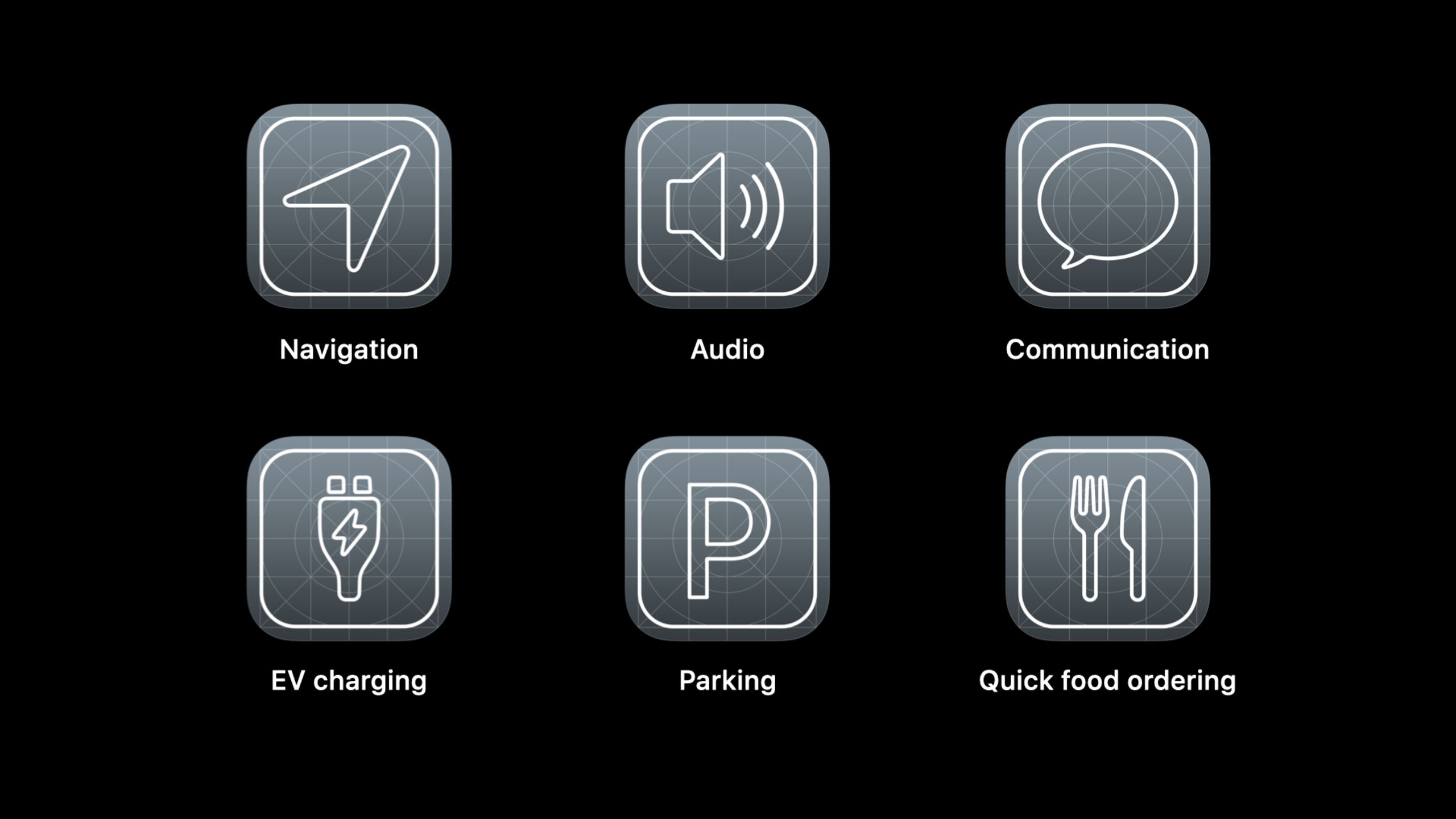
iOS 14 extends the CarPlay framework’s templates from navigation to audio, communication, EV charging, parking, and fast food ordering applications. Developers can use UIScene, predefined templates, and single-category entitlement to turn in-car tasks into in-car screen experiences that can be completed in seconds.
Core Content
CarPlay’s previous third-party framework capabilities mainly served navigation apps. Audio apps rely on playable content APIs, communication apps rely on SiriKit and CallKit, and tasks directly related to driving such as parking, charging, and fast food ordering cannot be placed on the car screen using the same set of CarPlay templates. As a result, many operations that should be done in the car still go back to the mobile phone, and the driving scene is not suitable for this.
A change in iOS 14 is opening up new CarPlay templates for these categories. Apple limits the problem very narrowly: CarPlay is for drivers, the interface should focus on the most common in-car tasks, the interactions should be short, and the information should be able to be judged at a glance. Account settings, full menus, and complex management pages should all stay on the iPhone.
For developers, this is not about moving iPhone apps to car screens. CarPlay App runs on the iPhone and displays predefined templates on the car screen through the CarPlay framework. App needs to use UIScene, declare CarPlay scene, and get it when connecting to the car screenCPInterfaceController, and then organize the templates such as list, tab bar, Now Playing, POI, and information page into a safe in-car process.
The second half of the session puts the new categories into specific scenarios. Fast food ordering apps can display nearby stores, order history, favorites, and order information; EV charging and parking apps can use maps to find locations, check availability, and continue to selection, navigation, or summary pages. Finally, developers are reminded that CarPlay needs to apply for entitlement, and the app must select a single category.
Detailed Content
CarPlay scene starts from Info.plist
(04:24) The prerequisite for using CarPlay framework is to use UIScene. App should be inUIApplicationSceneManifestDeclare an additional CarPlay template application scene in it and specify the corresponding scene delegate. This configuration coexists with the iPhone scene. When the user launches the app from the CarPlay home screen, the system is connected to the car screen scene.
// CarPlay Scene Manifest

<key>UIApplicationSceneManifest</key>
<dict>
    <key>UISceneConfigurations</key>
	<dict>
		<key>CPTemplateApplicationSceneSessionRoleApplication</key>
		<array>
			<dict>
				<key>UISceneClassName</key>
				<string>CPTemplateApplicationScene</string>
				<key>UISceneConfigurationName</key>
				<string>MyApp—Car</string>
				<key>UISceneDelegateClassName</key>
				<string>MyApp.CarPlaySceneDelegate</string>
			</dict>
		</array>
	</dict>
</dict>
Key points:
UIApplicationSceneManifestIt is the entrance to UIScene, and CarPlay configuration is placed here. -CPTemplateApplicationSceneSessionRoleApplicationDeclare this to be the CarPlay template app scene. -CPTemplateApplicationSceneLet the system create a CarPlay scene for the car screen. -MyApp.CarPlaySceneDelegateIt is the delegate that subsequently receives CarPlay connections and disconnections.
Set the root template after connecting to the car screen
(05:12) CarPlay scene delegatedidConnectIt will be called when the app is launched to the car screen. Developers need to saveCPInterfaceController, because later push, set root, and template update all rely on it. In the example, a list is first constructed and then set as the root template.
// CarPlay App Lifecycle

import CarPlay

class CarPlaySceneDelegate: UIResponder, CPTemplateApplicationSceneDelegate {
    var interfaceController: CPInterfaceController?

    func templateApplicationScene(_ templateApplicationScene: CPTemplateApplicationScene,
            didConnect interfaceController: CPInterfaceController) {

        self.interfaceController = interfaceController
        let item = CPListItem(text: "Rubber Soul", detailText: "The Beatles")
        let section = CPListSection(items: [item])
        let listTemplate = CPListTemplate(title: "Albums", sections: [section])
        interfaceController.setRootTemplate(listTemplate, animated: true)
    }

  func templateApplicationScene(_ templateApplicationScene: CPTemplateApplicationScene,
            didDisconnect interfaceController: CPInterfaceController) {
    self.interfaceController = nil
}
Key points:
CPTemplateApplicationSceneDelegateIt is the entrance to the CarPlay scene life cycle. -didConnect interfaceControllerIndicates that the car screen has been connected and can start displaying the template. -CPListItem、CPListSection、CPListTemplateCombine a list interface. -setRootTemplatePlace the template at the root of the car screen stack. -didDisconnectreleaseinterfaceController, avoid continuing to operate the disconnected car screen.
Audio App migrates from playable content to template
(05:54) Playable content will be abandoned in iOS 14, but old systems can still use it. The new audio template allows the app to construct its own list, tab bar, and Now Playing experience. iOS 13 and earlier versions can continue to use playable content.
// CPListTemplate

import CarPlay

let item = CPListItem(text: "Rubber Soul", detailText: "The Beatles")
let section = CPListSection(items: [item])
let listTemplate = CPListTemplate(title: "Albums", sections: [section])
self.interfaceController.pushTemplate(listTemplate, animated: true)
Key points:
CPListItemCorresponds to a single line of content in the list, suitable for objects such as albums, playlists, and message threads. -CPListSectionOrganize multiple items into the same list block. -CPListTemplateIt is one of the most basic templates for CarPlay. -pushTemplateUsed to enter the next layer of templates from the current page.
(06:09) When a list item is selected, CarPlay will calllistItemHandler. In the handler, you can first start playback or configure the next template, and then callcompletion(). If the asynchronous work does not complete immediately, CarPlay will display the spinner on the list item until completion is called.
// CPListTemplate

import CarPlay

let item = CPListItem(text: "Rubber Soul", detailText: "The Beatles")
item.listItemHandler = { item, completion, [weak self] in
    // Start playback, then...
    self?.interfaceController.pushTemplate(CPNowPlayingTemplate.shared, animated: true)
    completion()
}

// Later...
item.image = ...
Key points:
listItemHandlerIt is the entrance after the user clicks on the list item.- handler receives the selected
itemand must be calledcompletion. - Sample is pushed to shared after starting playback
CPNowPlayingTemplate。 completion()Notifies CarPlay that processing of the current selection is complete and the busy state can be removed. -item.image = ...Corresponds to the new dynamic list item update capability added in iOS 14.
(07:58)CPTabBarTemplateIt is a new container template added in iOS 14. It turns multiple templates into a familiar tab bar interface for CarPlay users, and allows dynamically adding, removing, rearranging tabs, or updating the badge on a tab.
// CPTabBarTemplate

import CarPlay

let item = CPListItem(text: "Rubber Soul", detailText: "The Beatles")
let section = CPListSection(items: [item])
let favorites = CPListTemplate(title: "Albums", sections: [section])
favorites.tabSystemItem = .favorites
favorites.showsTabBadge = true

let albums: CPGridTemplate = ...
albums.tabTitle = "Albums"
albums.tabImage = ...

let tabBarTemplate = CPTabBarTemplate(templates: [favorites, albums])
self.interfaceController.setRootTemplate(tabBarTemplate, animated: false)

// Later...
favorites.showsTabBadge = false
tabBarTemplate.updateTemplates([favorites, albums])
Key points:
favoritesandalbumsare two templates in the tab bar. -tabSystemItemUse the system-provided tab bar icon. -showsTabBadgeStatus hints can be displayed on template labels. -CPTabBarTemplate(templates:)Put multiple templates into the same container. -updateTemplatesSupports updating tab bar content and badge status at runtime.
(09:34) The audio list gains more display capabilities in iOS 14.CPListImageRowItemA set of cover images can be displayed in a row, with each image responding to selection independently. Apple Books uses it to display recent audiobooks on CarPlay.
// List Items for Audio Apps

import CarPlay

let gridImages: [UIImage] = ...
let imageRowItem = CPListImageRowItem(text: "Recent Audiobooks", images: gridImages)

imageRowItem.listItemHandler = { item, completion in
    print("Selected image row header!")
    completion()
}

imageRowItem.listImageRowHandler = { item, index, completion in
    print("Selected artwork at index \(index)!")
    completion()
}

let section = CPListSection(items: [imageRowItem])
let listTemplate = CPListTemplate(title: "Listen Now", sections: [section])
self.interfaceController.pushTemplate(listTemplate, animated: true)
Key points:
CPListImageRowItemUse a set of pictures to express a set of optional content. -listItemHandlerHandle the case where the entire row of titles is selected. -listImageRowHandlerHandle the situation when a certain cover is selected,indexPoint out the specific location.- Both handlers must be called after the asynchronous work ends
completion()。
(12:50) Now Playing is a shared template. The system may directly launch the app and display it when the user clicks the Now Playing button on the CarPlay home screen, so the audio app should be configured as soon as possible after the CarPlay scene is connectedCPNowPlayingTemplate.shared。
// Now Playing Template

import CarPlay

class CarPlaySceneDelegate: UIResponder, CPTemplateApplicationSceneDelegate {

    func templateApplicationScene(_ templateApplicationScene: CPTemplateApplicationScene,
            didConnect interfaceController: CPInterfaceController) {

        let nowPlayingTemplate = CPNowPlayingTemplate.shared

        let rateButton = CPNowPlayingPlaybackRateButton() { button in

            // Change the playback rate!

        }
        nowPlayingTemplate.updateNowPlayingButtons([rateButton])
    }
}
Key points:
CPNowPlayingTemplate.sharedIndicates that there is only one Now Playing template instance in the App.- Initialization should be done as early as possible so that the system can display this template for the app.
-
CPNowPlayingPlaybackRateButtonAdd a playback speed button at the bottom of Now Playing. -updateNowPlayingButtonsUpdate Now Playing visible button.
Communication apps continue to rely on SiriKit and CallKit
(14:07) Communication Apps can also use the CarPlay framework to display contacts, message lists, and message status in iOS 14, but voice and phone capabilities are still provided through SiriKit and CallKit. newCPMessageListItemUsed for message thread lists. After the user clicks, Siri will automatically enter the writing, reading or replying process according to the item parameters instead of calling the ordinary list handler.
(16:12) The communication category also adds a new contact template. It can display a contact picture, up to three lines of description text, up to four action buttons and navigation bar buttons. This template puts the core operations in the address book on the car screen, but still requires a short process to avoid moving the complete address book management into CarPlay.
POI template services parking, charging and fast food ordering
(17:52) The first task when it comes to EV charging, parking, and ordering fast food is often choosing a location. New in iOS 14CPPointOfInterestTemplateCombined with MapKit map and information panels, the app offers up to 12CPPointOfInterest, CarPlay is responsible for map display, panning and zooming, and automatic aggregation of close points.
(19:46) When the map area changes, the App should recalculate nearby locations and hand the new results to the template. In this way, when the user moves, pans or zooms the map, the location list on the car screen will be updated with the current area.
// CPPointOfInterestTemplateDelegate

func pointOfInterestTemplate(_ template: CPPointOfInterestTemplate,
                             didChangeMapRegion region: MKCoordinateRegion) {

    self.locationManager.locations(for: region) { locations in
        template.setPointsOfInterest(locations, selectedIndex: 0)
    }
}
Key points:
CPPointOfInterestTemplateDelegateReceive map area changes. -didChangeMapRegiongive newMKCoordinateRegion.- The App can query its own location database or combine it with MapKit to find nearby targets.
-
setPointsOfInterestReplace list and map points on the template with new locations.
(20:23) Each location must be converted toCPPointOfInterest. The Session example maps the application’s own models into titles, subtitles, descriptions, and pictures, and reuses existing models as much as possible to reduce template update costs.
// CPPointOfInterest creation

func locations(for region: MKCoordinateRegion,
               handler: ([CPPointOfInterest]) -> Void) {
    var tempateLocations: [CPPointOfInterest] = []

    for clientModel in self.executeQuery(for: region) {
        let templateModel : CPPointOfInterest = self.locations[clientModel.mapItem] ??
                CPPointOfInterest(location: clientModel.mapItem,
                                  title: clientModel.title,
                                  subtitle: clientModel.subtitle,
                                  informativeText: clientModel.informativeText,
                                  image: clientModel.mapImage)


        tempateLocations.append(templateModel)
    }
    handler(templateLocations)
}
Key points:
locations(for region:)Generate POI list by current map area. -executeQuery(for:)Query nearby places on behalf of the app itself. -CPPointOfInterestSummarize map locations, titles, subtitles, descriptions, and images.- Example reuse
self.locations[clientModel.mapItem], to avoid rebuilding all models every refresh.
(21:05) After a location is selected, the information panel can display up to two buttons. In the exampleCPPointOfInterestButtonUsed to select a location and update the pin image andselectedIndex, allowing the car screen to reflect the new selected status immediately.
// Point of Interest Template location selection

let primaryButton = CPPointOfInterestButton(title: "Select") { button, [weak self] in
            let selectedIndex = ...

            if selectedIndex != NSNotFound {
                // Remove any existing selected state on previous location
                self?.selectedLocation.image = defaultMapImage
                // Change annotation for selected POI
                self?.selectedLocation = templateModel
                templateModel.image = selectedMapImage
                // Update the template with new values
                self?.pointOfInterestTemplate.selectedIndex = selectedIndex
            }
        }

let templateModel: CPPointOfInterest = ...

templateModel.primaryButton = primaryButton
Key points:
CPPointOfInterestButtonBind the action on the location card to the handler. -selectedIndexis the location of the currently selected location.- renew
imageYou can change the visual state of map labels. - set up
pointOfInterestTemplate.selectedIndexThe selection status will be synchronized to the car screen.
Information Template Complete Order, Park or Charge Summary
(22:29)CPInformationTemplateUsed to display text and receive user responses. It supports one or two columns of labels, as well as footer buttons. Fast food ordering apps can use it to display order summaries or confirmation pages, and EV charging apps can use it to display important information about charging stations.
(24:38) Entitlement must also be processed before publishing. CarPlay apps must be of a single category, and the entitlement selected determines which CarPlay templates the app can use. If your audio app still supports iOS 13 or earlier, you can allow playable content and iOS 14 audio templates to coexist.
Core Takeaways
Car Audio Home Page
What to do: Change the CarPlay homepage of a music, audiobook, or podcast app into a tab bar containing Favorites, Albums, Recently Played, and Now Playing.
Why it’s worth doing: iOS 14’s audio templates allow apps to switch from a system-generated tree interface for playable content to organizing lists, image rows, and sharing Now Playing on their own.
How to start: Use UIScene, declare CarPlay scene, useCPListTemplateTo make a list, useCPListImageRowItemTo display the cover, useCPNowPlayingTemplate.sharedConfigure the play button when connecting to the car screen.
Parking lot search and selection
What to do: Show nearby parking on CarPlay, let the driver see prices, distances, or availability information, then select a location to continue navigation.
Why it’s worth doing: Session explicitly lists parking as a CarPlay category supported for the first time in iOS 14, and shows how POI templates handle map area changes and location selection.
How to start: Apply for parking category entitlement, useCPPointOfInterestTemplateProvide up to 12 related locations, based onMKCoordinateRegionRefresh the list.
EV Charging Station Entrance
What to do: Add a car screen entry to the charging app to display nearby charging stations, status summary, and selection buttons.
Why it’s worth doing: EV charging is a new CarPlay category added to iOS 14. POI templates and information templates just cover finding sites, viewing information, and confirming the next step.
How to start: Map the charging station model toCPPointOfInterest,useinformativeTextPut the most critical status information and use it againCPInformationTemplateDisplay site details or confirmation page.
Fast food pick-up process
What to do: Let the fast food app show nearby stores, historical orders, favorites, and current order summaries on CarPlay.
Why it’s worth doing: The quick-service restaurant example in the talk emphasizes one-click access to common tasks without showing detailed menus, account management, or settings.
How to get started: Limit the CarPlay experience to repeat purchases and food pickup, use tab bars to organize stores, historical orders, and collections, and use information templates to display order summaries.
Communication message status panel
What to do: Make a CarPlay contact and message thread entry for a messaging or calling app.
Why it’s worth it: iOS 14 allows communication apps to use the CarPlay framework to display contacts, message lists, and status, but voice and calls are still handled by SiriKit and CallKit.
How to start: Continue to maintain SiriKit and CallKit capabilities, useCPMessageListItemExpress message thread status and use contact template to provide contact pictures, descriptions and action buttons.
Related Sessions
- Introducing Car Keys — Also focusing on the in-car experience, introduce the registration, sharing and security model of iPhone and Apple Watch digital car keys.
- Design high quality Siri media interactions — Supplements the Siri playback quality of the audio app, and jointly affects the in-car playback experience with CarPlay Now Playing.
- Streamline your App Clip — Use ordering and parking payment to dismantle the on-site transaction process, which can be extended to fast food ordering and parking scenarios.
- What’s new in Core NFC — Introducing the entrance to physical devices such as parking meters and charging stations, suitable as an offline trigger supplement for CarPlay location tasks.
- What’s new in Wallet and Apple Pay — Supplements payment entrances that may be needed for in-car parking, fast food ordering, and App Clip scenarios.
Comments
GitHub Issues · utterances