
Highlight
tvOS 14 for
UISearchControllerAdd search suggestions, the application can useUISearchSuggestionItemor customizeUISearchSuggestionDisplay candidates with icons and accessibility descriptions as the user types, and refresh results by content type after a suggestion is selected.
Core Content
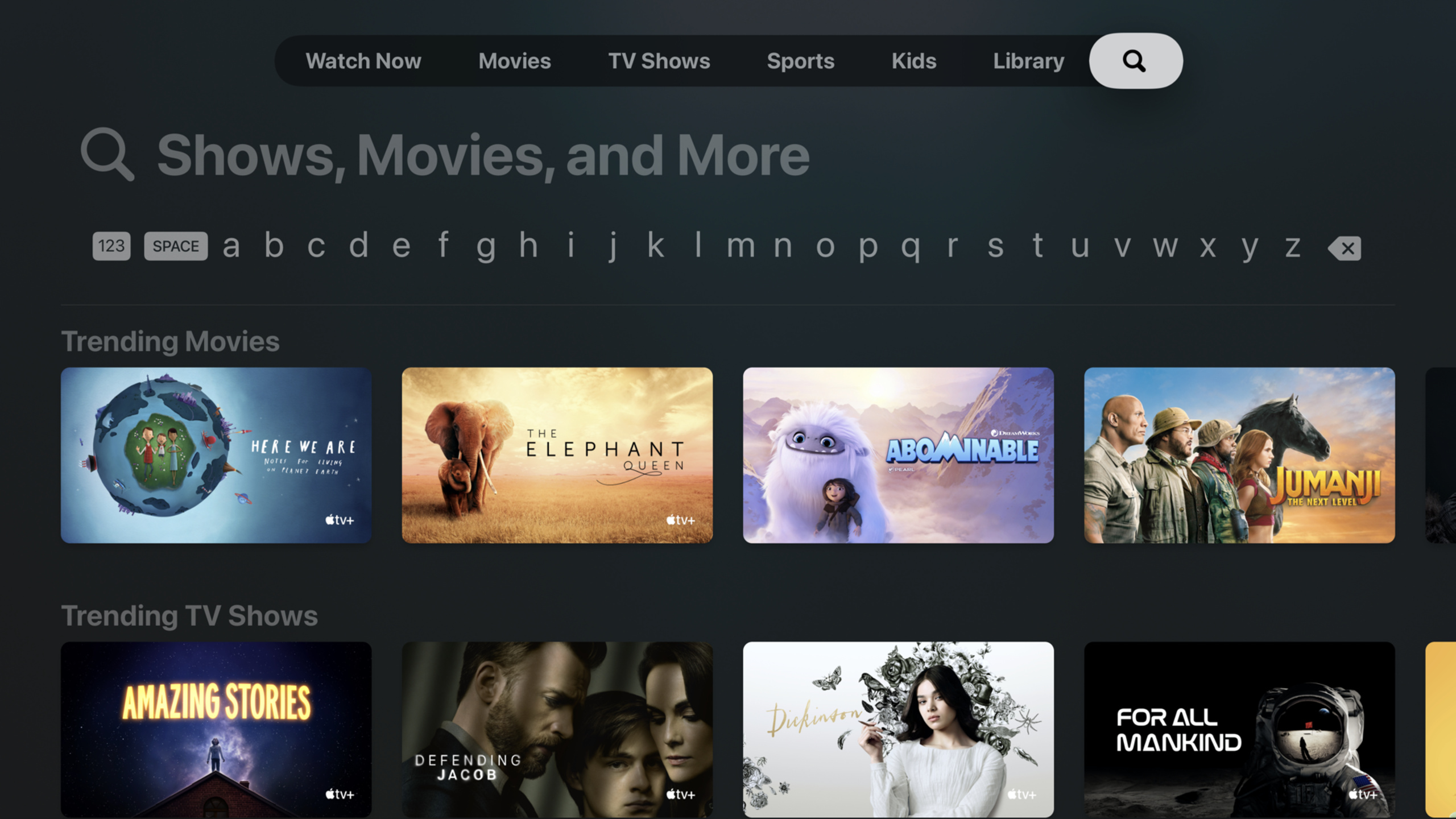
Search costs are higher on Apple TV than on mobile. The user holds the remote control and moves the focus word by word on the on-screen keyboard. The text in the search box is too small, the keyboard takes up too much space, and the results area is compressed, which will make it slow to find a video or a photo.
tvOS 14 first changed the system search interface. The search box text has become larger, multi-language keyboards have been optimized into a single-line layout, and the results area has more space. As long as the application has usedUISearchController, these interface improvements will come with the system.
The focus of this session is new search suggestions. user inputblue, the application does not have to wait for the user to type the complete keyword. It can immediately provide candidates such as “blue video” or “blue photo”. The suggestions themselves can also carry icons and accessibility descriptions, so when a user selects a suggestion, the app knows it’s a video suggestion and then displays only the video results.
The demo project is a hybrid photo and video travel app. It first puts the search page into the tab bar, and then usesUISearchControllerDrive the collection view result and finally access itUISearchSuggestion, allowing the suggestion list to update in real time as the input is entered.
Detailed Content
Connect the search page to the tvOS tab bar
(01:40) Demo fromSearchViewControllerstart. This controller holds the data source from which all subsequent search results and suggestions are drawn.appDataQuery.
private let appData: AppData

init(appData: AppData) {
    self.appData = appData

    super.init(nibName: nil, bundle: nil)
}

required init?(coder: NSCoder) {
    fatalError("init(coder:) has not been implemented")
}
Key points:
private let appDataFix the search data source inside the controller. -init(appData:)Let the caller pass in the same data source when creating the search page. -super.init(nibName:bundle:)Create controllers using pure code. -init?(coder:)There is no implementation, indicating that this example does not follow the storyboard decoding path.
(01:51) The search entry should use the system standard tab bar items. This way users can directly identify its purpose on Apple TV.
// use the system standard search tab bar item
tabBarItem = UITabBarItem(tabBarSystemItem: UITabBarItem.SystemItem.search, tag: 0)
Key points:
UITabBarItem.SystemItem.searchUse the system to search for icons and copy. -tag: 0It is the identifier of the tab bar item and does not bear additional logic in the example.- This code solves the entry problem, and the search input box has not been created yet.
useUISearchContainerViewControllerHost search controller
(02:05) Because the search controller will be added to the page as a sub-controller, session useUISearchContainerViewControllerWrap it.
private let searchController: UISearchController
private let searchContainerViewController: UISearchContainerViewController
Key points:
searchControllerManage search bar, input changes and suggestions. -searchContainerViewControllerResponsible for embedding the search controller into the current page.- Both properties are placed in
SearchViewControllerWithin, the life cycle is consistent with the search page.
(02:11) The search results are obtained from existingsearchResultsControllerShow it and pass it onUISearchController。
self.searchController = UISearchController(searchResultsController: self.searchResultsController)
self.searchContainerViewController = UISearchContainerViewController(searchController: searchController)
Key points:
UISearchController(searchResultsController:)Hand over the results page to the system search controller for management. -UISearchContainerViewController(searchController:)Make the search UI embeddable as a child controller.- In the future, just update the result controller
items, the collection view can be refreshed.
(02:16) The child controller must follow the containment process of UIKit to join the parent controller.
override func viewDidLoad() {
    addChild(searchContainerViewController)

    searchContainerViewController.view.frame = view.bounds
    view.addSubview(searchContainerViewController.view)
    searchContainerViewController.didMove(toParent: self)
}
Key points:
addChildFirst establish the parent-child controller relationship. -searchContainerViewController.view.frame = view.boundsLet the search container fill up the current page. -view.addSubviewPut the search container view into the hierarchy. -didMove(toParent:)Complete the UIKit child controller addition process.
(03:17) The search results are collection view, and the search bar needs to be scrolled in conjunction with the results.
// scroll search controller allong with results collection view
searchController.searchControllerObservedScrollView = searchResultsController.collectionView
Key points:
searchControllerObservedScrollViewPointer to the results listcollectionView.- As the user scrolls through the results, the search controller moves to follow the system’s expected tvOS behavior.
- This step only handles scrolling relationships, not search filtering.
Refresh search results with entered text
(03:43) Search controller passedsearchResultsUpdaterHands input changes to the current controller.
searchController.searchResultsUpdater = selfKey points:
selfneed to comply withUISearchResultsUpdating.- Each time the user input changes, the system will call the update method.
- This entry will also be used later to process the proposed selected scene.
(04:00) The most basic search logic is to read the search bar text and then use the data source to filter photos and videos.
func updateSearchResults(for searchController: UISearchController) {
    if let searchText = searchController.searchBar.text {
        // get search results for 'searchText' from data source
        let (results, _) = appData.searchResults(seachTerm: searchText, includePhotos: true, includeVideos: true)

        searchResultsController.items = results
    } else {
        // no search text, show unfiltered results
        searchResultsController.items = appData.allEntries
    }
}
Key points:
searchController.searchBar.textGet the current input content. -appData.searchResultsSearch photos and videos at the same time. -searchResultsController.items = resultsIt is the key assignment for interface refresh.- When there is no input, the example returns to
appData.allEntries, showing unfiltered content.
Add static search suggestions
(05:30) tvOS 14 NewUISearchSuggestionItem. It is a suggested model provided by the system and can place text, descriptions and icons.
let suggestion1 = UISearchSuggestionItem(localizedSuggestion: "Result1", localizedDescription: "Result1", iconImage: nil)
let suggestion2 = UISearchSuggestionItem(localizedSuggestion: "Result2", localizedDescription: "Result2", iconImage: nil)

searchController.searchSuggestions = [suggestion1, suggestion 2]
Key points:
localizedSuggestionIs the suggested text displayed to the user. -localizedDescriptionUsed to describe suggestions, session explicitly mentions that it serves accessibility. -iconImageYou can add icons to suggestions; upload them here firstnil。searchController.searchSuggestionsReceives an array of suggestions and the system is responsible for displaying them.
Make business objects complyUISearchSuggestion
(07:05) If the app already has its own data model, you can make the model complyUISearchSuggestion. in demoSuggestedEntryExpose the name and content type directly to the search UI.
var localizedSuggestion: String? {
    return self.name
}

var iconImage: UIImage? {
    return self.isVideo ? UIImage(systemName: "video") : UIImage(systemName: "photo")
}
Key points:
localizedSuggestionReturn the model’s ownname, to avoid creating another layer of suggestion objects. -iconImageaccording toisVideochoosevideoorphotosymbol.- These symbol images are used to differentiate content types within a limited space.
(07:20) Suggestions should also provide an accessibility description. The example localizes the name and content type together.
var localizedDescription: String? {
    if (self.isVideo) {
        return String.localizedStringWithFormat(NSLocalizedString("%@ - Video", comment: ""), self.name)
    }
    return String.localizedStringWithFormat(NSLocalizedString("%@ - Photo", comment: ""), self.name)
}
Key points:
localizedDescriptionReturn the secondary description, not just repeat the title. -self.isVideoDecide on the type of content in the description. -NSLocalizedStringandString.localizedStringWithFormatAdapt descriptions to localization.- This echoes the international keyboard and language support mentioned at the beginning of the session.
Filter by content type after selecting suggestions
(09:01) tvOS 14 expandedUISearchResultsUpdating. When a user selects a search suggestion, the systemUISearchSuggestionPass in a new update method.
func updateSearchResults(for searchController: UISearchController, selecting searchSuggestion: UISearchSuggestion) {
    if let searchText = searchController.searchBar.text {
        var includePhotos = true;
        var includeVideos = true;


    }
}
Key points:
- There are too many method signatures
selecting searchSuggestionparameter. -searchTextStill from the search bar, representing the user’s current input. -includePhotosandincludeVideosFirst set them totrue, indicating that two types of content are searched by default. - Blank space is left for suggestion parsing and result refreshing logic.
(09:13) Demonstrates turning incoming suggestions back to your ownSuggestedEntry, reads whether it represents a video.
// check if the suggestion is for a photo or video
if let suggestedEntry = searchSuggestion as? SuggestedEntry {
    includeVideos = suggestedEntry.isVideo
    includePhotos = !includeVideos
}
Key points:
as? SuggestedEntryOnly handle suggestion objects created by the app itself. -includeVideos = suggestedEntry.isVideoLet video suggestions show only videos. -includePhotos = !includeVideosLet photo suggestions show only photos.- This leverages the business information carried by the suggestion object, rather than relying solely on the suggestion text.
(09:21) Finally, requery the data source with the updated type switch.
// filter the results by to include photos, videos, or both
let (results, _) = appData.searchResults(seachTerm: searchText, includePhotos: includePhotos, includeVideos: includeVideos)

searchResultsController.items = results
Key points:
searchTextKeep the keywords entered by the user. -includePhotosandincludeVideosDetermine the result category. -appData.searchResultsReturns the filtered result set. -searchResultsController.items = resultsRefresh the collection view immediately.
Reserve space for different input methods
(09:38) session Finally, a reminder that the tvOS keyboard will change with the language and input device. IR remote will display a grid keyboard; Thai environment will use a three-line keyboard. The resulting layout cannot assume that the keyboard will always have only one row.
Key points:
- previously set at 03:17
searchController.searchControllerObservedScrollViewResponsible for scrolling linkage; the key point here is that the result area must also adapt to different keyboard layouts. - Avoid covering the keyboard with custom UI, even in edge areas outside the safe area.
- If the suggestion needs to distinguish content types, session is recommended to use symbol images.
-
SF SymbolsIt is suitable for an interface with limited space such as search suggestions.
Core Takeaways
-
What to do: Add “keyword + type” search suggestions for video apps, such as “blue video” and “blue clip”. Why it’s worth doing:
UISearchSuggestionContent types can be carried, and users do not need to enter the filtering panel after clicking on suggestions. How to get started: Make the content model complyUISearchSuggestion,useisVideogenerateiconImage,existupdateSearchResults(for:selecting:)settings inincludeVideos。 -
What to do: Make “location + media type” suggestions for the photo browsing app. Why it is worth doing: It is very slow to input long place names with the remote control. It is recommended to reduce the keyboard operations. How to start: In normal
updateSearchResults(for:)Press the middle button to enter the query candidate location and assign the result tosearchController.searchSuggestions。 -
What: Add clear icons and voice-readable descriptions to suggestions for kids content apps. Why it’s worth doing: session clearly demonstrates
iconImageandlocalizedDescription, they can explain the meaning of suggestions in large-screen interfaces and accessibility scenarios. How to start: UseUIImage(systemName:)Returns the content type symbol, usingNSLocalizedStringGenerate a “name-type” description. -
What to do: Check the search results layout at different keyboard heights for internationalized tvOS apps. Why it’s worth it: tvOS will display a single-row, grid, or three-row keyboard depending on language and remote control type, and fixed-height results areas tend to get compressed. How to start: Put the results in a collection view and let
searchControllerObservedScrollViewPoint to it and prevent the custom overlay from covering the keyboard.
Related Sessions
- Build SwiftUI apps for tvOS — Continue learning about focus, button styles, and large-screen layout on Apple TV.
- Master Picture in Picture on tvOS — Learn the core capabilities of the tvOS video playback experience adjacent to the search page.
- Advances in UICollectionView — Search results are commonly displayed in collection views, and this session complements modern list and layout capabilities.
- SF Symbols 2 — in search suggestions
iconImageIt is suitable to use SF Symbols to express content types. - Support hardware keyboards in your app — If the tvOS app is targeted at keyboard input users, this session can supplement input and navigation details.
Comments
GitHub Issues · utterances