
Highlight
Apple has added A12 Bionic required device capabilities in iOS 14 and Xcode 12, allowing high-performance games and professional apps to be installed to A12 and newer devices through Info.plist restrictions, and explaining compatibility to users in the App Store.
Core Content
A console-level game is coming to iPad. Art resources, real-time lighting, complex physics and AR scenes have all been completed. The team was running smoothly on newer devices, but was unable to reliably deliver the same experience on older devices. Continuing to support all iOS 14 devices means cutting back on image quality or maintaining a heavy set of downgrade paths.
In the past, developers have been able to express hardware requirements using Required Device Capabilities. For example, the Metal key indicates that the application requires the Metal graphics API, and the ARKit key indicates that the application requires a device that supports AR. The App Store will read these capabilities and prevent users from installing apps on devices that do not meet the conditions.
This session addresses a narrower problem: some games and professional applications rely on the core condition of the overall platform performance brought by A12 Bionic and newer chips. iOS 14 and Xcode 12 add A12 performance requirements for situations like these. After the developer declares it in the Info.plist, the App Store will display compatibility information to users and prevent unsupported devices from downloading.
Apple also makes its boundaries very clear. This setup is only suitable for a handful of experiences that really require the latest hardware. The speech requires developers to first complete performance optimization and try to cover all devices that support iOS 14, and then decide whether to upgrade the minimum hardware to A12 Bionic.
Detailed Content
Required Device Capabilities determines the installation threshold
(00:29) Required Device Capabilities is a list in Info.plist that describes device-related requirements. It is used by the App Store to determine whether an app can be installed on a device. When a device lacks the capabilities declared therein, users cannot download and install it, and the application will not be launched on devices that do not meet the requirements.
Key points:
- Required Device Capabilities are installation and startup thresholds, not function introduction copy.
- Each entry should correspond to the device capabilities that the app actually needs to run.
- The Metal key indicates that the application requires the Metal graphics API, and the session mentions its capabilities from the A7 chip and GPU.
- The ARKit key indicates that the application requires an AR-enabled device, and the session mentions that the typical threshold is an A9 or newer chip.
- The items in the list will affect distribution, and optional functions cannot be written as required capabilities.
A12 performance capabilities target a few high-load experiences
(01:45) The new performance key in iOS 14 requires the device to use an A12 Bionic or newer chip. It is targeted at performance-intensive applications and games to support an experience close to console, PC or desktop-class professional software.
Key points:
- This performance key indicates that the app requires an A12 Bionic or newer device.
- It’s available in iOS 14 and Xcode 12.
- session puts it in the context of “high-end games” and “professional applications” and is not suitable for casual activation of ordinary functions.
- After enabling, users of old devices will be blocked by the App Store before installation, and the range of users the product can reach will become smaller.
The A12 threshold consists of a set of hardware capabilities
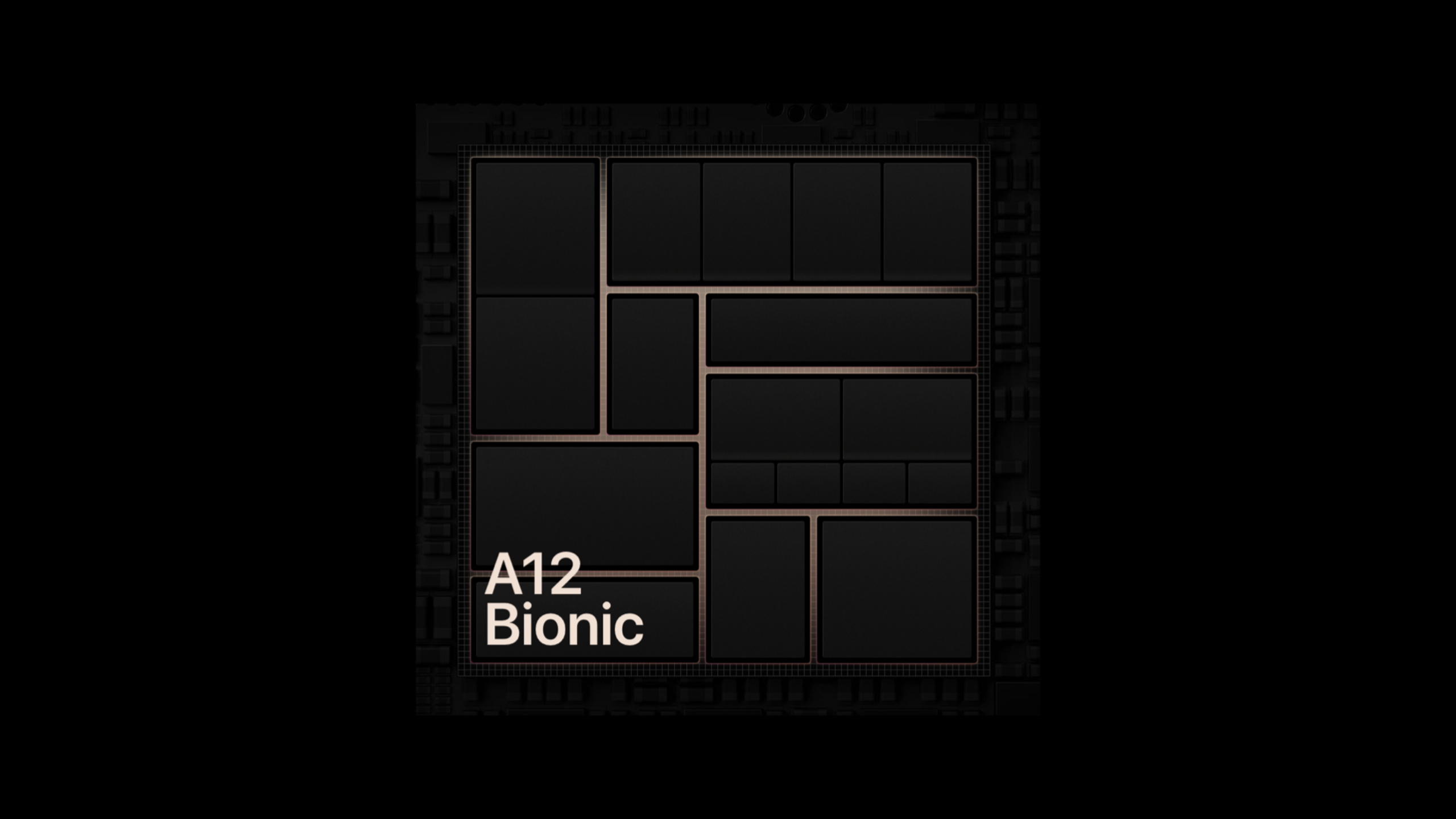
(02:15) The A12 Bionic requirement is not an abstract label. session lists the capabilities it represents: 6-core CPU, 4-core GPU, 2nd generation Neural Engine, ARKit 3 for character occlusion and motion capture, and Metal GPU Family Apple 5.
Key points:
- CPU and GPU power for sustained computing, rendering and gaming loads.
- The second-generation Neural Engine is part of the A12 threshold and is suitable for high-load experiences that rely on the power of dedicated chips.
- ARKit 3’s character occlusion and motion capture are suitable for more complex AR experiences.
- Metal GPU Family Apple 5 provides a higher performance baseline for graphics and computing pipelines.
Declare in Xcode and verify with TestFlight
(03:01) Declaratively done in Xcode. Open your app’s Info.plist, add a Required Device Capability, and select A12 requirement from the drop-down menu. session finally recommends using iOS 14 beta and TestFlight to verify this new key.
Key points:
- Do performance optimization first and try to make the application cover all devices that support iOS 14.
- Raising the minimum requirement to A12 Bionic only for a few experiences that really require the latest hardware.
- Xcode 12 will provide A12 requirement option in Info.plist editor.
- The App Store shows users whether a device supports an app and blocks downloads for unsupported devices.
- Validate distribution behavior with iOS 14 beta and TestFlight before release.
Core Takeaways
-
What to do: Make independent distribution threshold for high-end image quality mode. Why it’s worth it: A12 key allows teams to lock minimum devices to A12 and newer chips, preventing older devices from getting unacceptable frame rates after installation. How to start: First use the Metal performance tool to complete the full device optimization, then select the A12 requirement in Xcode’s Info.plist, and use TestFlight to check the compatible device list.
-
What it does: Break down professional video, audio or 3D editing functionality into high-performance versions. Why it’s worth doing: Session clearly lists desktop-level professional applications as applicable scenarios. A12’s CPU, GPU and Neural Engine can provide a more stable baseline for real-time preview, export or local inference. How to get started: List the workloads that must be completed in real time, confirm that the old equipment cannot meet the standards through the downgrade plan, and then declare A12 capabilities for the high-performance SKU.
-
What to do: Set a hardware minimum for advanced AR experiences. Why it’s worth doing: A12 requirements include ARKit 3’s character occlusion and motion capture, suitable for multi-player interaction, motion capture, or spatial presentations that rely on these capabilities. How to start: Mark the ARKit 3 dependencies in the function matrix, and first determine whether the basic mode can be provided; if the core experience is inseparable from these capabilities, declare the A12 requirement.
-
What to do: Add “Installation Threshold Review” to the release process. Why it’s worth doing: Required Device Capabilities will directly affect App Store download qualifications, and incorrect declarations will lose reachable users. How to get started: After each modification to Info.plist, use TestFlight to verify installability on different device accounts and include App Store compatibility tips in your release checklist.
Related Sessions
- Harness Apple GPUs with Metal — Explains how Apple GPU architecture and Metal reduce bandwidth and improve graphics performance.
- Optimize Metal apps and games with GPU counters — Use Xcode 12’s GPU counters to determine if you really need a higher hardware baseline.
- Gain insights into your Metal app with Xcode 12 — Demonstrates Metal debugging and profiling tools in Xcode 12.
- Optimize Metal Performance for Apple silicon Macs — Continue learning about performance optimization for Metal workloads on Apple silicon.
Comments
GitHub Issues · utterances