
Highlight
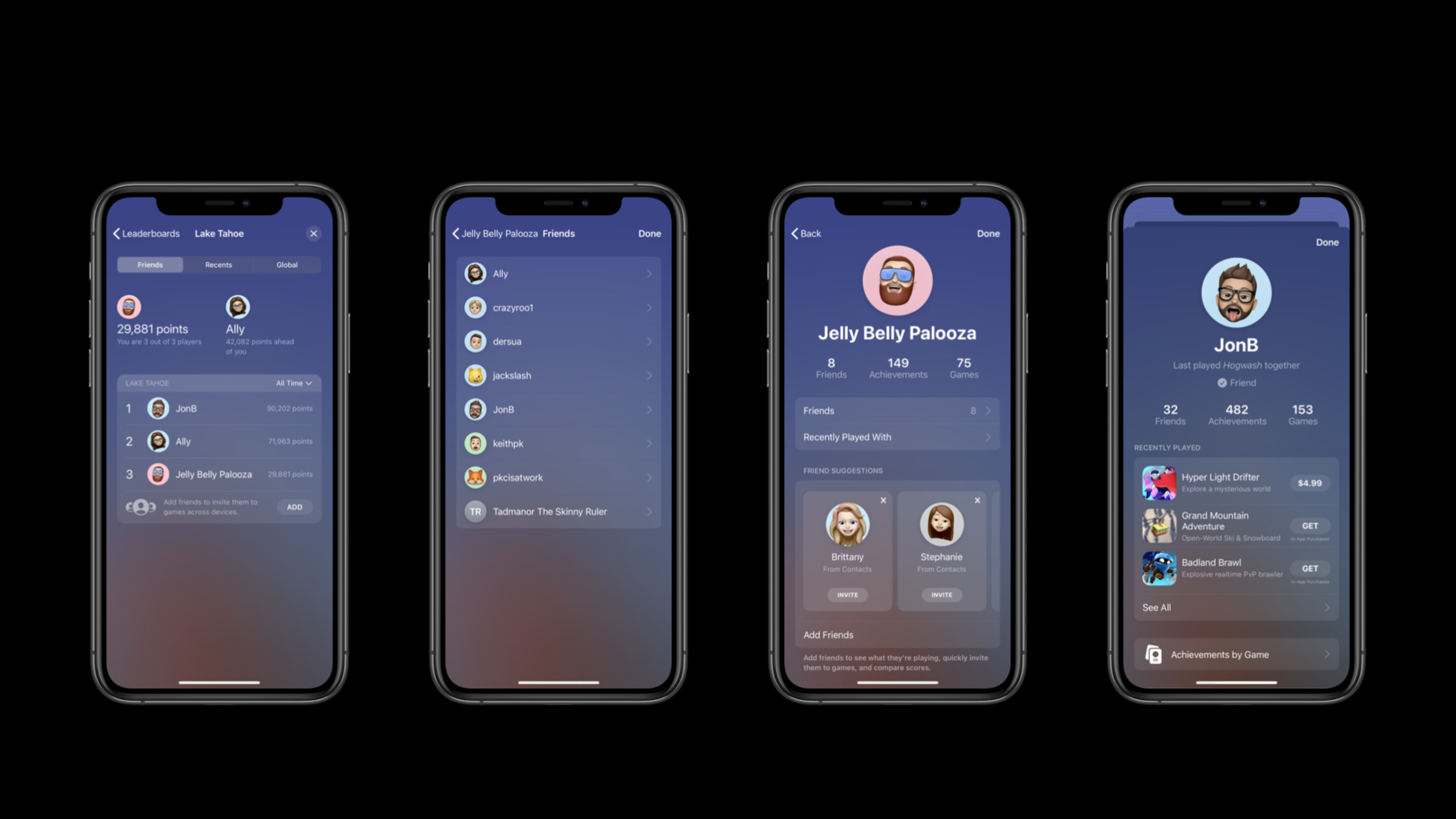
Apple put Game Center back into the game in 2020: players open the Dashboard through Access Point and directly view information, friends, rankings, and achievements. Developers use existing GameKit controllers to access this interface.
Core Content
When many games were originally connected to Game Center, the entrance had to be designed by oneself, the information page had to jump out of the game, and rankings, achievements, and friend information were also scattered in different locations. Players who want to see the progress of themselves and their friends often have to leave the current process. For developers, this means maintaining an in-game UI, as well as handling logins, privacy, minor restrictions, and user switching on tvOS shared devices.
The first thing to do in this session is to turn Game Center into a fixed entrance to the game. The welcome banner will still appear after the game starts, followed by the Access Point. It can first display the number of achievements or rankings on the leaderboard, and then collapse into the player’s avatar. Players click on their avatar to enter the Dashboard and view information, rankings, achievements, challenges and friend information in the same overlay interface.
The second thing is to let developers write less interfaces. Dashboard still consists ofGKGameCenterViewControllerPresented, just added.dashboardand.localPlayerProfileetc. status. Access Point byGKAccessPoint.sharedControl position, highlights, and display status. The game only needs to open it in the main menu and hide it in cutscenes, gameplay and settings pages.
The third thing is to turn player identity into a more clear development model.GKLocalPlayerRepresents the player on the current device,GKPlayerIndicates other players. Certification should start as early as possible, because after certification is completed, the game can call the Game Center API and receive invitations, challenges, and user change notifications. Player privacy, minor status, multiplayer game restrictions, and personalized communication restrictions are also checked after authentication.
Detailed Content
useGKGameCenterViewControllerOpen Dashboard
(10:05) The new Dashboard is a unified entrance to Game Center functions. It still uses the familiarGKGameCenterViewController, the difference is in the initialization state.
// GKGameCenterViewController

public init(state:)
[...]

// Example: Display Main Dashboard
let vc = GKGameCenterViewController(state: .dashboard)
vc.gameCenterDelegate = self
present(vc, animated: true, completion: nil)

[...]
enum GKGameCenterViewControllerState : Int {
   case `default`
   case leaderboards
   case achievements
   case challenges
   case localPlayerProfile
   case dashboard
}
Key points:
GKGameCenterViewController(state: .dashboard)Open the top-level Dashboard directly. -gameCenterDelegateStill responsible for handling delegate callbacks such as controller shutdown. -leaderboards、achievements、challengesandlocalPlayerProfileCan take players to designated areas.- This code is suitable for the “Game Center” button in the main menu, and also suitable for entering the unified panel from the custom UI.
(10:51) If the game already has a specific leaderboard button, you can continue to deep link to a single leaderboard.
// Display scores for a specific leaderboard
let vc = GKGameCenterViewController(
                leaderboardID: "grp.xyz.laketahoe",
                playerScope: .global,
                timeScope: .allTime)
vc.gameCenterDelegate = self
present(vc, animated: true, completion: nil)
Key points:
leaderboardIDCorresponds to the rankings configured in App Store Connect. -playerScopeControls whether to display global players or friends. -timeScopeControl time windows such as Today, This Week, or All Time.- After deep linking into a single leaderboard, players can still browse the available areas in the Dashboard.
Show Access Point in main menu
(13:18) Access Point is a permanent entrance, suitable for placement on the main menu of the game, rather than the gameplay screen. Its position changes with language direction, e.g.topLeadingIn right-to-left languages, it switches to the upper right corner.
// Configure and show Access Point
func showMainMenu() {
    // Call your code to setup the main menu
    self.setupMainMenu()

    // Place access point on top left
    GKAccessPoint.shared.location = .topLeading

    // Show highlights
    GKAccessPoint.shared.showHighlights = true

    // Show it!
    GKAccessPoint.shared.isActive = true
}
Key points:
GKAccessPoint.shared.locationSelect the corner where the access point is located. -showHighlightsOpen summary information such as number of achievements or default leaderboard position. -isActive = trueAccess Point will be displayed.- It is recommended that the session be displayed in the main menu and hidden in the movie-style opening, gameplay and settings page.
Pause menu animation when Dashboard pops up
(14:00) After the player clicks the Access Point, the game may need to pause the main menu animation or other background effects.isPresentingGameCenterprovided this signal.
let observation = GKAccessPoint.shared.observe(
           \.isPresentingGameCenter
    ) { [weak self] _,_ in
    self.paused = GKAccessPoint.shared.isPresentingGameCenter
}
Key points:
observe(\.isPresentingGameCenter)Monitor whether the Game Center interface is being displayed.- Put the game’s own in the callback
pausedThe state is synchronized to the Access Point state. - This avoids expensive animations still playing in the background when the Dashboard is overlaid on top of the game.
- The observation object must be saved by the game and released after the life cycle is over.
Avoid the screen area of Access Point
(14:44) Access Point may block titles, characters, or buttons on the game’s main menu.frameInScreenCoordinatesYou can leave its position to the layout system.
// Observable properties
// frameInScreenCoordinates

let observation = GKAccessPoint.shared.observe(
           \.frameInScreenCoordinates
    ) { [weak self] _,_ in
    let screenFrame = GKAccessPoint.shared.frameInScreenCoordinates
    let accessPointFrame = myView.convert(screenFrame, from: nil)
    // adjust your layout
}
Key points:
frameInScreenCoordinatesGives the Access Point the current screen rectangle. -myView.convert(screenFrame, from: nil)Convert screen coordinates to game view coordinates.- When Access Point displays different highlights, the size may change, so observation is suitable here.
- The game can move the title image, buttons or decorative elements to avoid being covered by the avatar entrance.
Support Apple TV and controller focus
(15:18) In tvOS or controller scenarios, the game may draw focus feedback itself. At this time, Access Point still needs to be included in the focus judgment.
// Apple TV and controllers

// track and update focus
func trackController(position: CGPoint) {
  let screenFrame = GKAccessPoint.shared.frameInScreenCoordinates
  let accessFrame = myView.convert(screenFrame, from: nil)
  // if the point is in the access point turn on feedback
  accessPointElement.focusFeedback = CGRectContainsPoint(accessFrame, position)
}
Key points:
positionIs the remote control or controller focus position that the game is tracking.- The code first obtains the screen area of the Access Point and then converts it to the game view coordinates.
-
CGRectContainsPointDetermine whether the focus falls within the Access Point. - After a hit, the game can draw focus feedback to its own Access Point proxy element.
(15:38) Use the programmatic API to open the Dashboard when the player presses the select key.
// Apple TV and controllers

// Handle selection
func accessPointSelected() {
  GKAccessPoint.shared.triggerAccessPoint {}
}
Key points:
triggerAccessPointSimulated players trigger Access Points.- This allows remote control and controller processes to not rely on touch clicks.
- After calling, the system will enter the same Dashboard process as clicking the avatar.
Open local player profile and handle restrictions
(20:01) Player information is entered into the game from the settings page. Developers can directly render local player profile pages.
// Local player profile

let profileVC = GKGameCenterViewController(state: .localPlayerProfile)
profileVC.gameCenterDelegate = self

present(profileVC, animated: true, completion: nil)
Key points:
.localPlayerProfileGo directly to the current player’s profile page.- Players can check achievements, find friends, and check the games their friends are playing here.
- This code is suitable to be placed behind the “My Profile” button.
(20:28) After the authentication is completed, the game will also read the local player restrictions to decide whether to hide the function.
// Local player restrictions

GKLocalPlayer.local.authenticateHandler = { viewController, error in
    let isGameCenterReady = (viewController == nil) && (error == nil)

    if isGameCenterReady {
        if GKLocalPlayer.local.isUnderage {
            // Hide explicit game content
        }

        if GKLocalPlayer.local.isMultiplayerGamingRestricted {
            // Disable multiplayer game features
        }

        if GKLocalPlayer.local.isPersonalizedCommunicationRestricted {
            // Disable in game communication UI
        }
    }
}
Key points:
authenticateHandlerGame Center authentication will be started automatically and will be called back when the status changes. -viewController == nilanderror == nilIndicates that local players are ready. -isUnderageUsed to hide content inappropriate for underage players. -isMultiplayerGamingRestrictedUsed to close the multiplayer game entrance. -isPersonalizedCommunicationRestrictedIt is a new restriction in iOS 14, which is used to turn off personalized communication UI such as in-game voice or messages.
Core Takeaways
-
Make a zero-interference Game Center main menu entrance: Place the Access Point in the corner of the main menu and open it
showHighlightsShow number of achievements or default leaderboard position; worth doing because players can find their profile and social information without leaving the game; start by setting it in the main menu lifecycleGKAccessPoint.shared.location、showHighlightsandisActive。 -
Make a “My Game Profile” page button: Add a local player profile entry to the game settings page or archive page; the reason it is worth doing is that players can view achievements, friends and recent play information in the same place; start with
GKGameCenterViewController(state: .localPlayerProfile)Presents the system information page. -
Make a downgradeable multiplayer portal: Post-authentication check
isMultiplayerGamingRestricted, hide the multiplayer button when the restriction is on, and enter the matching process when the restriction is off; the reason it is worth doing is that parental control and account restrictions will directly affect the multiplayer function; put the restriction check in at the beginningGKLocalPlayer.local.authenticateHandlersuccessful branch. -
Make a Dashboard entry that adapts to the controller: In the tvOS or external controller menu, use
frameInScreenCoordinatesDetermine whether the focus falls on the Access Point; the reason it is worth doing is that there is no touch operation in the living room scene, and the player still needs clear focus feedback; at the beginning, convert the handle tracking coordinates to the same view coordinates, and then calltriggerAccessPoint。 -
Make a main menu layout that is not blocked by the system entrance: Observation
frameInScreenCoordinates, when the Access Point display highlight causes the size to change, move the title image or button; the reason why it is worth doing is that the system entrance will always stay in the main menu, and occlusion will cause players to accidentally touch or see the core operations clearly; initially add responsive safe margins to the main menu elements.
Related Sessions
- Tap into Game Center: Leaderboards, Achievements, and Multiplayer — Following this session, dive into the specific APIs for leaderboards, achievements, challenges, and multiplayer games.
- Design for Game Center — Explains the visual assets, theme colors, and display specifications required for Dashboard and Game Center profile pages.
- Support multiple users in your tvOS app — Adds multi-user support on tvOS shared devices, related to Game Center local player switching.
- What’s new in App Store Connect — Learn about background configuration updates, suitable for reading together with Game Center function switches and resource management.
Comments
GitHub Issues · utterances