
Highlight
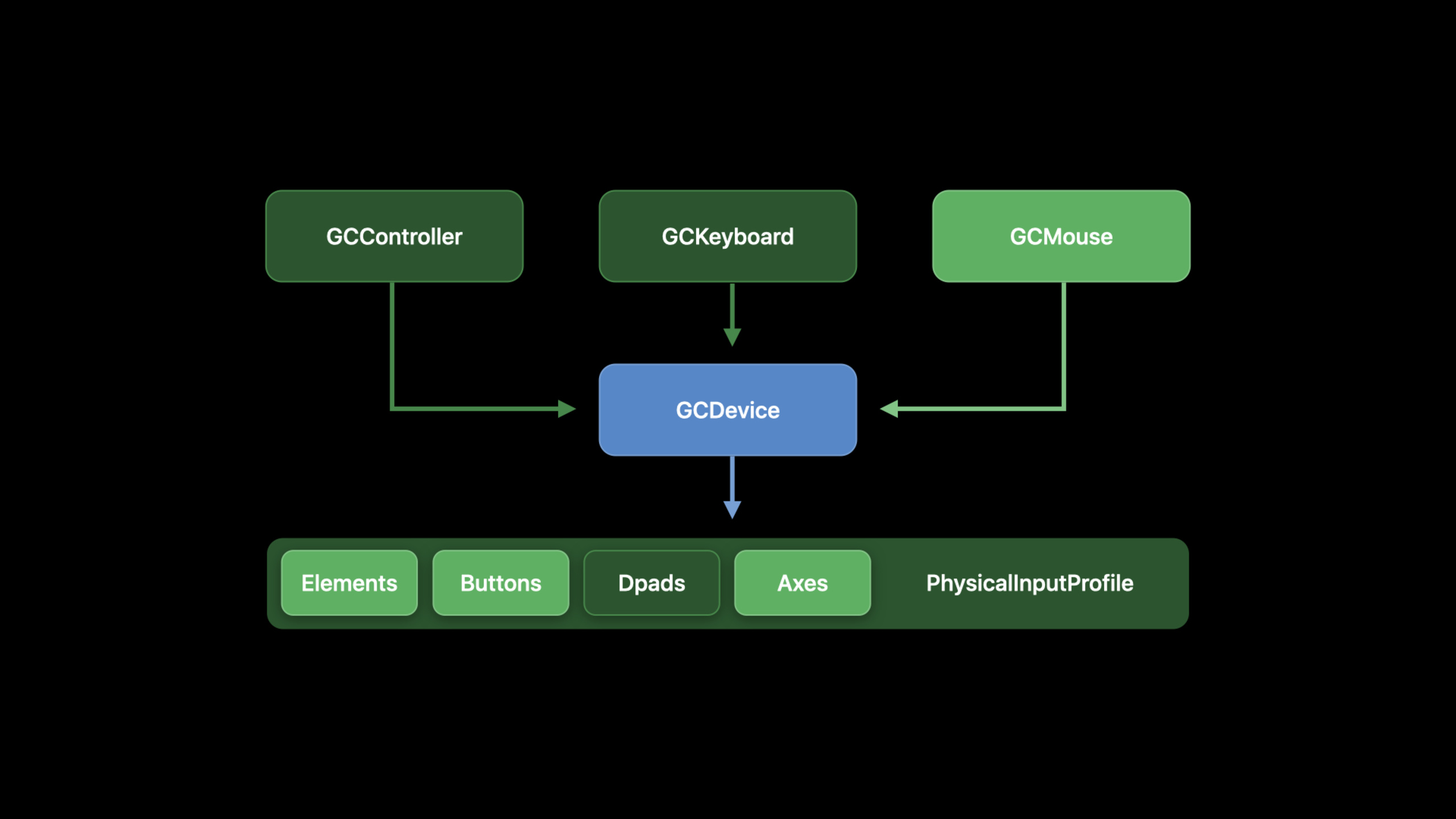
Apple added to the Game Controller framework
GCKeyboardandGCMouse, allowing iPad games to read the merged keyboard key state, mouse delta events, and use UIKit pointer locking to prevent Dock and edge gestures from interrupting full-screen gameplay.
Core Content
Many iPad games were originally designed around touch. Taps, swipes, and gestures are great for mobile devices, and virtual joysticks and on-screen buttons support flying, driving, and action games. The problem arises in MOBA, first-person, and PC-like gameplay. Players need to use WASD to control movement, the mouse to precisely control the perspective, and keyboard modifier keys to change actions. Forcing these operations into the touch area takes up screen space and loses tactile feedback and precision.
Apple added this input path to games in iPadOS 14. Game Controller framework newGCKeyboardandGCMouse. Keyboard events can be handled as callbacks or polled in the game update loop. Mouse events provide delta values, and the game determines how the perspective, crosshair, or self-drawn cursor moves. Full-screen gameplay can also be combined with UIKit’s pointer lock to hide the system pointer and prevent system gestures at the edge of the screen from entering the game process.
This change makes both transplantation and modification more straightforward. Games that already have touch and controller input don’t have to rewrite character movement, attack, jumping, and camera logic. Developers simply plug in the keyboard, mouse buttons, scroll wheel, and movement delta to existing methods. The Fox2 in the demo is like this: left click to attack, mouse movement to control the camera, scroll wheel to change the field of view, WASD to move, and left shift to make the character run.
Detailed Content
Keyboard: callbacks are suitable for discrete actions, polling is suitable for each frame movement
(04:42)GCKeyboardThe entry point is to incorporate the keyboard. Input from multiple keyboards is merged, and games usually start fromGCKeyboardDevice.coalesced?.keyboardInputRead keystrokes. The speech first showed two callbacks: monitoring the entire keyboard, or just monitoring a certain key.
if let keyboard = GCKeyboardDevice.coalesced?.keyboardInput {

  // bind to any key-up/-down
  keyboard.keyChangedHandler = {
    (keyboard, key, keyCode, pressed) in
    // compare buttons to GCKeyCode
  }

  // bind to a specific key-up/-down
  keyboard.button(forKeyCode: .spacebar)?.valueChangedHandler = {
    (key, value, pressed) in
    // spacebar was pressed or released
  }

}
Key points:
GCKeyboardDevice.coalesced?.keyboardInputReturns merged keyboard input, suitable for games that don’t care about the specific physical keyboard. -keyChangedHandlerIt can receive the press and release of any button, suitable for global shortcut actions or debugging input. -button(forKeyCode: .spacebar)?.valueChangedHandlerOnly care about the space bar, suitable for single-key actions such as jumping and confirming. -pressedIndicates whether the button is currently pressed. The game does not need to infer the state from the event name.
(05:18) For mobile input, the talk recommends polling directly in the update loop. The reason is that the game has to calculate the character direction every frame, and reading the current state is closer to the rendering rhythm than waiting for events. Apple explicitly states that these polling APIs are O(1), non-blocking, will not yield threads, and are thread-safe.
func pollInput() {

  if let keyboard = GCKeyboardDevice.coalesced?.keyboardInput {
	  if (keyboard.button(forKeyCode: .keyW)?.isPressed ?? false) { /* move up    */ }
	  if (keyboard.button(forKeyCode: .keyA)?.isPressed ?? false) { /* move left  */ }
	  if (keyboard.button(forKeyCode: .keyS)?.isPressed ?? false) { /* move down  */ }
	  if (keyboard.button(forKeyCode: .keyD)?.isPressed ?? false) { /* move right */ }
  }

}
Key points:
pollInput()Place it in the game loop and read the current button status once every frame. -.keyW、.keyA、.keyS、.keyDCorresponds to common WASD moves. -?.isPressed ?? falseHandles the situation where the key does not exist or the keyboard is not connected, and does not move by default.- This code only determines “where the player wants to go”, and the actual displacement can be left to subsequent simulation and rendering logic.
Mouse: The game gets delta, not screen coordinates
(06:05)GCMouseThe core event ismouseMovedHandler. What it returns isdeltaXanddeltaY, indicating the change since the last input. The talk emphasizes that this is not screen coordinates. Games use this API because the game needs to define the position, acceleration, and screen edge behavior of the crosshair, camera, or self-drawn pointer.
if let mouse = GCMouse.currentMouse {

   mouse.mouseInput.mouseMovedHandler = {
     (mouse, deltaX, deltaY) in
     // use delta to calculate your game's cursor position or other motion
   }

}
Key points:
GCMouse.currentMouseGet the current mouse device, suitable for games that only require one main mouse. -mouse.mouseInput.mouseMovedHandlerOnly triggered when the mouse is moved. -deltaX、deltaYIs the amount of variation, suitable for first-person perspective rotation and camera control.- The Game Controller layer does not have the method of “polling the current mouse screen position” because the screen position belongs to the system pointer model and the game mode usually has to be defined by itself.
Pointer Lock: Avoid system edge gestures in full-screen games
(07:27) When using mouse delta in full-screen games, the system pointer will cause two problems. First, players don’t necessarily want to see the system cursor. Second, moving the pointer to the edge of the screen may trigger Dock, Control Center, or multitasking gestures. The solution is at the top levelUIViewControllerReturn onprefersPointerLocked, then callsetNeedsUpdateOfPrefersPointerLocked()Notify the system to refresh the status.
class ViewController: UIViewController {

    override var prefersPointerLocked: Bool {
        return true
    }

    override func viewDidLoad() {
        super.viewDidLoad()
        self.setNeedsUpdateOfPrefersPointerLocked()
    }
}
Key points:
prefersPointerLockedis the entry point for the top-level view controller to say “I want the pointer to be locked.”- return
true, the system hides the pointer and locks it in full-screen applications. -setNeedsUpdateOfPrefersPointerLocked()Used to tell UIKit to reread preference values. - This value can be changed dynamically, such as locking the pointer during battle and restoring the system pointer in the post-match menu.
Connection discovery: Mouse can be handled by device, keyboard usually reads and merges input
(08:07) Device discovery follows the notification mode of the Game Controller framework. Once the mouse is connected, the game can be savedGCMouseand register the event. After the keyboard is connected, the notification object can also be saved, but as a reminder, multiple keyboards cannot be distinguished and the events will be merged. Most games use it directlyGCKeyboard.coalescedSimpler.
class ViewController: UIViewController {
  var keyboard: GCKeyboard? = nil
  var mouse: GCMouse? = nil

  init() {
    let center = NotificationCenter.defaultCenter
    let main = OperationQueue.mainQueue

    center.addObserverForName(GCMouseDidConnectNotification, object: nil, queue: main) {
      (note) in
      self.mouse = note.object as? GCMouse
    }

    center.addObserverForName(GCKeyboardDidConnectNotification, object: nil, queue: main) {
      (note) in
      self.keyboard = note.object as? GCKeyboard // the same as GCKeyboard.coalesced
    }

  }
}
Key points:
GCMouseDidConnectNotificationTriggered when the mouse is connected, suitable for registering mobile, button and wheel handlers. -GCKeyboardDidConnectNotificationIt can be used to know when the keyboard appears. When disconnected, it can also pause the game and prompt the player to change the input method. -note.object as? GCMouseandnote.object as? GCKeyboardTransfer the notification object back to the specific device.- Keyboard input has been merged by the system, the regular path is still read
GCKeyboard.coalesced。
Fox2: Connect new inputs to existing game actions
(10:56) The demo project Fox2 already has character movement, camera, jumping and attack methods. When adding keyboard and mouse support, the code did not rewrite the gameplay, only one was addeddeltastate, register the mouse handler, and poll the keyboard every frame.
var delta: CGPoint = CGPoint.zero

func registerMouse(_ mouseDevice: GCMouse) {

  if #available(iOS 14.0, OSX 10.16, *) {
    guard let mouseInput = mouseDevice.mouseInput else {
      return
    }

    // set up our mouse value change handlers

  }
}

    weak var weakController = self

    mouseInput.mouseMovedHandler = {(mouse, deltaX, deltaY) in
      guard let strongController = weakController else {
        return
      }

      strongController.delta = CGPoint(x: CGFloat(deltaX), y: CGFloat(deltaY))

    }

    mouseInput.leftButton.valueChangedHandler = {(button, value, pressed) in
      guard let strongController = weakController else {
        return
      }

      strongController.controllerAttack()

    }

    mouseInput.scroll.valueChangedHandler = {(cursor, x, y) in
      guard let strongController = weakController else {
        return
      }
      guard let camera = strongController.cameraNode.camera else {
        return
      }

      camera.fieldOfView = CGFloat.maximum(CGFloat.minimum(120,
                                           camera.fieldOfView + CGFloat(y)), 30)

      }
    }

func pollInput() {
  ...

  // Mouse
  let mouseSpeed: CGFloat = 0.02
  self.cameraDirection += simd_make_float2(-Float(self.delta.x * mouseSpeed),
                                            Float(self.delta.y * mouseSpeed))
  self.delta = CGPoint.zero

  // Keyboard
  if let keyboard = GCKeyboard.coalesced?.keyboardInput {

      if (keyboard.button(forKeyCode: .keyA)?.isPressed ?? false) { self.characterDirection.x = -1.0 }
      if (keyboard.button(forKeyCode: .keyD)?.isPressed ?? false) { self.characterDirection.x = 1.0 }
      if (keyboard.button(forKeyCode: .keyW)?.isPressed ?? false) { self.characterDirection.y = -1.0 }
      if (keyboard.button(forKeyCode: .keyS)?.isPressed ?? false) { self.characterDirection.y = 1.0 }

      self.runModifier = (keyboard.button(forKeyCode: .leftShift)?.value ?? 0.0) + 1.0

  }
}
Key points:
deltaThe most recent mouse movement is temporarily saved and used for the camera orientation in the next frame. -mouseMovedHandlerBundledeltaX、deltaYConvert toCGPoint, handed over to the main loop for consumption. -leftButton.valueChangedHandlerReuse existingcontrollerAttack(), the left mouse button becomes the attack input. -scroll.valueChangedHandlerRevisecamera.fieldOfView, the scroll wheel brings zooming capabilities not found in the touch and controller versions. -cameraDirection += ...Multiply the mouse delta by the speed coefficient, and then convert it into a change in camera direction. -self.delta = CGPoint.zeroClear the input after consumption to avoid applying the same movement repeatedly in the next frame.- WASD modification
characterDirection,.leftShiftReviserunModifier, forming common keyboard and mouse operations.
Core Takeaways
-
What to do: Add keyboard and mouse perspective controls to first-person or third-person iPad games. Why it’s worth doing:
GCMouseProvides delta events, suitable for mapping mouse movements to camera directions. How to get started: RegistermouseMovedHandler,BundledeltaX、deltaYSave the camera state consumed each frame and turn it on during battleprefersPointerLocked。 -
What to do: Add a WASD plus Shift movement solution to action games. Why it’s worth doing:
GCKeyboard.coalesced?.keyboardInputCan be safely polled in an update cycle, suitable for continuous movement. How to start: InpollInput()check inside.keyW、.keyA、.keyS、.keyDand.leftShift, write the result into the character direction and running magnification. -
What to do: Add a “keyboard and mouse mode” to existing touch games. Why it’s worth doing: The Fox2 in the demo reuses the attack, camera and character movement methods, and the keyboard and mouse only serve as new input sources. How to start: List existing ones first
jump、attack、move、cameraMethod, and then bind the mouse button, scroll wheel and keyboard keys respectively. -
What to do: Switch pointer behavior between in-game menus and actual combat scenes. Why it’s worth doing: Combat requires locking and hiding the pointer, menus are better suited to using the system pointer tap UI. How to start: Control with a boolean state
prefersPointerLocked, returns when entering combattrue, returns when the menu is openedfalse, called every time the switchsetNeedsUpdateOfPrefersPointerLocked()。 -
What: Add mouse selection and keyboard modifier keys to a strategy game or MOBA. WHY IT’S WORTH IT: The talk points out that this type of game relies on precise mouse selection and keyboard modifiers, and neither touch nor a gamepad are entirely appropriate. How to start: Use
GCMouseTo handle self-drawn cursor or unit selection, useGCKeyboardRead the modifier key state and map the combined input to selection, movement and skill release.
Related Sessions
- Advancements in Game Controllers — Continue to talk about handles, remapping, vibration, motion sensors and non-standard inputs in the Game Controller framework.
- Handle trackpad and mouse input — Handle mouse, trackpad, scrolling, gestures, and pointer locking from the UIKit layer.
- Support hardware keyboards in your app — Talk about hardware keyboard response chains, shortcut keys, modifier keys, and raw keyboard events.
- Build for the iPadOS pointer — Talk about pointer effects, areas, and shapes of the standard iPad interface.
- Design for the iPadOS pointer — Explains how the iPadOS pointer is designed for touch, gestures, and keyboard modifiers.
Comments
GitHub Issues · utterances