
Highlight
Apple and Pixar have proposed a set of preliminary AR USD schemas that allow Reality Composer to write anchoring, behavioral, physics, spatial audio, 3D text, and playback metadata to USDZ and preserve this AR information between DCC and RealityKit workflows.
Core Content
In the past when working on AR assets, the process was easily disconnected between tools. Artists modify the model in Houdini or Maya, and developers add behaviors, anchors, and physics in Reality Composer. When the file is returned to DCC, DCC may not recognize the AR information. The model can also show that the interaction logic may become bypass data, and the team can only manually redo it or stop the reflow.
This session resolves this breakpoint. Reality Composer added USDZ export in 2020, and Apple collaborated with Pixar to propose a set of preliminary AR USD schemas. They express scene, anchoring, behavior, physics, spatial audio, 3D text and playback metadata in Reality Composer into USD structures. This way, an asset can be exported from Reality Composer to Houdini, continue editing and then returned to Reality Composer, with the original behavior still in the file.
The racing demo in the presentation was very intuitive. The flag asset was first added with tap behavior in Reality Composer. It was then exported as USDZ and put into Houdini to animate the car. Houdini doesn’t understand the behavior schema at the time, so it won’t play the flag interaction; but it won’t throw away this information. After the asset is returned to Reality Composer, the original click behavior can be triggered again. USDZ goes from a “final delivery format” to a working document that can be iterated in and out of the tool chain.
The second half turns to the schema itself. Instead of just introducing an export button, Apple shows how this AR information is organized in the USDA text: scene library usingkind = "sceneLibrary"Put multiple scenes; anchoring uses applied schema to connect to prim; behavior uses trigger and action relationships to describe interaction; physics uses collider, rigid body, material and gravity to describe simulation; audio and 3D text use new prim types to enter the USD scene.
Detailed Content
1. After Reality Composer exports USDZ, the DCC loop will not cut off the AR information
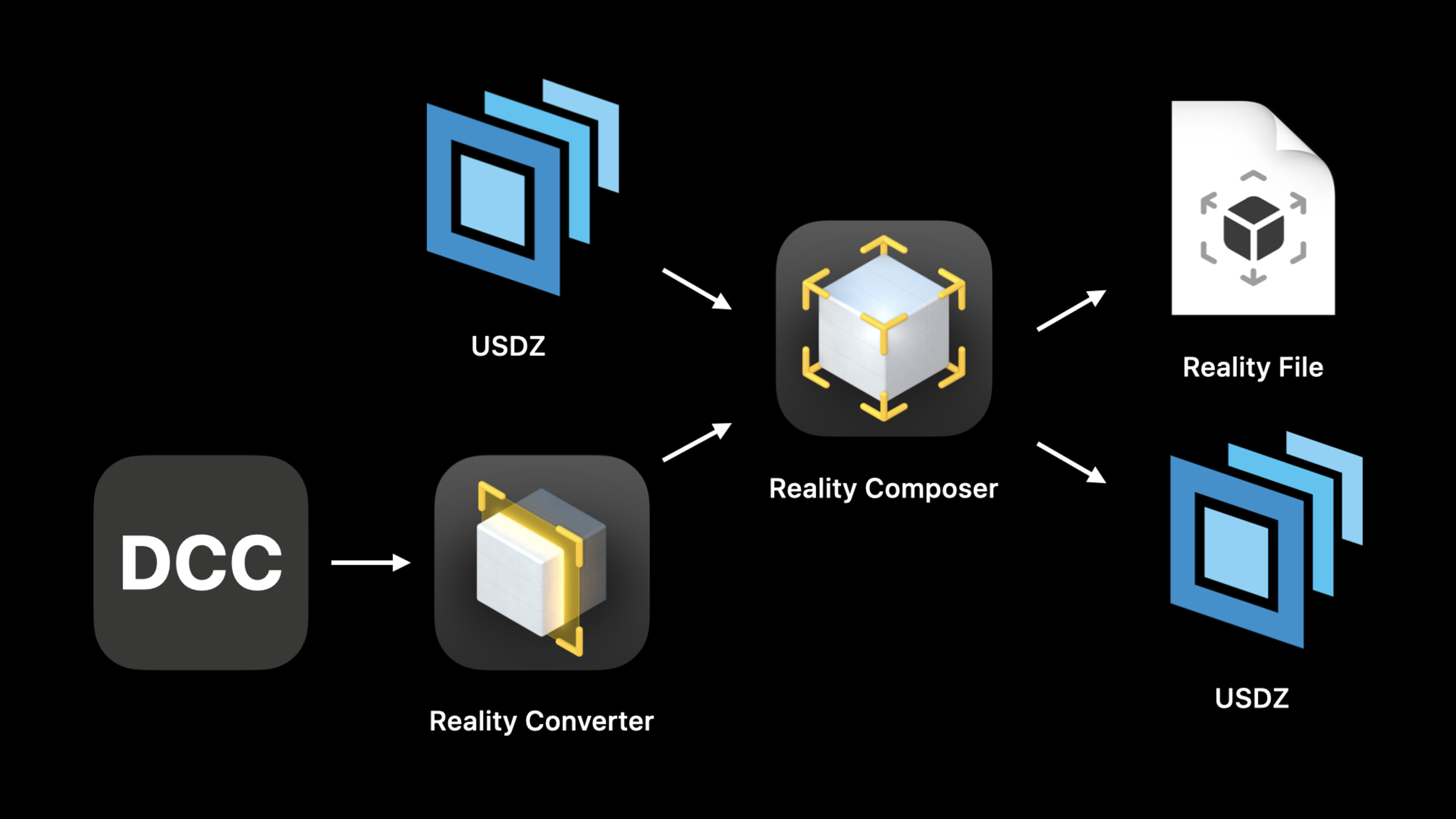
(03:31) The speech first gives a new workflow: Reality Converter converts DCC assets to USDZ, Reality Composer adds interaction, physics and anchoring, and then exports USDZ, and then you can continue to enter DCC that supports USDZ. The key change is that the export target is expanded from Reality File to USDZ, and assets do not have to end up at an endpoint that can only be previewed or delivered.
Key points:
- Houdini, Maya, Unity, Unreal Engine, Adobe Aero and other DCCs already support USD import or export.
- Reality Converter is responsible for bringing external assets into Apple’s USDZ workflow.
- Reality Composer is the editing point for AR semantics to add interactions, physics, and anchoring.
- USDZ export is a new capability in 2020, allowing Reality Composer products to continue to be edited by DCC.
- The RealityKit app is the final usage location, and the speaker imports the content into the RealityKit app at the end of the demo and prepares it for publishing.
(07:44) In the demo, Houdini does not understand the behavior schema, so the flag behavior will not be played. But the action remains within USDZ. These behaviors reappear after the file is returned to Reality Composer or RealityKit app.
Key points:
- The flag asset already has tap behavior in Reality Composer, which will perform the behavior and display additional content.
- Houdini does not understand the behavior schema, but can still place assets and export the scene.
- The compatibility goal of the new schema is to keep unknown AR information within USDZ.
- After the file is returned to Reality Composer, the original click behavior of the flag can still be triggered.
2. Scene library allows a USD file to contain multiple loadable scenes
(11:29) Reality Composer projects can have multiple scenes. The expression in USD is to mark the root prim assceneLibrary, and then put each scene under it.defRepresents active scene,overRepresents inactive scene. RealityKit can load one of the scenes by scene name.
def Xform "Root" (
    kind = "sceneLibrary"
)
{
    def Cube "MyCubeScene" (
        sceneName = "My Cube Scene"
    )
    {
        ...
    }

    over Sphere "MySphereScene" (
        sceneName = "My Sphere Scene"
    )
    {
        ...
    }
}
Key points:
kind = "sceneLibrary"Declare the root node as a scene library. -def Cube "MyCubeScene"Define an active scene that will still be visible to older tools. -over Sphere "MySphereScene"Defines an inactive scene, used for scenes that are saved in the same file but are not displayed by default. -sceneNameis a human-readable name, RealityKit can load it by name just like it loads a Reality File scene.- The speech clearly limits the current support scope: RealityKit, AR Quick Look and Reality Composer only support a single active scene and do not currently support nested scenes.
3. Anchoring schema writes the real world anchor point to prim
(13:00) Anchoring describes which reference object in the real world the content should appear on. Schema supports four types: horizontal plane, vertical plane, image and face. AR objects and geolocation anchors are not yet supported at the time.
def Cube "ImageAnchoredCube" (
    prepend apiSchemas = [ "Preliminary_AnchoringAPI" ]
)
{
    uniform token preliminary:anchoring:type = "image"
    rel preliminary:imageAnchoring:referenceImage = <ImageReference>

    def Preliminary_ReferenceImage "ImageReference"
    {
        uniform asset image = @image.png@
        uniform double physicalWidth = 12
    }

    ...
}
Key points:
prepend apiSchemasHang anchoring applied schema to cube prim. -preliminary:anchoring:type = "image"Indicates that this cube is aligned to the image anchor point. -referenceImageThe relationship points to the image reference prim in the same USD. -image = @image.png@Quote a JPG or PNG image, compliant with USDZ specifications. -physicalWidth = 12Define the real image width in centimeters to avoid affecting the anchor point size after DCC changes the unit.
4. Behavior schema uses the relationship between trigger and action to describe interaction
(14:13) Reality Composer’s behavior consists of triggers and actions. In USD schema,Preliminary_BehaviorHolds the relationship array between trigger and action; trigger and action are reusedinfo:idand other attribute description types.
def Preliminary_Behavior "TapAndBounce"
{
    rel triggers = [ <Tap> ]
    rel actions = [ <Bounce> ]

    def Preliminary_Trigger "Tap"
    {
        uniform token info:id = "tap"
        rel affectedObjects = [ </Cube> ]
    }

    def Preliminary_Action "Bounce"
    {
        uniform token info:id = "emphasize"
        uniform token motionType = "bounce"
        rel affectedObjects = [ </Cube> ]
    }

    ...
}
Key points:
rel triggersPoints to the trigger prim that will initiate the behavior. -rel actionsPoints to the action prim to be executed after triggering. -info:id = "tap"Mark the trigger as a tap trigger. -affectedObjects = [ </Cube> ]Indicate the object being observed or affected. -info:id = "emphasize"andmotionType = "bounce"Combine bounce effects in Reality Composer.
(16:18) The same behavior can have multiple triggers and multiple actions. Multiple triggers will trigger an action if any one of them is met; multiple actions are executed in sequence. Action data schema also supports group action, which is used to express serial or parallel action groups.
def Preliminary_Behavior "TapOrGetCloseAndBounceJiggleAndFlip"
{
    rel triggers = [ <Tap>, <Proximity> ]
    rel actions = [ <Bounce>, <Jiggle>, <Flip> ]

    ...
}
Key points:
<Tap>and<Proximity>There are two trigger entrances. If one of them is met, the action can be called. -<Bounce>、<Jiggle>、<Flip>will be executed serially.- Behavior will be automatically loaded with the scene; if it is defined in multiple scene USD, it will be limited to the scene in which it is located.
5. Physics schema covers collider, rigid body, material, ground and gravity
(17:02) The physics schema is used to describe physics simulations in Reality Composer. The lecture builds a wooden ball in several steps: first apply collider and rigid body to prim, then apply physics material to the material, then add infinite collider plane to the scene, and finally define gravity.
def Sphere "WoodenBall" (
    prepend apiSchemas = [ "Preliminary_PhysicsColliderAPI",
                           "Preliminary_PhysicsRigidBodyAPI" ]
)
{
    rel preliminary:physics:collider:convexShape = </WoodenBall>
    double preliminary:physics:rigidBody:mass = 10.0
}
Key points:
Preliminary_PhysicsColliderAPILet this sphere participate in collision detection. -Preliminary_PhysicsRigidBodyAPIInvolve objects in rigid body simulations. -convexShape = </WoodenBall>Uses the object’s own geometry as the convex collider. -mass = 10.0Record mass in kilograms to reduce errors caused by changes in composition or DCC units.
def Material "Wood" (
    prepend apiSchemas = ["Preliminary_PhysicsMaterialAPI"]
)
{
    double preliminary:physics:material:restitution = 0.603
    double preliminary:physics:material:friction:static = 0.375
    double preliminary:physics:material:friction:dynamic = 0.375
}

def Sphere "WoodenBall" (
    prepend apiSchemas = [ "Preliminary_PhysicsColliderAPI",
                           "Preliminary_PhysicsRigidBodyAPI" ]
)
{
    rel preliminary:physics:collider:convexShape = </WoodenBall>
    double preliminary:physics:rigidBody:mass = 10.0
    rel material:binding = </Wood>
}
Key points:
Preliminary_PhysicsMaterialAPIbe applied to existingMaterialprim on. -restitutionDescribe rebound characteristics. -friction:staticandfriction:dynamicDescribe static friction and kinetic friction. -material:binding = </Wood>Bind the physical material to the sphere.
(18:40) The ground is represented by an infinite collider plane and marked as scene ground plane through custom data. The speech explains so that older versions of USD can also open files.
def Xform "MyScene" (
    prepend apiSchemas = ["Preliminary_PhysicsColliderAPI"]
)
{
    def Preliminary_InfiniteColliderPlane "groundPlane" (
        customData = {
            bool preliminary_isSceneGroundPlane = 1
        }
    ) {
        point3d position = (0, 0, -2)
        vector3d normal = (0, 1, 0)
        rel preliminary:physics:collider:convexShape = </MyScene/groundPlane>
    }
    rel material:binding = </Wood>
}
Key points:
Preliminary_InfiniteColliderPlaneDefine infinite collision plane. -preliminary_isSceneGroundPlane = 1Mark it as scene ground. -positionandnormalSpecify plane position and normal. -material:binding = </Wood>Reuse the previously defined wood physics material.
(19:08) Gravity is represented by the gravitational force prim within the scene. The talk suggests that a scene only defines one gravitational force.
def Preliminary_PhysicsGravitationalForce "MoonsGravity"
{
    vector3d physics:gravitationalForce:acceleration = (0, -1.625, 0)
}
Key points:
Preliminary_PhysicsGravitationalForceDefines gravity in the scene. -(0, -1.625, 0)is an example of lunar gravity used in a lecture.- The lecture recommends defining only one gravitational force per scene.
6. Spatial audio, 3D text and playback metadata enter USD
(19:35) Audio schema is separated from behavior schema. Behaviors can trigger play audio actions; the audio schema itself is responsible for embedding audio content into USD and specifying the playback mode, start time, media offset, volume, and spatial position.
def SpatialAudio "HorseNeigh"
{
    uniform asset filePath        = @Horse.m4a@
    uniform token auralMode       = "spatial"
    uniform timeCode startTime    =  65.0
    uniform double mediaOffset    =  0.33333333333
    double3 xformOp:translate = (0, 0.5, 0.1)
    uniform token[] xformOpOrder = ["xformOp:translate"]
}
Key points:
SpatialAudioIs a new prim type used to describe audio in USD. -filePath = @Horse.m4a@Reference audio file. -auralMode = "spatial"Indicates that the sound is emitted from a specific transform. -startTimeandmediaOffsetControls the audio’s start point on the timeline and offset within the material. -xformOp:translateTo place the sound in space, the example in the speech is from near the horse’s mouth.
(21:26) 3D text schema writes Reality Composer’s text content, font, line wrapping and alignment information into USD.
def Preliminary_Text "heading"
{
    string content = "#WWDC20"
    string[] font = [ "Helvetica", "Arial" ]
    token wrapMode = "singleLine"
    token horizontalAlignment = "center"
    token verticalAlignment = "baseline"
}
Key points:
content = "#WWDC20"is an example of textual content in a speech. -fontSupports main font and fallback font. -wrapModeControl single line or line wrapping. -horizontalAlignmentandverticalAlignmentControl text alignment.
(22:46) Playback metadata tells the viewer whether the animation and audio are looping and whether to play automatically. The speech mentioned that the content exported by Reality Composer turns off autoplay by default, so that it can be explicitly driven by behavior.
#usda 1.0
(
    endTimeCode = 300
    startTimeCode = 1
    timeCodesPerSecond = 30
    playbackMode = "loop"
    autoPlay = false
)

def Xform “AnimatedCube"
{
    ...
}
Key points:
playbackMode = "loop"Prompts the viewer to loop the animation. -autoPlay = falseIndicates that loading does not start automatically. -timeCodesPerSecond = 30Define timecode speed, used with stage animation and audio.
(23:08) Scene understanding metadata allows physical interaction between scene content and the real environment generated by LiDAR.
def Xform "Root" (
    kind = "sceneLibrary"
)
{
    def Xform "MyScene" (
        sceneName = "My Scene"
        preliminary_collidesWithEnvironment = true
    )
    {
        def Xform "DigitalBug"
        {
            ...
        }
    }
}
Key points:
preliminary_collidesWithEnvironment = trueThe content that marks this scene will interact with the real environment generated by scene understanding.- This capability corresponds to the scene understanding provided by RealityKit and ARKit on iPad Pro with LiDAR Scanner.
- Metadata is placed on the scene to express the scene-level environment interaction intention.
Core Takeaways
1. Make an AR asset acceptance tool that can be edited back and forth
- What to do: Import the USDZ given by the artist, check whether it contains scene library, anchoring, behavior, physics, audio and playback metadata, and generate an acceptance report.
- Why it’s worth doing: The core of this session is that the AR information should be preserved in the DCC round trip. Acceptance tools can detect missing behavior, missing anchors, or misconfigured autoplay before the asset enters the application.
- How to start: Use USD tool to read USDA/USDZ, check first
kind = "sceneLibrary"、Preliminary_AnchoringAPI、Preliminary_Behavior、SpatialAudioandautoPlayWait for the fields before showing the results to the art and development teams.
2. Make a set of racing templates using Reality Composer and Houdini
- What: Make vehicles, roads, flags, audio and tap behavior into a reusable template, allowing artists to replace only the model and animation curves.
- Why it’s worth it: The session demo has proven that Reality Composer behaviors can continue to work across Houdini round-trips. This type of template is suitable for short AR animations in marketing pages, showrooms, and educational presentations.
- How to start: First add tap behavior and play animation action to key objects in Reality Composer, then export USDZ to Houdini to arrange large animations, and finally return to Reality Composer to add spatial audio and final trigger logic.
3. Make a picture-anchored product description card
- What to do: After scanning an image of product packaging or instruction manual, display 3D text, model breakdown animation and spatial sound effects above it.
- Why is it worth doing: anchoring schema supports image anchoring, 3D text schema supports text, and spatial audio schema supports sound positioning. After combining the three, static paper can be turned into AR instructions.
- How to start: Apply model prim in USD
Preliminary_AnchoringAPI,Bundlepreliminary:anchoring:typeset toimage, then addPreliminary_TextandSpatialAudioprim. Image width is filled in centimetersphysicalWidth。
4. Make an AR teaching experiment with physical materials
- What to do: Let students compare the bouncing and friction of wooden balls, rubber balls, and plastic balls under different gravity on the table.
- Why it’s worth doing: Physics schema covers rigid body, collider, physics material, ground plane and gravity. It is suitable for converting abstract physical parameters into observable AR scenes.
- How to start: Apply collider and rigid body schema to the sphere, and set different materials
restitutionandfriction, then usePreliminary_PhysicsGravitationalForceSwitch the gravity parameters of the earth, moon and so on.
5. Make a set of content specifications for AR animation player
- What to do: Provide uniform rules for in-app USDZ animations
playbackMode、autoPlay, audio offset and scene understanding rules. - Why is it worth doing: The playback metadata mentioned in the session will prompt the viewer how to display the play button and loop method. The content exported by Reality Composer does not autoplay by default, so it is convenient to use behavior driver.
- How to start: Check in the asset export pipeline
startTimeCode、endTimeCode、timeCodesPerSecond、playbackModeandautoPlay. A scene that needs to collide with the real environment, pluspreliminary_collidesWithEnvironment = true。
Related Sessions
- The artist’s AR toolkit — Shows how Reality Converter, Reality Composer, and AR Quick Look form an AR asset production chain.
- Shop online with AR Quick Look — Explain how to put the USDZ product model into the web page and the AR Quick Look purchase process.
- Explore ARKit 4 — Introducing ARKit 4 capabilities such as location anchors, scene geometry, and depth.
- What’s new in RealityKit — Introducing RealityKit’s rendering, animation, physics and audio capabilities, and connecting them with the USDZ content expression in this field.
Comments
GitHub Issues · utterances