
Highlight
RealityKit 2020 adds VideoMaterial, Scene Understanding, and DebugModelComponent, and is connected to ARKit 4’s Face Tracking and Location Anchors, allowing AR content to play video textures, sense LiDAR reconstruction meshes, debug rendering properties, and bind real geographical locations.
Core Content
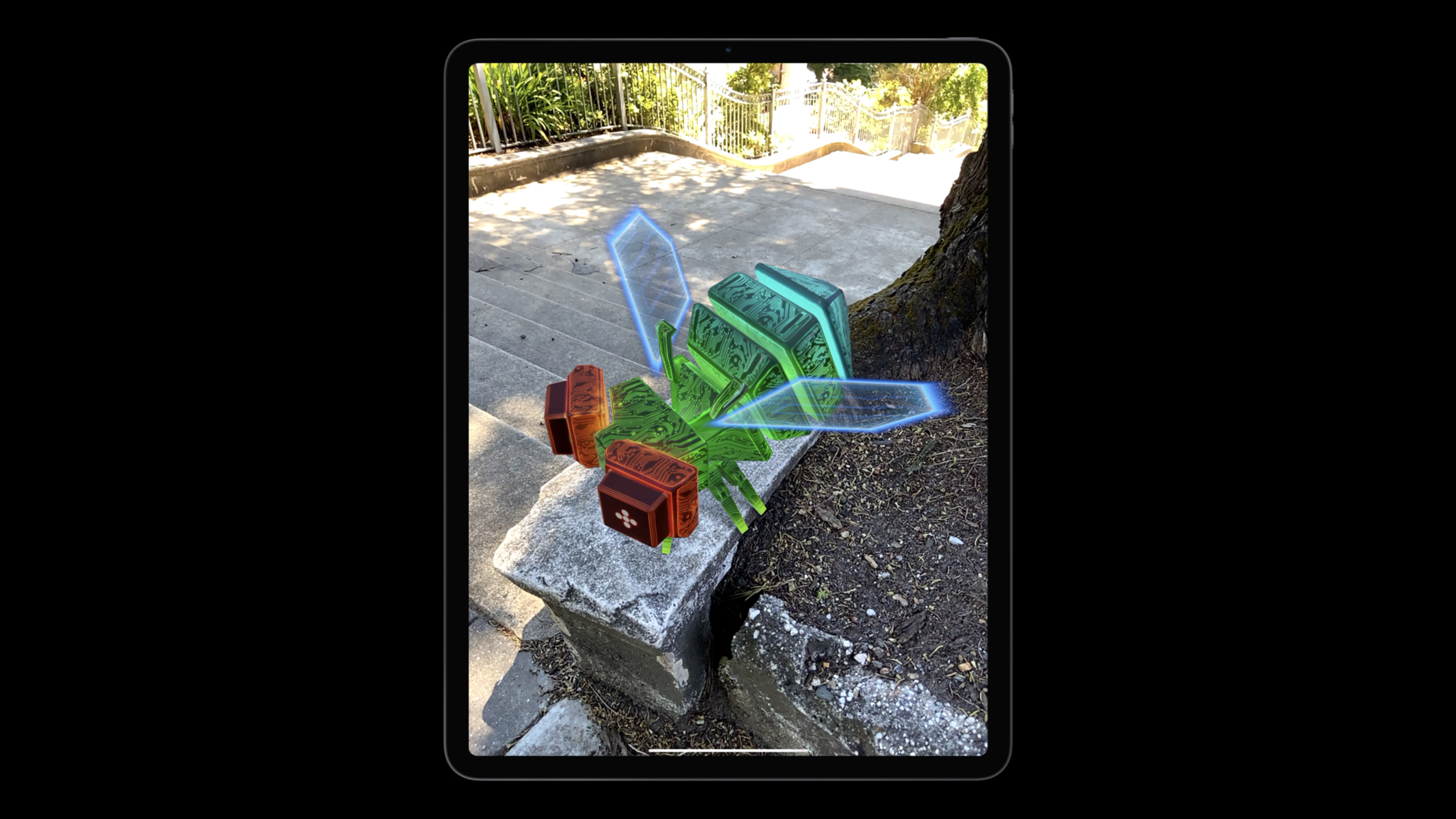
The most difficult step in AR applications is often not putting the model on the screen. The real question is whether the virtual object looks like it’s there once it’s in a real room. It needs to be blocked by tree trunks, it needs to bounce off steps, it needs to leave a shadow on the ground, and it needs to let the developer know whether the error is from the model, the material, or the spatial mesh.
RealityKit provides a 3D engine for AR in 2019. This 2020 session focuses on runtime capabilities. Apple has added a new video material that allows solid surfaces to directly use videos played by AVPlayer, and automatically turns video sounds into spatial audio from the physical location.
The bigger change comes from Scene Understanding. RealityKit uses real-world meshes generated by LiDAR and ARKit to turn the real environment into objects that can be occluded, receive shadows, participate in physics, and can be detected by rays. Developers can no longer only approximate the world with flat surfaces or simple geometries.
Debugging also goes into RealityKit itself. The new DebugModelComponent can display normals, texture coordinates, material parameters, and PBR lighting output on specified entities. It solves another common problem: when the model comes from an external tool, whether the rendering error is caused by broken resources or wrong code settings.
Finally, RealityKit follows up with ARKit 4. Face Tracking extends to devices without TrueDepth cameras but with A12 or newer chips. Location Anchors allow you to create AR anchors using real-world coordinates to place content in specific locations.
Detailed Content
VideoMaterial: Turn videos into materials and spatial sound sources
(04:52) VideoMaterial using AVFoundationAVPlayeras a video source. Developer creates firstAVURLAssetandAVPlayerItem, againAVPlayerHanded over to RealityKitVideoMaterial. After the material is assigned to the entity, the video texture will be updated with the player.
// Use AVFoundation to load a video
let asset = AVURLAsset(url: Bundle.main.url(forResource: "glow", withExtension: "mp4")!)
let playerItem = AVPlayerItem(asset: asset)

// Create a Material and assign it to your model entity...
let player = AVPlayer()
bugEntity.materials = [VideoMaterial(player: player)]

// Tell the player to load and play
player.replaceCurrentItem(with: playerItem)
player.play()
Key points:
AVURLAssetResponsible for loading from app bundleglow.mp4。AVPlayerItemPackage resources into items that the player can consume. -VideoMaterial(player:)Connect the player output to the RealityKit material system. -bugEntity.materialsPlace the video material on the solid surface. -replaceCurrentItem(with:)Determine what is currently being played. -play()Start playback and the texture starts changing over time.
The value of this API lies in reusing AVFoundation. The player is still availableplay、pause、seek, can be usedAVPlayerLooperLoop playback can also be usedAVQueuePlayerPlay queue. The session also states that the video material will play spatial audio, and the entity will become the spatial source of the video sound.
Scene Understanding: Engage the real world with occlusion, shadows, physics and collisions
(06:53) Scene Understanding isARViewenvironment related settings. It contains four options:occlusion、receivesLighting、physics、collision。
Key points for use:
.occlusionLet real objects block virtual objects, and trees can block bugs. -.receivesLightingLet the real surface receive the shadow cast by the virtual object. -.physicsLet virtual objects physically interact with real-world meshes. -.collisionGenerates collision events and allows raycasting of the real world.- session is explicitly stated,
receivesLightingocclusion is automatically enabled,physicsCollision is automatically enabled.
There are four limitations to keep in mind when using physics. Real-world objects are considered static and of infinite mass. The grid is continuously updated. The grid only covers the area scanned by the user. The physical mesh is an approximation and the edges will not be as precise as an occlusion mask. When physics is turned on, collaborative sessions are not supported.
Use HasSceneUnderstanding to find real-world entities
(13:58) Raycast returns both virtual and real-world entities. RealityKit creates Scene Understanding Entities for real-world objects and makes them conform toHasSceneUnderstanding. Therefore, just look for this trait when filtering results.
// Get the position and forward direction of the bug in world space
let bugOrigin = bug.position(relativeTo: nil)
let bugForward = bug.convert(direction: [0, 0, 1], relativeTo: nil)

// Perform a raycast
let collisionResults = arView.scene.raycast(origin: bugOrigin, direction: bugForward)

// Get all hits against a Scene Understanding Entity
let filteredResults = collisionResults.filter { $0.entity as? HasSceneUnderstanding }

// Pick the closest one and get the collision point
guard let closestCollisionPoint = filteredResults.first?.position else {
	return
}

if length(bugOrigin - closestCollisionPoint) < safeDistance {
  // Avoid obstacle too close to object’s forward
}
Key points:
position(relativeTo: nil)Get the bug’s position in world space. -convert(direction:relativeTo:)Convert local orientation to world space. -arView.scene.raycastDetect collisions along the direction the bug is traveling. -filter { $0.entity as? HasSceneUnderstanding }Keep only real world objects. -filteredResults.first?.positionGet the nearest real-world touchpoint.- distance less than
safeDistance, you can make the character turn to avoid hitting trees, walls or steps.
This code shows a practical use: AR characters can move based on real objects. The character does not need to know the semantics of the tree, it only needs to perform ray detection on the real-world entities provided by RealityKit.
Use collision events to trigger real-world responses
(14:48) Collision events also depend onHasSceneUnderstanding. Check in event callbackentityAorentityBIs it a real world entity. If so, the other entity is the virtual object on which the real-world collision occurs.
// Subscribe to all collision events
arView.scene.subscribe(to: CollisionEvents.Began.self) { event in
    // Get any entity if it conforms to HasSceneUnderstanding
    guard let sceneUnderstandingEntity = (event.entityA as? HasSceneUnderstanding)
                                      ?? (event.entityB as? HasSceneUnderstanding)
    else {
       // Did not collide with real world
       return
    }
    // The bug entity is the one that is not the scene understanding entity
    let bugEntity = (sceneUnderstandingEntity == event.entityA)
                   ? event.entityB : event.entityA

   // Disintegrate the bug entity
   …
}
Key points:
subscribe(to: CollisionEvents.Began.self)Listen for the collision start event. -event.entityAandevent.entityBare two entities colliding. -as? HasSceneUnderstandingDetermine whether one of the parties represents the real world. -guardReturn directly on failure, indicating that the collision occurred between two virtual entities.- The conditional expression takes out another entity, which can then replace resources, play animation, or trigger particle effects.
The example in the session is a bug that disintegrates after hitting the ground. In actual projects, the same mode can be used for interactions such as glass breaking, the ball bouncing off the ground, and virtual characters stepping on real steps.
Use collision group to control whether to collide with the real world
(16:00) Some entities only need to be occluded by the real world and should not collide with the real world. RealityKit adds new features for real-world objects.sceneUnderstandingCollision group can be added or excluded in the collision filter.
// Only collide with real world
entity.collision?.filter.mask = [.sceneUnderstanding]

// Never collide with real world
entity.collision?.filter.mask = CollisionGroup.all.subtracting(.sceneUnderstanding)
Key points:
.sceneUnderstandingRepresents a real-world collision group managed by RealityKit.- The first line lets entities only collide with the real world.
- The second line removes the real world from all collision groups to prevent entities from hitting the LiDAR mesh.
- RealityKit will automatically set collision groups for Scene Understanding Entity, and developers do not need to modify these entities.
This also explains why Apple emphasizes that real-world entities are read-only. They are created and managed by RealityKit, and modifying components may result in undefined behavior.
DebugModelComponent: Look directly at the properties in the rendering pipeline
(20:10) Rendering problems are often hidden in resources. Wrong normal direction, misaligned texture coordinates, and abnormal roughness or metallic parameters may make the model look unrealistic. RealityKit adds a new Debug Model Component to override entity display with specified debug properties.
Key points for use:
- Debug Model Component Select a rendering attribute as the visualization target.
- Session divides visual attributes into three categories: vertex attributes (vertex attributes), material parameters (material parameters), and PBR outputs (physically based rendering output).
- Normals, texture coordinates, base color, roughness, metallic, diffuse lighting received, specular lighting received are all the troubleshooting objects named in the speech.
- session indicates that debugging only affects the target entity and will not be automatically inherited to child entities.
If there are multiple layers of entity structures in USDZ, you need to add this component separately for each entity to be checked. This can quickly determine whether the problem comes from model import, material settings, or scene lighting.
ARKit 4 integration: Face Tracking and Location Anchors
(21:29) ARKit 4 extends Face Tracking to devices without a TrueDepth camera but with an A12 or newer chip. RealityKit users who already use face anchors in code or Reality Composer can have their apps work on more devices without changing their code.
(21:57) Location Anchors Create anchors using real-world coordinates. becauseARGeoAnchoryesARAnchorSubclass of RealityKit can use existing anchor initializer to create anchor entities.
Key points for use:
ARGeoAnchorRepresents an ARKit anchor based on geographic coordinates.- RealityKit can create anchor entities based on this ARKit anchor point.
- The virtual content hung under this anchor entity will appear at the specified real location.
- session description Location Anchors use new
ARGeoTrackingConfiguration, need to be manually configured and startedARViewsession.
becauseARGeoTrackingConfigurationNot world tracking configuration, Scene Understanding and other features will not work simultaneously. When creating outdoor location content, the geographical anchoring capability and the LiDAR scene understanding capability must be designed separately.
Core Takeaways
1. Make an AR character that can avoid real obstacles
- What to do: Make virtual pets or game enemies move along real tables, tree trunks, steps, and turn when approaching obstacles.
- Why it’s worth doing: Scene Understanding’s raycast can detect real-world entities, and character behavior no longer relies solely on preset planes.
- How to start: Enable
.collision,usearView.scene.raycastShoot a ray from the character towards the direction, and then useHasSceneUnderstandingFilter real-world results.
2. Make an AR operation guide with video texture
- What to do: Attach repair steps, fitness moves, or product instruction videos to an AR surface or model surface.
- Why it’s worth it: VideoMaterial provides both dynamic textures and spatial audio, meaning content can be attached next to the object the user is looking at.
- How to start: Use
AVURLAssetLoad local or remote video, createAVPlayer, againVideoMaterial(player:)Assigned to the description panel entity.
3. Create a shattering or rebound effect triggered by real terrain
- What to do: The virtual ball bounces when it hits the real ground, or the virtual object switches to the fragment model after hitting the steps.
- Why it’s worth it: Collision events can recognize Scene Understanding Entities, and objects can respond to real-world meshes.
- How to start: Enable
.physicsand.collision,subscriptionCollisionEvents.Began, used in callbacksHasSceneUnderstandingDetermine whether to hit the real world.
4. Make an AR marker of an outdoor location
- What to do: In parks, campuses or exhibitions, place signage, route tips or commemorative content at specific coordinates.
- Why it’s worth it: Location Anchors allow RealityKit content to be bound to real geographic locations, rather than just floating in the current scan space.
- How to start: Use
ARGeoAnchorCreate geographic anchors and use themAnchorEntity(anchor:)Mount content and launch it for ARViewARGeoTrackingConfiguration。
5. Make an AR resource quality inspection tool
- What to do: Toggle visualization of normals, texture coordinates, material parameters and PBR output in the internal debug menu.
- Why it’s worth doing: DebugModelComponent can directly expose model rendering attributes, which is suitable for troubleshooting USDZ import and material setting issues.
- How to start: For the currently selected
ModelEntityset upDebugModelComponent, recursively add components to the sub-entities that need to be checked for multi-layer USDZ.
Related Sessions
- Explore ARKit 4 — Continue to learn the basics of Scene Geometry, Location Anchors and Face Tracking used in RealityKit.
- The artist’s AR toolkit — Understand the workflow of Reality Converter, Reality Composer and RealityKit from the asset preparation side.
- Shop online with AR Quick Look — Learn how AR product display reuses USDZ and AR Quick Look to deliver a lightweight experience.
- Gain insights into your Metal app with Xcode 12 — Completes the graphics issue locating toolchain with RealityKit’s Debug Model Component.
Comments
GitHub Issues · utterances