
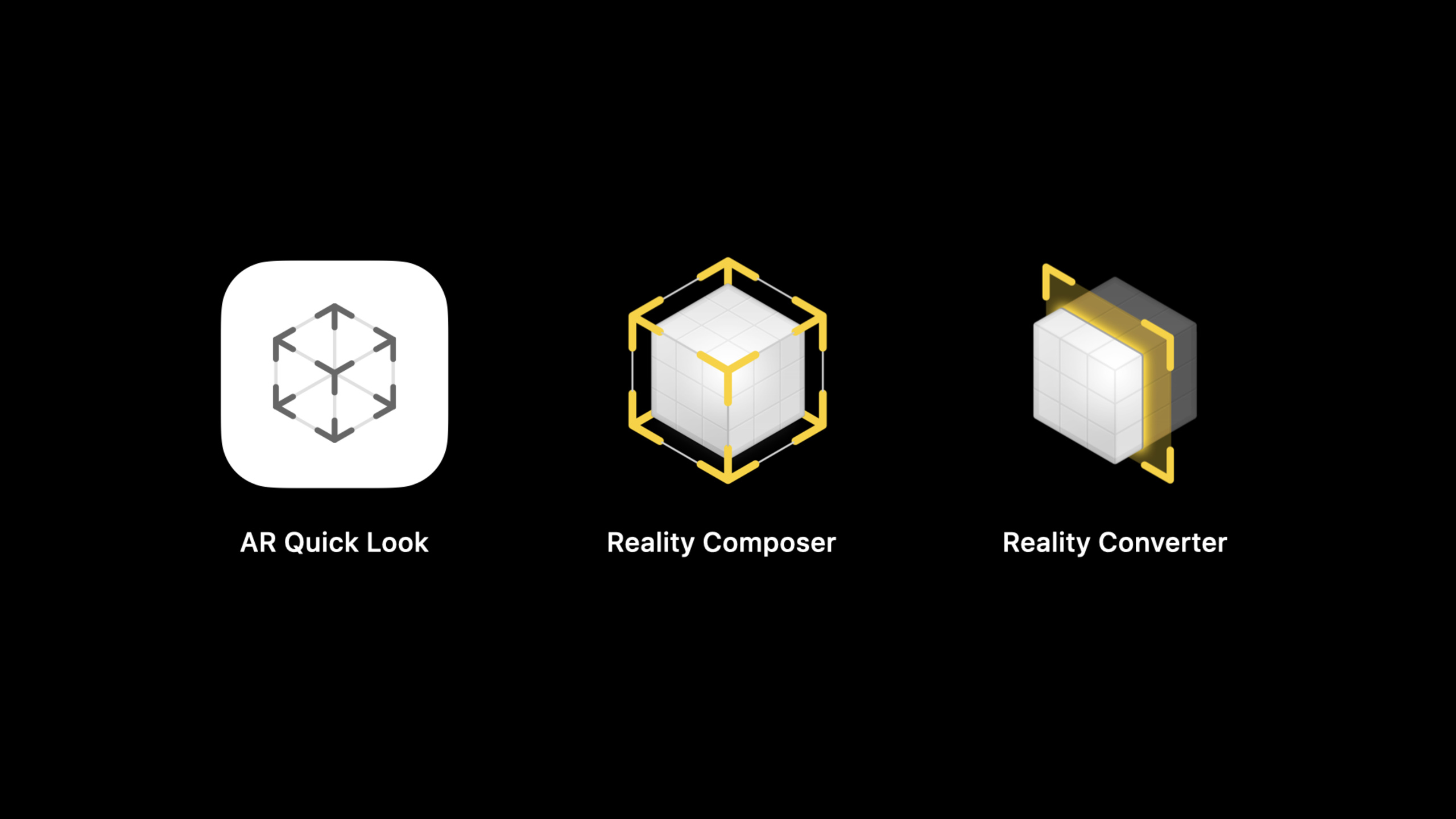
Highlight
Apple provides Apple Pay, custom action, and custom HTML web banners in AR Quick Look, allowing retail websites to directly connect purchases, additional purchases, or Business Chat consultations after product previews back to the web page process.
Core Content
After the e-commerce website introduces AR preview, users can put a chair, alarm clock or guitar into their room. The problem lies in the next step: after reading, you have to exit the preview, return to the product page, find the button, and then continue to purchase or inquire. AR solves the problem of “seeing accurately”, but the purchasing link is still cut open.
This session puts the focus of AR Quick Look on commerce workflow. Apple continues the USDZ link and fragment identifier in web pages, allowing retailers to integrate the AR purchase process on existing product pages. Developers only need to put product information, button type or custom HTML URL into the link, and the system can display a permanent banner at the bottom of AR Quick Look.
After the banner is clicked, AR Quick Look will close and display themessageevent notifies the original page. The webpage then decides to pop up Apple Pay, add to shopping cart, ask for sizes, open Maps to find a store, or jump to Business Chat. Users see the same shopping action, while technically maintaining safe boundaries between web pages, payments, and AR previews.
This design is suitable for retail teams to gradually go online. The first step requires only onerel="ar"Link. The second step is to add Apple Pay or a custom action. The third step is to use a custom HTML banner to add branded content, service portals or conversational purchase processes.
Detailed Content
1. Userel="ar"and fragment identifier to customize AR Quick Look
(05:47) The entrance to AR Quick Look from the web page is still a link to USDZ.rel="ar"Tell Safari this is AR content, URL’s#Put custom parameters later. session first reviews two basic parameters:canonicalWebPageURLUsed to override sharing links,allowsContentScaling=0Used to prevent users from scaling the model.
<a rel="ar" href="alarm-clock.usdz#canonicalWebPageURL=https://developer.apple.com/alarm-clock-product-page/&allowsContentScaling=0">
    <img src="alarm-clock-thumbnail.jpg">
</a>
Key points:
rel="ar"Let Safari open AR Quick Look directly and display the AR logo on the thumbnail.hrefPoint to the real USDZ file,#The following parameters will be parsed by AR Quick Look.canonicalWebPageURLOverride the default sharing target and allow users to share product page links, avoiding the current gallery page.allowsContentScaling=0Ideal for items such as alarm clocks and furniture that must be viewed at true size.- Multiple parameters are used in the real URL
&Concatenation, values with spaces require percent-encode.
2. Apple Pay banner: Put the purchase button into AR preview
(08:53) The Apple Pay banner is the most direct retail integration. Its layout is provided by the system: the product title, subtitle, and price appear on the left, and the Apple Pay button appears on the right. session explicitly lists four required parameters:applePayButtonType、checkoutTitle、checkoutSubtitleandprice。
<a rel="ar" id="ar-link" href="alarm-clock.usdz#applePayButtonType=plain&checkoutTitle=Retro%20Alarm%20Clock&checkoutSubtitle=Charming%20old-school%20look%20with%20built-in%20FM%20tuner&price=$92.50">
    <img src="alarm-clock-thumbnail.jpg">
</a>
Key points:
id="ar-link"Provides an anchor point for subsequent JavaScript listeners.applePayButtonType=plainSelect the Apple Pay button style; session also mentions pay, checkout, book, donate, subscribe and other types.checkoutTitleandcheckoutSubtitleIt is the product information on the banner, which needs to be URL encoded before being passed in.priceProvided by web pages, when supporting multi-language websites, they must be localized according to locale.- Payment information is not collected in AR Quick Look; after the user clicks, he returns to the web page, and the Apple Pay sheet pops up from the web page.
3. Custom action banner: Let the button serve different purchase steps
(11:42) Some items cannot be paid immediately. You may need to collect mailboxes for pre-sale products, you may need to choose sizes for clothing first, and you may need to find nearby stores for large items. Custom action banner retains the system template layout, but replaces the Apple Pay button with text provided by the developer.
<a rel="ar" id="ar-link" href="kids-slide.usdz#callToAction=Preorder&checkoutTitle=Kids%20Slide&checkoutSubtitle=Enjoy%20the%20playground,%20right%20from%20your%20home&price=$145">
    <img src="kids-slide-thumbnail.jpg">
</a>
Key points:
callToAction=PreorderDefine button copy, which can be replaced withAdd%20To%20Cart、Find%20In%20StoreWait for business actions.checkoutTitleandcheckoutSubtitleContinue to bear the product description.priceBecomes optional in custom actions in iOS 14; older systems still need to provide it.- After clicking, the web page handles the subsequent logic. You can add to the shopping cart, ask for sizes, or open Apple Maps to check the store.
4. Custom HTML banner: Bring branded content into the bottom area
(13:39) The third style allows developers to provide a custom HTML file. It’s suitable for displaying more complex brand content, promotional notes, or conversation starters. To meet the security requirements of AR Quick Look, HTML resources must be served over HTTPS.
<a rel="ar" id="ar-link" href="solar-panels.usdz#custom=https://developer.apple.com/solar_panels_banner.html&customHeight=small">
    <img src="solar-panels-thumbnail.jpg">
</a>
Key points:
customThe parameter points to the absolute URL of the custom HTML file.- Custom HTML must use HTTPS, otherwise the banner will not be displayed and the request will be ignored.
customHeightcan besmall、mediumorlarge。- omitted
customHeightAR Quick Look uses small height. - The Business Chat example in the session receives the AR preview of the guitar in Messages, and continues to inquire and place orders during the conversation.
(14:04) If you need more vertical space, you can increase the height to medium.
<a rel="ar" id="ar-link" href="solar-panels.usdz#custom=https://developer.apple.com/solar_panels_banner.html&customHeight=medium">
    <img src="solar-panels-thumbnail.jpg">
</a>
Key points:
- The height of medium is 121 points, which is suitable for one more line of description or a more obvious operation entry.
- Height is still controlled by AR Quick Look, the web page only submits the enumeration value.
(14:09) If the banner needs stronger display capabilities, you can use large.
<a rel="ar" id="ar-link" href="solar-panels.usdz#custom=https://developer.apple.com/solar_panels_banner.html&customHeight=large">
    <img src="solar-panels-thumbnail.jpg">
</a>
Key points:
- large height is 161 points, suitable for placing a more complete marketing or service entrance.
- The higher the height, the more information density needs to be controlled to avoid blocking the user’s view of the product.
5. Monitor banner clicks and return the user to the web page
(16:31) All three banners ultimately rely on the same web page event. Developers set AR link settingsid, then monitormessage. whenevent.dataequal_apple_ar_quicklook_button_tappedWhen the user clicks on the banner in AR Quick Look, the web page will know.
<a rel="ar" id="ar-link" href="alarm-clock.usdz#applePayButtonType=plain&checkoutTitle=Retro%20Alarm%20Clock&checkoutSubtitle=Charming%20old-school%20look%20with%20built-in%20FM%20tuner&price=$92.50">
    <img src="alarm-clock-thumbnail.jpg">
</a>


<script type="application/javascript">
    const linkElement = document.getElementById("ar-link");
    linkElement.addEventListener("message", function (event) {
        if (event.data == "_apple_ar_quicklook_button_tapped") {
            // handle the user tap.
        }
    }, false);
</script>
Key points:
document.getElementById("ar-link")Find the AR link declared earlier.addEventListener("message", ...)Receive notifications when WebKit sends back web pages._apple_ar_quicklook_button_tappedIndicates that the user clicked the banner.- The annotation location should be connected to real business logic, such as calling Apple Pay, adding to shopping cart, and jumping to Business Chat URL.
- AR Quick Look closes first and then returns control to the web page. Payment and business processing still occur on the original site.
Core Takeaways
1. Add a short path from AR to Apple Pay for high unit price products
What to do: Add AR Quick Look to product pages such as furniture, speakers, lamps, etc., and put Apple Pay in the bottom banner.
Why it’s worth doing: The session display process allows users to start payment directly after confirming the size and appearance, reducing the steps of finding the purchase button again after exiting AR.
How to start: First select a product page that already has USDZ and addapplePayButtonType、checkoutTitle、checkoutSubtitleandprice. Then monitor_apple_ar_quicklook_button_tapped, open the Apple Pay sheet after returning to the web page.
2. Use custom action for pre-sale or multi-specification products
What to do: Change the buttons after the AR preview to “Book”, “Select Size” or “Add to Cart”.
Why it’s worth doing: The custom action does not require immediate payment and is suitable for retail processes that also require supplementary options.
How to start: UsecallToActionDefine the button copy and continue to provide product titles and subtitles. After the event is triggered, open the specification selection pop-up layer in the web page or execute the add-to-cart request.
3. Use custom HTML banner as store consultation entrance
What to do: Put a branded banner in the AR preview of large-ticket items or high-inquiry items to guide users to Business Chat.
Why it’s worth doing: The session shows a guitar and Home Depot scene: after viewing the products in the real space, users can continue to ask questions, arrange services or make purchases directly in Messages.
How to start: Prepare an HTTPS HTML banner, usecustomParameters passed to AR Quick Look. Jump to the company’s Business Chat URL in the click event, or open the product consultation page first.
4. Point the sharing link back to the product details page
What to do: Set for each USDZ link in the gallery or event pagecanonicalWebPageURL。
Why it’s worth doing: When users share AR content, recipients should go back to the product page where they can buy it and understand the specifications, and avoid stopping at the temporary preview page.
How to start: Append each AR linkcanonicalWebPageURL, the value uses the absolute URL of the corresponding product details page, and the parameters are encoded.
5. Turn off scaling for real size sensitive items
What to do: Set up alarm clocks, tables and chairs, paintings, home appliances and other productsallowsContentScaling=0。
Why it’s worth it: When users purchase these products, they care about the actual floor space, wall-to-wall ratio, and relationship with existing furniture. Disabling zooming can reduce misjudgments.
How to start: Check the actual size of the product model, confirm that the USDZ unit is correct, and then add it to the link fragmentallowsContentScaling=0。
Related Sessions
- Explore ARKit 4 — A deep dive into positional anchors, depth capabilities, and the basics of more realistic AR placement.
- What’s new in RealityKit — Continue learning about rendering, animation, and physics capabilities for enhanced AR product displays.
- What’s new in USD — Understand the USD asset structure and help the team prepare 3D product files that can be shared and previewed.
- What’s new in Wallet and Apple Pay — The latest capabilities to complement the Apple Pay button and payment flow.
- What’s new for web developers — Check out Safari and WebKit updates to improve the web AR shopping experience.
Comments
GitHub Issues · utterances