
Highlight
macOS and iOS in 2020 provide Audio Workgroups for real-time audio threads, letting the kernel know that multiple threads share the same audio deadline, reducing the risk of glitches in low-latency compositing and signal processing.
Core Content
When doing professional audio applications, latency is not an abstract metric. The synthesizer and signal processing code must produce results in very short audio cycles. Previously, developers could create their own realtime threads and split the work across multiple CPU cores. The problem is that the scheduler only sees a normal set of threads, not that they are chasing the same audio deadline.
The I/O thread managed by Core Audio itself already knows the start and end time of each render cycle. The audio server will wake up the client thread, wait for it to produce audio, and then write it to the hardware. If the client is too slow and the thread misses its deadline, the user will hear discontinuity or glitch (audio interruption).
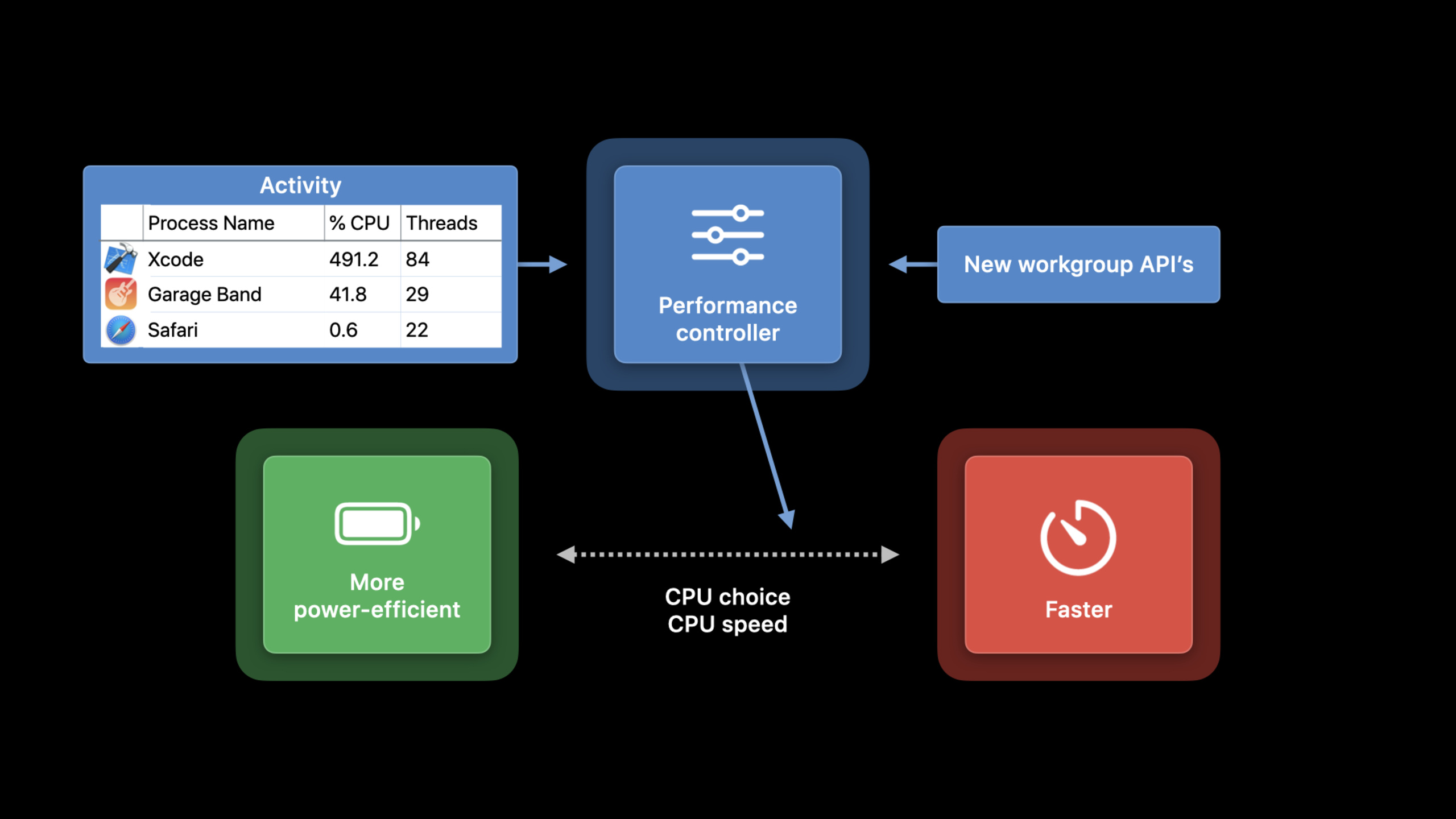
Audio Workgroups complement this layer of semantics. A workgroup consists of one or more threads. The master thread (main thread) tells the kernel in each work cycle: when the work starts and when it must end. In this way, the performance controller not only makes judgments based on “how many threads are used by the application”, but also knows that these threads are cooperating in the same real-time audio task.
The focus of this session is narrow: if your app or Audio Unit creates its own real-time audio threads, you need to add these threads to the correct workgroup. Threads managed by the system framework will be added automatically; threads you create yourself need to be processed explicitly.
Detailed Content
Device I/O parallel thread: join the workgroup of the device
(04:00) A typical scenario is an app rendering three complex tracks at the same time. The I/O thread is responsible for the final mix, and two auxiliary real-time threads calculate track content in parallel. They use the same deadline as I/O threads, but are not in the device workgroup by default.
The solution is to obtain the equipment firstos_workgroup. On macOS, it can be obtained from the audio device through the HAL API; on various platforms, it can also be obtained from the properties of the input/output audio unit, AUHAL or AURemoteIO. Called after the thread startsos_workgroup_join, called before the thread endsos_workgroup_leave。
Device I/O parallel thread workflow
1. Obtain the device's os_workgroup.
2. Call os_workgroup_join in your own real-time thread.
3. Let that thread participate in audio rendering with the same deadline as the I/O thread.
4. Call os_workgroup_leave before the thread exits.
Key points:
- The source for step 1 can be macOS’s HAL API, or it can be the input/output audio unit, AUHAL, or AURemoteIO.
- Step 2 only needs to be executed once in the thread, and its function is to add the current real-time thread to the device workgroup.
- Step 3 corresponds to the three complex track scenarios in transcript: the I/O thread waits for the auxiliary thread and then mixes the final result.
- Step 4 is executed before the thread ends to avoid remaining in the workgroup semantics after the thread life cycle ends.
Asynchronous real-time thread: create your own work cycle
(05:25) Another type of worker thread is not synchronized with device I/O. They have their own rhythm and deadline. For example, a synthesis result is calculated in advance in the background and then handed over to the I/O thread for consumption. They cannot join the device workgroup because the deadlines are different.
At this time, an independent workgroup needs to be created. The API given by session isAudioWorkIntervalCreate、os_workgroup_interval_startandos_workgroup_interval_finish. The master thread reports start time and deadline at the beginning of each cycle and finish at the end of the cycle.
Asynchronous real-time thread workflow
1. Use AudioWorkIntervalCreate to create your own workgroup.
2. Have these real-time threads call os_workgroup_join.
3. The master thread calls os_workgroup_interval_start in each work cycle.
4. startTime can come from mach_absolute_time, and deadline must be greater than startTime.
5. Call os_workgroup_interval_finish at the end of each work cycle.
Key points:
AudioWorkIntervalCreateUsed to create workgroups with a different cadence than device I/O.os_workgroup_joinStill only needs to be called once when the thread joins the workgroup.startTimeThis can be the current time; if you know the actual start time of the cycle, you can also pass in a time point in the recent past.deadlinemust be greater thanstartTime, both units aremach_absolute_time。- session special reminder, don’t make assumptions
mach_absolute_timeis nanosecond; need to usemach_timebase_infoConversion frequency. os_workgroup_interval_finishTells the kernel that this cycle has completed, allowing the performance controller to get complete work cycle information.
Audio Unit auxiliary thread: observe the host’s rendering context
(07:03) Most Audio Units do not create their own real-time thread. A few large plug-ins will split a render request into multiple threads. The difficulty faced by the plug-in is that the thread context passed in by the host is not fixed. It may be a device I/O thread or a non-real-time worker thread of the host.
To solve this problem, Apple introduced in 2020AURenderContextObserver. Audio Unit implements render context observer property. The system will call this block before each render request and pass in theos_workgroupcontext struct. When the plug-in detects changes in the workgroup, it adds its own auxiliary real-time thread to the new workgroup.
Audio Unit render context workflow
1. The Audio Unit implements the AURenderContextObserver property and returns a block.
2. The system calls this block before each render request.
3. The context struct received by the block contains an os_workgroup.
4. If the context's workgroup changes, add the auxiliary real-time threads to the new workgroup.
Key points:
AURenderContextObserverIt is the render context observer property implemented by Audio Unit developers.- in context struct
os_workgroupIs the workgroup corresponding to the current render request. - The workgroup may change every render, and plugins cannot cache a permanent value on initialization.
- The auxiliary real-time thread should follow the workgroup changes seen by the observer and rejoin the workgroup of the current render request.
- The host should not actively call the observer; the session clearly states that the system will automatically complete this when the host renders.
Number of threads: let the workgroup give the upper limit of parallelism
(09:21) When creating parallel worker threads, don’t blindly open them all based on the number of CPU cores. Provided by Audio Workgroupsos_workgroup_max_parallel_threads, the number of available parallel threads can be recommended based on known workgroups.
Recommended parallel thread count workflow
1. Wait until the workgroup is known, then call os_workgroup_max_parallel_threads.
2. During Audio Unit initialization, you can create worker threads based on the CPU core count.
3. During real-time rendering, use only the number of threads recommended by the API.
Key points:
os_workgroup_max_parallel_threadsMust be called after the workgroup is known.- Audio Unit may have to wait until the realtime render stage to get the workgroup.
- It is recommended that threads be created according to the number of CPU cores during session initialization, and only the recommended number is enabled during rendering.
- This number is the number of threads that actually participate in work per rendering cycle, and is not equal to the total number of threads created.
Core Takeaways
1. Add parallel rendering mode to large compositors
- What to do: Split multiple oscillators, filters or effect chains into auxiliary real-time threads for parallel calculations.
- Why is it worth doing: session description If parallel threads join the device workgroup, the kernel will know that they share the same deadline as the I/O thread.
- How to start: Get the device from HAL, AUHAL or AURemoteIO
os_workgroup, called after the thread startsos_workgroup_join, and then record the number of overload or glitch before and after activation.
2. Establish an independent real-time period for offline precomputation
- What to do: Create an independent cadence for the worker thread that calculates audio clips in advance to avoid stuffing tasks with different deadlines into the device I/O workgroup.
- Why it’s worth doing: session clearly distinguishes parallel-to-device and asynchronous-to-device threads, the latter requires its own workgroup.
- How to start: Use
AudioWorkIntervalCreateCreate a workgroup and call it in each cycle of the master threados_workgroup_interval_startandos_workgroup_interval_finish。
3. Adapt complex Audio Units to different hosts
- What: When the plug-in runs in different host apps, it dynamically follows the workgroup corresponding to the host’s current render request.
- Why is it worth doing: session points out that the Audio Unit does not know whether the host passes in the device I/O thread or other worker context, and can only observe it at render time.
- How to start: Implementation
AURenderContextObserver, compare this context’sos_workgroupWhether it changes, then switch its auxiliary real-time thread to the new workgroup.
4. Use the recommended number of threads to control CPU pressure
- What to do: Add a “pre-created thread, periodic enablement” scheduling layer to the real-time audio engine.
- Why is it worth doing: given by session
os_workgroup_max_parallel_threads, used to determine how many parallel threads should be used under the current workgroup. - How to start: Create a fixed worker pool during initialization, query the recommended number after obtaining the workgroup at render time, and only wake up workers who need to participate in the current cycle.
Related Sessions
- Port your Mac app to Apple silicon — Talk about considerations for Universal Mac, low-level code and plug-ins in Apple silicon migration.
- Explore the new system architecture of Apple silicon Macs — Complements SoC architecture, unified memory, and framework performance gains.
- Identify trends with the Power and Performance API — Shows how to integrate performance metrics and diagnostic data into team tools.
- Record stereo audio with AVAudioSession — Also part of the WWDC 2020 audio development theme, focusing on stereo recording of built-in microphones in mobile devices.
Comments
GitHub Issues · utterances