
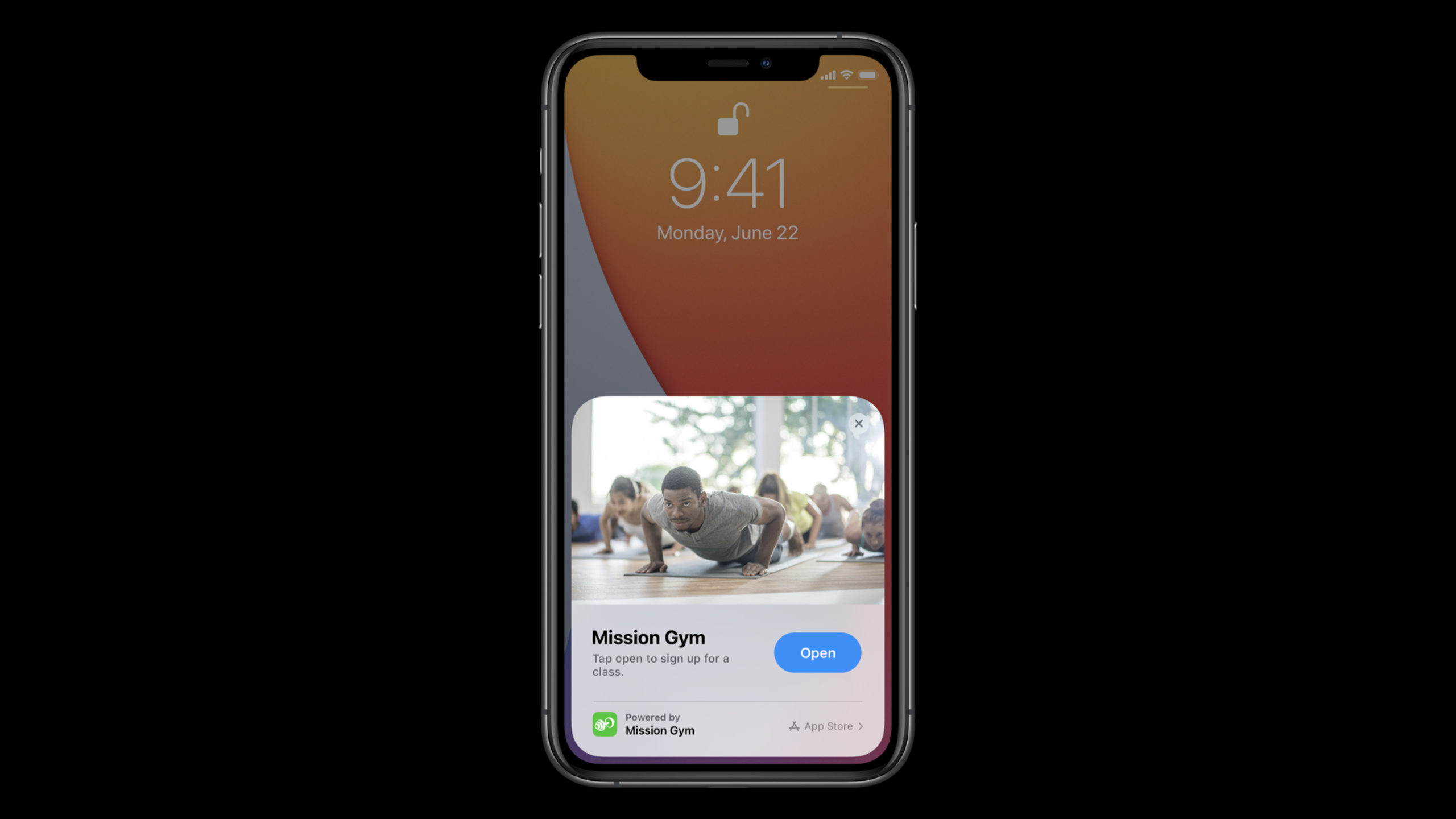
Highlight
Apple uses a gym user journey to illustrate how system intelligence can put the right features in the right place at the right time through Maps suggestions, App Clips, Siri Suggestions, Smart Stack and Shortcuts automation before and after app installation.
Core Content
Many app growth problems do not occur in the function page. When users haven’t installed the app, they don’t even know that your functionality exists. After users install it, they may not remember to open it when needed. If a gym app can only wait for users to click on the icon, it misses many real-life scenarios.
This session connects a complete journey with a user who is ready to exercise. A friend sent a new gym address in Messages. The user has not installed the gym app yet, and Maps can already give route suggestions based on the address. After arriving at the store, the NFC tag at the front desk can open the App Clip, allowing her to view the course schedule directly without having to search and download it in the App Store first.
When the App Clip solves the problem, the download of the full app only makes sense. Users start planning lessons for the week on Sunday mornings. The system learns this habit from usage patterns and displays the app in advance in Search. Later, she often checked the yoga class schedule after get off work. Timely shortcut suggestions put this entry in the search results, saving the step of entering the app and looking for the page.
As users become more sophisticated, the question becomes whether the information is timely. Changes in the class schedule may cause her to miss group classes, so iOS 14’s widgets and Smart Stack provide a new entrance: when the class schedule changes, Smart Stack automatically switches to the gym widget, allowing her to see the changes on the Home Screen. Finally, Shortcuts automation can be run when she arrives at the gym, combining checking bus times and starting to log a workout into one action.
The core of this path is not to make the app look smarter. It requires developers to first understand when, where, and in what state of mind users need help, and then put the key capabilities of the app where the system can present them.
Detailed Content
Design the user journey starting before installation
(00:24) Apple first puts the scope of discussion before App installation. System intelligence helps users before they even download an app and continues along the journey from novice to proficient. This session is directly expanded with the specific path of a user and friends to the gym.
A friend sends a new gym address through Messages
Maps recognizes the destination from the address
The user already sees a driving route suggestion before opening Maps
The user has not installed the gym app yet
Key points:
- The first touchpoint comes from something the user is already doing: reading an address from a friend.
- The system recommendation does not require the user to know about the gym app first, nor does it require her to open the App Store first.
- For developers, the discovery portal may precede the installation portal.
Use App Clip to take over current tasks
(01:27) When the user arrives at the gym, the real question is “What classes are there today?” The iOS 14 App Clip can be opened through the front-end NFC tag, allowing her to see a similar curriculum experience to the full app while avoiding the friction of downloading the full app.
The user walks to the front desk
The phone is held near the NFC tag
The App Clip opens the class schedule
The user sees an entry point to download the full app inside the App Clip
Key points:
- App Clip To correspond to an immediate task, here is the course schedule.
- It does not replace the full app, but allows users to verify that the app can solve their problems first.
- The entrance to download the full app appears after the value is seen, and the reason for conversion is clearer.
Enable Search and Siri Suggestions to support scheduled habits
(02:30) After users download the full app, they start planning their week’s lessons on Sunday mornings. When she scrolled down to Search, the app appeared in Siri Suggestions even though she hadn’t typed text yet. The transcript clearly states that Siri will learn and predict the apps she wants to open based on how the phone is used.
The user plans next week's classes on Sunday morning
She pulls down to open Search
Siri Suggestions shows the gym app directly
The user enters the app to view the class schedule
Key points:
- Suggest entry points come from repeated actions, not static shortcuts.
- The time of Sunday morning is critical because it corresponds to the user’s habit of planning lessons.
- The target page of the App should be able to accept this entry, allowing users to continue making plans instead of returning to an irrelevant homepage.
Turn frequently used pages into timely suggestions
(03:14) As users become familiar with the App, their needs become more specific. She loves yoga and often checks her yoga class schedule after get off work. Recently, she started using timely shortcut suggestions to jump to the yoga class schedule with just one click in Search.
The user wants to find an extra yoga class after work
She opens Search
A timely shortcut suggestion shows an entry to the yoga schedule
After tapping it, she goes directly to the relevant content
Key points:
- Smart suggestions should go into specific tasks, not just opening the app.
- “Check the yoga class schedule after get off work” is closer to the user goal than “Open the gym app”.
- The closer the entrance is to the target page, the easier it is for users to turn the app into a daily habit.
Use Smart Stack to process timely information
(03:54) Users missed group classes because the course schedule updates were not seen in time. iOS 14’s widgets and Smart Stack bring information to the Home Screen. The key detail in the session is: when the class schedule changes, the stack will automatically go to the gym widget, giving the user time to process the changes.
The user adds the gym widget to Smart Stack
The class schedule changes
Smart Stack automatically rotates to the gym widget
The user sees the change on the Home Screen and adjusts her plan
Key points:
- The value of Widgets lies in timely information rather than replicating the complete App interface.
- Smart Stack is responsible for transferring relevant widgets out at the right time.
- After users see the changes, they can still click into the correct location of the app to continue processing.
Use Shortcuts automation to connect repeated actions
(04:49) When the user has been exercising frequently, she will repeat several actions before exercising: check the bus time, open the Mission Gym app to record the exercise. Shortcuts automation can be set up to run when you arrive at the gym, placing these actions behind the same trigger point.
The user arrives at the gym
Shortcuts automation is triggered
She checks transit times
She starts logging a workout
Key points:
- Automation is suitable for actions that are already steadily repeated.
- The trigger point comes from a real scenario, in this case arriving at the gym.
- Apps need to hand over executable actions to Shortcuts so that users can combine them with actions from other apps.
Core Takeaways
1. Design the first help point for the pre-installation scenario
What to do: List what users are already doing before encountering your service, such as receiving an address, seeing a store logo, scanning a table sign, or opening reservation information.
Why it’s worth doing: The first effective touch point of the session occurs when the user has not installed the gym app. The system recommends solving the route problem first, and then taking the user to the subsequent experience.
How to start: Choose a pre-installation task and write down clearly what the user has input, the signals that the system can recognize, and the next action. Don’t start with the download button, start with the user’s immediate problem.
2. Make App Clip a complete small task
What to do: Design an App Clip for a store, venue, event or service point to complete only one current task, such as checking the class schedule, queuing, ordering or making a reservation.
Why it’s worth doing: App Clip in transcript allows users to see the course schedule directly next to the NFC tag in the foreground. She gets the value first and then decides whether to download the full app.
How to get started: Take the shortest path from the full app, retaining the information and actions necessary to complete the task. After completion, the entrance to download the complete App will be provided.
3. Prepare specific entrances for experienced users
What to do: Find the secondary pages that users enter repeatedly, such as yoga class schedules, order status, frequently used routes, or today’s plans, and design them as entrances that can be opened directly from Search.
Why it’s worth doing: Users in the session already know they want to see the yoga class schedule. It is timely recommended to enter this content directly, which saves steps than opening the app homepage.
How to start: First select a high-frequency page, define its target users, common time and default state after entry. After the entrance is hit, the target content is displayed directly.
4. Use widgets to handle expired information
What to do: Put time-sensitive information such as course changes, queue progress, delivery status, and balance reminders into widgets instead of relying solely on the in-app notification page.
Why it’s worth doing: The reason why users miss group classes is that they don’t see course updates in time. Smart Stack turns the gym widget out and makes the Home Screen the place to handle changes.
How to get started: Identify a type of information that users will miss and design small and medium-sized displays for it. Each status should have a clear next step, such as viewing details, changing the appointment, or opening the corresponding page.
5. Make the arrival scene an automated trigger point
What to do: Design executable App actions in Shortcuts automation for stable scenarios such as arriving at the store, arriving home, getting in the car, and starting work.
Why it’s worth doing: Users at the end of the session will repeatedly check the bus time and start recording exercises after arriving at the gym. Automation puts these actions behind a trigger point.
How to start: Pick a location or time to trigger the scene and write out 2-3 actions that users usually do continuously. Let your app provide one of these explicit actions first, and then consider combining it with other apps.
Related Sessions
- Design for intelligence: Apps, evolved — Introduces the design background of system intelligence and explains how Siri Suggestions, widgets, Shortcuts and App Clips make App functions closer to user scenarios.
- Design for intelligence: Make friends with “The System” — Split system intelligence into define, learn, and execute, and explain how intents, donations, and extensibility support system recommendations.
- Design great App Clips — Explain how to choose the core tasks of App Clips, design a quick process, and take users from a lightweight experience to a complete App.
- Add configuration and intelligence to your widgets — Explains how configurable widgets, Smart Stacks, and Siri Suggestions can display timely information based on user behavior.
- Feature your actions in the Shortcuts app — Explain how to make App actions appear in the Shortcuts app and automation suggestions to help users build personalized automation.
Comments
GitHub Issues · utterances