
Highlight
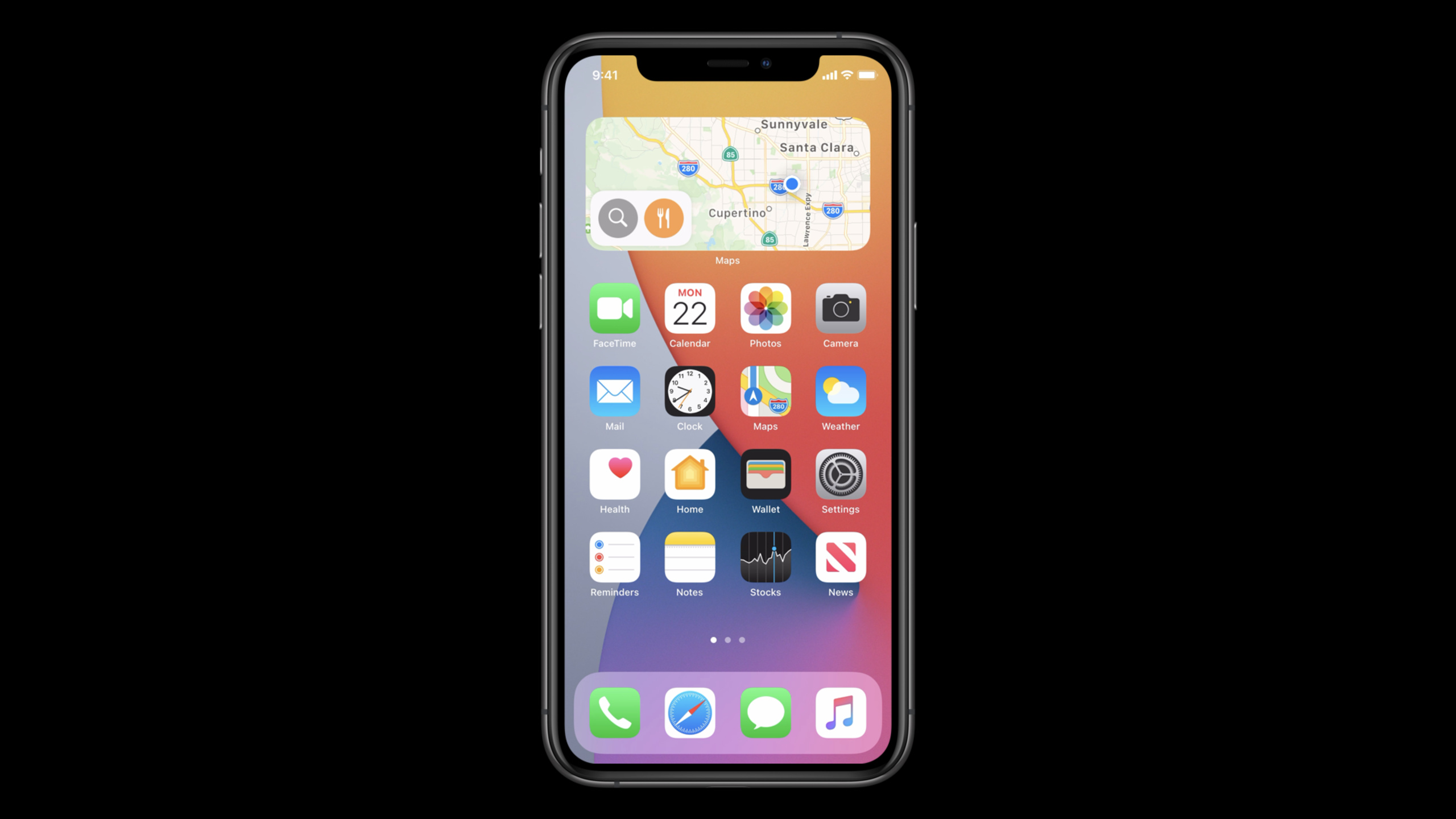
WidgetKit in iOS 14 and macOS Big Sur uses Intent configuration, Siri Suggestions donation and TimelineEntryRelevance to let the same widget instance display the content selected by the user and help Smart Stack bring it to the top at the relevant time.
Core Content
The first version of many widgets can display information, but users will soon encounter the second problem: there are multiple pieces of content in the same App, and only one of them can be viewed on the Home Screen. The example of a trading app is typical. The user may have multiple cards, and the Recent Purchases widget should only show transactions from one of them, or he may only want to see categories like food or transportation.
If developers had to make their own settings page for every choice, the widget would become heavy. Apple takes another path: developers declare parameters in the Intent Definition File, and the system generates the configuration interface on the back of the widget based on these parameters. Users can select Card and Category by long pressing the widget and clicking Edit Widget. The configured intent instance will be passed to the widget extension at runtime. (03:24)
Configuration solves “which content to display”. Intelligent scheduling solves “when to display”. Smart Stack will move the appropriate widget to the top of the stack based on user behavior and the correlation signals provided by the App. The upcoming thunderstorm in the weather app and the consumption of more than $50 in the trading app are all specific scenarios given in the session. (17:43)
The key to this session is to connect configuration and intelligent scheduling. The user selects a card on the widget; the App donates intent when the user views the same card; the system learns this timing pattern; when the widget for the same card already exists in the Smart Stack, the system has the opportunity to display it at the correct time. (20:04)
Detailed Content
Use Intent to define widget configuration items
(03:24) Widget’s configuration interface comes from intent. An Intent contains a sequenced set of parameters, each of which becomes a line on the configuration UI. in the demoViewRecentPurchasesIntentThere are two parameters:CardandCategory。
Intent Definition File
ViewRecentPurchases intent

parameters:
  Card      -> custom Card type
  Category  -> enum, default value: All

eligible:
  Intent is eligible for widgets
Key points:
Intent Definition FileIs the place in Xcode where intents, parameters, and types are declared.Intent is eligible for widgetsMake this intent configurable as a widget.CardUse a custom type because it represents a card inside the app.CategoryUse enumerations because the classification set is fixed.- Xcode will generate intent class, for example
ViewRecentPurchasesIntent, which contains corresponding parameter attributes.
Provide dynamic options for configuration items
(09:40) Many configuration values cannot be hard-coded in the Intent Definition File. The list of credit cards changes with the logged in user, so the Card parameter requires dynamic options. After turning on Dynamic Options, the system generates an intent handler protocol that requires the App or Intents extension to provide candidate values.
Card parameter
  Dynamic Options: on

generated methods:
  provideCardOptionsCollection
  defaultCard

runtime data:
  app cards -> custom Card objects -> INObjectCollection -> completion handler
Key points:
provideCardOptionsCollectionReturns a list of Cards selectable by the user.defaultCardReturns the default Card used when the widget is first added.INObjectCollectionA tiled list can be returned, or grouped by section.- After starting the search,
provideCardOptionsCollectionA search term will be received, and additional search results can be returned as the user enters. - The default value is important because when a new widget is dragged to the Home Screen, the contents of the default Card will be displayed first.
Switch from StaticConfiguration to IntentConfiguration
(13:47) After the configuration items are defined, the widget extension needs to be changed from static configuration to intent configuration. Provider also needs to be changed toIntentTimelineProvider, so that the timeline method will receive the intent parameters selected by the user.
Widget definition:
  StaticConfiguration
    -> IntentConfiguration(intent: ViewRecentPurchasesIntent)

Timeline provider:
  TimelineProvider
    -> IntentTimelineProvider

timeline input:
  intent.card
  intent.category
Key points:
IntentConfigurationTell WidgetKit which intent this widget should be configured with.IntentTimelineProviderThe method will get one more intent parameter.- The widget no longer only displays the default card, but based on
intent.cardSelect transaction data. intent.categoryYou can continue to filter the transaction list.- The same widget type can have multiple instances, and each instance saves different configurations.
Customize the text, color and parameter relationship of the configuration page
(15:13) The system generates the configuration UI, which does not mean that developers cannot adjust it at all. Widget extension can set the title and description of the configuration page; asset catalog and build settings can set the accent color and background color of the configuration page; Intent Definition File can make a parameter depend on another parameter.
configuration UI customization:
  configurationDisplayName
  description
  Global Accent Color Name
  Widget Background Color Name

parameter relationship:
  Mirror Calendar App = false
    -> show Calendar parameter
Key points:
configurationDisplayNameanddescriptionIt will be displayed in the widget configuration related interface.- Named colors are placed in the asset catalog of the widget extension.
Global Accent Color NameControl accent color.Widget Background Color NameControls the background color of the widget’s back.- The parent-child parameter relationship is suitable for Calendar Example: After closing the Mirror Calendar App, the manually selected Calendar parameters are displayed.
Use intent donation to help Smart Stack learn user habits
(19:13) Smart Stack will move widgets to the top based on user behavior. iOS 14 allows Shortcuts and custom intent donations to also affect the display timing of widgets. In the demonstration, when the user checks the recent consumption of a certain card in the app, the host app donates the sameViewRecentPurchasesIntent。
setup:
  mark intent eligible for Siri Suggestions
  Supported Combinations: Card

host app behavior:
  user views recent purchases for AcmeCard
  create INInteraction with ViewRecentPurchasesIntent
  donate interaction

prediction:
  system predicts Card at the learned time
  matching configured widget can surface in Smart Stack
Key points:
Intent is eligible for Siri SuggestionsLet the system predict this intent.Supported CombinationsSpecify which parameters are meaningful for prediction.- When only Card is selected, Category does not participate in matching, and widgets that display AcmeCard have a chance to be moved to the top.
- When selecting Card and Category at the same time, only widgets that match both parameters will be considered by the system.
- The donation occurs in the host app, and the timing is when the user actually views the corresponding information.
Use TimelineEntryRelevance to mark important content
(23:33) The system will also determine whether to display the widget based on the relevance of the timeline entry.TimelineEntryRelevanceIncludescoreandduration. The demo treats purchases over $50 as highly relevant events, and uses a higher score to tell the system that this entry is more worthy of being displayed.
TimelineEntry:
  date timestamp
  rendered view
  relevance: TimelineEntryRelevance

TimelineEntryRelevance:
  score
  duration

score examples:
  1.0  -> purchase over $50
  0.1  -> minor purchase
  0.0  -> no recent purchase
Key points:
scoreOnly compare with the scores provided by the same widget in the past, not with widgets from other apps.scoreLess than or equal to 0 means there is currently no relevant information and should not be moved to the top.durationIt is suitable for content with a clear time window such as live scores.durationWhen 0, relevance persists until the next relevance is received.- If you don’t want to change the correlation during a timeline update, you can put
TimelineEntryRelevanceLeave blank.
Core Takeaways
1. Make a selectable account balance widget
What it does: Let the user place multiple balance widgets on the Home Screen, each instance showing a card, an account, or a wallet.
Why it’s worth doing: An example of a session transaction app is to create multiple Recent Purchases or Due Date widgets for different Cards.
How to start: Define account parameters in Intent Definition File, open Dynamic Options, and useprovideCardOptionsCollectionReturn the current user’s account list, and then change the widget toIntentConfiguration。
2. Make a recent records widget filtered by category
What to do: Let the user select categories such as “Food”, “Transportation” and “Subscription”, and the widget will only display the corresponding records.
Why it’s worth doing:CategoryIt is the second parameter in the demonstration. The default value is All, which is suitable for gradually narrowing down from full recording.
How to start: Make the category an enum parameter, set a default value for it, and thenIntentTimelineProviderUse the intent parameter to filter the data of the timeline entry.
3. Donate content that users often read to Smart Stack
What to do: When a user checks a project, account or course at noon every day, let the system learn this habit and display the corresponding widget in advance in the Smart Stack.
Why it’s worth doing: The AcmeCard example in transcript illustrates that the system will use donated intent to identify information that users often look for at a certain time.
How to start: Mark the intent of the configured widget as Siri Suggestions eligible, and set it to include only key parametersSupported Combinations, used in host appINInteractionDonate the intent the user just viewed.
4. Set relevance score for strong time-sensitive events
What to do: Make the widget more likely to be moved to the top by the system when events such as overbooking, flight boarding, game start, and rainstorm warning occur.
Why it’s worth doing:TimelineEntryRelevanceofscoreIndicates the importance of the entry relative to the historical content of this widget. Entries with high scores are more suitable for Smart Stack.
How to start: First define your own set of score rules, for example, no events are 0, ordinary updates are 0.1, important events are 1, and then add relevance to the timeline entry.
5. Set duration for fixed-duration activities
What to do: Set a relevance window for events such as competitions, conferences, live classes, and limited-time promotions, so that Smart Stack opportunities will no longer be occupied after the event ends.
Why it’s worth doing: The session basketball widget example uses the start to the end of the game as a fixed duration, and subsequent updates during the period do not need to change the relevance.
How to start: Generate timeline entry at the start of the activity, setTimelineEntryRelevanceofscoreandduration; If you only change the UI for subsequent score or status updates, leave relevance blank.
Related Sessions
- Meet WidgetKit — First understand WidgetKit, timeline, Widget Gallery and basic configuration model.
- Build SwiftUI views for widgets — Continue processing the SwiftUI views that the configurable widget will eventually render.
- Widgets Code-along, part 3: Advancing timelines — Practice advanced timelines, multiple widgets, and dynamic configuration with code-along.
- Design great widgets — Judge what information is suitable to put into the Home Screen widget from a design perspective.
- Design for intelligence: Make friends with “The System” — Expand your understanding of how Intents, donations, and system intelligence work together.
Comments
GitHub Issues · utterances