
Highlight
Apple introduces the Shortcuts app and complication entry on Apple Watch in watchOS 7, and explains how the app’s intents, NSUserActivity, and remote execution determine whether a shortcut is run locally on the watch or executed back on the paired iPhone.
Core Content
Many iPhone shortcuts will encounter a more stringent problem when they are applied to watches: users just raise their wrists and click, and the intended action is completed immediately. This entry may come from the Shortcuts app or from the watch face complication. Any process that requires opening the iPhone App, waiting for a long network jump, and adding another interface will appear cumbersome.
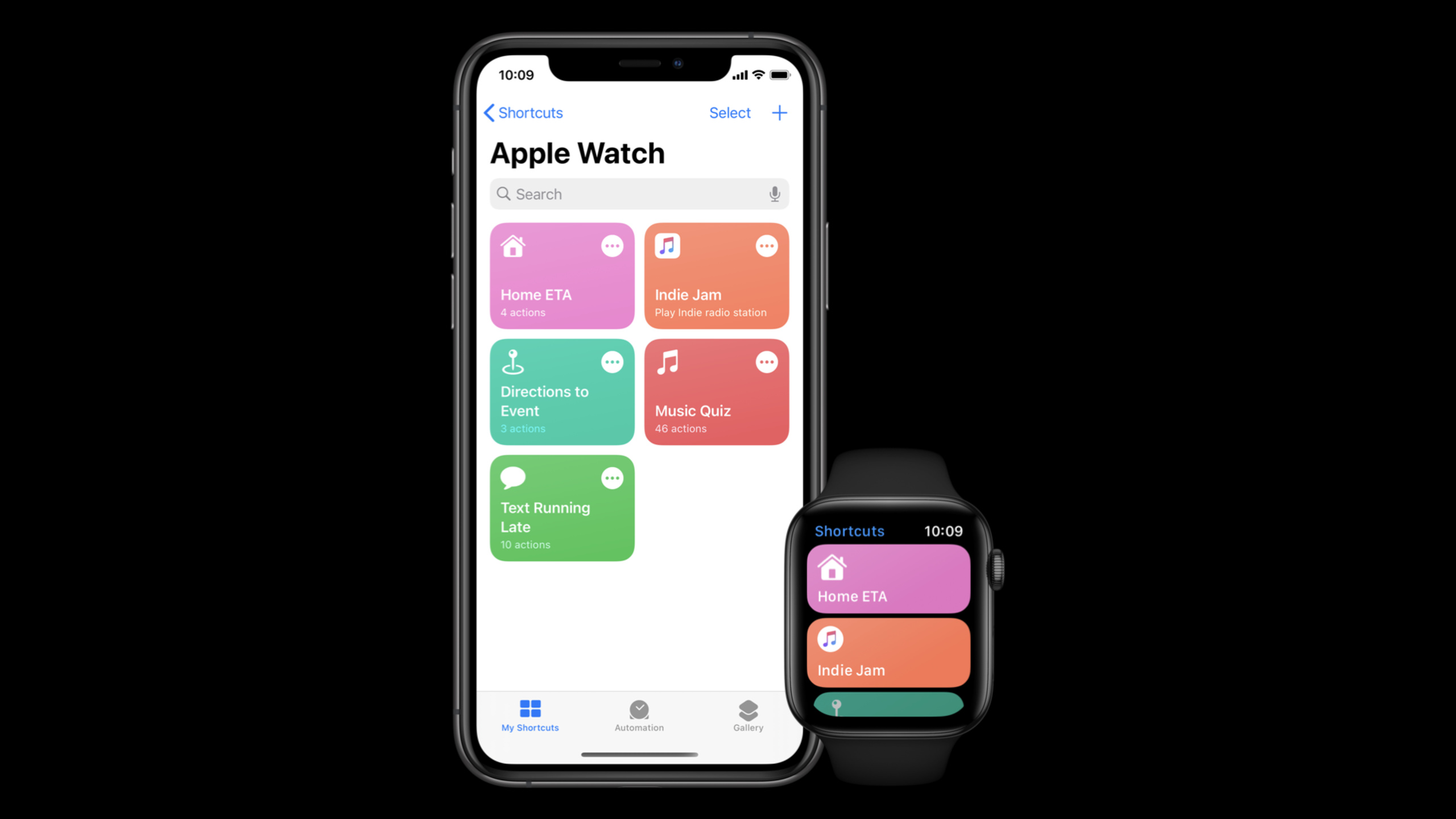
watchOS 7 first completes the entrance. Shortcuts app comes to Apple Watch. Users can synchronize their shortcuts through iCloud, organize Apple Watch collections, and answer questions in shortcuts on the watch. Two new entries have also been added to the watch face: one complication can open the Shortcuts app, and the other complication can directly run a shortcut.
What developers have to deal with is the execution path.NSUserActivityType shortcut needs to open the watchOS app; if the app is not on the watch, the operation will fail. Shortcuts based on intents are more flexible: when there is a watchOS Intents extension, it is executed locally on the watch, and when there is no watchOS Intents extension, the intent can be sent back to the paired iPhone for remote execution.
This session focuses on making shortcut on the watch less error-prone and less waiting. The best experience is to allow the intents or user activities of the same app to be processed by the watchOS app; taking a step back, let the intent be completed in the background to avoid taking the user to a mobile app that cannot be opened.
Detailed Content
watchOS 7 adds watch entry to Shortcuts (00:55)
The speaker starts by showing off the new watchOS 7 Shortcuts app. Users can configure shortcuts on the iPhone, put items suitable for the watch into the Apple Watch collection, and then sync them to the watch through iCloud. shortcut If you need to ask a question, users can answer it directly within the Shortcuts app on the watch.
Shortcuts entry points on watchOS 7:
- Shortcuts app runs synced shortcuts
- Apple Watch collection decides which shortcuts sync to the watch
- inline question lets users answer parameters on the watch
- complication opens the Shortcuts app or runs a specific shortcut directly
Key points:
- The Apple Watch collection is where the user decides the synchronization range. Not all iPhone shortcuts automatically become watch entries.
- Inline question supports filling in parameters on the watch, which is suitable for lightweight interactions such as “select calendar events” and “confirm sending ETA”.
- Specific shortcut complication allows high-frequency actions to start from the watch face, and users do not need to enter the Shortcuts app first.
NSUserActivityDifferent from the execution path of intents (03:35)
When Shortcuts is run on the watch, the system first looks at how shortcut is implemented.NSUserActivityType shortcut must open the app to process the activity; if the watchOS app is not installed on the watch, there will be no target to open, and the system will display an error. Intent-based shortcuts are handled by the Intents extension, so there’s a chance they’ll run locally on the watch, or back to the paired iPhone.
Routing when Apple Watch runs a shortcut:
1. NSUserActivity shortcut
   - Open the watchOS app to handle the activity
   - watchOS app not installed -> error

2. intent-based shortcut
   - watchOS Intents extension supports this intent -> handled locally on the watch
   - No available extension on the watch -> sent to the paired iPhone for remote execution
   - iPhone handler requires continueInApp -> error
Key points:
NSUserActivityThe path depends on the watchOS app, and you cannot remotely open the iPhone App to complete this step.- The processing unit of intent-based shortcut is the Intents extension, and the system can route between the watch and the paired iPhone.
continueInAppThe process will be pushed to open the App; the watch cannot remotely open the mobile App, so it will fall to the wrong node.
Remote execution can be done, but it will be slower (05:23)
If the watch cannot handle an intent locally, the system sends the intent to the paired iPhone. This extra hop will increase the total time. The speaker made it clear that even if there is no watch app, or the watchOS Intents extension does not cover all intents, the system can still run these intent-based shortcuts, but the experience will be slower than native execution.
Intent checklist for remote execution:
- The shortcut must be intent-based
- The task can be completed entirely in the background
- The handler does not return .continueInApp
- supports background execution is checked in the Xcode intent editor
Key points:
- remote execution only supports intent-based shortcut, not supported
NSUserActivitytype shortcut. - Tasks must be able to be completed in the background, as opening another app across devices interrupts lightweight processes on the watch.
supports background executionTo configure the parameter combination used by interaction donations, you cannot just check the default path.
The best experience is to compile the extension into watchOS (06:10)
Apple’s preferred approach is straightforward: build a watchOS app and make it support the same set of user activities or intents that iOS apps already support. For apps that are just starting to connect to Shortcuts, the speaker recommends using the Intents framework because it supports parameters, has a more flexible API, and can run in the background.
Preparation for local watchOS execution:
- Build a watchOS app
- Support the user activities or intents already available in the iOS app
- Create a separate Intents extension target for watchOS
- Package the watchOS Intents extension with the watchOS app
- Support as many existing iOS intents as possible
Key points:
- Local execution avoids the extra wait of sending the intent back to the phone.
- The watchOS Intents extension is usually a separate target in Xcode, and it cannot be assumed that the iOS extension will automatically cover the watch.
- If there are multiple intents on iOS and the watch only covers part of them, the uncovered intents may still be executed remotely.
Siri presentation relies on dialogue copy (08:55)
Shortcuts that can be run in the Shortcuts app can also be run via Siri voice. The limitation on the watch is: watchOS does not support Intents UI extensions. The speaker used the example of ordering soup to illustrate. The default confirmation prompt only tells the user to “order a bowl of soup.” The custom confirm response can add the total order price before confirmation.
Siri presentation on Apple Watch:
- Intents UI extensions do not support watchOS
- intent dialog carries the main presentation responsibility
- confirm() returning ready gets the default confirmation prompt
- custom confirm response can provide key information such as price, status, and summary
Key points:
- Watch screens are small and voice portals are commonly used. Dialogs cannot just be used as covert copywriting.
- The default confirmation prompt has limited information. When it comes to purchasing, placing an order, or sending a message, the specific information required for user confirmation must be added.
- The custom response should provide the information needed for task decision-making to avoid bringing the user back to the app to check the details.
The Siri dial can continue to recommend appropriate actions (10:08)
In addition to Shortcuts apps and complication, the speaker also reminded developers to consider Siri watch face. Shortcuts suitable for specific scenarios can be provided to Siri watch face through the relevant shortcut APIs of the Intents framework, allowing the system to display them at the appropriate time.
Shortcuts suitable for the Siri watch face:
- Related to time, location, schedule, or habits
- Users can decide at a glance whether to run them
- They do not require staying in the app for a long time after execution
- Results can be confirmed with a short dialog or a brief interface
Key points:
- Siri watch face is not a fixed entrance, it is suitable for showing actions “relevant at this moment”.
- If the action requires filling in parameters multiple times, or the results require confirmation on a complex interface, it is not suitable as a tap shortcut on the dial.
- First complete the background execution of the intent and the dialog, and then consider letting the system recommend it.
Core Takeaways
-
What to do: Make a high-frequency action into a shortcut that can be run directly from the dial complication. Why it’s worth doing: The session shows specific shortcut complication, and users can send lightweight tasks such as ETA with one tap from the dial. How to start: First pick an action with few parameters, short results, and easy explanation after failure; after connecting to Shortcuts, guide users in the product to add it to the Apple Watch collection and watch face.
-
What: Add the watchOS Intents extension target to existing SiriKit intents. Why it’s worth doing: The speaker repeatedly emphasized that the best experience comes from the watch processing the intent locally, and remote execution will send one more hop back to the phone. How to start: List the intents supported by the iOS Intents extension, first move the 2-3 most commonly used ones to the watchOS target, and confirm that they are packaged with the watchOS app.
-
What: Do remote execution review for actions that don’t have a watch app yet. Why it’s worth doing: Remote execution allows intents without native extensions to be completed on the paired iPhone, but only for intent-based shortcuts that can be executed in the background. How to start: Check whether each handler will return
.continueInApp, then go to the Xcode intent editor and check supports background execution for the parameter combination actually used for donation. -
What to do: Rewrite the Siri confirmation text on your watch. Why it’s worth doing: watchOS does not support Intents UI extensions, and users mainly rely on dialog when confirming tasks; default
readyThe tip may be missing a price, object, or status. How to get started: Write a custom confirm response for each intent that will have an external impact, and put the amount, target audience, sending content, or appointment time into the confirmation prompt. -
What to do: Build a list of error nodes for the Apple Watch shortcut. Why is it worth doing: In the execution diagram of session,
NSUserActivityLack of a watch app, intent requiring the app to be opened, or background execution not enabled will lead to errors. How to start: Review each shortcut according to the four columns of “whether there is a watchOS app”, “whether there is a watchOS Intents extension”, “whether it can be completed in the background” and “whether it needs to continue in app”.
Related Sessions
- What’s new in SiriKit and Shortcuts — Overview of updates to SiriKit, Shortcuts, compact Siri UI, and how actions are organized in iOS 14.
- Feature your actions in the Shortcuts app — Learn how to make app actions appear in the Shortcuts app, automated suggestions, and system recommendation portals.
- Empower your intents — Deep dive into intent handling, in-app intent handling, extension performance, and rich conversational results.
- Create complications for Apple Watch — Understand complication families, templates, and timelines to complete the foundation for watch face entry.
- Keep your complications up to date — Continue to handle the background refresh, network update and push timing of complication.
Comments
GitHub Issues · utterances