
Highlight
Xcode Previews connects the SwiftUI canvas, source code editor, Library and Inspector in Xcode 12, allowing developers to insert views, embed containers, repeat components, adjust modifiers directly in the preview, and immediately see the synchronization results between the source code and the interface.
Core Content
One of the promises of SwiftUI is that the interface structure is written directly in the code. This promise also brings a practical problem: when you just want to do a list row, you still have to simulate it in your headHStack, image size, text style and the relationship between repeated icons. It’s easy to break the rhythm of writing a line of code, refreshing the preview, and guessing the next step.
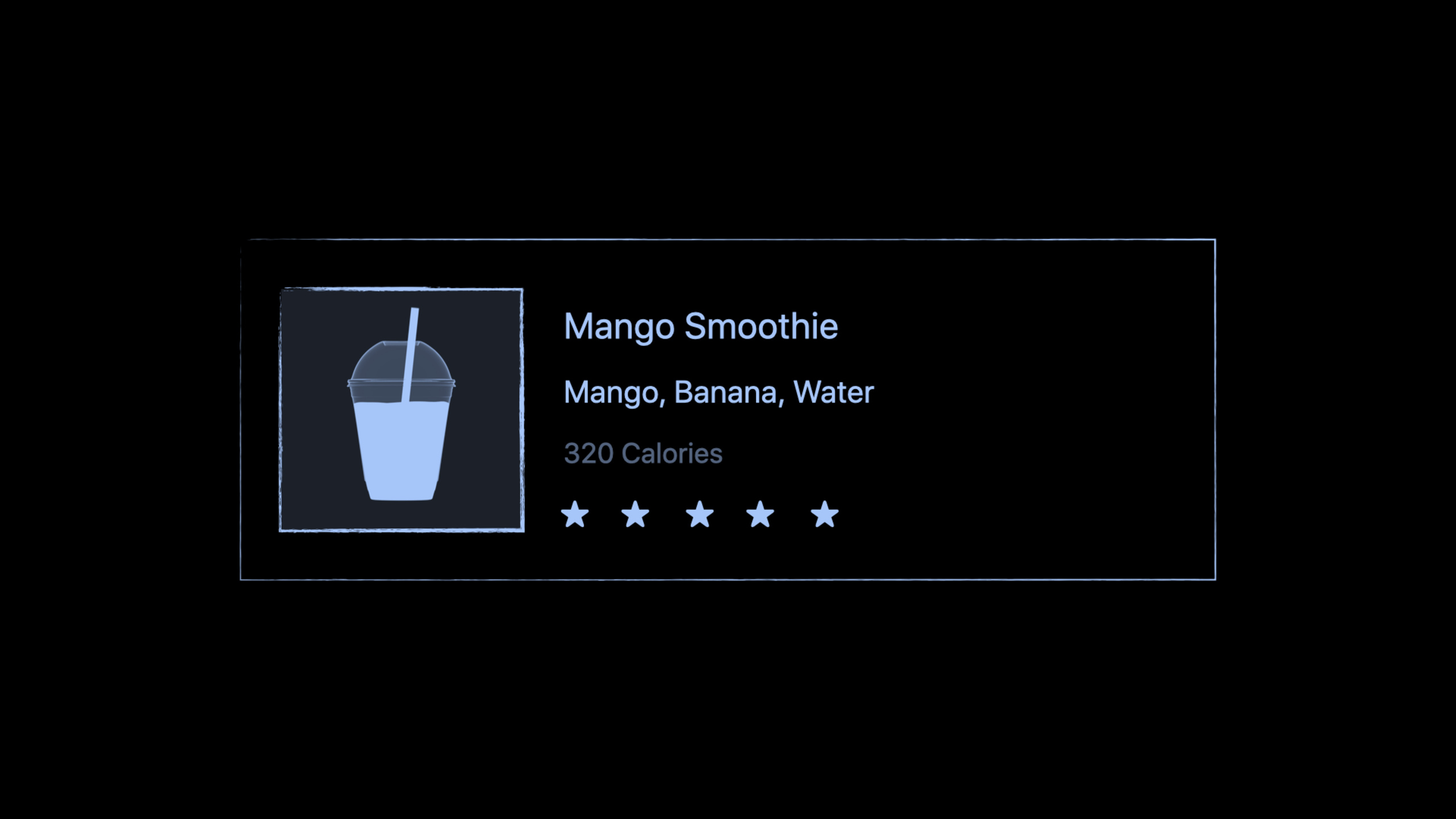
This session uses a smoothie app’s row view to demonstrate Xcode Previews solutions. This row requires a name, ingredients, calories, image, and a star for popularity. Daisy chose to insert the SwiftUI view from the Library first, and then let canvas automatically handle the appropriate layout container.
Changes occur between canvas and source code. Double-click the text in the preview and the focus will return to the corresponding content in the editor; when using Command-D to copy the view, Xcode can recognize the current structure and automatically add the container if necessary; when using the Inspector to adjust images and fonts, the code will be updated synchronously and the canvas will be re-rendered immediately.
The value of this process is not in replacing the code. It shortens the parts that are most prone to trial and error: first adjust the structure, materials, repeated elements, and modifiers in the canvas to be close to the target, and then go back to the Swift code to organize the naming, model data, and reuse boundaries. For those new to SwiftUI, it lowers the barrier to entry; for developers familiar with SwiftUI, it reduces the time spent reviewing documentation between modifier signatures and layout containers.
Detailed Content
The Code snippets and Resources of this session are both 0. Use belowtextBlock the Xcode Previews workflow demonstrated in transcript without forging Swift code or API signatures.
1. Insert the view from Library and let Xcode complete the layout container
(00:30) Daisy adds a new view from the Library. There are SwiftUI views and modifiers in the Library. The purpose is to allow the preview to gradually build the interface while continuing to compile. SwiftUI uses structured layout, and Xcode Previews can provide appropriate layout containers when inserting content.
Open the SwiftUI preview canvas
Choose a SwiftUI view or modifier from the Library
Insert the content into the current row view
Let Xcode Previews add the appropriate layout container in the same operation
Double-click the "Hello World" text to move focus to the corresponding source location
Replace it with the smoothie name, ingredients, or calorie text
Key points:
- Library will insert content according to the current SwiftUI structure, and its function is more than just listing components.
- transcript clearly mentions that Xcode Previews can insert content and get the correct layout container in one operation.
- Double-clicking the static text in the canvas will bring the editing focus to the source code, which is suitable for quickly replacing the core content of the label.
- This step is suitable for building the skeleton of the row view first, and then processing pictures, stars and modifiers.
2. Use Command-D to copy the view and replace the static text with model data
(01:25) When building a row view, several consecutive labels are often needed. Xcode Previews provides Command-D copy operations and understands SwiftUI code structure. If the copied view is not already in a container, Xcode will automatically insert it into the container.
Select an existing Text view
Press Command-D to duplicate it
If the current view is not inside a container, let Xcode automatically insert a container
Double-click the third label
Replace the static content with a model data field
Confirm the layout relationship among the name, ingredients, and calorie text in the canvas
Key points:
- Command-D corresponds to the quick copy view operation in transcript.
- The step of automatically inserting the container comes from Xcode’s understanding of the SwiftUI structure, and there is no need to hand-write the complete layout first.
- Double-click the label to replace the static content and connect the text to the model data.
- For repeated text structures such as list rows, settings pages, and detail cards, it is faster to copy and then replace the data than to insert from scratch.
3. Insert the picture from Asset Catalog and use the Inspector to adjust the modifier
(01:56) The picture is inserted by opening the Library with Command-Shift-L. Xcode Previews canvas not only handles SwiftUI views and modifiers, but can also use media from the project’s Asset Catalog. In the demo, the size of the image after insertion is too large because SwiftUI renders the image according to its true size.
Press Command-Shift-L to open the Library
Choose the smoothie image from the Asset Catalog
Insert it into the row view
Notice that the image is displayed at its real size and is larger than expected
Open Add Modifier in the Inspector
Choose the recommended resizing-related modifier for the current Image context
Adjust common modifier values in the Inspector
Observe the code and canvas updating together
Key points:
- Command-Shift-L is the shortcut key to open Library in transcript.
- The reason for the abnormal image size is that SwiftUI renders the image according to its real size.
- Inspector’s Add Modifier will give recommendations based on the current context, which is suitable for finding commonly used modifiers.
- transcript only says that the image starts resizing, and does not give a specific API signature, so no Swift code is written here.
- After the Inspector modifies the value, it will immediately update the source code and re-render the canvas, which is suitable for quick size testing.
4. Embed HStack and use Repeat to make the number of stars
(02:51) The row view also needs a star view that displays popularity. Xcode Previews canvas can use the project’s own SwiftUI views and modifiers, and the operation method is the same as the content in the system Library. For more details on custom Library content, the session points to “Add custom views and modifiers to the Xcode Library”.
Insert the project's star view into the row view
Hold Command and click the star view
Choose Embed in HStack from the menu
Open the same menu again
Choose Repeat
Repeat the single star view horizontally into a popularity indicator
Key points:
- Custom SwiftUI views can appear in the canvas operation flow just like system views.
- The Command-click menu provides container-related actions. The example in transcript is Embed in HStack.
- Repeat action is used to expand a single star view into a horizontally repeating element.
- This step is suitable for repeated UI such as ratings, pagination points, status icons, label groups, etc.
5. Use the Inspector to try fonts, weights, and remove inappropriate modifiers
(03:30) When the title needs to be more eye-catching, the Inspector can directly try different values of font and weight. In the demo, the result after trying it was not as expected. Daisy clicked the blue circular indicator next to the control to clear the modifier and return the font to the inherited value.
Select the smoothie title
Try font and weight in the Inspector
Observe the title change in the canvas
If the result is not suitable, click the blue circular indicator next to the control
Clear that modifier
Return the font to the default SwiftUI font
Continue adjusting other labels' view properties and modifier properties
Key points:
- The Inspector can edit the properties of the modifier as well as the properties of the view itself.
- Clearing the modifier will return the inherited value to avoid leaving redundant styles for trial and error.
- This process is suitable for parameters such as font, thickness, and image size that require visual judgment.
- After returning to the default value, the source code will be cleaner, and subsequent handwriting and finishing costs will be lower.
6. Use the in-canvas Inspector and copy the preview configuration
(04:12) When screen space is limited, you can turn off the sidebar and use the in-canvas Inspector instead. Control-Option click on the target view to inspect and edit within the canvas. Xcode 12 also adds preview-oriented capabilities, such as one-click copying of previews; since previews themselves are views, they can also be inspected by the Inspector.
Close the side Inspector to free the editing area
Hold Control-Option and click the view to inspect
Open the Inspector directly inside the canvas
Duplicate the current preview
Switch the duplicate to another configuration
Check how the row view behaves under different preview configurations
Key points:
- Control-Option click is the way to open the in-canvas Inspector in transcript.
- in-canvas Inspector is suitable for small screens or when viewing source code side by side.
- One-click copy preview can put the same row view in multiple configurations for comparison.
- The metadata explicitly mentions light/dark mode and Dynamic Type. These configurations are suitable for regression checking by copying the preview.
Core Takeaways
-
What to do: Make the most common list rows in the app into a visual iteration template. Why it’s worth doing: The smoothie row of this session contains text, images, and stars, which just covers the list units of many content-based apps. How to start: Select a real list row, use Library to insert text and images in the canvas, use Command-D to copy the label, and then use the Inspector to adjust the image size and title style.
-
What to do: Build a reusable widget for repetitive UI such as ratings, progress, and status badges. Why it’s worth doing: The session demonstrates embedding a single star view into HStack and then using Repeat to do horizontal repetition, which is suitable for removing repeated graphics from business views. How to start: First insert a custom view into the existing row view, Command-click to select Embed in HStack, and then use Repeat to expand the number; check again after stabilization
10649Add it to the Xcode Library. -
What to do: Build a set of preview configurations that specifically check for Dark Mode and Dynamic Type. Why it’s worth doing: The metadata explicitly mentions Xcode Previews to view light/dark mode and accessibility features. Layout issues often reveal themselves most quickly in these configurations. How to start: Copy the current preview and set an environment configuration for each copy; simultaneously observe whether the title, image and ingredient text are wrapped, truncated or squeezed in the canvas.
-
What to do: Put the visual trial and error into the Inspector, and then go back to the source code to sort it out after completion. Why it’s worth doing: The session shows that the Inspector can add recommended modifiers, edit common values, and clear inappropriate modifiers, which is suitable for processing visual parameters such as fonts, weights, and image sizes. How to start: Select the target view, first use the Inspector to find the appropriate modifier and value; if the trial and error result is incorrect, use the blue indicator to clear it, and then keep the final changes that are really needed.
-
What to do: Agree with the team on a construction order for SwiftUI row views. Why it’s worth doing: Library, Command-D, Inspector, HStack, Repeat, in-canvas Inspector, when strung together, can form a stable multi-person collaboration process, reducing everyone’s time to explore the layout from an empty file. How to start: Write a short process in the project document: first use Library to put the structure, then copy the text, then connect the materials, then use the Inspector to adjust the modifier, and finally copy the preview for configuration checking.
Related Sessions
- Structure your app for SwiftUI previews — Continue to learn how to prepare input, sample data, and state for preview, and solve the problem of complex views that cannot be previewed stably.
- Add custom views and modifiers to the Xcode Library — This session is recommended by star view and talks about how to put custom SwiftUI views and modifiers into the Xcode Library.
- Introduction to SwiftUI — Get started with declarative views, lightweight views, and data-driven interfaces to complete the foundation of SwiftUI.
- What’s new in SwiftUI — Get an overview of SwiftUI apps, scenes, controls, widgets, and cross-platform capabilities in 2020.
- Stacks, Grids, and Outlines in SwiftUI — In-depth layout container and list structure, suitable for continuing to improve the smoothie row in this session.
Comments
GitHub Issues · utterances