
Highlight
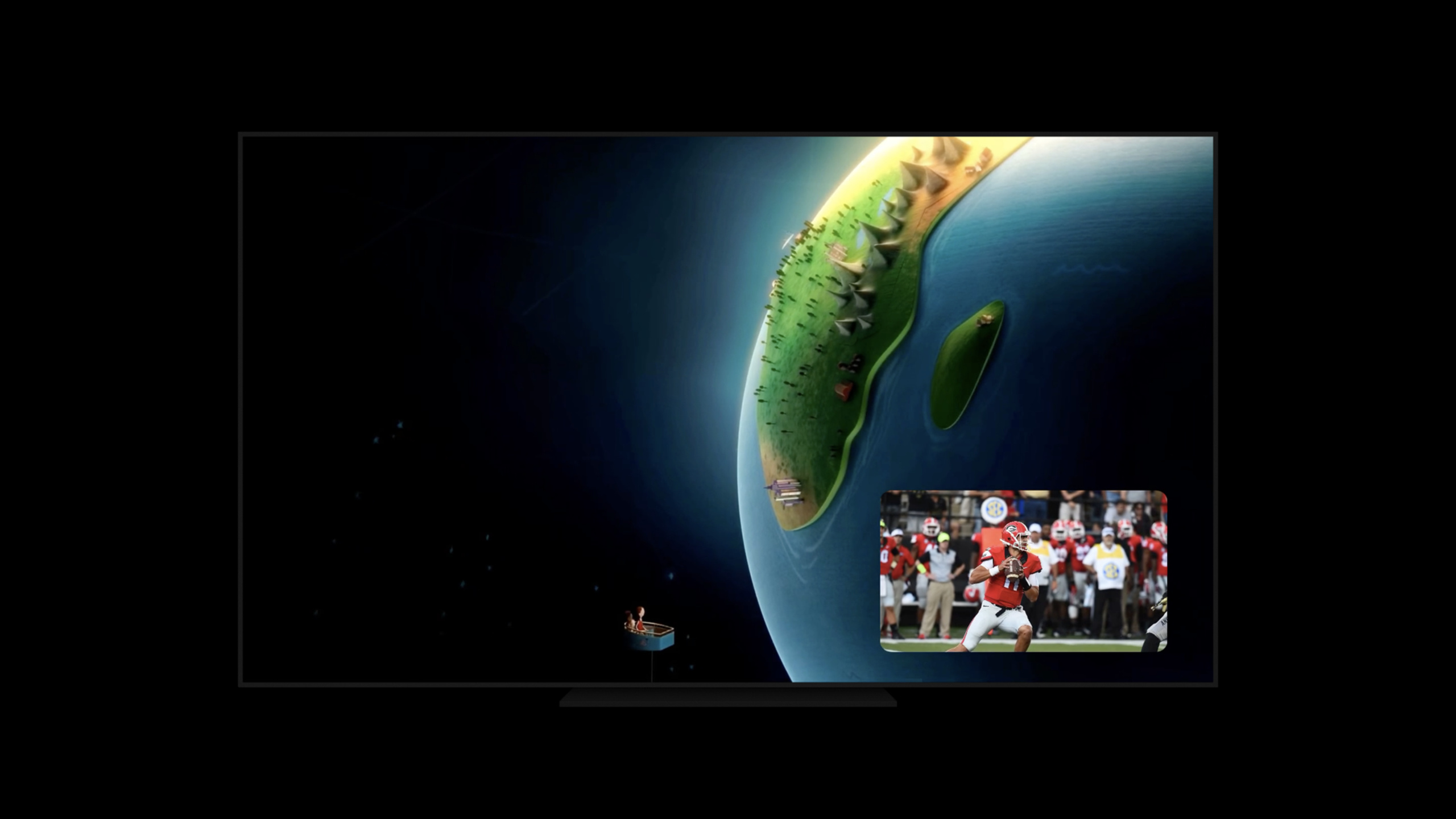
tvOS Picture-in-Picture lets Apple TV apps play full-screen video and PiP video simultaneously, and use AVPlayerViewController or AVPictureInPictureController to handle the start, swap, stop, and resume processes.
Core Content
A common scenario for video apps on Apple TV is that there are multiple pieces of content on the browsing page: a game is playing, and the user wants to open another video. In the past, this type of experience could only rely on the app itself to perform complex player switching. tvOS’s Picture in Picture (PiP) leaves this to the system, allowing one video to remain in the PiP window while the other video goes into full-screen playback.
The key difference in this session is the “exchange”. tvOS will retain the PiP experience from iPadOS and add the ability to play two videos at the same time. Users can exchange full-screen content with PiP content, and the app must be prepared for the player to enter PiP, resume from PiP, and switch between front and back when exchanging across apps.
Implementation paths are divided into two categories. If the app uses standardAVPlayerViewController, after configuring the project and audio session, the system displays PiP buttons and notifies start, stop, and resume via delegates. Custom players need to useAVPictureInPictureController,according tocanStopPictureInPictureDecide whether to display “Start”, “Swap” or “Stop” on the interface.
The existing Apple TV video app also has two old designs to check out. First,AVPlayerViewControllerThe swipe-up gesture is already used to reach the PiP control area, and the interactive overlay should be migrated tocustomOverlayViewController. Second, during PiP, users can still navigate in the app, and the player delegate cannot be tied to a view hierarchy that will be destroyed.
Detailed Content
Project Capabilities and Audio Sessions
(01:45) Before starting to write the player logic, the project must add Background Modes in Signing and Capabilities of Xcode 12 and check Picture in Picture. Then put the appAVAudioSessioncategory is set toplayback. Session explains that this step is consistent with the PiP configuration of iPadOS.
(02:13) The official example only does one thing: get the shared audio session, and then set the playback category.
let audioSession = AVAudioSession.sharedInstance()
do {
    try audioSession.setCategory(.playback)
} catch {
    print("Setting category to AVAudioSessionCategoryPlayback failed.")
}
Key points:
AVAudioSession.sharedInstance()Get the shared audio session of the current app.setCategory(.playback)Tell the system that this is a playback media app and PiP requires this type of audio configuration.do/catchKeep the processing path for setting failure to avoid unpredictable PiP behavior after silent failure.
PiP life cycle of standard player
(02:26) If the app usesAVPlayerViewController, after completing the project configuration, the standard playback UI will automatically display PiP affordance. What the app needs to focus on is the delegate lifecycle: starting PiP, stopping PiP, and restoring the UI from PiP.
(03:14) Restoring the UI is the most problematic step here. The system will give the app a chance to restore the interface to a state that can accommodate the player. Session explicitly recommends fast resume and avoid animations; if resume is too slow, the resuming player will be terminated.
Customize player start, swap and stop
(04:10) Custom playback UI to useAVPictureInPictureController. The new key states on tvOS arecanStopPictureInPicture: it isfalse, the interface should display start PiP; it istrue, the interface should display swap and stop.
(04:52) Called when the user clicks startstartPictureInPicture. Still called when the user clicks swapstartPictureInPicture, since it’s also entering PiP from a full-screen player perspective. Only when the user explicitly selects stop will the controller corresponding to the full-screen player be called.stopPictureInPicture。
(05:57)canStopPictureInPictureCan change at any time, for example if the user stops playback directly from the PiP window. Custom UI needs to observe this property and refresh the button.
_ = pipController.observe(\.canStopPictureInPicture) { controller, change in
    // Update your UI
    if controller.canStopPictureInPicture {
        pipActions = [.swap, .stop]
    } else {
        pipActions = [.start]
    }
}
Key points:
pipController.observe(\.canStopPictureInPicture)Use KVO to monitor PiP status changes.controller.canStopPictureInPicturefortrue, the current full-screen player can swap or stop an existing PiP.pipActions = [.swap, .stop]Indicates that the custom UI should expose swap and stop.pipActions = [.start]Indicates that the current interface only needs to provide start PiP.
Multiple Now Playing information sources
(06:26) tvOS 14 allows publishing of multiple Now Playing info centers. When two videos are played at the same time, both the full-screen content and the PiP content should have their own Now Playing information. The approach is toAVPlayerbind toMPNowPlayingSession。
(06:54) When using PiP on tvOS, passAVPictureInPictureControllermust be bound to the same playerMPNowPlayingSession. Session also reminds: cut toMPNowPlayingSessionAfter that, the system will ignore the old sharedMPNowPlayingInfoCenterUpdate, so the entire app should be migrated to the new publishing method.
(07:06) The structure of the custom player controller is as follows:
final class CustomPlayerViewController: UIViewController {

    init(player: AVPlayer) {
        let playerLayer = AVPlayerLayer(player: player)
        pictureInPictureController = AVPictureInPictureController(playerLayer: playerLayer)

        nowPlayingSession = MPNowPlayingSession(players: [player])
    }

    private func publishNowPlayingMetadata() {
        nowPlayingSession.nowPlayingInfoCenter.nowPlayingInfo = // Your Now Playing info
        nowPlayingSession.becomeActiveIfPossible()
    }
}
Key points:
init(player: AVPlayer)Use the same player as input to the player controller.AVPlayerLayer(player: player)Create a screen output layer for use by the PiP controller.AVPictureInPictureController(playerLayer: playerLayer)Manage the PiP for this player.MPNowPlayingSession(players: [player])Bind the same player to a separate Now Playing session.nowPlayingInfoCenter.nowPlayingInfoWrite metadata for the current video.becomeActiveIfPossible()Requests that this session start publishing Now Playing information.
Interface and architectural requirements for exchange
(08:23) When exchanging within the same app, the player entering PiP will receive will-start first, and the player leaving PiP will ask the app to restore the UI, and then trigger will-stop. After the animation is completed, the two players receive did-start and did-stop.
(09:19) Cross-app exchanges go in two directions. When the current app’s full-screen content enters PiP, the app enters the background after the animation. When the current app’s PiP content returns to full screen, the app will first be brought to the foreground, then quickly restore the UI, and then receive PiP will-stop and did-stop.
(12:15) ExistingAVPlayerViewControllerThe app also handles interactive overlays. Starting with tvOS 13, the swipe-up gesture is reserved by the standard player and is used to allow the user to reach PiP controls. Custom channel lists, recommended content, or other slide-up controls should be placed insidecustomOverlayViewController。
(14:41) The delegate architecture also needs to be adjusted. During PiP, users can continue to navigate within the app, and the original presenting view controller may no longer be in the interface hierarchy. Session recommends making the delegate an independent object so that it can continue to receive AVKit events when the video is in PiP.
Core Takeaways
- Make a sports multi-screen viewing mode
What to do: Let the user leave the main match in full screen while putting another match into the PiP, and swap the two feeds at key moments.
Why it’s worth doing: Session demonstrates tvOS-specific simultaneous playback and swap,startPictureInPictureIt can cover both normal start and exchange actions.
How to start: First prepare independent video for each channelAVPlayer, standard player is preferredAVPlayerViewController; If you need to customize the control bar, create one for each playerAVPictureInPictureController, and observecanStopPictureInPictureUpdate button.
- Provide channel navigation for video apps that does not interrupt playback
What it does: When users are watching a show, scroll up to open the channel list or recommended content, and the PiP controls and custom overlays each go their own way.
Why it’s worth doing: Session explicitly states that the swipe-up gesture has beenAVPlayerViewControllerFor PiP controls, custom overlays should be migrated tocustomOverlayViewController。
How to start: Move the overlay that originally relied on a custom swipe-up recognizer toAVPlayerViewController.customOverlayViewController, and then verify the focus order of the PiP control, transport bar, and overlay button.
- Publish independent Now Playing information for multiple live broadcasts
What to do: Full-screen live broadcast and PiP live broadcast each display metadata such as title, channel, progress, etc., so that the system UI can switch to the correct information source at any time.
Why it’s worth it: tvOS 14 supports multipleMPNowPlayingSession, the player used by PiP must be bound to the corresponding session.
How to get started: For eachAVPlayerEstablishMPNowPlayingSession(players:), put the old sharedMPNowPlayingInfoCenterUpdate migration to sessionnowPlayingInfoCenter, continue to publish metadata when the play item changes.
- Remove player event handling from the view controller
What to do: Let PiP lifecycle, recovery UI, and cross-app exchange processing be managed by independent coordinators.
Why it’s worth doing: During PiP, users can leave the player page and continue browsing the app, and the delegate hanging on the view hierarchy may be released early.
How to get started: Create a long-lived player coordinator and let it holdAVPlayerViewControllerDelegateOr PiP delegate related logic; when restoring the UI, only perform necessary navigation and player placement, and avoid animation.
Related Sessions
- Build SwiftUI apps for tvOS — Talk about tvOS button styles, focus API and horizontal shelf, suitable for design with Apple TV video homepage.
- Discover search suggestions for Apple TV — Talk about Apple TV search interface and
UISearchController, which can complete the discovery entrance of the video app. - Support multiple users in your tvOS app — Talking about Apple TV multi-user profiles and switching, suitable for planning together with media playback status and user profiles.
- Discover how to download and play HLS offline — Talk about AVFoundation downloading and playing HLS content offline, supplementing the video playback link.
- Edit and play back HDR video with AVFoundation — Talking about AVFoundation HDR playback and editing, suitable for continuing to deepen the video playback capabilities.
Comments
GitHub Issues · utterances