
Highlight
In 2020, Game Center will add in-game Access Point, transparent Dashboard, collectible card-based achievements, friend priority rankings, and multiplayer lobby design, allowing players to complete information, achievements, rankings, and invitation operations within the game experience.
Core Content
The social functions in the game are most likely to become a bunch of scattered entrances. When players want to see their own information, achievement progress, friend rankings, or multi-player invitations, games often have to create a set of buttons and copywriting in the main menu, settings page, and level settlement page. The entrances are inconsistent, and it’s hard for players to know which areas really belong in Game Center.
Game Center in 2020 brings these portals into a new in-game experience. Access Point uses the player’s avatar as a unified entrance, which can be displayed alone or with highlights such as achievement progress or leaderboard position. Players click on it to enter the Dashboard and view information, achievements, rankings and related information without leaving the game.
The focus of this design session was on interface organization and asset specifications. Access Point needs to appear where the player returns, the game needs to pause or reduce the background animation when the Dashboard appears, achievements and leaderboards need to have identifiable image assets, and the multiplayer lobby needs a clear entrance.
The official example used throughout the film is The Coast. It’s an indie game about guiding ships away from shore. Apple used it to demonstrate how the main menu, levels, achievements, leaderboards, and multiplayer portals can be integrated into Game Center while still maintaining the game’s own visual style.
Detailed Content
Access Point: Put Game Center into the main menu
(01:18) Access Point is the unified entrance for players to enter Game Center. It uses player avatars, which can display only avatars, or can be paired with highlights to reveal achievement progress and leaderboard positions. Apple recommends placing it in the upper left corner if possible, but allows placement in any corner depending on the game UI.
Key points:
- Access Point is suitable for placing in the main menu. Players can see the Game Center status before entering the game.
- If the main menu is not suitable, it can be placed on an interface such as level select or Settings where players return repeatedly.
- Display the Access Point after the splash screen and opening cinematic are over to avoid taking away attention from the start-up process.
- The Access Point should be hidden after the game starts, leaving the screen for gameplay and key controls.
- Custom portals can use the Game Center icon provided by Apple Design Resources, but do not change the icon shape.
(02:16) This entrance needs to reserve a safe area. Taking iPhone 11 Pro as an example, the maximum Access Point size for portrait screen is 62 x 335 points, and it is recommended to reserve 114 points from the top or bottom of the screen; the maximum size for landscape screen is 62 x 280 points, and it is recommended to reserve 91 points. Dimensions for other devices are based on Human Interface Guidelines.
Dashboard and Profile: Make the system interface fit the game
(04:36) Players will see Game Center Dashboard after clicking on Access Point. It is layered transparently over the game, revealing the colors of the graphics behind it. Apple recommends pausing the game when the Dashboard is open, or at least reducing background animations that are too eye-catching.
Key points:
- Dashboard supports landscape and portrait screens, and maintains a consistent experience on iOS, iPadOS, macOS, and tvOS.
- tvOS can upload brand artwork to Dashboard, making the Game Center entrance more like a part of the game.
- tvOS artwork must be TIFF or PNG, supports transparent backgrounds, and has 1x dimensions of 923 x 150 pixels and 2x dimensions of 1846 x 300 pixels.
- Artwork should not use the app icon directly. It is suitable to use the game logo or word mark.
- If the game provides a button to go directly to the information page, the text should use Game Center Profile, and the word Game Center should not be localized.
(06:09) Profile is the first area of the Dashboard. Players can view friends, friend suggestions, and a summary of cross-game achievements. For games that rely on friend leaderboards or multiplayer play, direct access to Profile can help players complete their social connections.
Achievements: Design achievements into collectible cards
(08:02) The achievement interface of Game Center has been changed to collectible card format. Achievements are divided into completed and locked, and three types are supported: standard, progressive, and hidden. Standard unlocks directly after the conditions are met; progressive shows how far away from the goal it is; hidden hides details before unlocking.
Key points:
- Each achievement should have its own image so players can get a specific souvenir.
- Avoid placing text in achievement images; the image will be cropped into a circle and the main content should be placed in the center.
- Achievement images support JPEG, TIFF, PNG, 1x is 512 x 512 pixels, 2x is 1024 x 1024 pixels.
- A game can have up to 100 achievements, but Apple recommends only putting as many as you really need and leaving room for subsequent releases.
- Keep titles and descriptions short, and achievement cards only display two lines before being truncated; Apple recommends keeping them to 30 characters or less.
(10:53) Achievement notifications are suitable for appearing at the moment when an action is completed. The Coast’s example is to display a notification immediately after the player clears a level, so that the reward is tied to the game action that just occurred.
Leaderboards: Design leaderboards around core gameplay
(11:56) Rankings should correspond to the core mechanics of the game. It can record longest distance, total gold coins, or, like The Coast, split by geographic area. After players enter a certain ranking list, they will see a ranking experience centered on friend competition.
Key points:
- Each leaderboard needs independent, eye-catching artwork, and multiple leaderboards should look like a set of assets when put together.
- Ranking images on common platforms support JPEG, TIFF, and PNG, 1x is 512 x 512 pixels, and 2x is 1024 x 1024 pixels.
- tvOS ranking is 16:9 and supports one to three layers of multilayer images to produce parallax effect.
- Leaderboard titles may display up to two lines; Apple recommends keeping them to 30 characters or less and using initial caps.
- The game can embed ranking information before the level starts or after it is settled, allowing players to see their and their friends’ positions at critical moments.
Multiplayer and App Store: Put invitations and discovery in the same path
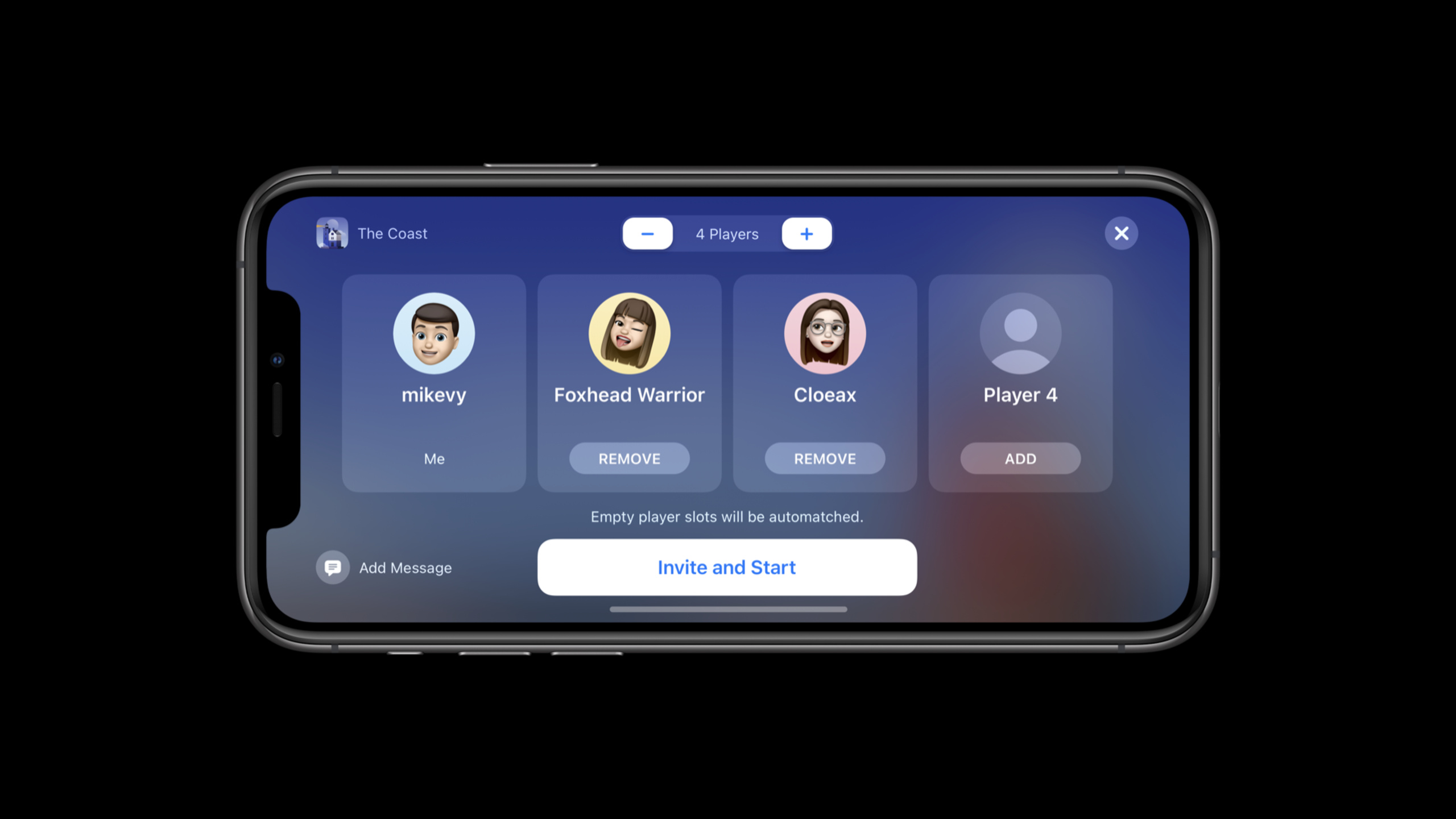
(15:51) Multiplayer games need a clear button to open the multiplayer lobby. After the Lobby is opened, players can add nearby players, friends, recent players and contacts through the player picker, and then click Invite and Start.
Key points:
- Distracting animations in the background should be paused when the Lobby is opened.
- If the game already has its own multiplayer UI, you can integrate Game Center multiplayer features into your own process without using the system UI.
- The App Store also uses Game Center information to display player profiles, achievements, games friends are playing, and friends playing on product pages.
- Only after the game is connected to Game Center can these App Store placements have a chance to appear.
Core Takeaways
-
Player status entry on the main menu: Make a clean main menu, put the Access Point in the upper left corner, and match the achievement progress or leaderboard position highlights. In this way, after the player starts the game, he will first see his Game Center status and then enter the level. Start by checking the UI of the main menu, settings page, and options page, and reserve the maximum Access Point size according to the device orientation.
-
Achievement Collection: Each important action is assigned an independent achievement card, such as completing a certain area, rescuing a specific amount of goods, and unlocking hidden routes. Progressive achievement is suitable for long-term goals, and hidden achievement is suitable for exploration goals. Start with a list of 20 or fewer core achievements and prepare text-free, body-centered 512 x 512 and 1024 x 1024 images for each achievement.
-
Friend competition tips before and after the level: The player’s current position in the friend list is displayed before the level starts, and whether it exceeds the friend’s highest score is displayed during settlement. In this way, the ranking list not only exists in the Dashboard, but also appears at the moment when players care about their scores the most. At the beginning, first select a leaderboard that best represents the core gameplay, and then prepare an image asset that can distinguish the level theme at a glance.
-
Low-interference Multiplayer Lobby: Put a clear Multiplayer button on the main menu or mode selection page, and pause the background animation after opening the Game Center lobby. When players select nearby players, friends, recent players or contacts, they will not be disturbed by dynamic effects in the game scene. At the beginning, put the invitation process in a non-combat state, and then decide whether to use the system lobby or a customized multiplayer interface.
-
tvOS exclusive display assets: If the game supports Apple TV, prepare a horizontal logo or word mark for the Dashboard and 16:9 multilayer images for the leaderboard. Players are further away from the screen on TVs, assets should be simple and contrasting, and main content should not be too close to the edges. Start by checking the Dashboard artwork and leaderboard artwork with HIG dimensions, then test focus and parallax cropping.
Related Sessions
- Tap into Game Center: Dashboard, Access Point, and Profile — Explain the integration of Access Point, Dashboard, and Game Center Profile from the code side.
- Tap into Game Center: Leaderboards, Achievements, and Multiplayer — Explains GameKit access to rankings, achievements, and multiplayer games from the code side.
- Bring keyboard and mouse gaming to iPad — Supplements the design and implementation of keyboard, mouse, and trackpad input for iPad games.
- Advancements in Game Controllers — Supplements third-party controllers, custom mapping, haptic feedback, and controller capabilities.
Comments
GitHub Issues · utterances